

Add an analyzer test to an attribute
How to add and configure length, numeric, enum, regex, and not empty/null analyzer tests.
To add an analyzer test to an attribute, take these steps:
- Go to Export templates in the Developer Portal.
- Use the search bar to find the export template where you need to add analyzer tests.
- Select the needed export template to open the export template setup page:
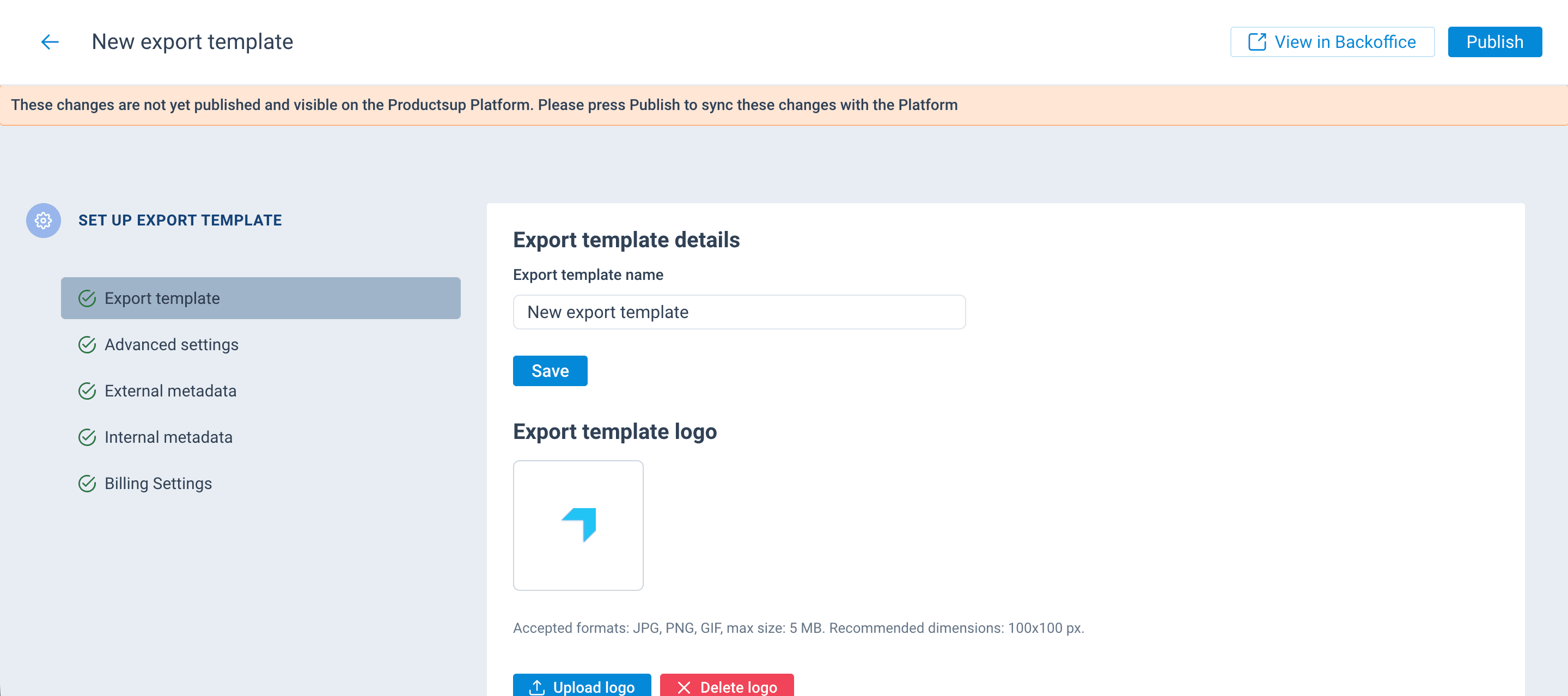
- In the section Attributes and analyzer tests, select the attribute where you want to add an analyzer test.
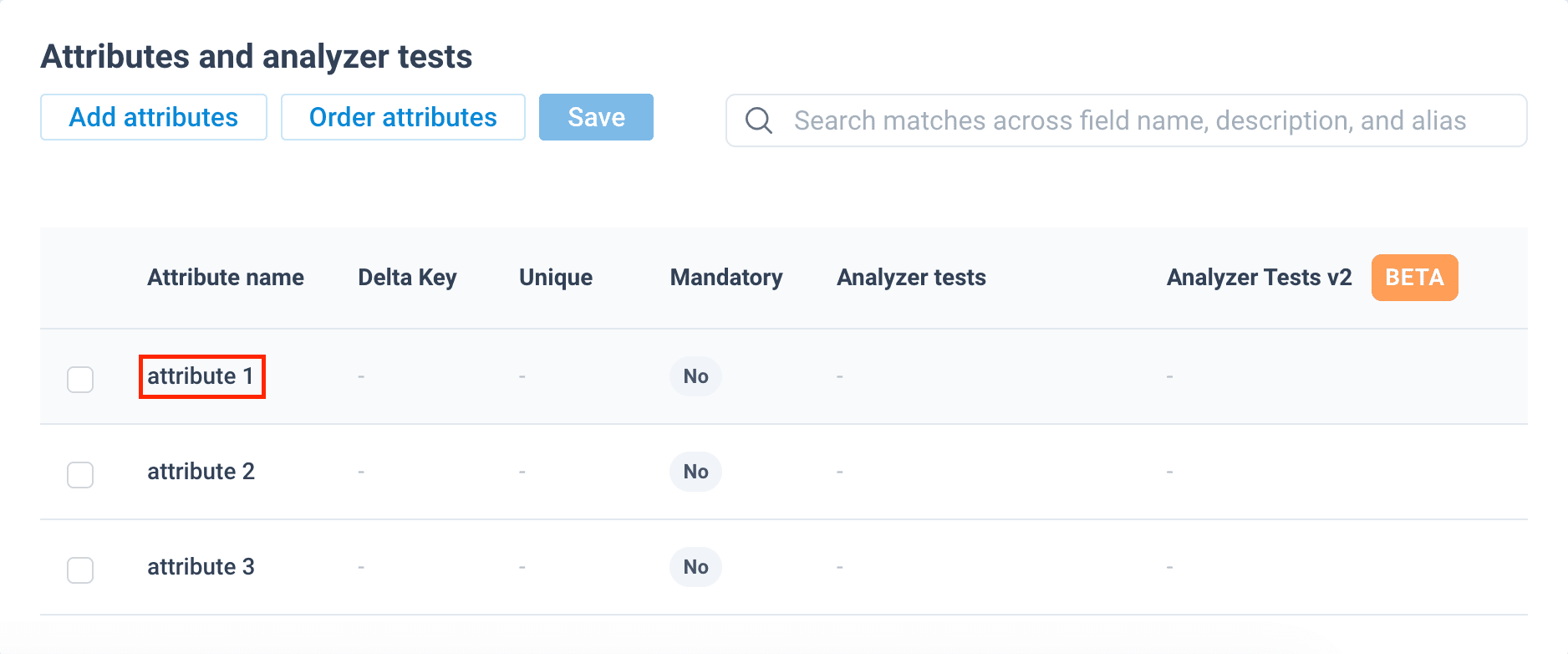
- Choose Add Analyzer Test v2.
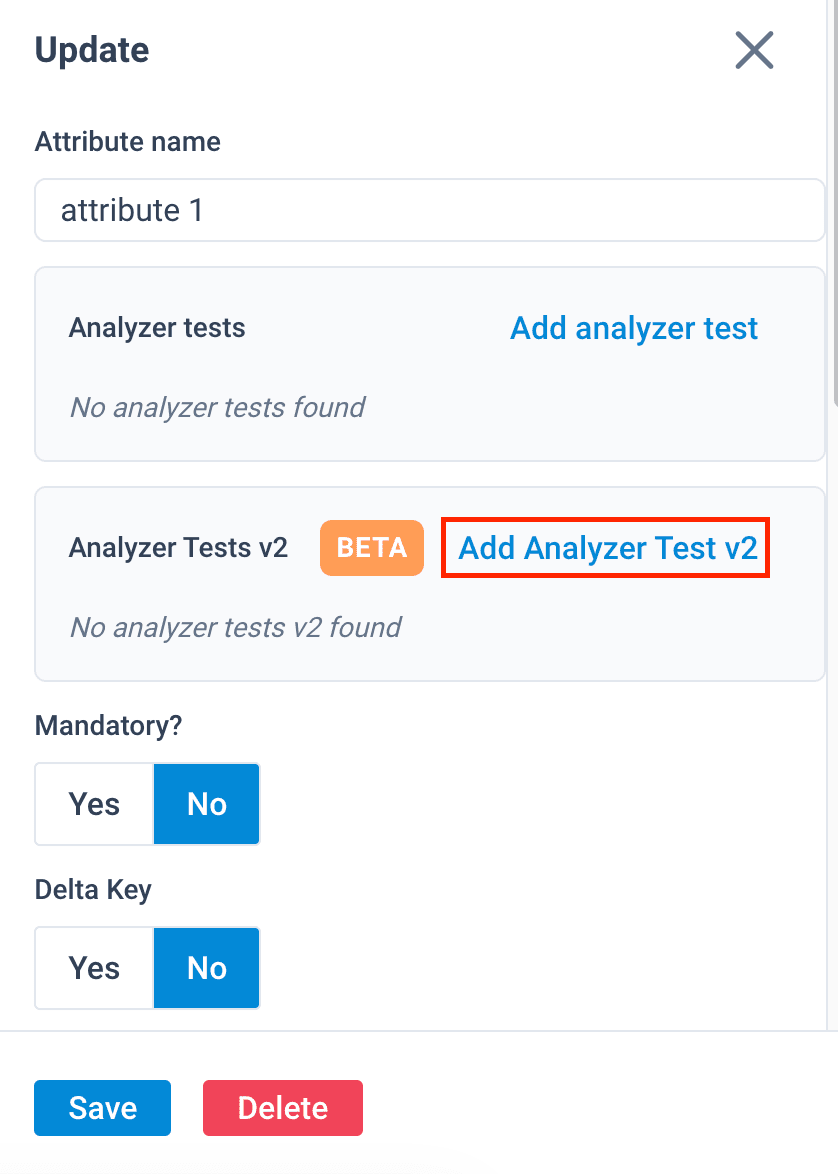
- See the next sections to set up your analyzer test based on the desired analyzer test type:
Your changes don't become available in the platform until you select Publish. See Publish export template changes.
Length validation
Length validation is an analyzer test type that checks if the length of an alphanumeric value (a string) stays within a desired limit. These analyzer tests use the following operators: >, <, >=, <=, =, and !=.
For example, you can use length validation to make sure that:
- Title values don't exceed 100 characters.
- Description values are at least 70 characters long.
- SKU values are exactly 10 characters long.
To add a length validation analyzer test:
- Take the steps from Add an analyzer test to an attribute to open the Configure Analyzer Test pop-up.
- In the Configure Analyzer Test pop-up, select Length Validation.
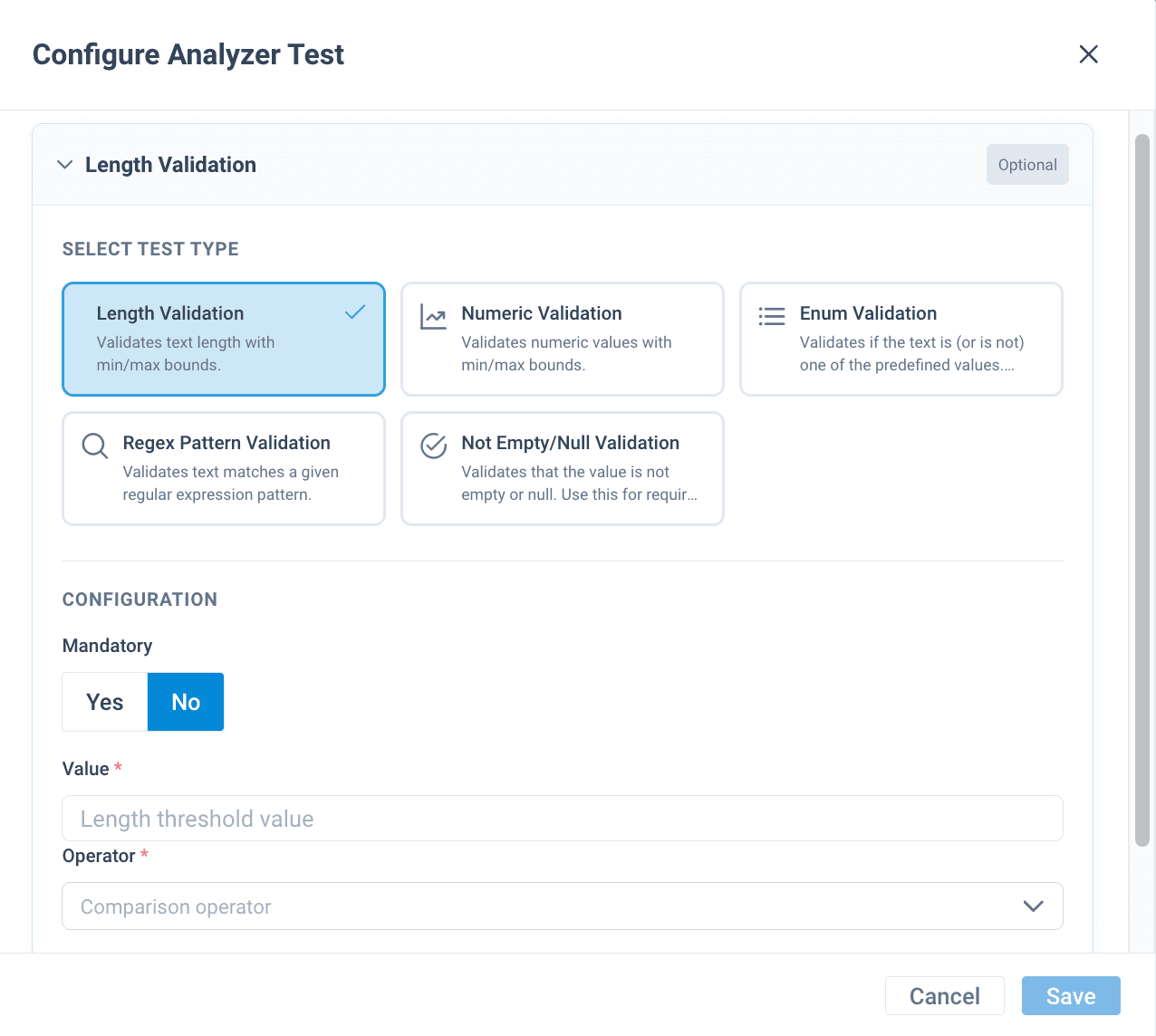
- In the CONFIGURATION section, toggle Mandatory to Yes if the analyzer test represents a mandatory requirement for the attribute. Toggle it to No if this isn't a critical validation requirement.
- In Value, provide the number of characters that the analyzer test should check your values against.
- In Operator, choose the condition that should be fulfilled for an attribute value to meet the length requirement:
- > means the attribute length should be greater than the provided number of characters.
- < means the attribute length should be less than the provided number of characters.
- >= means the attribute length should be greater than or equal to the provided number of characters.
- <= means the attribute length should be less than or equal to the provided number of characters.
- = means the attribute length should be exactly equal to the provided number of characters.
- != means the attribute value can be of any length but shouldn't be equal to the provided number of characters.
- Once you set up the analyzer test, select Save.
Your changes don't become available in the platform until you select Publish. See Publish export template changes.
Numeric validation
Numeric validation is an analyzer test type that compares attribute values to a desired number using such operators as >, <, >=, <=, =, and !=.
For example, you can use numeric validation to make sure that:
- Price values are equal to or greater than 0.
- Stock values are within a desired range.
- Rating values are between 1 and 5.
To add a numeric validation analyzer test:
- Take the steps from Add an analyzer test to an attribute to open the Configure Analyzer Test pop-up.
- In the Configure Analyzer Test pop-up, select Numeric Validation.
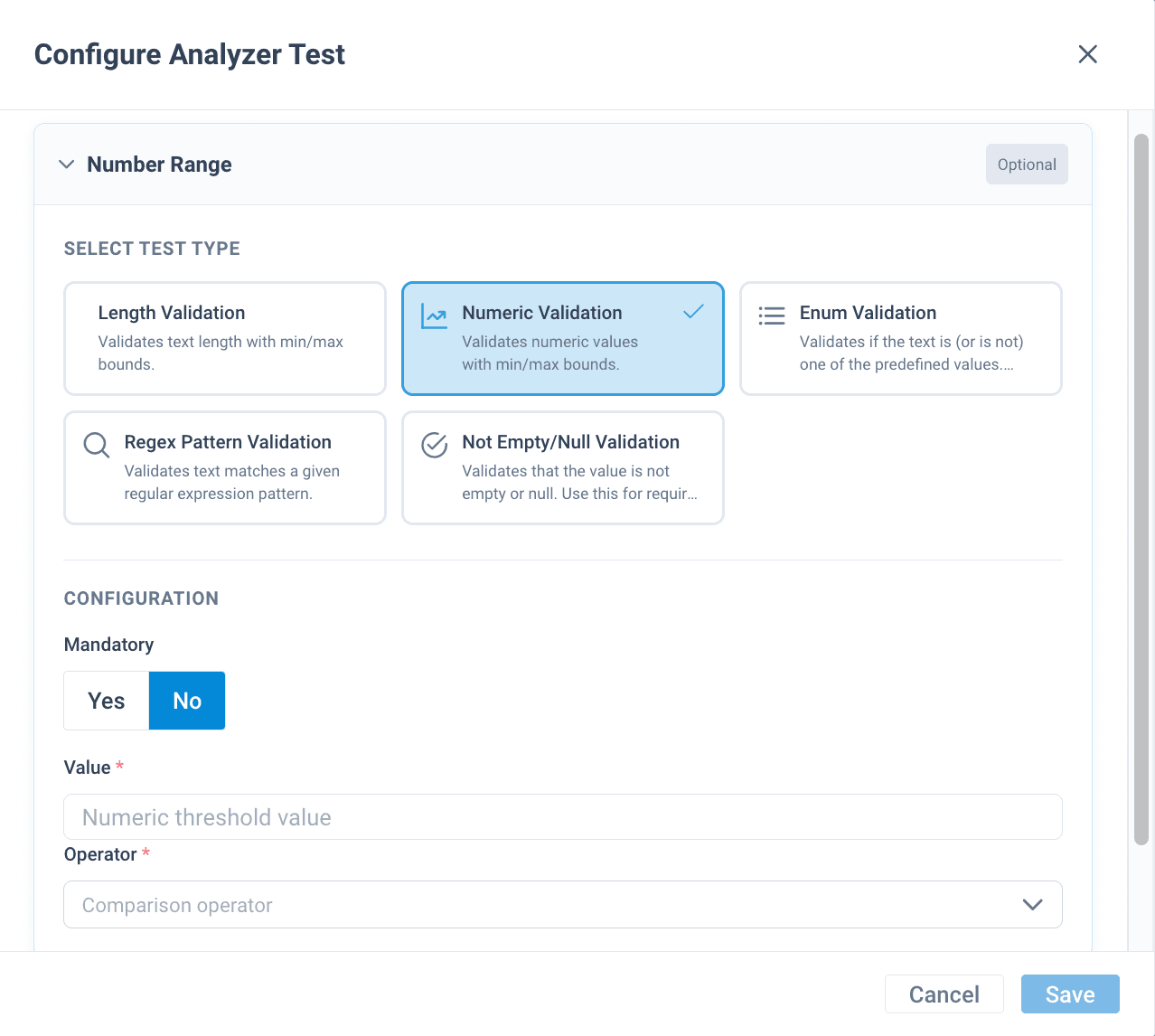
- In the CONFIGURATION section, toggle Mandatory to Yes if the analyzer test represents a mandatory requirement for the attribute. Toggle it to No if this isn't a critical validation requirement.
- In Value, provide the number that the analyzer test should compare your numeric values against.
- In Operator, choose the condition that should be fulfilled for an attribute value to meet the requirement:
- > means the number in the attribute should be greater than the provided number.
- < means the number in the attribute should be less than the provided number.
- >= means the number in the attribute should be greater than or equal to the provided number.
- <= means the number in the attribute should be less than or equal to the provided number.
- = means the number in the attribute should exactly equal the provided number.
- != means the attribute can have any number, but it shouldn't equal the provided number.
- Once you set up the analyzer test, select Save.
Your changes don't become available in the platform until you select Publish. See Publish export template changes.
Enum validation
Enum validation is an analyzer test type that compares attribute values to a list of pre-defined values and allows or blocks attribute values in case of matches. It is useful for attributes that should only contain a limited number of specific values.
For example, you can use enum validation to make sure that:
- Availability contains only in stock or out of stock values.
- Category doesn't contain names of discontinued categories.
- Color only contains values from a pre-defined list; for example, it should be blue instead of navy, indigo, or cobalt.
To add an enum validation analyzer test:
- Take the steps from Add an analyzer test to an attribute to open the Configure Analyzer Test pop-up.
- In the Configure Analyzer Test pop-up, select Enum Validation.
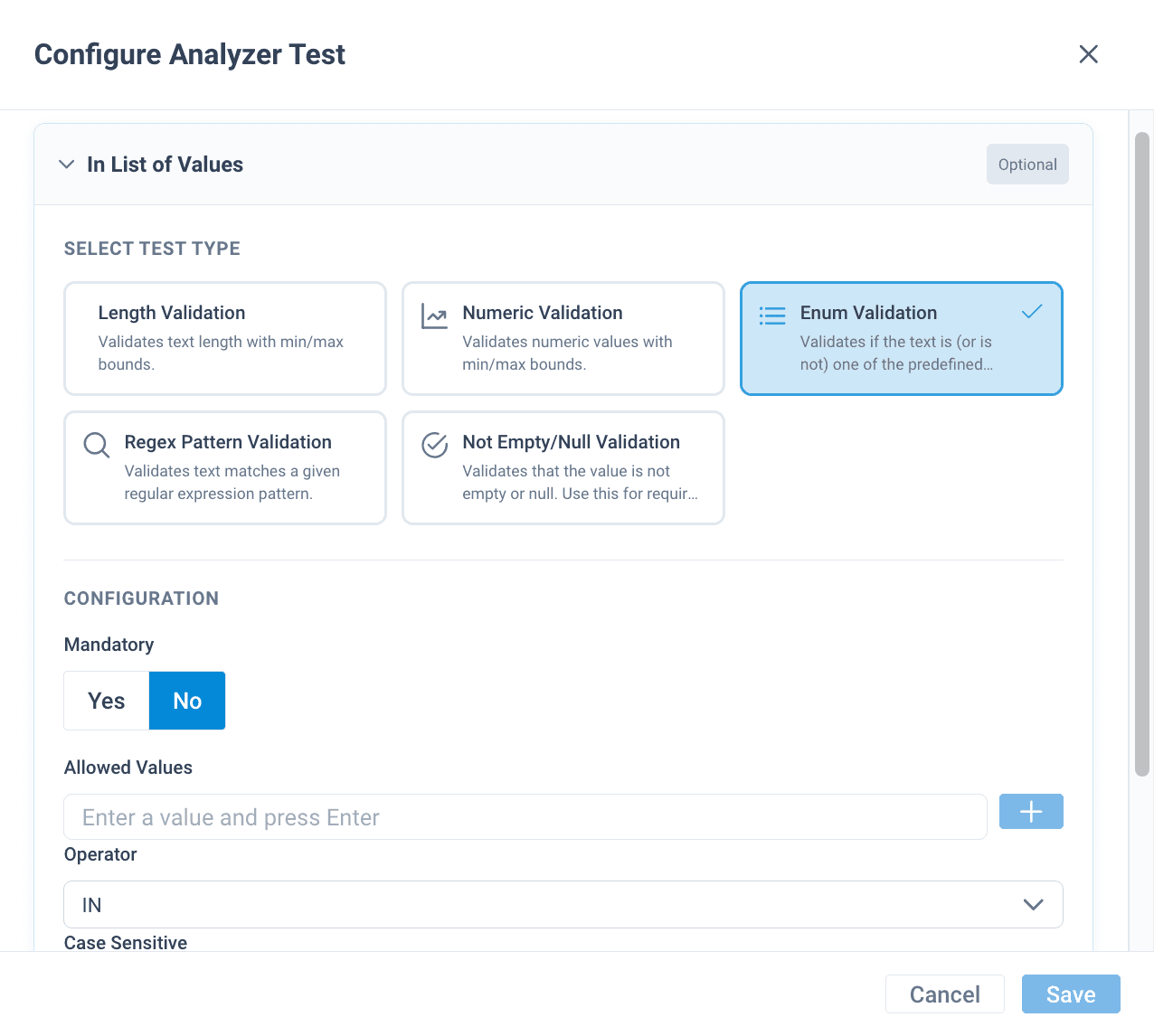
- In the CONFIGURATION section, toggle Mandatory to Yes if the analyzer test represents a mandatory requirement for the attribute. Toggle it to No if this isn't a critical validation requirement.
- In Allowed Values, enter the pre-defined values that the analyzer test should compare your attribute values to. You can enter multiple values one by one. To add a pre-defined value, enter it in the text field, and select the plus icon + at the end of the field.
- In Operator, choose whether the provided pre-defined values should or shouldn't be in the attribute values:
- IN means the attribute should contain the pre-defined value.
The entire value must match the pre-defined value, not just a part of it.
- NOT IN means the attribute shouldn't contain the pre-defined value.
- In Case Sensitive, choose whether you want your attribute values to exactly match the pre-defined values or if varying capitalization is acceptable. By default, enum validation is case-sensitive, so if an attribute value is In Stock, while the pre-defined value is in stock, the value will fail the analyzer test.
Tip
If you don't want to toggle the Case Sensitive setting off, you can add all variants of spelling the needed value in Allowed Values. For example, instead of just adding in stock, you can also add In Stock, IN STOCK, in Stock, etc.
- Once you set up the analyzer test, select Save.
Your changes don't become available in the platform until you select Publish. See Publish export template changes.
Regex pattern validation
Regex pattern validation is an analyzer test type that scans attribute values and checks if they match a regular expression.
A regular expression (regex) is a sequence of characters that uses specific syntax or structure rules to define a search pattern. Using a regex, you can search your data for specific text pattern matches instead of exact text matches. For example, the regex /([A-Z])\w+/ finds and matches all words that start with an uppercase letter and are longer than 1 letter.
You can use regex pattern validation to make sure that:
- Date values follow the format DD-MM-YYYY.
- Product code values follow the format AAA-11111.
- Phone number values are valid and follow the needed format.
- Weight values use the needed format for numbers and units.
To add an analyzer test for regex pattern validation:
- Take the steps from Add an analyzer test to an attribute to open the Configure Analyzer Test pop-up.
- In the Configure Analyzer Test pop-up, select Regex Pattern Validation.
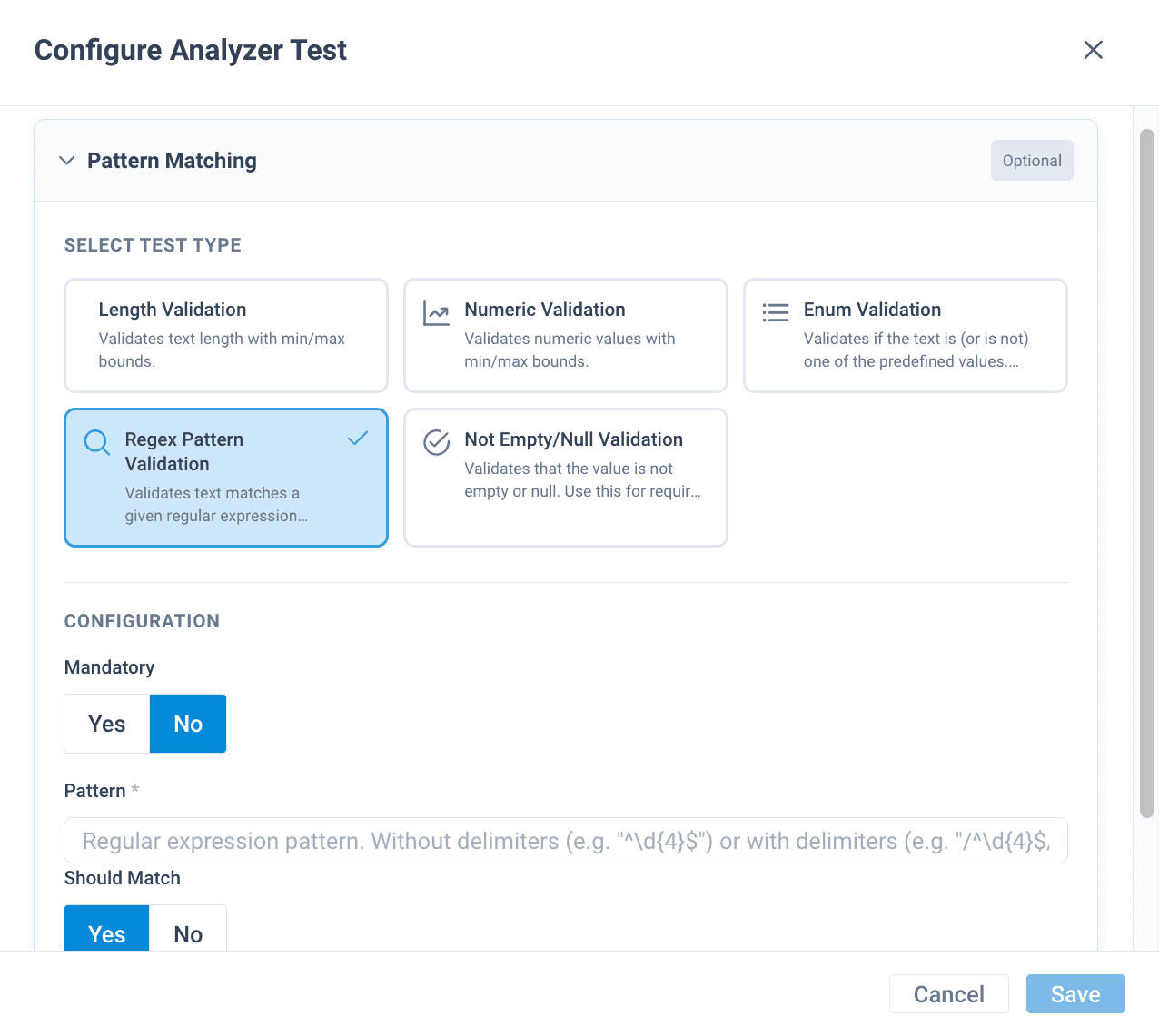
- In the CONFIGURATION section, toggle Mandatory to Yes if the analyzer test represents a mandatory requirement for the attribute. Toggle it to No if this isn't a critical validation requirement.
- In Pattern, enter the regular expression that defines a pattern you want to search for in your attribute values:
- You can enter the regex both with and without forward slashes:
([A-Z])\w+and/([A-Z])\w+/.
- You can enter the regex both with and without forward slashes:
- In Should Match, choose whether the attribute values should or shouldn't match the regex to pass the analyzer test.
- Once you set up the analyzer test, select Save.
Your changes don't become available in the platform until you select Publish. See Publish export template changes.
Not empty/null validation
Not empty/null validation is an analyzer test type that makes sure an attribute value isn't empty or doesn't contain a null value. It is very useful for mandatory attributes.
For example, you can use this analyzer test type to make sure that:
- Mandatory attributes contain values that aren't empty or
null. - Optional attribute values aren't empty or
null.
To add an analyzer test for not empty/null validation:
- Take the steps from Add an analyzer test to an attribute to open the Configure Analyzer Test pop-up.
- In the Configure Analyzer Test pop-up, select Not Empty/Null Validation.
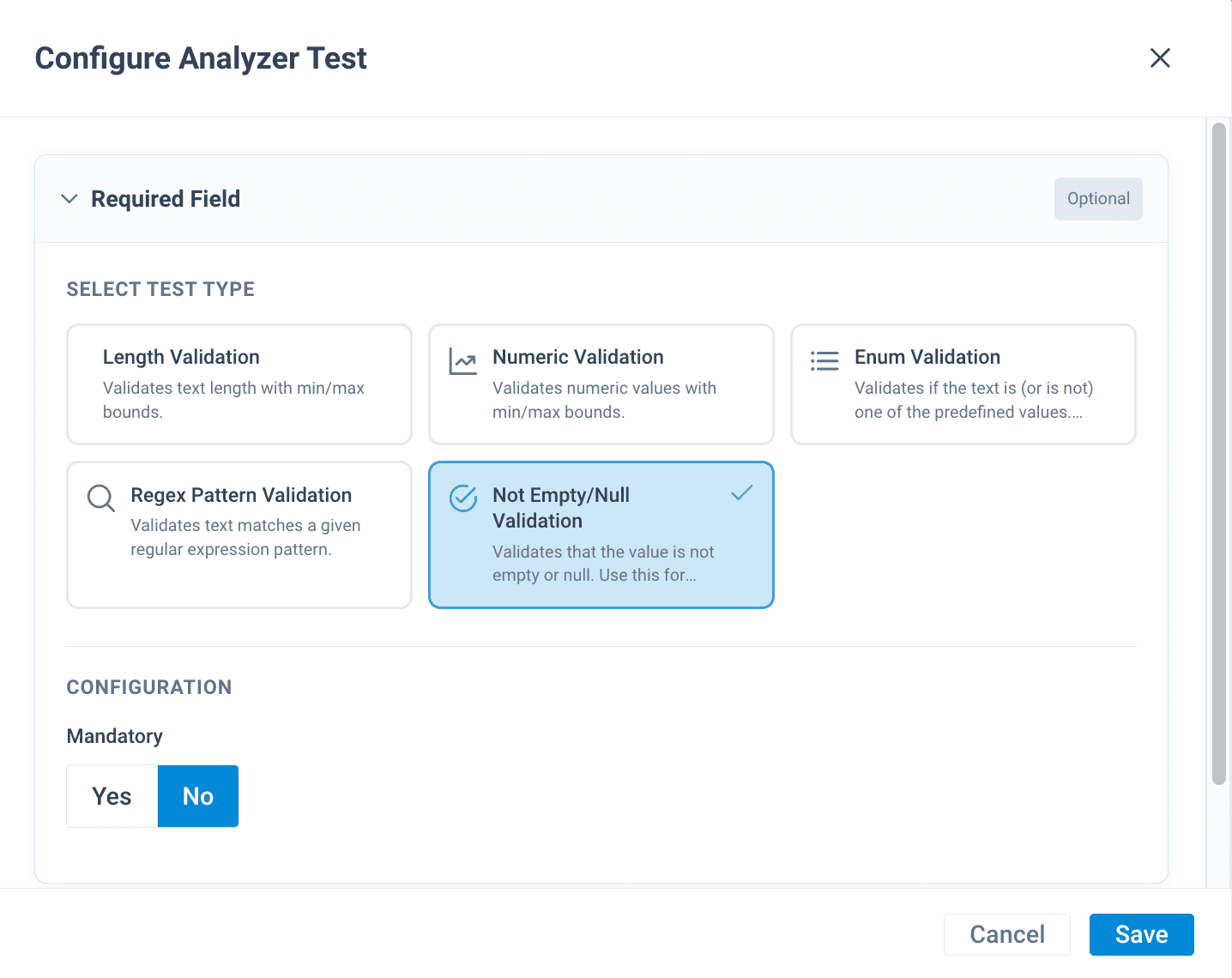
- In the CONFIGURATION section, toggle Mandatory to Yes if the analyzer test represents a mandatory requirement for the attribute. Toggle it to No if this isn't a critical validation requirement.
- Once you set up the analyzer test, select Save.
Your changes don't become available in the platform until you select Publish. See Publish export template changes.
Combine analyzer tests for complex validation scenarios
If you need to set up a multi-step validation scheme for your attributes, you can combine multiple analyzer tests. For example, you can set up multiple analyzer tests in these cases:
| Scenario | Analyzer test setup |
|---|---|
| Price values should be between 0 and 999,999. | One analyzer test for numeric validation checks that the value is greater than or equal to 0. Another numeric validation checks that the value is less than or equal to 999,999. The combination method is AND. |
| Date values shouldn't be empty and should follow the format DD.MM.YYYY. | One analyzer test for not empty/null validation checks that the value isn't empty. Another analyzer test for regex pattern validation checks that the value matches the regex ^\\d{4}-\\d{2}-\\d{2}$. The combination method is AND. |
Once you add your first analyzer test, take these steps:
- At the bottom of the Configure Analyzer Test pop-up, select Add Another Test.
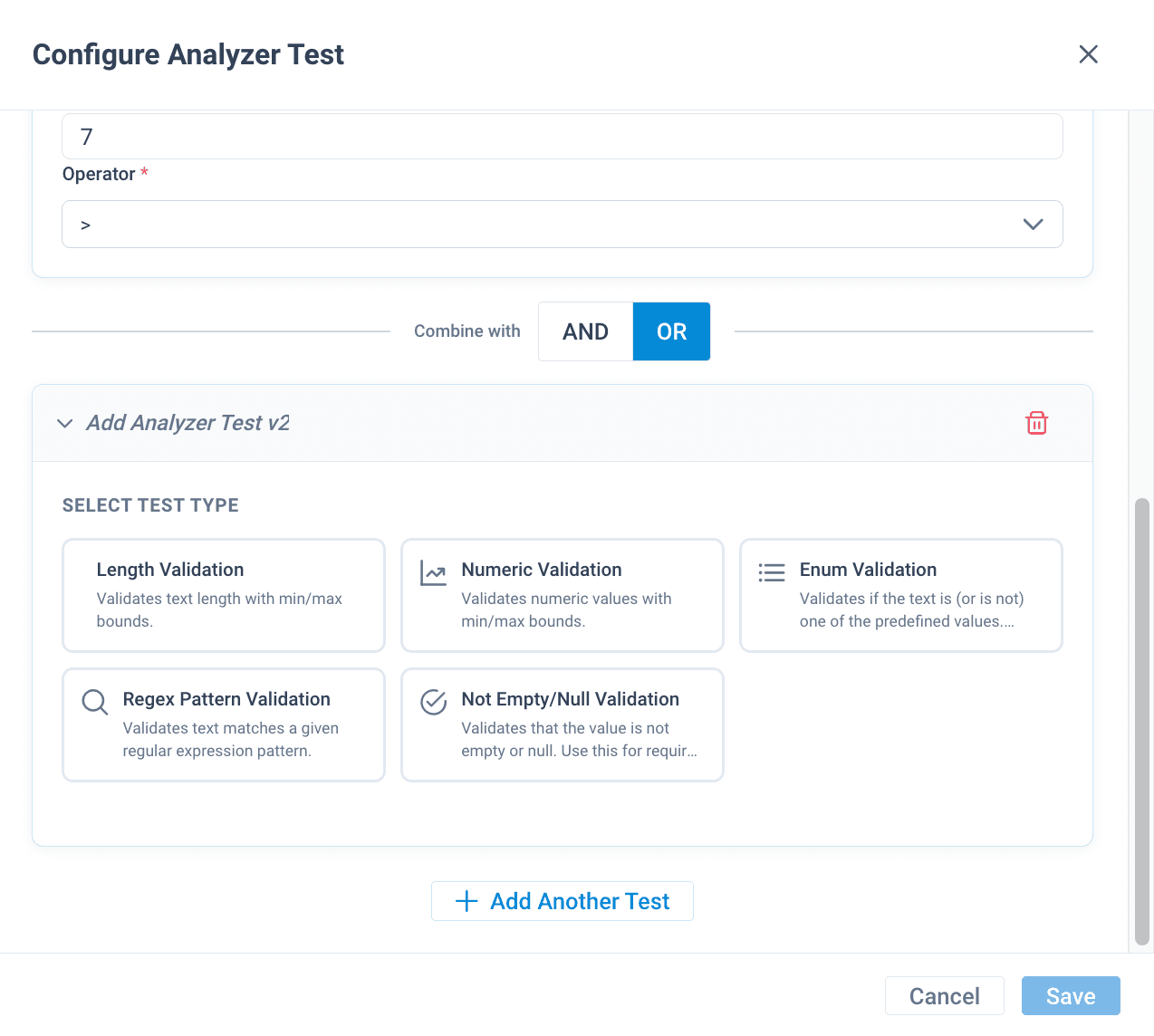
- Choose how to combine analyzer tests in Combine with:
- Choose AND if attribute values have to pass both the previous and the new analyzer test. This is the default combination operator.
- Choose OR if attribute values have to pass either the previous or the new analyzer test.
Tip
For your convenience, you can collapse the analyzer tests you aren't working on by selecting them:
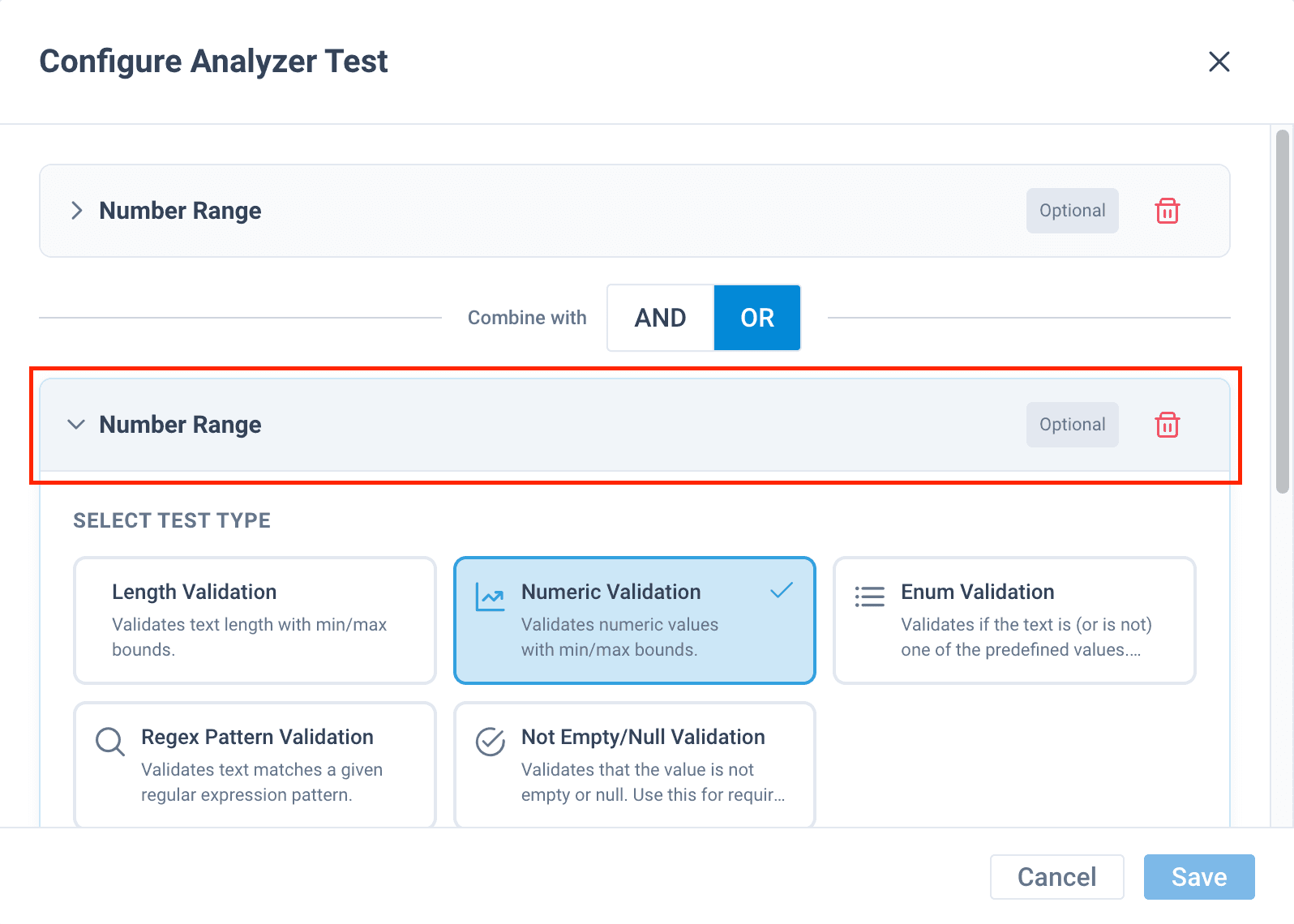
- Set up all added analyzer tests, and select Save at the bottom of the pop-up.
Your changes don't become available in the platform until you select Publish. See Publish export template changes.
How is this guide?