

Delete analyzer tests from an attribute
How to remove analyzer tests from an attribute in an export template.
2 min read
- Go to Export templates in the Developer Portal.
- Use the search bar to find the export template where you want to delete analyzer tests.
- Select the needed export template to open the export template setup page.
- In the section Attributes and analyzer tests, select the attribute where you want to delete an analyzer test.
- There are 2 options to delete analyzer tests:
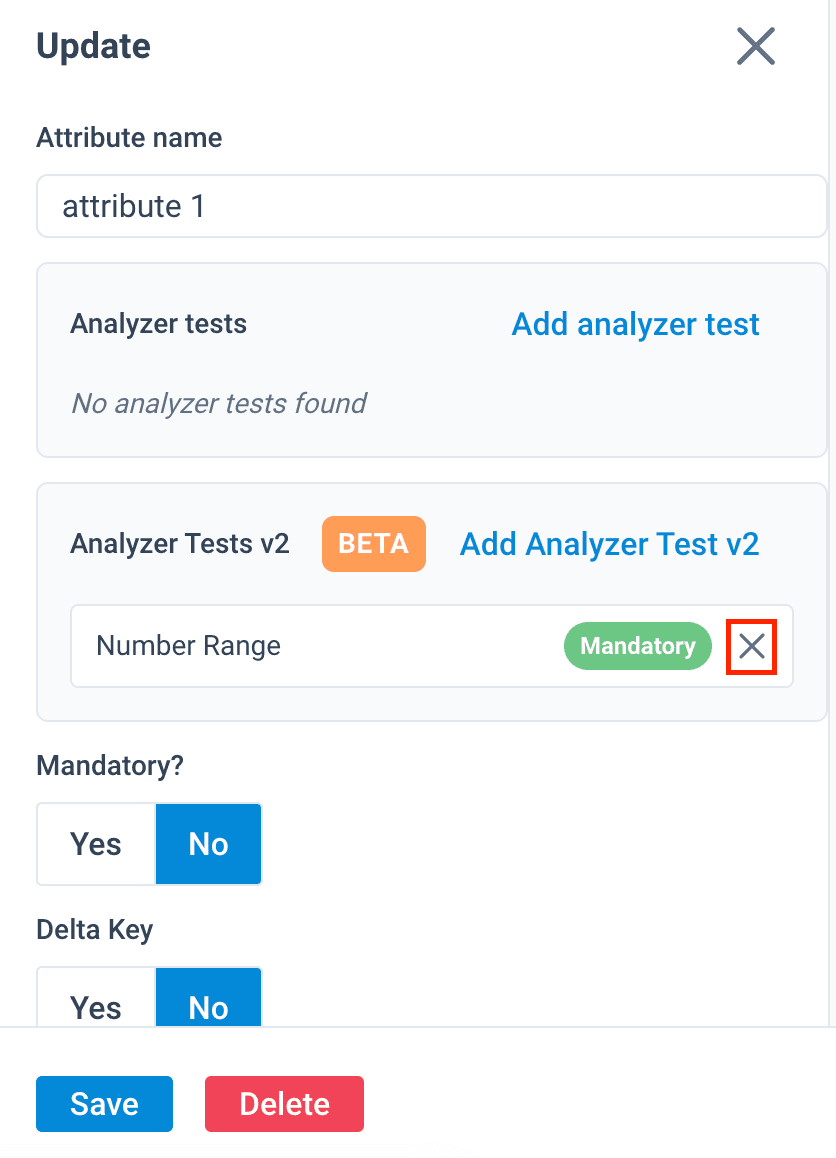
- In the Analyzer Tests v2 panel, select the cross icon x next to the analyzer test you want to remove. If you have more than one analyzer test, you may want to see more details on each analyzer test before deleting it. If so, see the next sub-step.
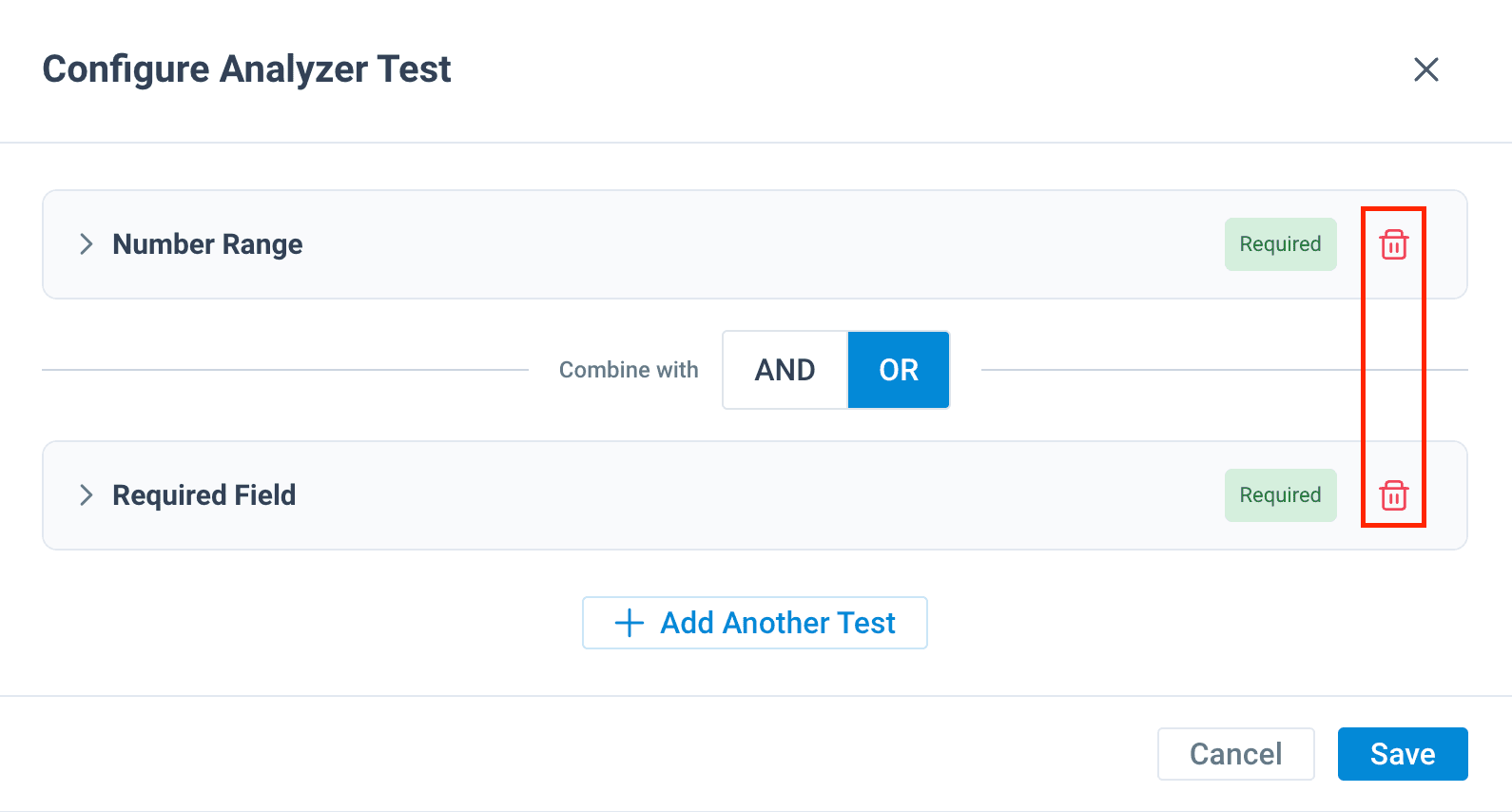
- In the Analyzer Tests v2 panel, select Add Analyzer Test v2 to open the Configure Analyzer Test pop-up, where you can see more details about the added analyzer tests. To delete an analyzer test in this pop-up, select the trash can icon next to an analyzer test. Once ready, select Save.
Your changes don't become available in the platform until you select Publish. See Publish export template changes.
How is this guide?