

Quickstart
Build and deploy a datasource connector end-to-end in minutes.
This guide walks you through creating a datasource connector from scratch — from writing the code to seeing product data flow into ProductsUp. By the end, you'll have a working connector deployed on the platform.
Prerequisites
- A ProductsUp account with access to the Dev Portal
- PHP 8.3+ with Composer — to build and run the connector locally
What we're building
A datasource connector built with Symfony that fetches products from an external source and writes them into the ProductsUp platform via the Container API.
The connector:
- Exposes a Symfony Console command that CDE executes at runtime
- Calls an
ImportServicethat fetches products and writes them to the Container API output - Receives configuration (API keys, URLs, etc.) as environment variables
Create the project
Clone the quickstart repository:
git clone https://github.com/productsupcom/connector-quickstart.git
cd connector-quickstart
Install dependencies:
composer installYour project structure will look like this:
connector-quickstart/
├── bin/console
├── config/
│   ├── bundles.php
│   ├── packages/
│   │   └── framework.yaml
│   └── services.yaml
├── src/
│   ├── DataSource/
│   │   ├── Command/
│   │   │   └── RunImportCommand.php    # CLI entry point for datasource
│   │   └── Service/
│   │       └── ImportService.php       # datasource business logic
│   ├── Export/
│   │   ├── Command/
│   │   │   └── RunExportCommand.php    # CLI entry point for export
│   │   └── Service/
│   │       └── ExportService.php       # export business logic
│   ├── ContainerApi/
│   │   ├── ContainerApiClientFactory.php
│   │   └── ContainerApiFactory.php
│   └── Kernel.php
├── .env
├── composer.json
└── Dockerfile
This is a standard Symfony console application. The DataSource/ and Export/ folders each contain a CLI command and a service for their respective connector type. ContainerApi/ wires up the Container API client shared by both.
Write the connector
The connector has two key files and a DI binding.
The CLI command — the entry point that CDE executes. It delegates all work to the service:
<?php

namespace App\DataSource\Command;

use App\DataSource\Service\ImportService;
use Symfony\Component\Console\Attribute\AsCommand;
use Symfony\Component\Console\Command\Command;
use Symfony\Component\Console\Input\InputInterface;
use Symfony\Component\Console\Output\OutputInterface;

#[AsCommand(name: 'connector:run:import')]
class RunImportCommand extends Command
{
    public function __construct(
        private readonly ImportService $importService,
    ) {
        parent::__construct();
    }

    protected function execute(InputInterface $input, OutputInterface $output): int
    {
        try {
            $this->importService->run();
        } catch (\Throwable) {
            return Command::FAILURE;
        }

        return Command::SUCCESS;
    }
}
The service — fetches products and writes them to the platform. Replace the hardcoded array with your real data source (an API call, a file read, a database query, etc.):
<?php

namespace App\DataSource\Service;

use Productsup\CDE\ContainerApi\ContainerApiInterface;

readonly class ImportService
{
    public function __construct(
        private ContainerApiInterface $containerApi,
    ) {}

    public function run(): void
    {
        $this->containerApi->info('Starting product import.');

        // Replace this with your real data source — an API call, file read, database query, etc.
        $products = [
            ['id' => '1', 'name' => 'Product A', 'price' => '9.99'],
            ['id' => '2', 'name' => 'Product B', 'price' => '19.99'],
            ['id' => '3', 'name' => 'Product C', 'price' => '29.99'],
        ];

        $this->containerApi->appendManyToOutputFile($products);

        $this->containerApi->info('Imported ' . \count($products) . ' products.');

        // Notify the end-user in the ProductsUp notification panel
        $this->containerApi->sendNotification('success', 'Import completed: ' . \count($products) . ' products imported.');
    }
}
The repository also includes an export connector example under src/Export/ — see the demo connectors page for both.
The DI binding — tells Symfony to inject the Container API client wherever ContainerApiInterface is type-hinted:
services:
    _defaults:
        autowire: true
        autoconfigure: true
        bind:
            Productsup\CDE\ContainerApi\ContainerApiInterface $containerApi: '@container.api'

    App\:
        resource: '../src/'
Create a connector in the Dev Portal
Open the Dev Portal and navigate to the Connectors page.
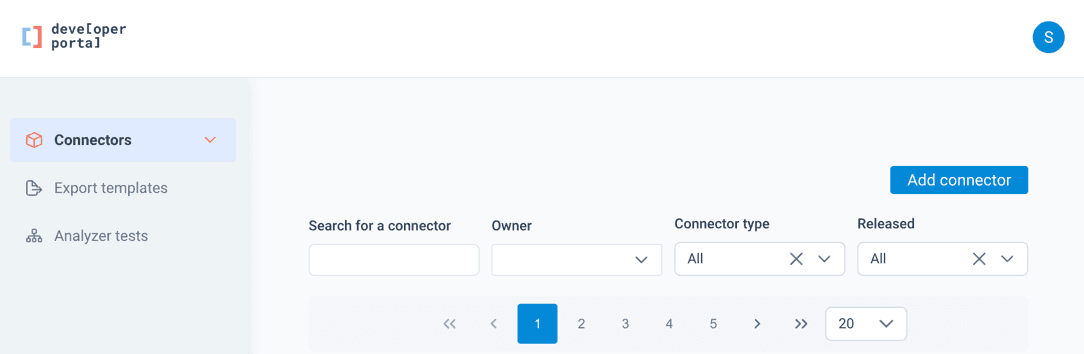
Click Add connector to open the creation dialog and fill in the fields:
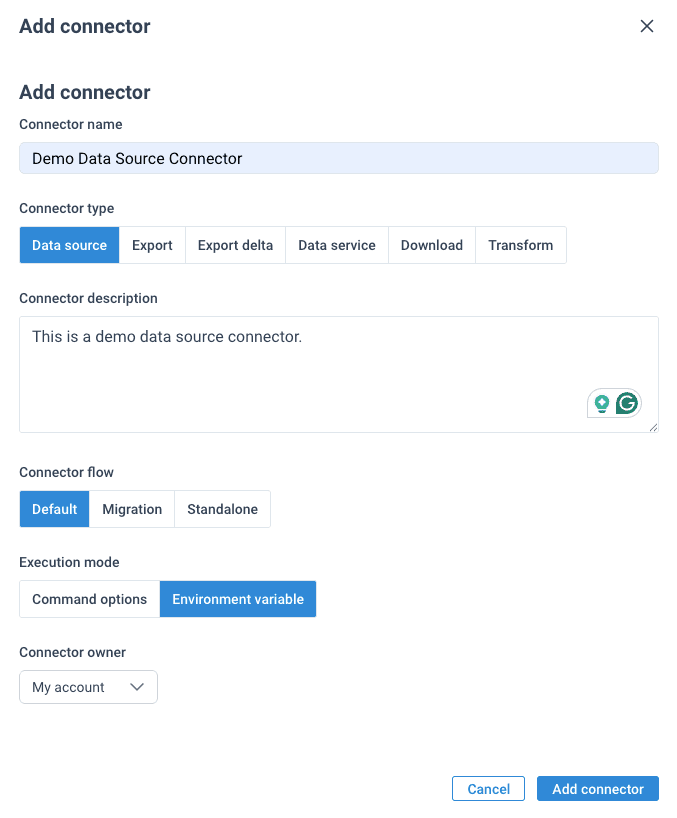
| Field | Description |
|---|---|
| Connector name | A human-readable name for the connector. Shown in the Dev Portal and in the ProductsUp platform. |
| Connector type | Determines the connector's role in the pipeline — Data source imports data into ProductsUp, Export and Export delta send data out. Cannot be changed after creation. See Connector types for the full breakdown. |
| Connector description | A short description of what the connector does. Shown to end-users when they add the connector to a site. |
| Connector flow | Controls how the connector integrates with the platform. Default — the connector is assigned to dev and prod platform sites and can be synced to them. Standalone — the connector is not assigned to platform sites; use this for connectors that run without a site context. Migration is internal-only. |
| Execution mode | Choose Environment variable — it passes user-provided values as SNAKE_CASE env vars and works with any framework. See how configurations reach your code for a full explanation of both modes. |
| Connector owner | The organization that owns this connector. Determines who can manage it. Defaults to your own account. |
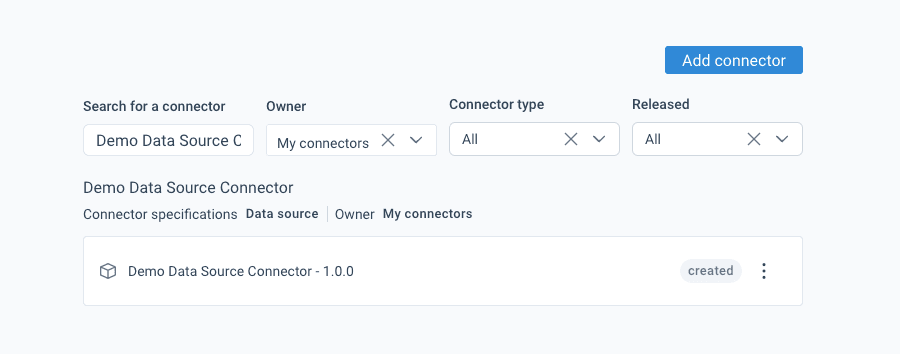
Click Add connector. The connector is created in created state and you'll be taken to the connector setup wizard.
Configure VCS
In the setup wizard, go to the Version Control configuration step. Point it to your connector repository:
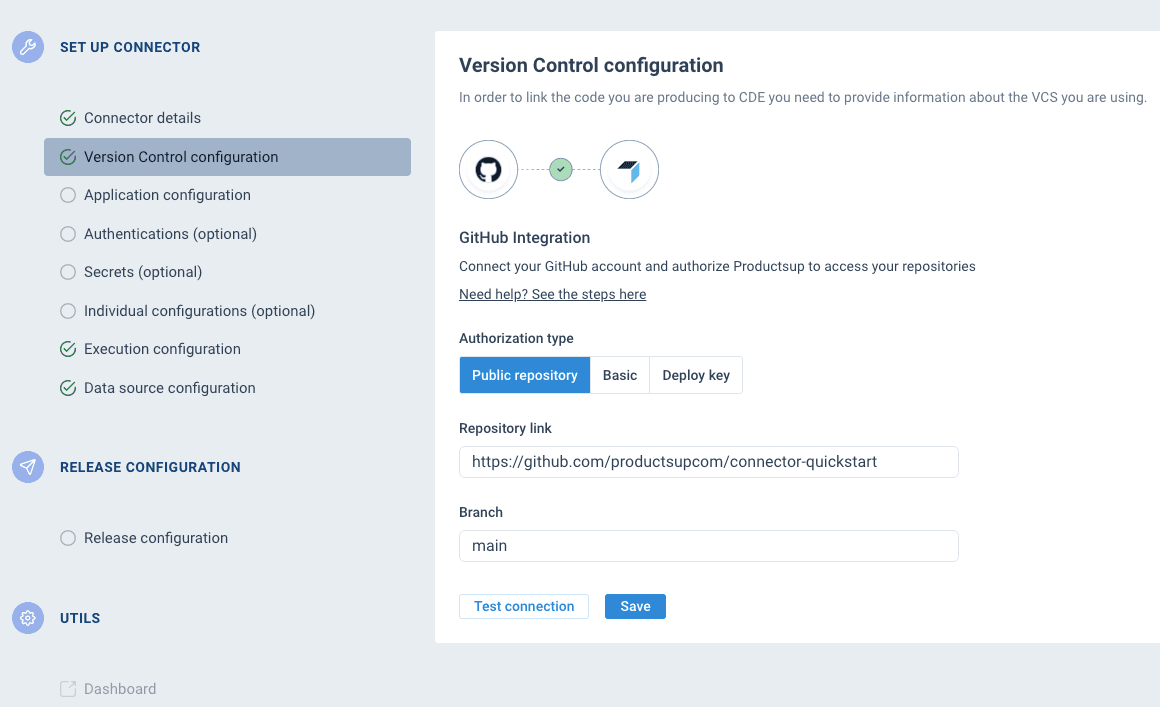
| Field | Value |
|---|---|
| Authorization type | Public repository (no credentials needed — this repo is public) |
| Repository link | https://github.com/productsupcom/connector-quickstart |
| Branch | main |
Click Save, then Test connection to validate the repository is reachable.
For your own private repositories, use Basic auth with a personal access token — it's the quickest way to get connected. For production connectors, a Deploy key is recommended: it grants read-only access scoped to a single repository and doesn't expire with your personal account.
Configure application
In the Application configuration step, tell CDE how to run your connector:
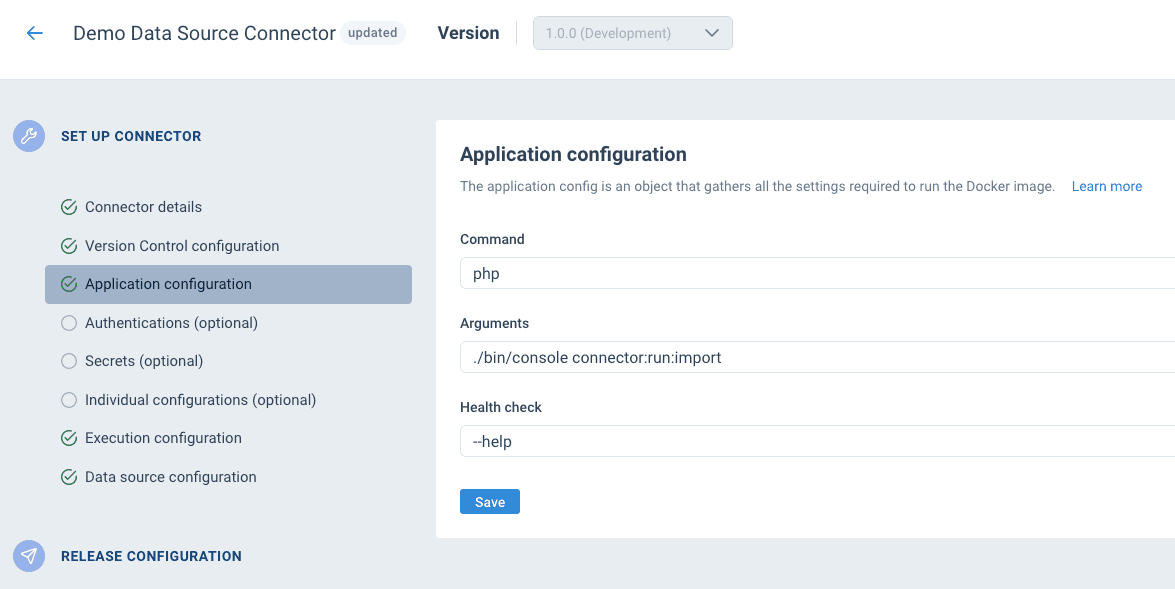
| Field | Value |
|---|---|
| Command | php |
| Arguments | ./bin/console connector:run:import |
| Health check | --help |
The command and arguments together form what CDE executes inside the Docker container. The health check runs the same binary with --help first to verify the container started correctly.
Build the connector
The quickstart repo includes a ready-to-use Dockerfile:
FROM php:8.3-cli

RUN apt-get update && apt-get install -y unzip && rm -rf /var/lib/apt/lists/*

COPY --from=composer:2 /usr/bin/composer /usr/bin/composer

WORKDIR /app

COPY bin/ ./bin
COPY config/ ./config
COPY src/ ./src
COPY .env composer.json composer.lock ./

RUN composer install --no-dev --no-interaction

CMD ["php", "bin/console"]
In the Dev Portal, navigate to the Release configuration page and click Build:
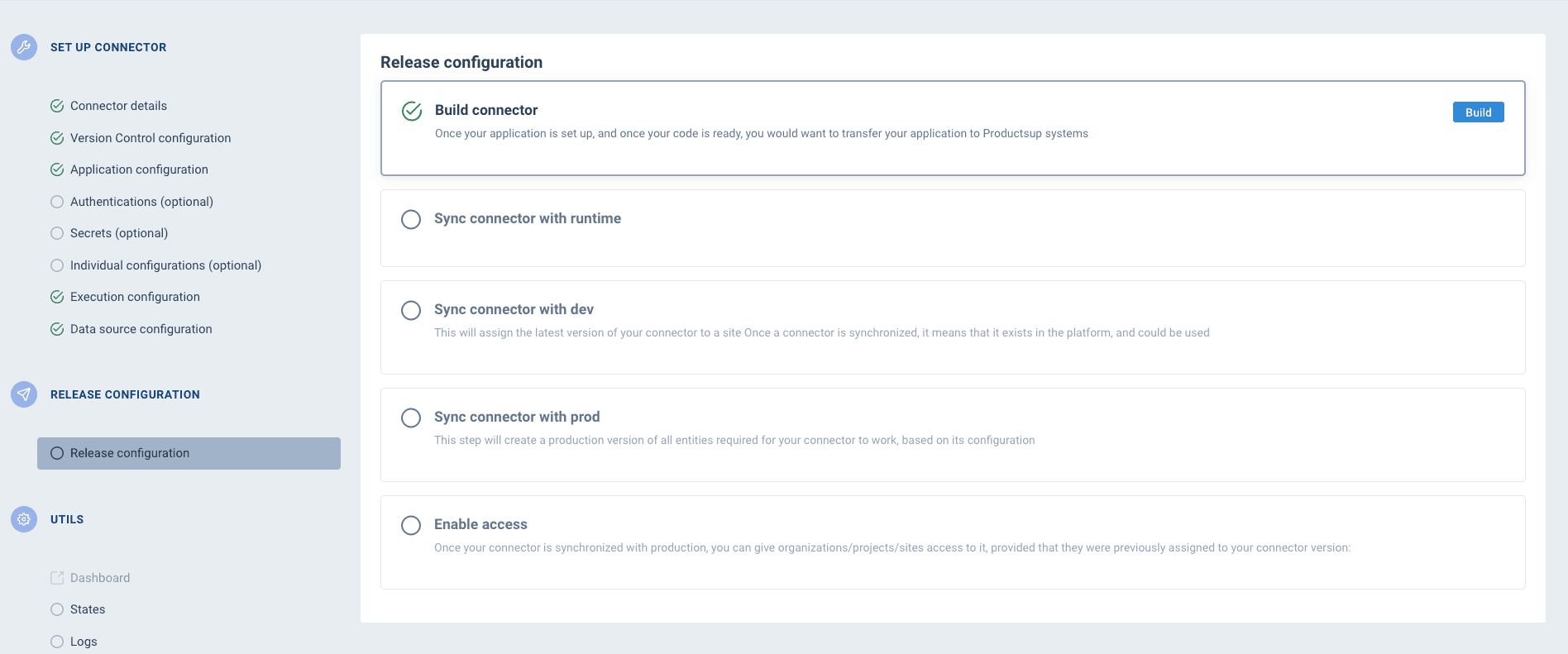
This:
- Connects to your Git repository
- Pulls the code from the configured branch
- Builds a Docker image using your
Dockerfile - Runs the health check
- Pushes the image to the registry
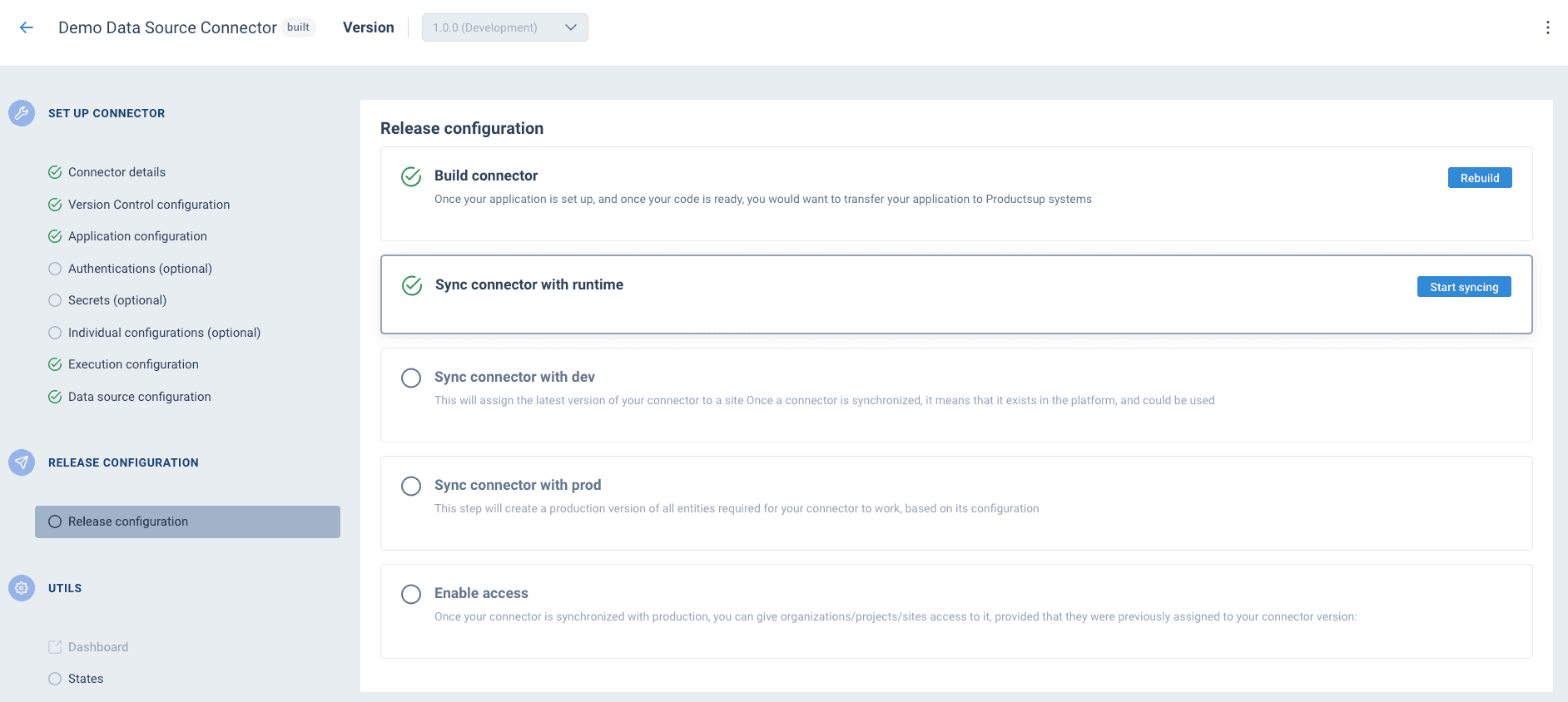
Once the build completes, the connector state moves to built and the next steps become available:
Deploy to dev
The Release configuration page walks you through deploying your connector step by step:
| Step | What it does |
|---|---|
| Build connector | Builds the Docker image from your repository. You've already done this. |
| Sync connector with runtime | Registers the built image with the connector's runtime environment so it can be executed. |
| Sync connector with dev | Deploys the connector to the development environment and assigns it to a dev site on the ProductsUp platform. Once synced, it can be tested with real site runs. |
| Sync connector with prod | Deploys the connector to production asynchronously. Once complete, the new version is live and the previous one is replaced. |
| Enable access | Makes the connector available to specific accounts, projects, or sites. Required before end-users can add it to their sites. |
Click Start syncing next to Sync connector with runtime. Once it completes, the Sync connector with dev section expands:
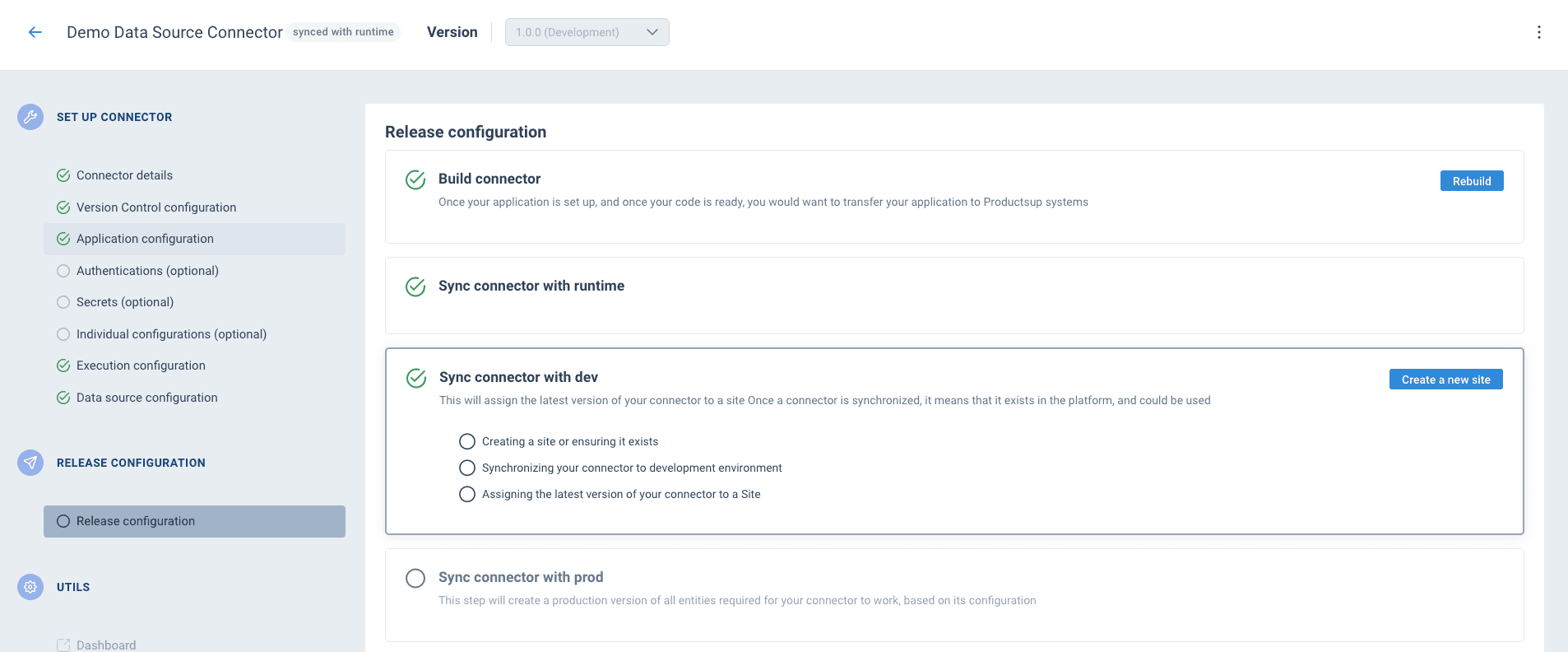
Click Create a new site. This creates a test project and site on the ProductsUp platform for your connector, syncs the connector to the development environment, and assigns it to the site. The three sub-steps run automatically:
- Creating a site or ensuring it exists — creates a dev project and site on the platform
- Synchronizing your connector to development environment — registers the connector so the platform can execute it
- Assigning the latest version of your connector to a Site — links your connector to the dev site
Once all three complete, the connector is synced with dev:
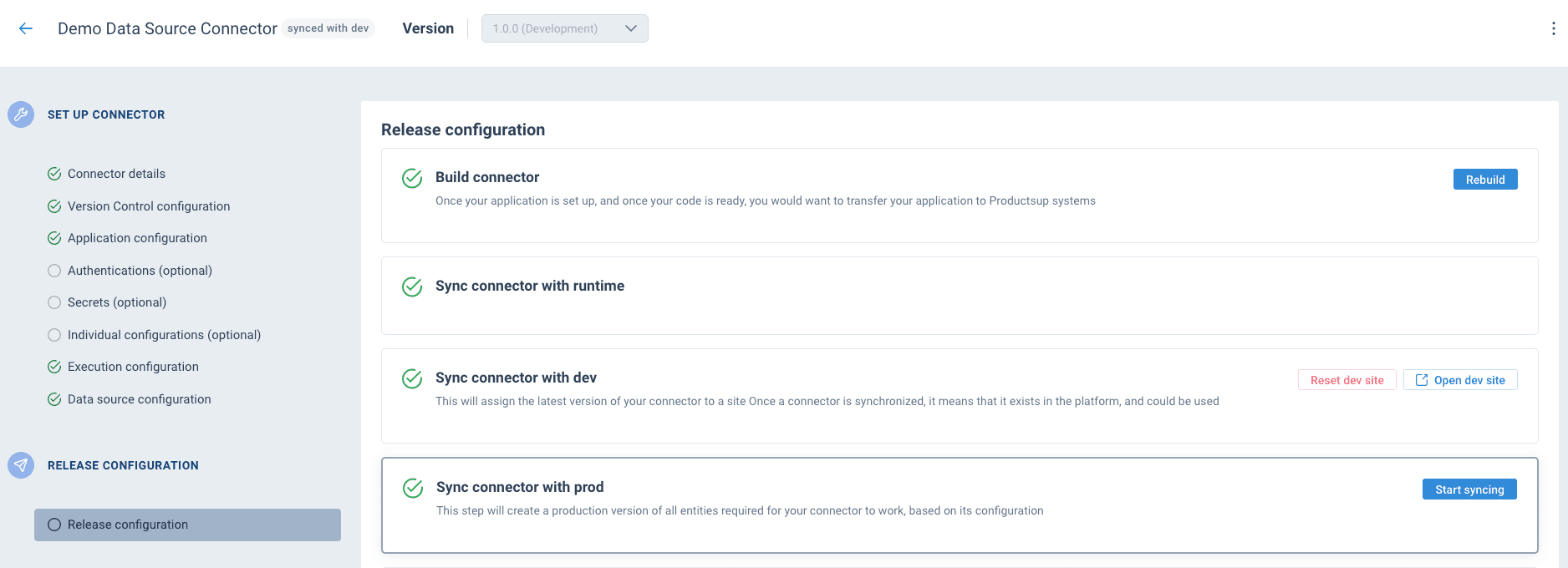
Assigning the connector to the dev site means it's now available as a data source on that site — you can trigger site runs that execute your connector. Click Open dev site to go to the site on the ProductsUp platform.
Test it
With the connector synchronized to dev, you can trigger a test run. Navigate to the Runs section in the Dev Portal to:
- See the run status and duration
- View application logs (the messages sent via
$this->containerApi->info()) - Check stdout/stderr for debugging
- Verify that product data was written successfully
If everything works, you should see a log message confirming the three products were imported.
Deploy to production
Once you're happy with how the connector works on dev, go back to the Release configuration page and click Start syncing next to Sync connector with prod. This creates a production version of your connector based on its current configuration.
After the sync completes, the Enable access section becomes available:
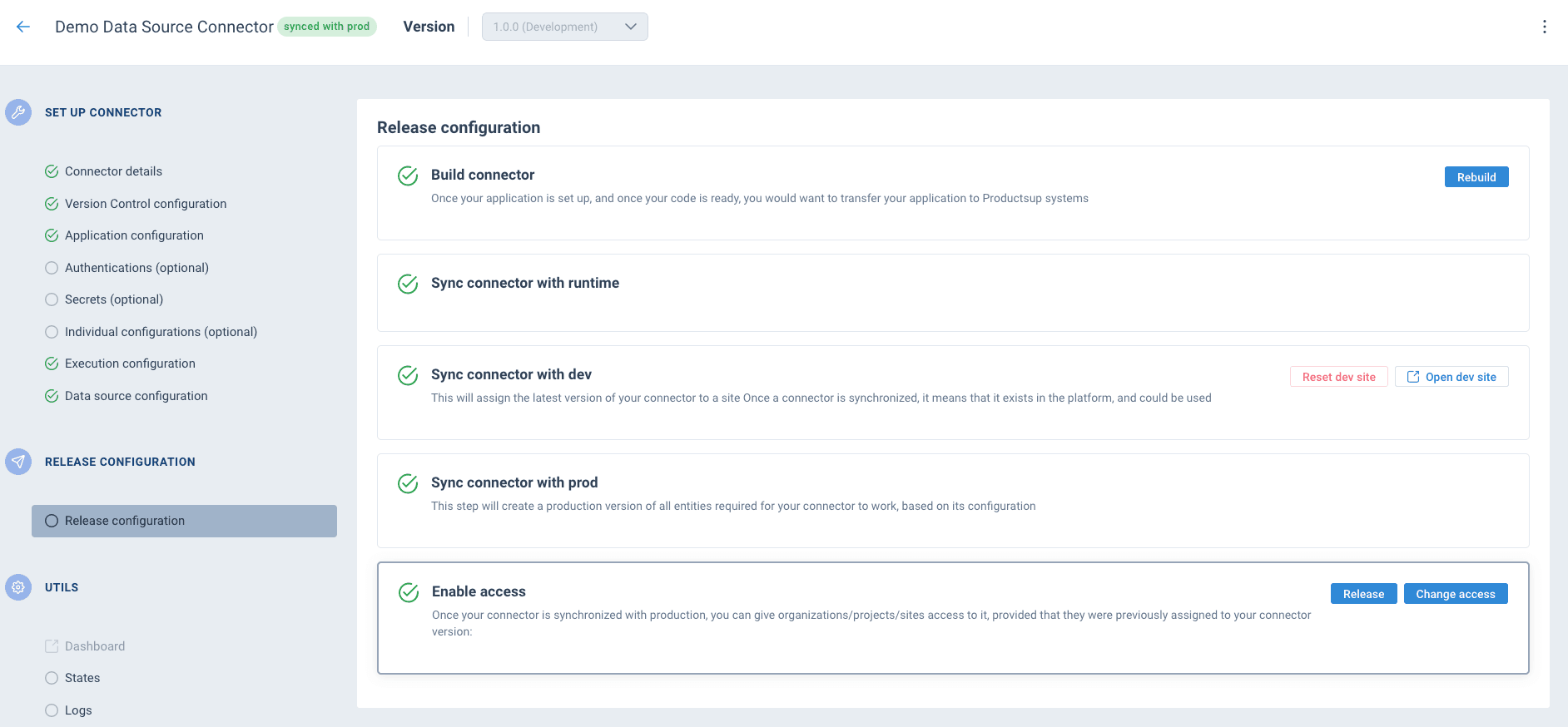
From here you have two options:
- Change access — makes the connector available to specific accounts, projects, or sites. Use this when the connector is intended for specific customers or internal use.
- Release — makes the connector available globally on the platform for all users.
Next steps
You've built, deployed, and released your first connector. From here:
- Key concepts — understand the full mental model behind connectors
- Connector types — explore all connector types
How is this guide?