

Export connector
Send all processed product data to a third-party channel every run.
Once end-users have imported data into ProductsUp and set up all the needed data modifications, they send the processed data to the export channels of their choice. Export channels are third-party systems where customers sell their products — for example, Amazon or eBay.
To send product data to a channel, the platform provides end-users with two entities:
- Export — contains all the settings of the selected export channel and its data requirements: what columns the channel needs and what format the data should have.
- Export destination — a setting within the export that defines the access data and the method of sending data to the channel. An export destination can be a physical storage space (Amazon S3, FTP server, Google Merchant Center FTP, ProductsUp Server) or an upload mechanism (Content API for Shopping, Facebook Marketing API, YouTube API).
The role of an export connector is to gather all the data in a site relevant to the requirements of a chosen export and use the export destination defined in that export to send the data to the channel. The connector writes feedback reporting the products it could not export. It runs during the export phase of a site run.
If the third-party channel supports incremental updates, consider using an export-delta connector instead — it only processes products that changed since the last run.
Data flow
ProductsUp platform → Container API (input) → Your connector → Third-party channel
                                                     ↓
Container API (feedback) → ProductsUp platformYour connector reads the full product feed from the Container API input, sends each product to the third-party system, and writes feedback back to the platform.
How it works at runtime
- The platform starts your Docker container and passes export settings as environment variables
- Your code reads all products from the Container API input file
- For each product, you prepare the payload and send it to the third-party channel
- You write feedback for each product that failed
- You send progress notifications to the ProductsUp notification panel
- Exit with code
0(success) or non-zero (failure) - The platform imports the feedback file as a data source on the next site run
Channels
Export connectors are assigned to one or more channels on the ProductsUp platform. A channel represents an export destination that end-users add to their sites — for example, "Google Shopping" or "Amazon Marketplace".
Channels are managed on the platform side. In the Dev Portal, you select which channels your export connector supports in the Export configuration step. Move channels from the Available list to the Selected list to assign them:
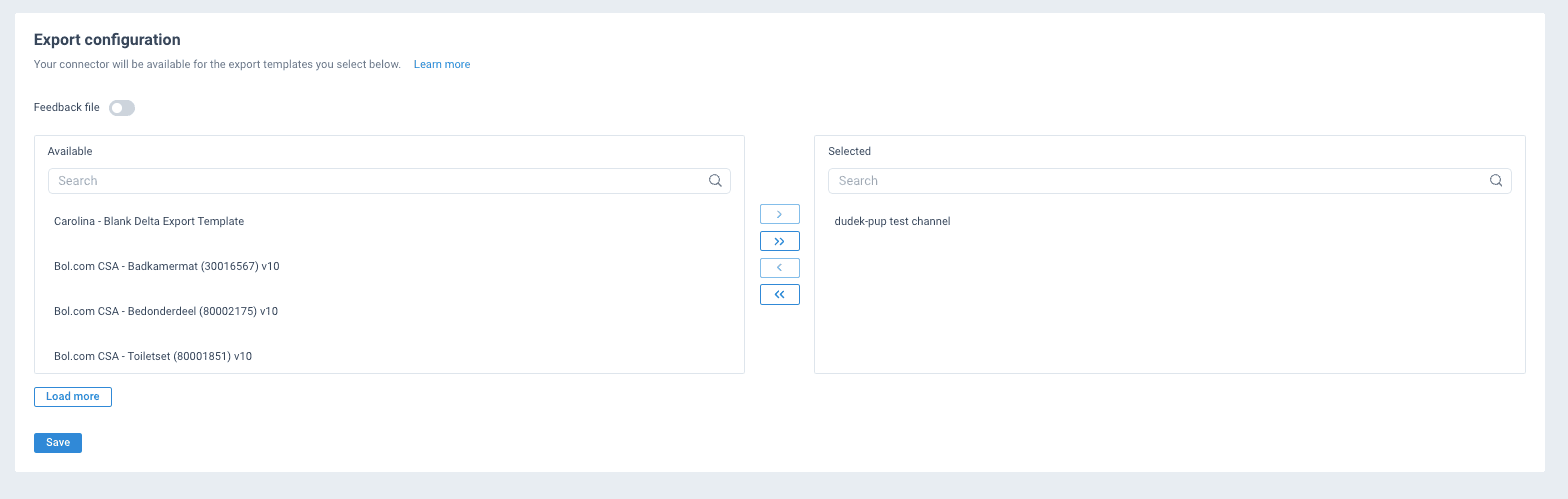
Key rules:
- At least one channel is required before you can release the connector
- Export connectors use regular (non-delta) channels
- Export-delta connectors use delta channels — you cannot mix them
- All assigned channels must have consistent CSA status (either all enabled or all disabled)
See Type-specific config for the Dev Portal configuration fields.
Reading input data
The Container API provides several methods for reading the full product feed.
Iterate products one by one
foreach ($this->containerApi->yieldFromInputFile() as $product) {
    $this->sendToChannel($product);
}
Iterate in batches
Useful when the third-party API supports batch operations.
foreach ($this->containerApi->yieldBatchFromInputFile(100) as $batch) {
    $this->sendBatchToChannel($batch);
}
Count total items
$total = $this->containerApi->countItemsFromInputFile();
$this->containerApi->info("Exporting {$total} products.");
Writing feedback
Feedback reports what went wrong with a product export. Write an entry when a product fails, not when it succeeds — the feedback file is joined onto the end-user's feed, and a row per successful product adds volume without adding information.
The fields are yours to choose. Feedback has no fixed schema: whatever keys you send become the columns of the feedback file. The only requirements are that a column name is not empty and that you do not send the same column twice. Include whichever column you configured as the connection column, so the platform can join each entry to the right product.
// The identifying column is whichever one you configured as the connection column.
// It is often the channel's own identifier rather than the platform's `id`.
$this->containerApi->appendToFeedbackFile([
    'merchant_item_id' => $product['merchant_item_id'],
    'error'            => 'rejected_by_channel - Missing required attribute: gtin',
]);On a large feed, collect the failures and write them in batches rather than one call per product:
$failures = [];

foreach ($rejections as $rejection) {
    $failures[] = [
        'merchant_item_id' => $rejection->itemId(),
        'error'            => sprintf('%s - %s', $rejection->type(), $rejection->message()),
    ];
}

$this->containerApi->appendManyToFeedbackFile($failures);Anything useful for diagnosis belongs here — a channel error code, the offending attribute, a retry hint, a timestamp. Choose names your end-users will understand, because these become columns they see next to their products.
Feedback as an additional data source
The platform imports the feedback file as an additional data source on the next site run. This connects it to the primary data feed, letting end-users see export failures alongside their product data.
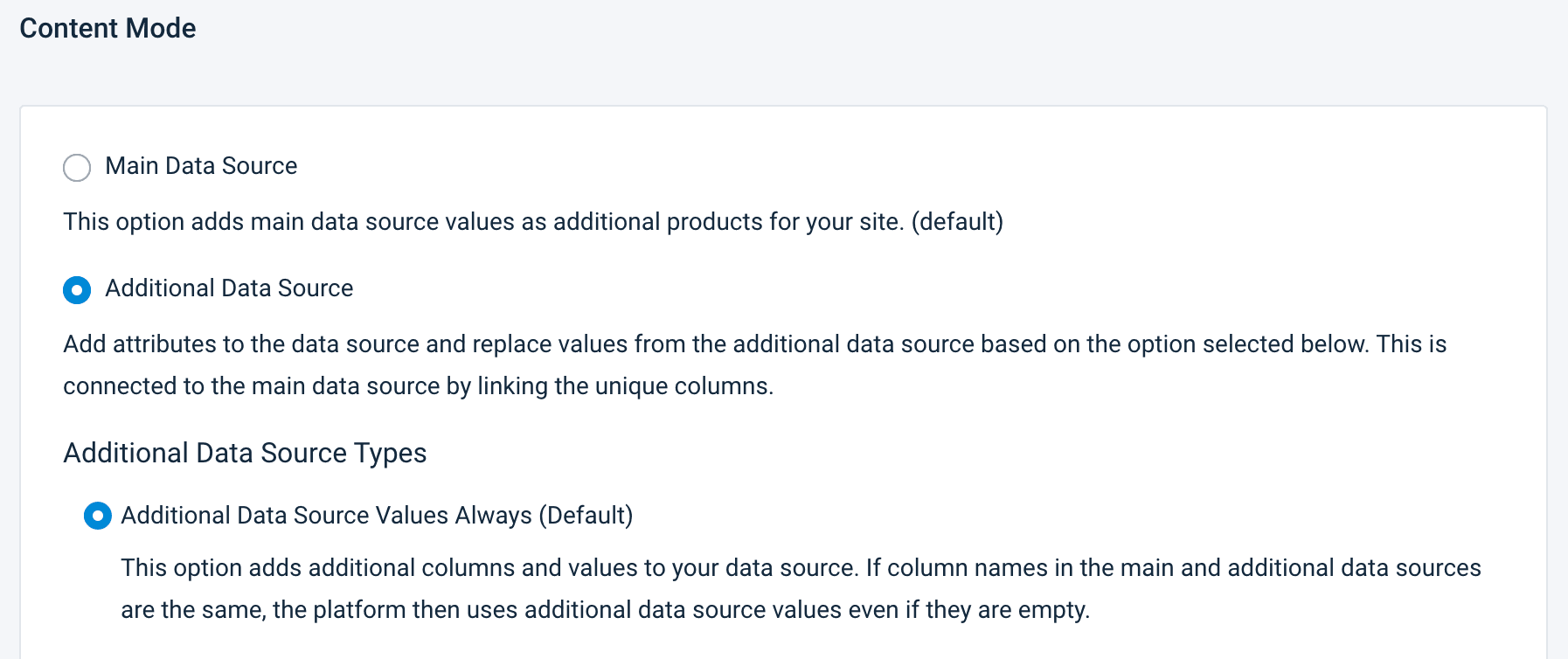
The feedback file links to the main feed through connection columns — matching ID columns that tell the platform how to join the two data sources. You configure which columns to use in the Dev Portal when enabling feedback files.

Each export destination can have at most one feedback file.
Logging and notifications
Use log methods for operational messages visible in the Dev Portal run logs. Use notifications for end-user-facing messages that appear in the ProductsUp notification panel. End-users see notifications in a collapsible panel at the bottom of their site view:
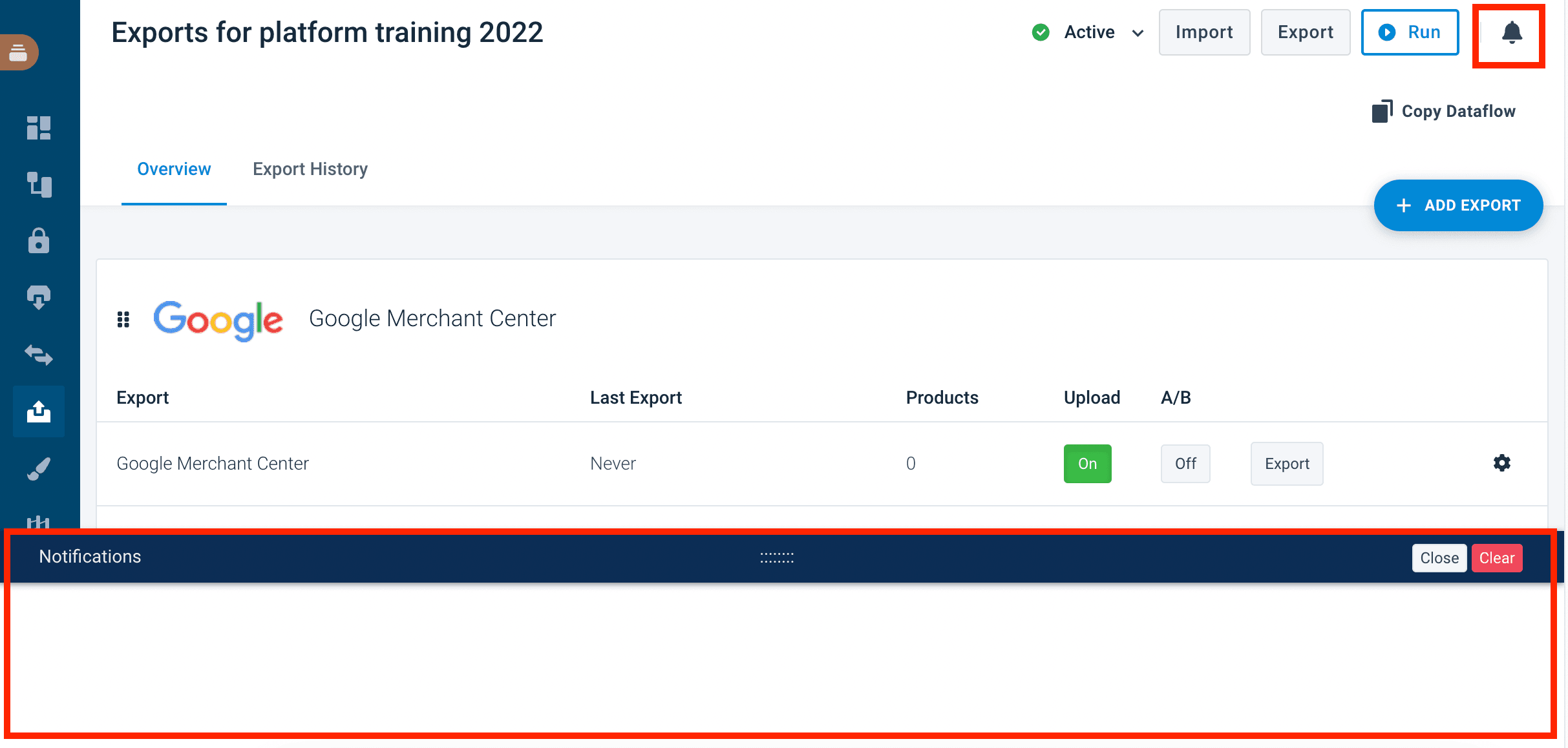
// Logging — visible in Dev Portal run logs
$this->containerApi->info('Starting export.');
$this->containerApi->warning("Product {$id} has missing attributes, skipping.");
$this->containerApi->error("Channel API returned 500 for product {$id}.");
$this->containerApi->debug('Request payload: ' . json_encode($payload));

// Notifications — visible to end-users in the ProductsUp notification panel
$this->containerApi->sendNotification('success', 'Export completed: 1500 products exported.');
$this->containerApi->sendNotification('warning', 'Export completed with 3 errors.');
$this->containerApi->sendNotification('error', 'Export failed: channel API is unreachable.');Available log levels: debug, info, notice, warning, error, critical, alert, emergency.
Available notification levels: info, notice, warning, error, success.
Example service
A minimal export service that reads products, sends them to a third-party channel, writes feedback, and reports progress:
<?php

namespace App\Export\Service;

use Productsup\CDE\ContainerApi\ContainerApiInterface;

readonly class ExportService
{
    // Replace with your third-party API endpoint
    private const string CHANNEL_API_ENDPOINT = 'https://api.example.com/products';

    public function __construct(
        private ContainerApiInterface $containerApi,
    ) {}

    public function run(): void
    {
        $totalProducts = $this->containerApi->countItemsFromInputFile();
        $this->containerApi->info("Starting export of {$totalProducts} products to channel.");

        $successCount = 0;
        $errorCount = 0;

        foreach ($this->containerApi->yieldFromInputFile() as $product) {
            try {
                $this->sendToChannel($product);
                $successCount++;

                $this->containerApi->appendToFeedbackFile([
                    'id' => $product['id'],
                    'status' => 'success',
                ]);
            } catch (\Throwable $e) {
                $errorCount++;

                $this->containerApi->warning("Failed to export product {$product['id']}: {$e->getMessage()}");

                $this->containerApi->appendToFeedbackFile([
                    'id' => $product['id'],
                    'status' => 'error',
                    'message' => $e->getMessage(),
                ]);
            }
        }

        $this->containerApi->info("Export finished. Success: {$successCount}, errors: {$errorCount}.");

        if ($errorCount > 0) {
            $this->containerApi->sendNotification('warning', "Export completed with {$errorCount} errors out of {$totalProducts} products.");

            return;
        }

        $this->containerApi->sendNotification('success', "Export completed: all {$totalProducts} products exported successfully.");
    }

    /**
     * Send a single product to the third-party channel.
     *
     * Replace this with your real API call — POST to a partner API, upload to a marketplace,
     * push to an advertising platform, etc.
     */
    private function sendToChannel(array $product): void
    {
        // Example: POST the product to the channel's API endpoint
        //
        // $response = $this->httpClient->request('POST', self::CHANNEL_API_ENDPOINT, [
        //     'json' => [
        //         'external_id' => $product['id'],
        //         'title'       => $product['name'],
        //         'price'       => $product['price'],
        //     ],
        // ]);
        //
        // if ($response->getStatusCode() !== 200) {
        //     throw new \RuntimeException("Channel API returned status {$response->getStatusCode()}");
        // }
    }
}You can find this example in the quickstart repository under src/Export/.
Configuration
Export connectors have several type-specific configurations:
- Channels — which export channels this connector supports (at least one required)
- Feedback file — enable/disable feedback and configure connection columns
- Category-specific attributes — enable support for category-specific attributes
See Type-specific config for details.
Individual configs on the platform
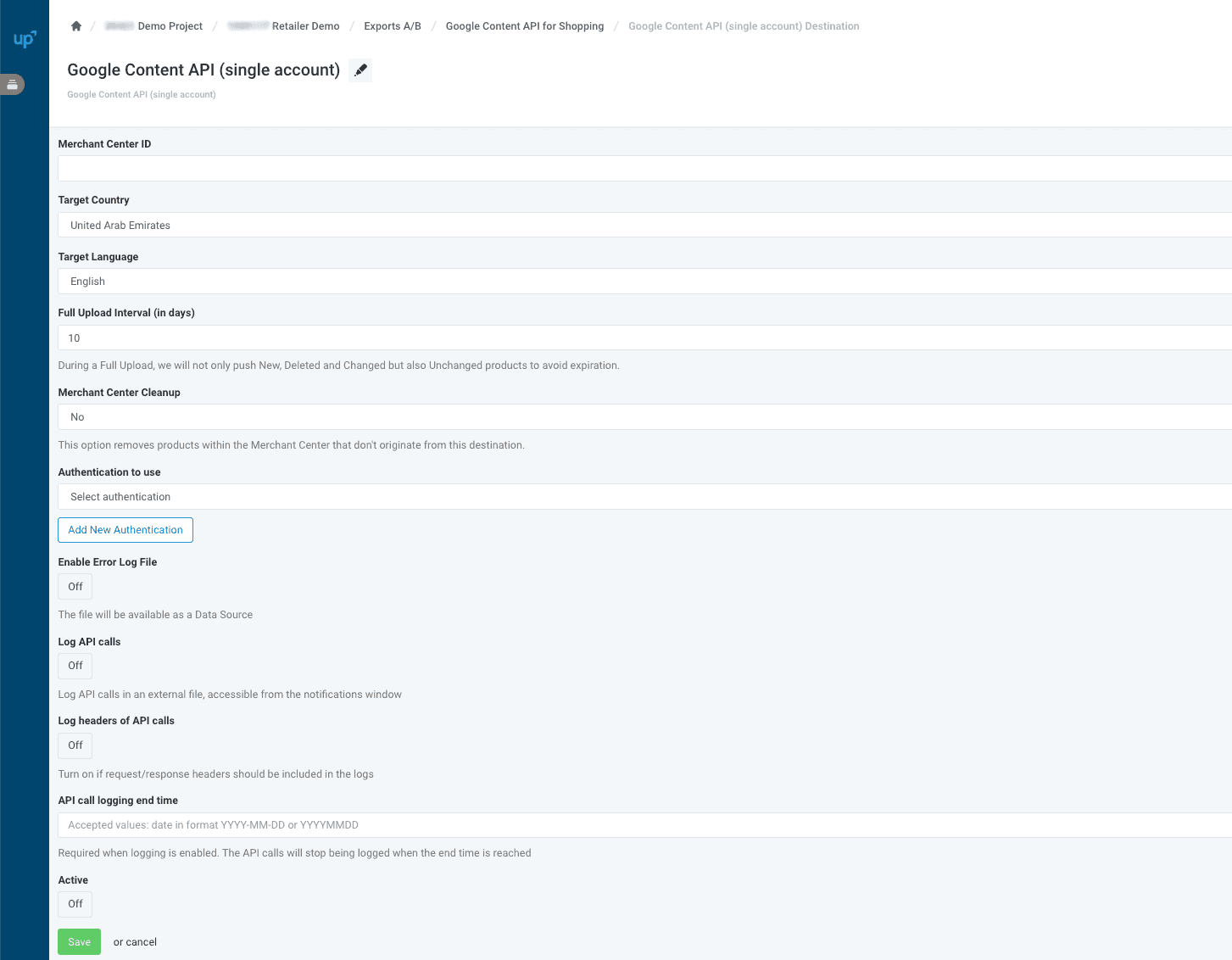
The individual configuration options you define for your connector in the Dev Portal (API keys, target countries, upload intervals, etc.) are presented to end-users as form fields on the export destination page in the ProductsUp platform. End-users fill in these fields to configure the connector for their specific site:
Next steps
- Export delta connector — send only changed products
- Container API reference — full API for reading input and writing feedback
- Demo connectors — clone and deploy a working export connector
How is this guide?