

Product overview
An overview of the Products overview: main attributes and capabilities
Introduction
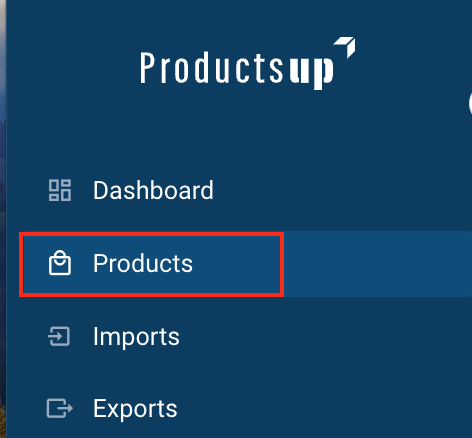
To let you view all the product data available in your workspace, go to Products from the main menu.
In Products overview, you can view, add, and edit all products. To find specific
products, use the search bar.
View attribute columns in Products3
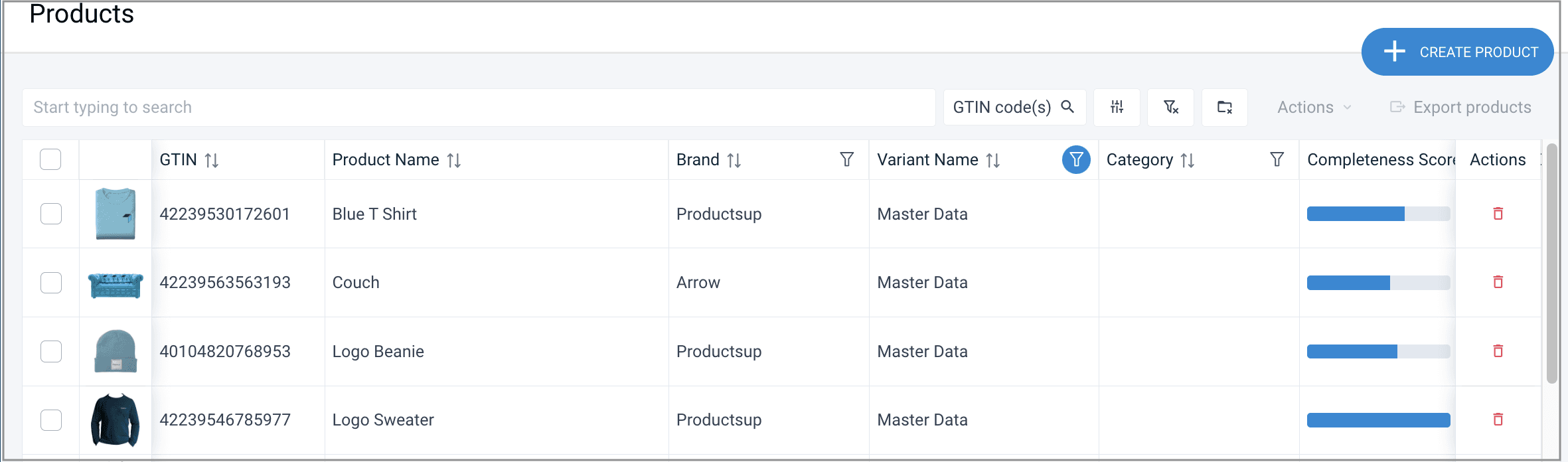
The Products feature provides an overview of all your products and product variants and shows the following attribute columns by default:
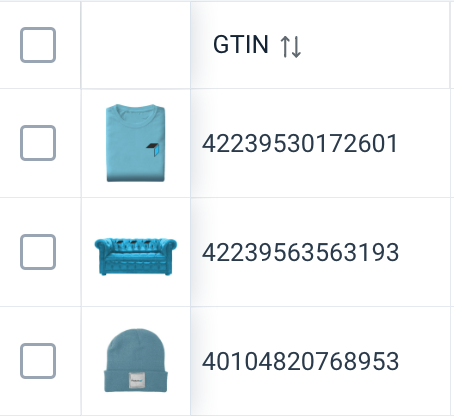
- You can see the product image thumbnail on the left-hand side of each product row. Select it to see the full image. You can add images and other product assets in Media.
| Attribute / Property | Purpose |
|---|---|
| GTIN | International identifier for trade items developed by GS1. |
| Product Name | The specific name of the product or its variant. |
| Brand | Stores the product's brand. |
| Variant Name | Indicates the variant type (Master Data for general entries; retailer names like Amazon SP for specific mappings). |
| Category | Defines the product type and category (e.g., dairy, cleaning supplies). |
| Completeness Score | Percentage of filled vs. empty attributes within the product's data model. |
| Data model | The specific set of attributes assigned to the product. |
| Shared | Indicates if data is shared with other data models. |
| Assets included in export | Lists assets associated with the product for export. |
| Channel | The specific retailer or channel where the product is exported. |
| Status | Current lifecycle stage (e.g., Concept, Published, Live). |
| Updated At | Date of the most recent data update. |
| Created at | Date the product entry was created. |
| Hierarchy Position | Position in a packaging hierarchy (Base, Middle, Top); empty if not linked. |
To sort the order of the products alphabetically using the arrow icons next to each column name.
You can also filter some of the attribute columns using the funnel icon. If you select the funnel icon, you can choose which values a product should have in this attribute for the product overview page to show or hide it. When you choose the needed filter, select Apply. To remove the filter, select Clear.
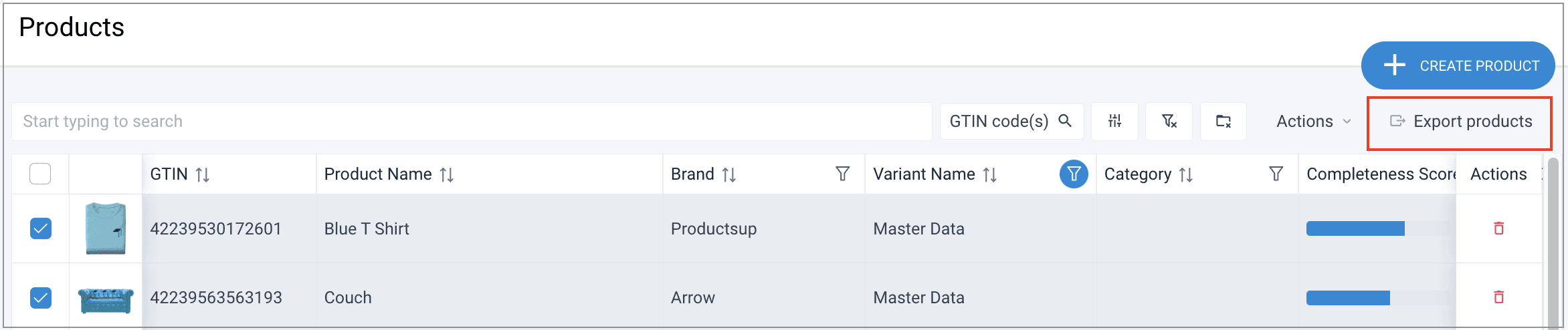
When you select products, the Export products button becomes active and lets you export selected products to a chosen retailer.
Hide or show the columns and change their order
To change the view of columns in the Product overview page
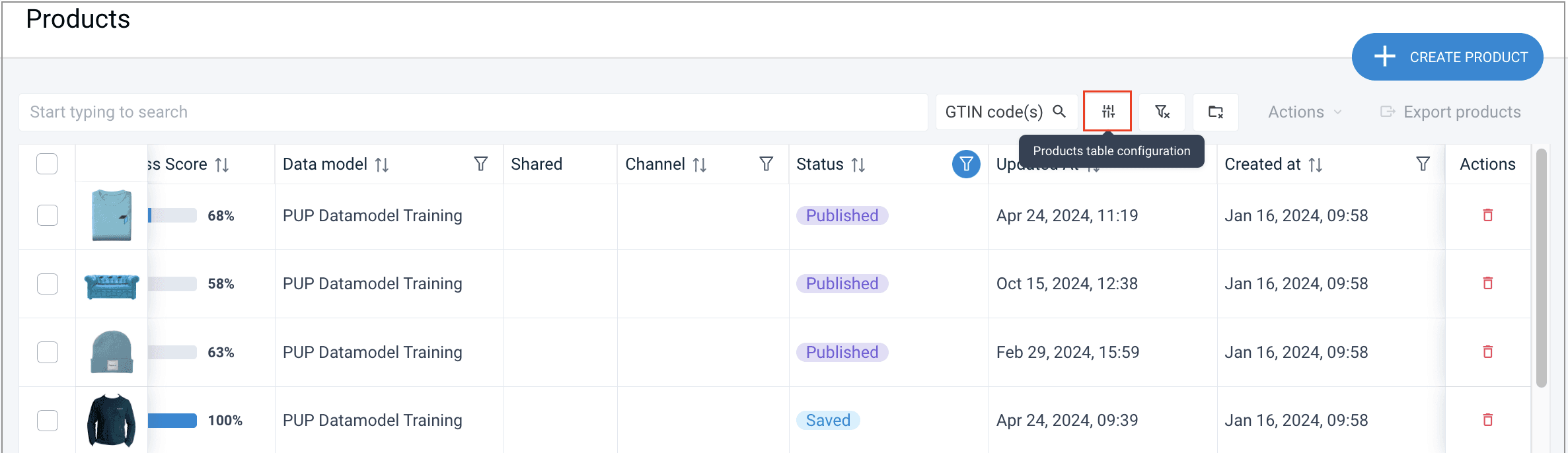
- Select the Products table configurations button next to the search bar.
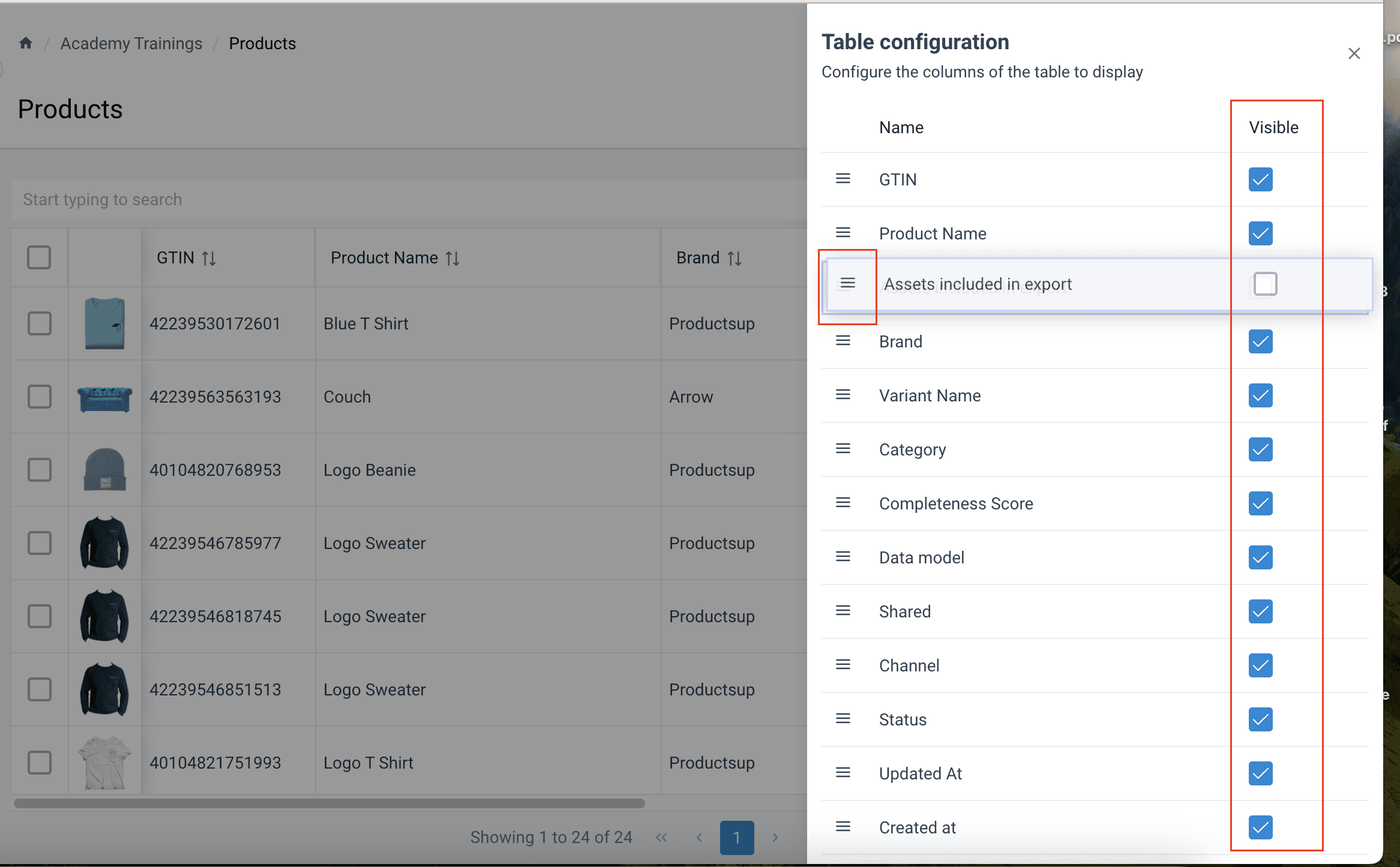
- Drag and drop the columns in the list to the needed order.
- Select the checkbox next to the column name to make the column visible in the products overview, or deselect the checkbox to hide the column.
Delete and restore deleted products
The Actions column lets you remove the product by selecting the trash can icon. If you scroll away, the Actions column remains visible.
If you accidentally deleted products, now you can quickly recover them yourself within the next 30 days.
To restore deleted products:
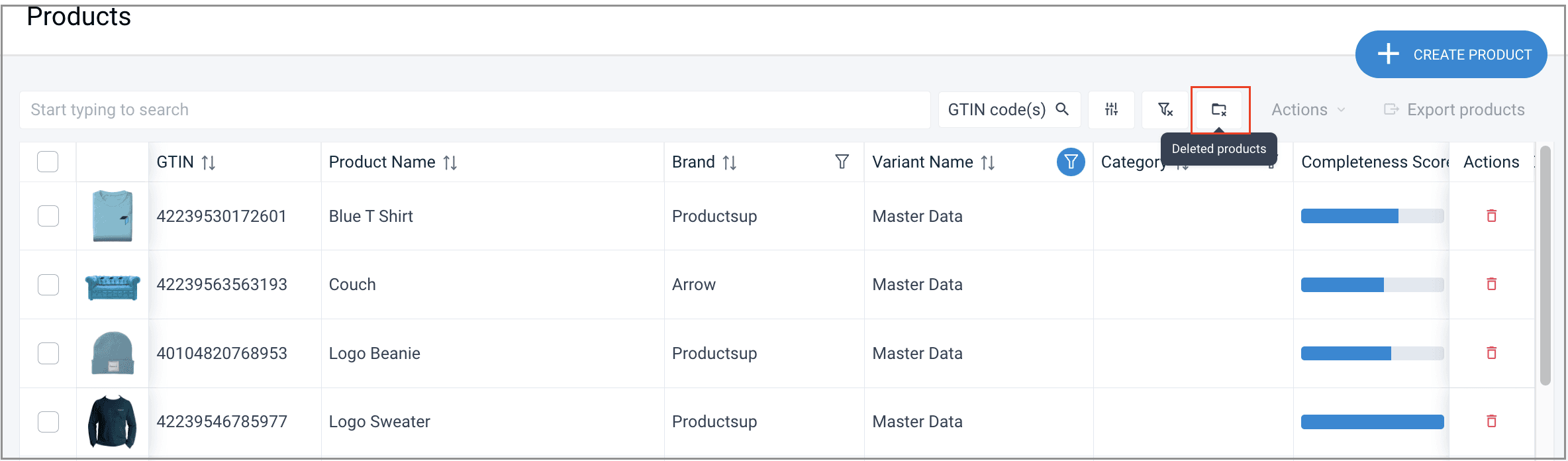
- Select the Deleted Products icon in the upper ribbon.
- In the Deleted Products page, select needed deleted products.
- Select the Restore icon next to the product you want to restore.
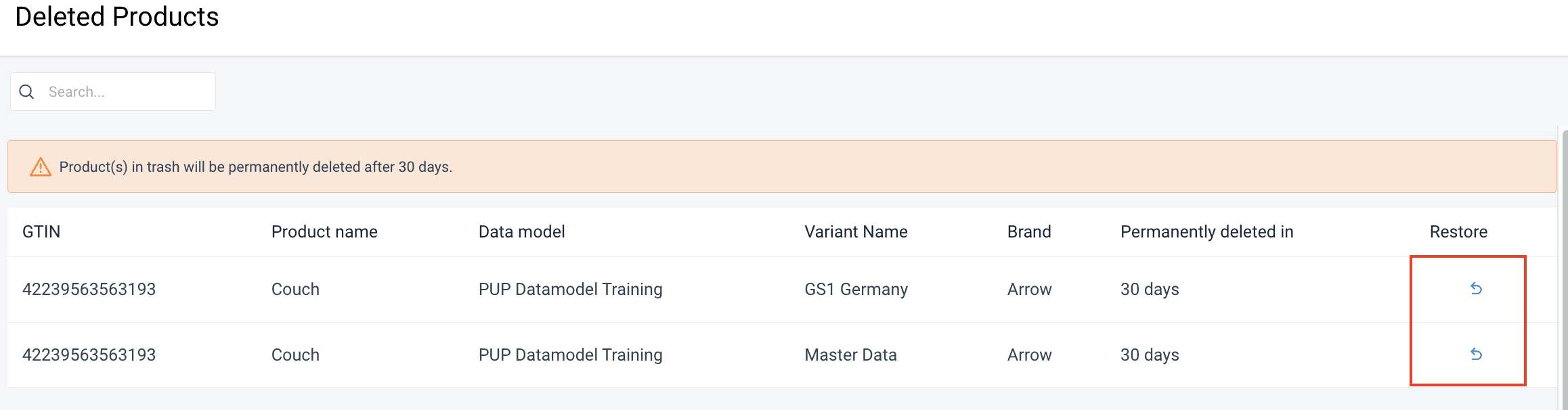
NOTE: You have only 30 days after you delete a product to restore it. The column Permanently deleted in shows the number of days left for each product before the final deletion without the possibility to restore it.
How is this guide?