

Datamodels
This document explains how to create or edit data models
Introduction
Upon account creation, submit all available product data. The platform automatically maps this information to meet the specific attribute requirements (e.g., varying titles or brand tags) for each of your retailers.
- Datamodels: Access over 2,500 attributes to create tailored models for different retailers within your workspace.
- Product Details: The attribute order seen in the Products section directly reflects the sequence configured in Datamodels.
Create Data model
To create new data models for your workspace, take these steps:
- Go to Datamodels and select Create Data Model.
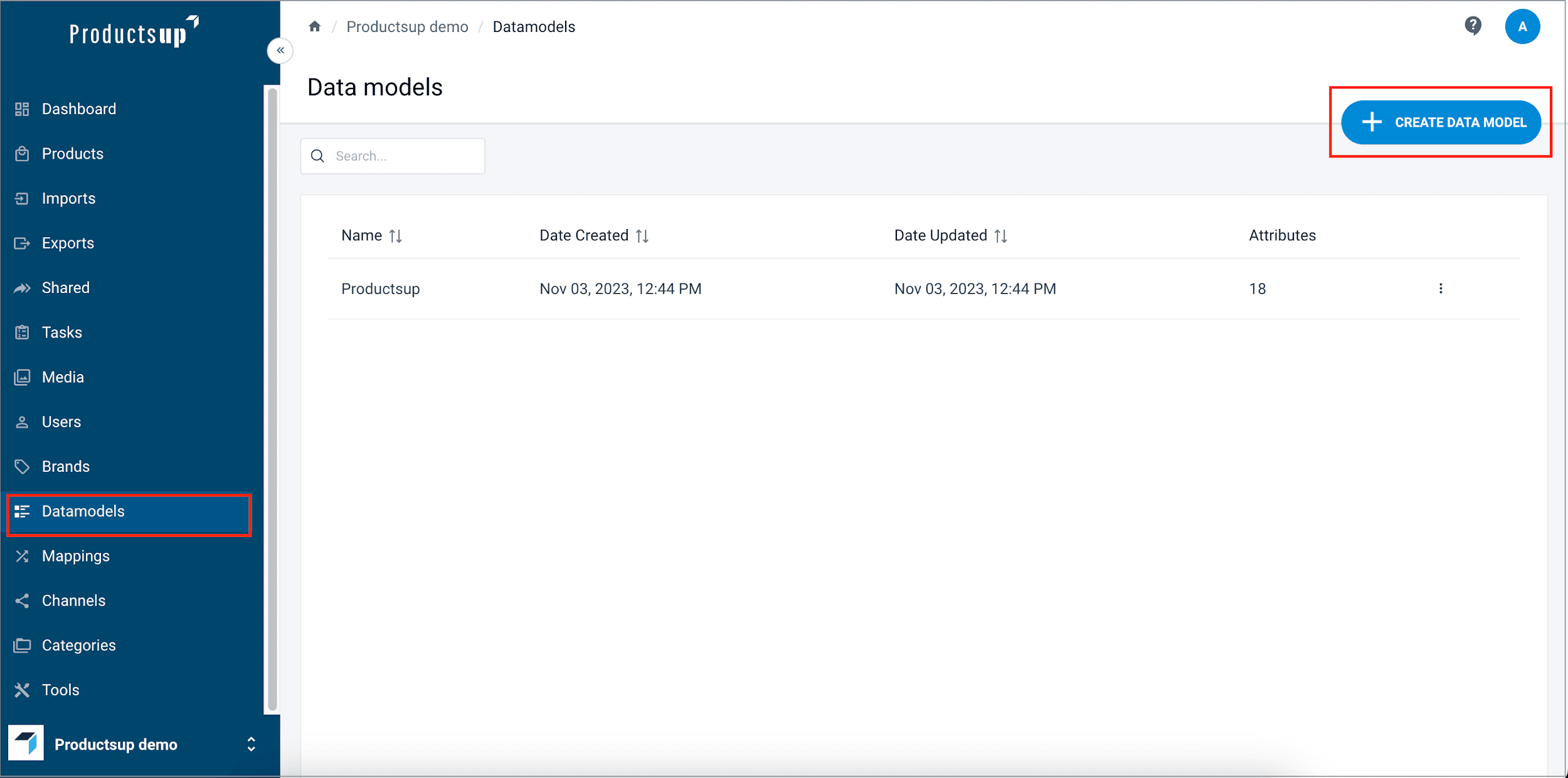
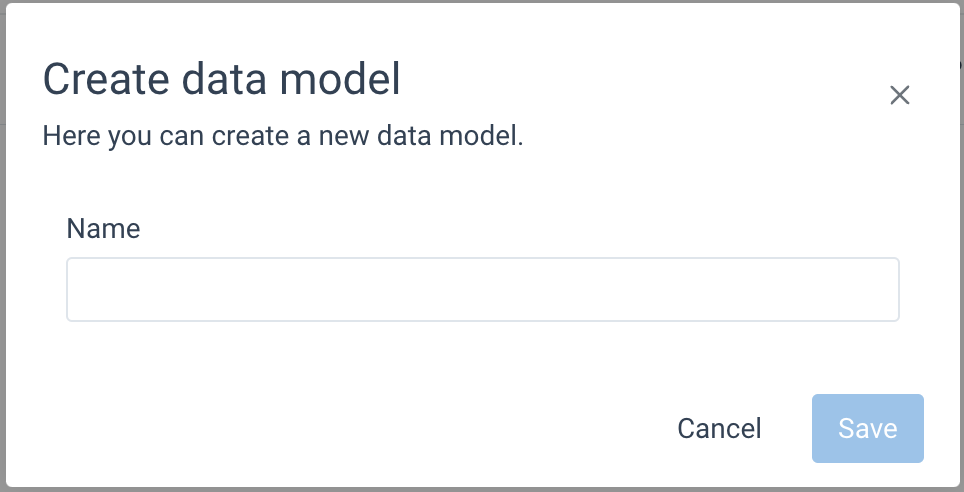
- Give the new data model a name and select Create.
- Select the three dots (⋮) icon next to your newly created data model and
select Edit data model. In the data model view, you can see all available
attributes. You can find the needed attributes by scrolling the list or by
using the Search bar.
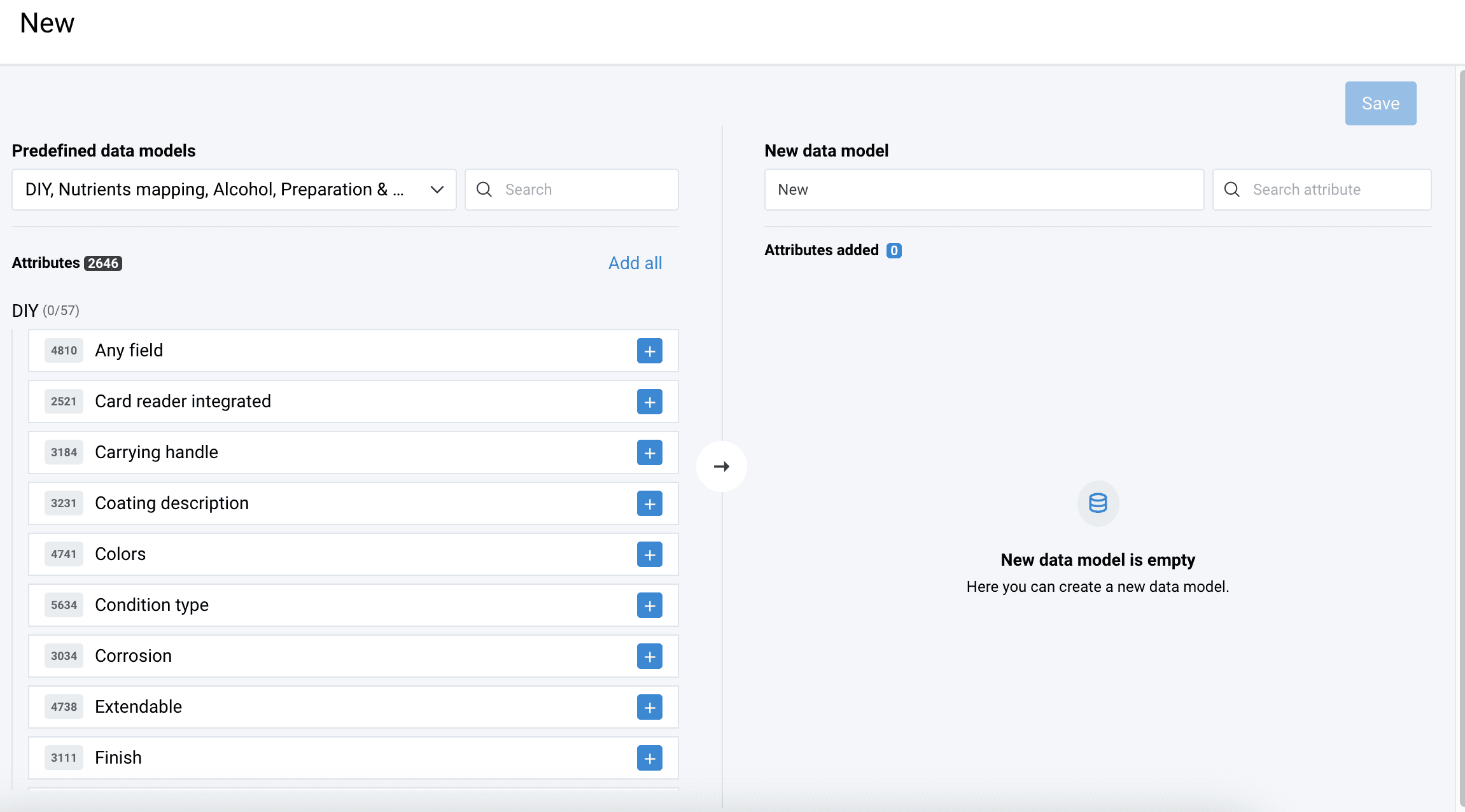
- Select the plus (+) button next to a needed attribute to add it.
If you added an unnecessary attribute, select the minus (-) icon from the list on the right to remove it. - Select Save.
Edit Data model and configure attributes
To update an existing data model, take these steps:
- Go to Datamodels.
- Select the three dots (⋮) icon next to the needed data model and choose
Edit data model.
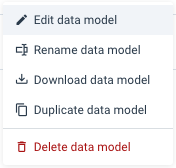
- In the data model view, you can add new attributes to the data model from the
list on the left or remove attributes you don't need from the data model in
the list on the right. You can find the needed attributes by scrolling the
lists or by using the Search bars.
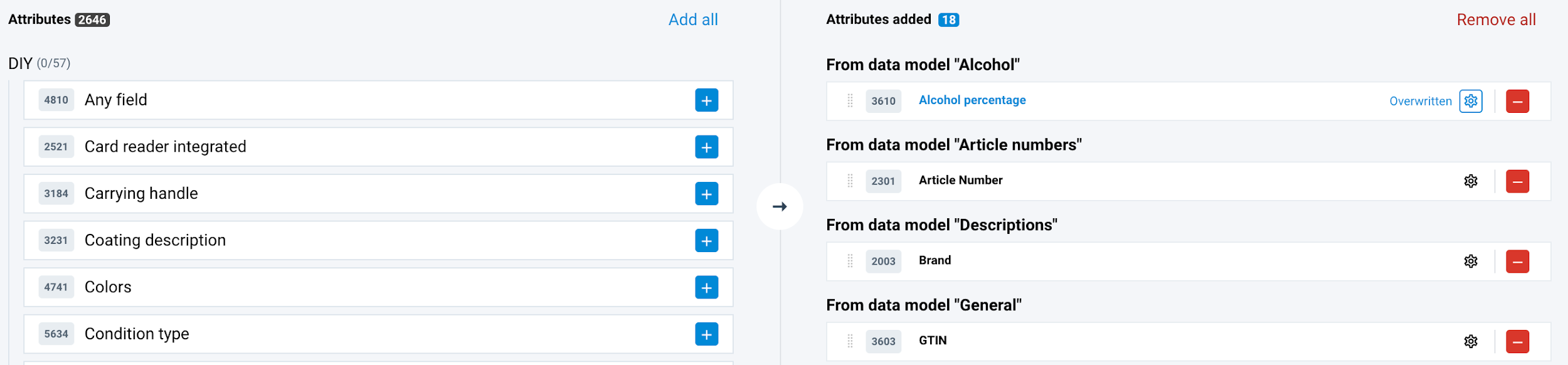
- Select the plus (+) icon next to a needed attribute to add it.
Select the minus (-) icon to remove an attribute.
- If you need to edit an attribute you added to the data model, select the
cog wheel (⚙) icon next to it. Make the needed changes in the
overwrite section:
- To change the name of the attribute, enter the updated name in Name.
- To make the attribute a required or a non-required field, use the Required ? toggle.
- To provide additional information about the attribute, enter it in Help text.
- To set or change the maximum length of the attribute's values, enter the needed number of characters in Max length. The expected input is a digit.
- To change choices, enter them in Choices.
- Select Update when you finish changing the attribute's settings.
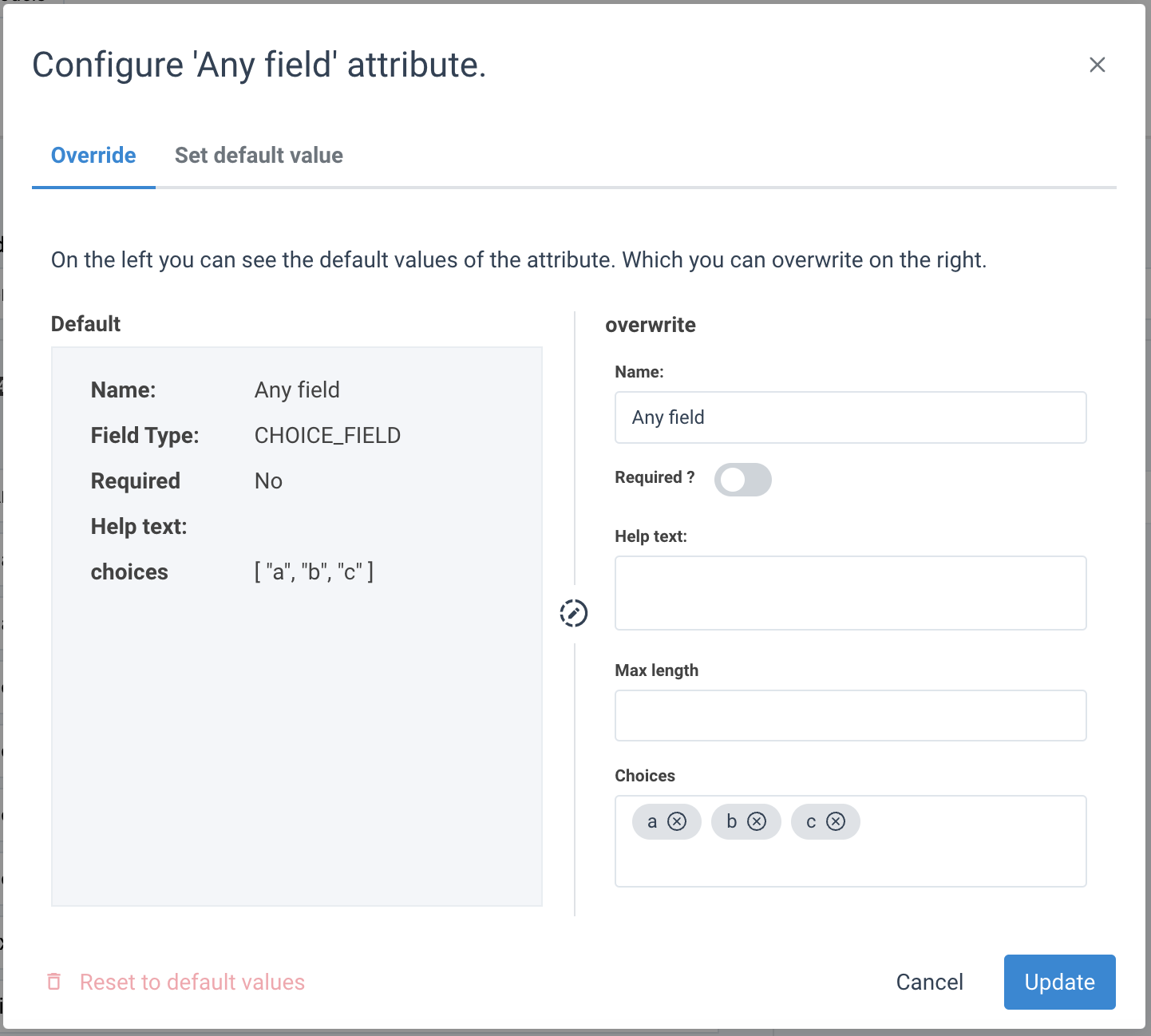 TIP: If you want to restore the default settings, select Reset to default
value in the bottom-left corner of the window.
TIP: If you want to restore the default settings, select Reset to default
value in the bottom-left corner of the window.
- When your data model has all the needed attributes and the attributes have the desired settings, select Save to finish creating your data model.
Set the Default values
You can set a default value for each language in each attribute of any data model. This feature lets you add the same values in bulk to all products that use the same data model. When you create a new product and set the data model that contains the default values, these values automatically appear in the product attributes for the exact locales.
- Open the necessary data model or create a new one.
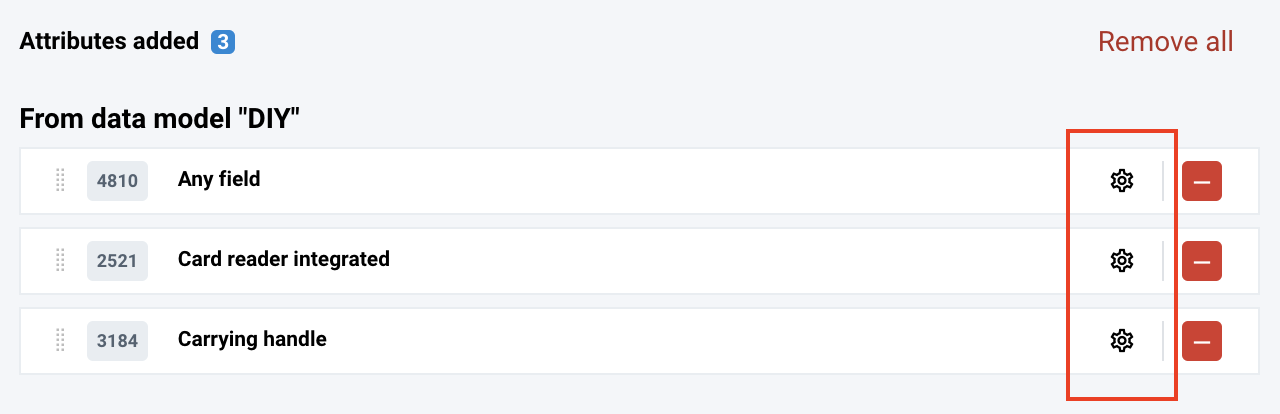
- In the Attributes added section on the left, select the cog wheel (⚙)
icon next to the needed attribute.
- Go to the tab Set default value.
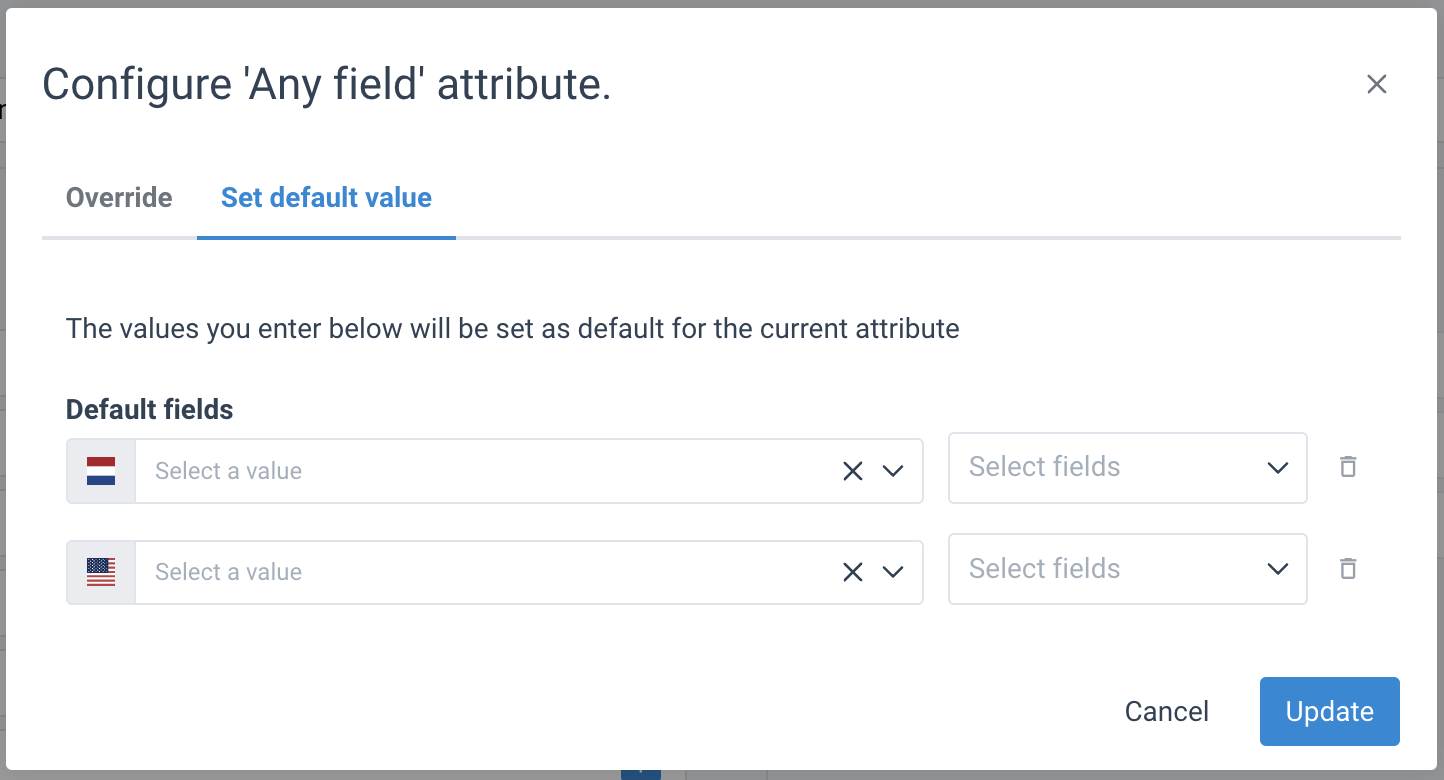
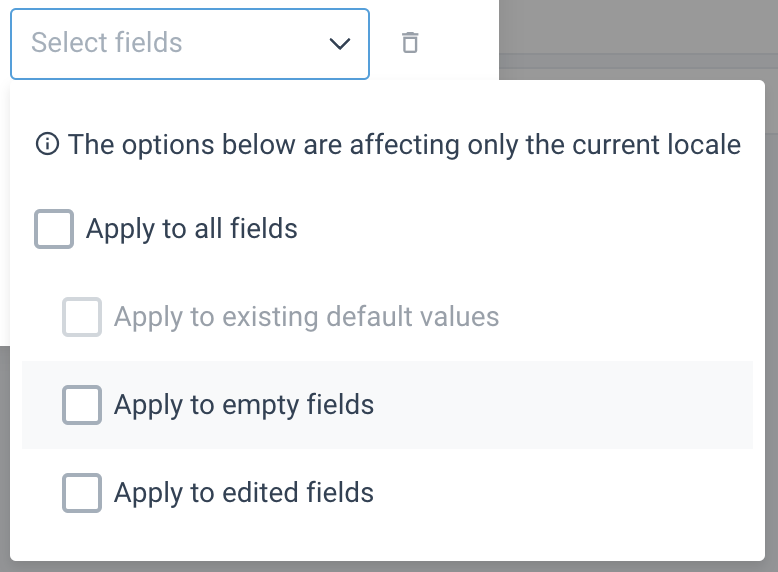
- Select the values in the Default fields. Select how to apply the value in
the Select fields drop-down menu:
- Apply to all fields - the value only applies to all the products with this data model and attribute.
- Apply to existing default values - the value replaces the already existing default values for the same locale of the attribute. If there is no default value yet, this option is inactive.
- Apply to empty fields - the value only applies to the products of this data model where the fields have no values. For example, if you add more locals in the product attributes and leave the fields empty, then you can set the default value in the data model to apply the value to all locals for all products with the same data model and attribute.
- Apply to edited fields - the value only applies to the products with this data model if you first set the default value but later manually edited it in the product.
- If you don’t select any option, the value only applies to a specific locale
for the newly created or imported products.
- Select Update.
Tip: To delete a default value, select the trash bin icon next to the needed field.
How is this guide?