

Create an export template
How to create, find, and configure export templates in the Developer Portal.
To create and configure a new export template, take these steps:
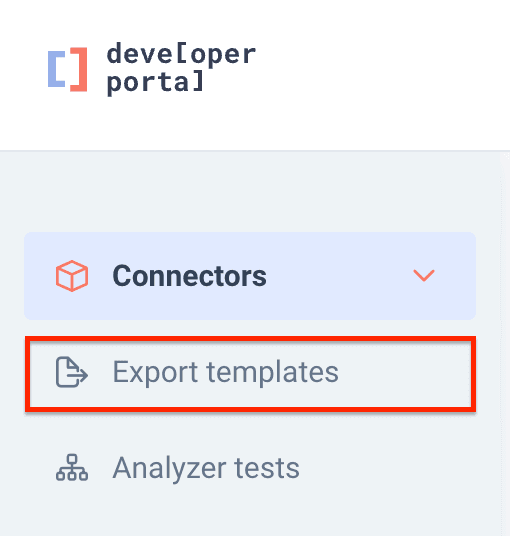
- Go to Export templates in the Developer Portal.
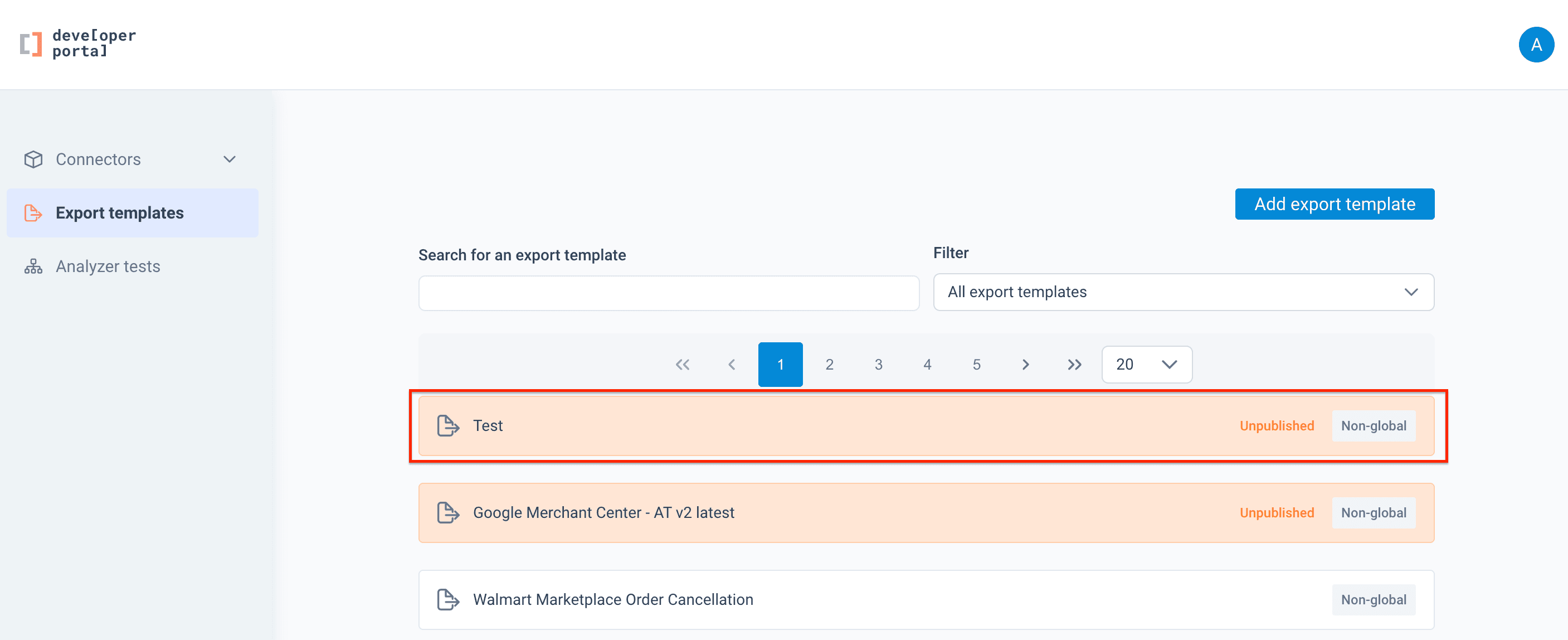
- Select Add export template.
- Enter a name for your export template and then select Add export template.
- See the following sections to complete the setup.
After creating an export template, you can see it in the Export templates page with the Unpublished and Non-global statuses. This means that the export template isn't available in the Productsup platform yet. To make it visible to users, you must complete the setup and select Publish. See Publish export template changes.
Once created, it is impossible to delete an export template as its deletion may affect all Productsup sites.
Find an existing export template
The Export template page contains all created export templates. To find the needed one:
- Go to Export templates in the Developer Portal.
- Start typing the name of the needed export template in Search for an export template and find it in the list of search results.
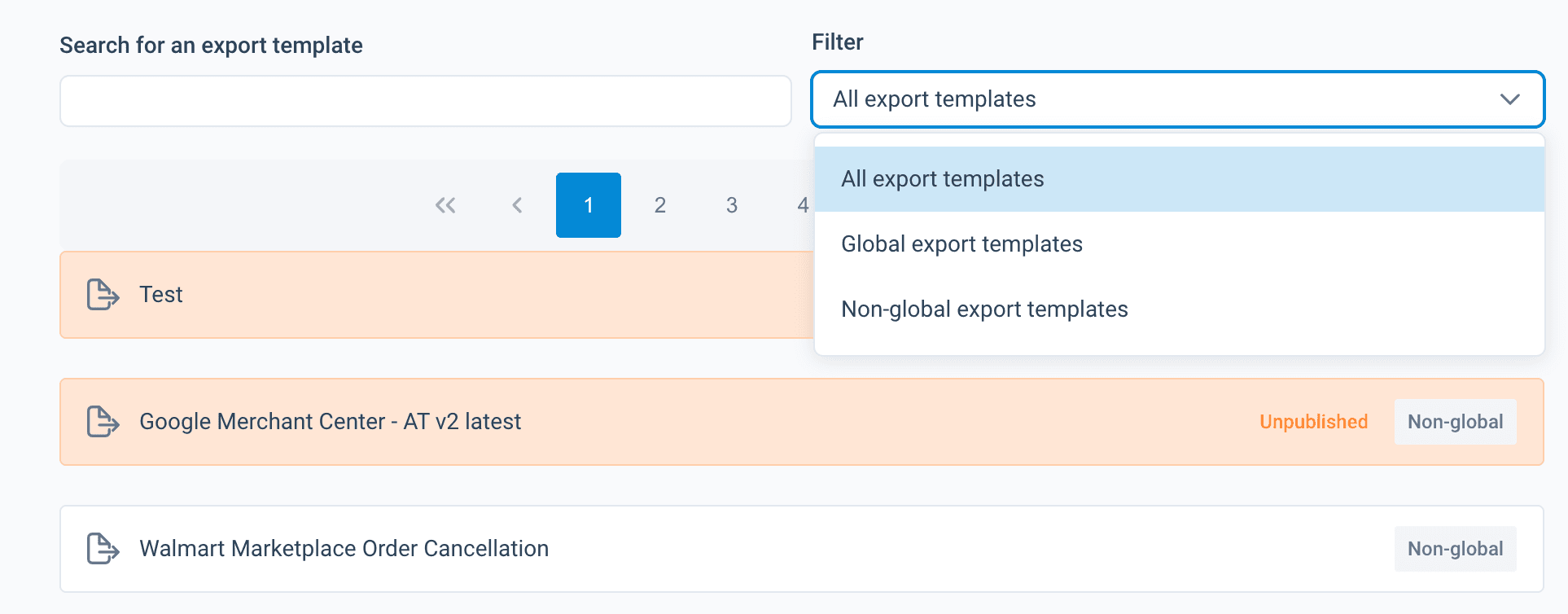
- Use Filter to narrow down your search to one of the following categories:
- All export templates: both global and non-global.
- Global export templates: available to all Productsup users.
- Non-global export templates: not available in the platform. You can make the export template global after you complete its configuration if you want to let all Productsup users have access to it. Make sure to double-check the setup before making an export template global.
Change export template name and add a logo
You can customize the export template by uploading a specific logo to help users immediately identify the target channel for which it is designed.
To change an export template name or logo:
- Go to Export templates in the Developer Portal.
- Search for an export template and select it in the list.
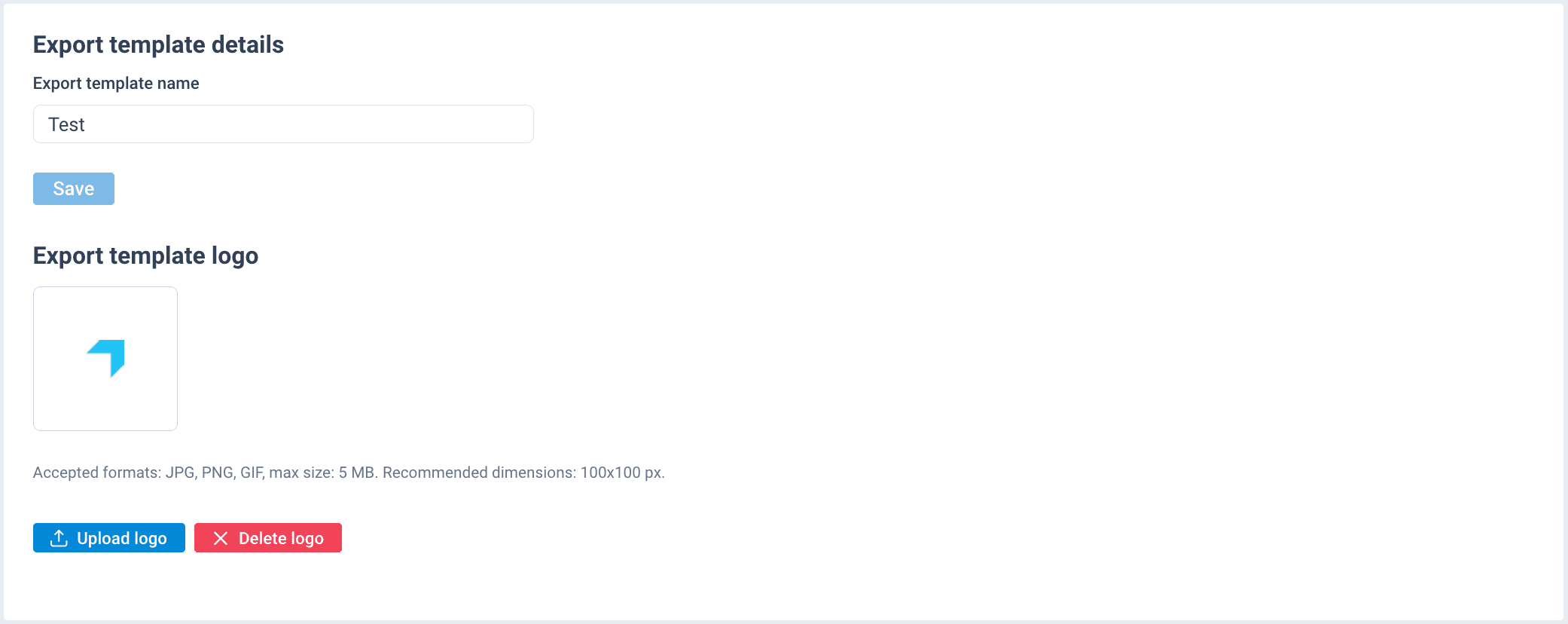
- In the Export template tab, edit the name in Export template name.
- Select Save.
- Select Upload logo to change the logo. The logo must be in one of the accepted formats, such as JPG, PNG, or GIF. The file size must not exceed 5 MB, and the recommended dimensions are 100x100 px.
Your changes don't become available in the platform until you select Publish. See Publish export template changes.
To learn how to add specific attributes or analyzer tests to your export template, see Attributes and Analyzer tests.
Add metadata
You can enhance your export template by adding descriptive metadata that helps users find and understand its purpose and nature. You can add a description, define the export type, and distinguish the export template by category and country.
To add a description:
- Go to Export templates in the Developer Portal.
- Search for an export template and select it in the list.
- Select External metadata from the side menu.
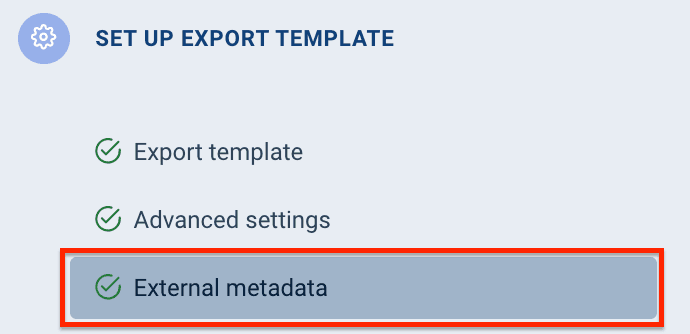
- Enter a description in Description.
- Select which type of export this export template performs: File or API.
- Select the channel category for the export template in the Categories dropdown.
- Select the designated countries for the export template in the Countries dropdown.
- Select Save.
Your changes don't become available in the platform until you select Publish. See Publish export template changes.
How is this guide?