

Set up an export template
Configure visibility, technical settings, and delta updates for an export template.
After you create an export template, you must configure it by adding attributes and analyzer tests.
Additionally, you should configure the advanced settings of the export template:
- Go to Export templates in the Developer Portal.
- Search for an export template and select it in the list.
- Select the Advanced settings tab. See the next sections to configure these settings.
Set up visibility
Use the Visibility section to define who can see and use this export template within the Productsup platform.
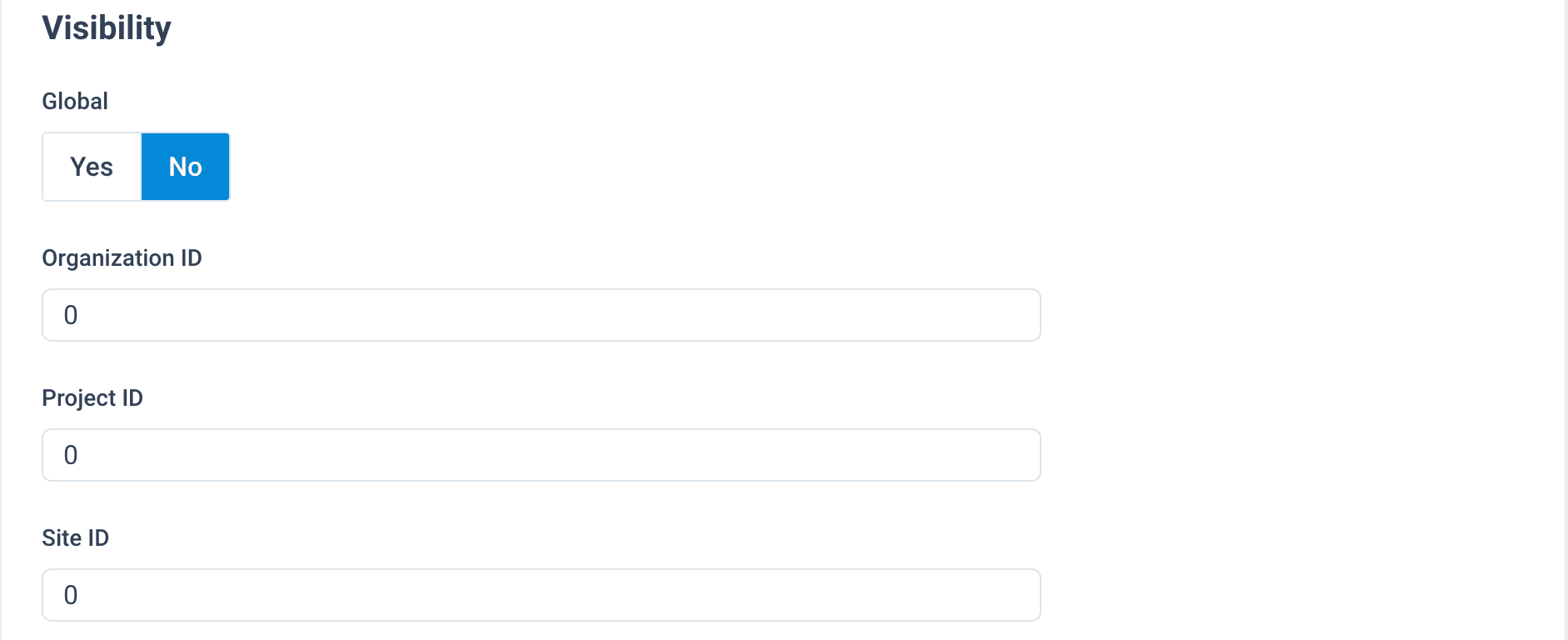
- Go to the Visibility section.
- Use Global to decide if the export template should be global or not:
- Toggle it to Yes to make the export template available to all Productsup users.
- Toggle it to No to restrict access or make it available only to specific organizations, projects, or sites. Enter the specific IDs in Organization ID, Project ID, and Site ID to grant access to specific entities.
Define technical settings and delta updates
Use the Technical settings section to define the file format parameters and activate delta updates to optimize data transmission.
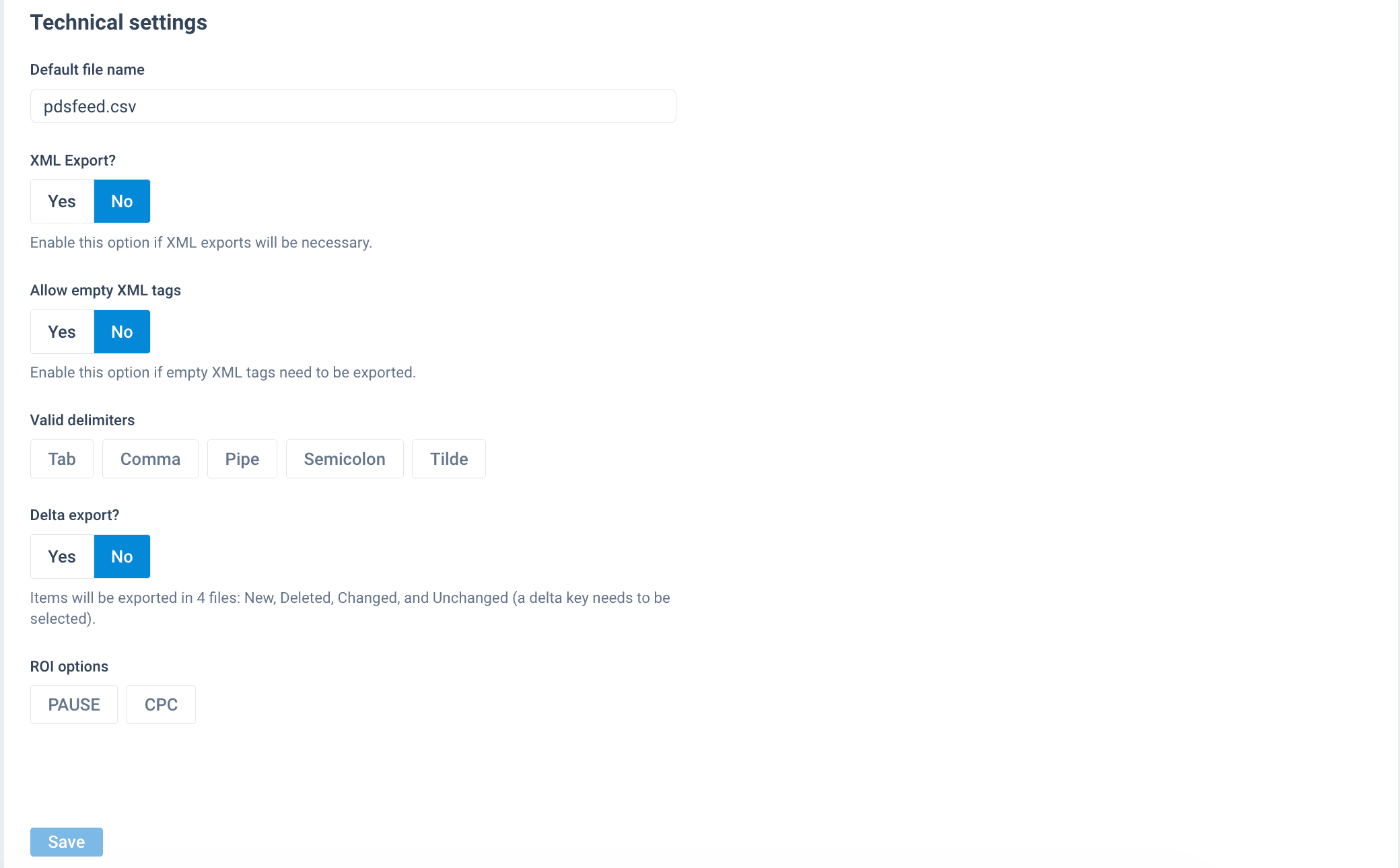
Delta updates allow you to store or transmit only data differences instead of the full dataset. This reduces loading times by generating updates specifically for new, changed, unchanged, and deleted items.
- Go to the Technical settings section.
- In Default file name, change the default pdsfeed.csv name, if needed, to a desired file name and extension.
- Toggle XML Export? to Yes to allow data export in the XML format. If you select Yes, additional fields appear to let you convert XML to XSLT:
- Enter your XML code in XSL Template if you need to transform it using XSLT.
- Toggle Allow XSL Override to Yes to let the platform substitute XML with XSLT during export.
- Toggle Allow empty XML tags to Yes to include empty tags in the XML output.
- Select all allowed delimiters for the data in Valid delimiters.
- Toggle Delta export? to Yes to enable delta updates. If you select Yes, additional fields appear to let you define the delta file names instead of the default ones:
- In New file name, enter a file name for new items.
- In Changed file name, enter a file name for changed items.
- In Deleted file name, enter a file name for deleted items.
- In Unchanged file name, enter a file name for unchanged items.
- In Skipped file name, enter a file name for skipped items.
- Select Save to apply changes at the bottom of the page.
Saving is not publishing. Save stores your changes as a draft, and platform users don't see them until you publish the export template. When you have finished configuring the export template, select Publish at the top of the interface. See Publish export template changes.
How is this guide?