

Workspaces
An overview of Workspaces
2 min read
Introduction
Organizations can have one or several workspaces to manage the data independentely. For example, you may have different workspaces per country, per business unit or other reason.
NOTE: Only Admin users can create workspaces.
Switch between workspaces
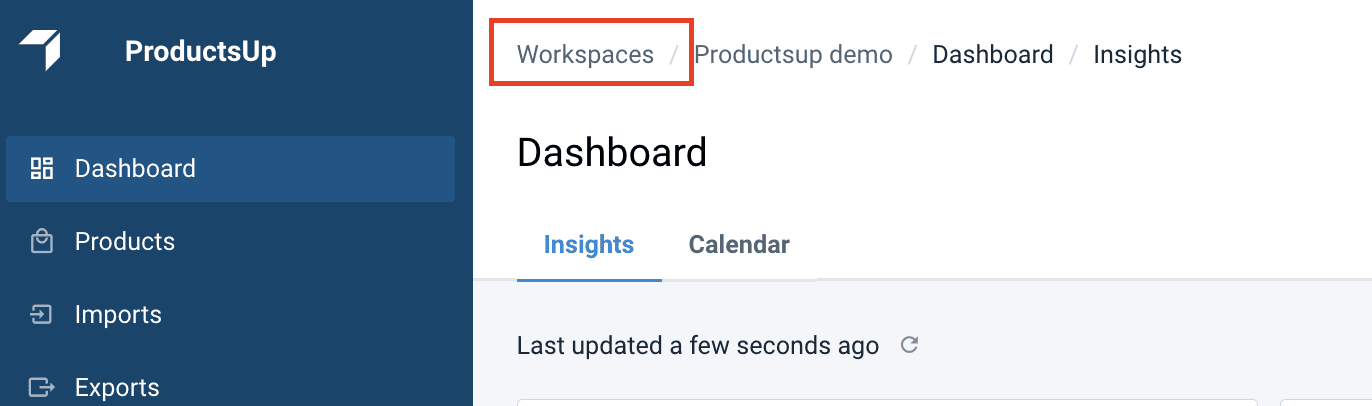
To go to the necessary workspace, select the Workspaces in the breadcrumbs at the top of any page.
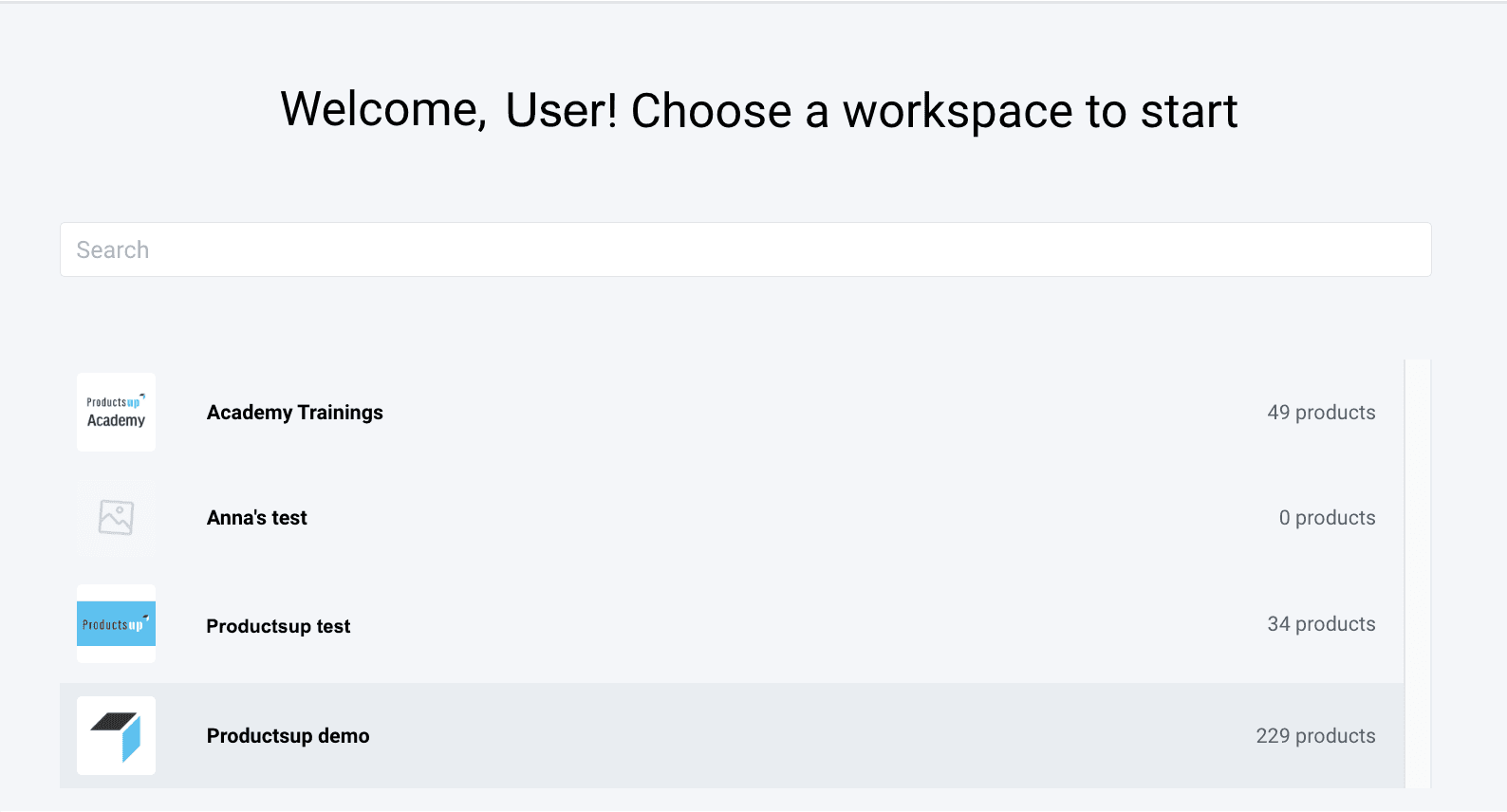
In the Workspaces selection page you can switch between workspaces.
Every workspace has a logo and name and shows the number of products.
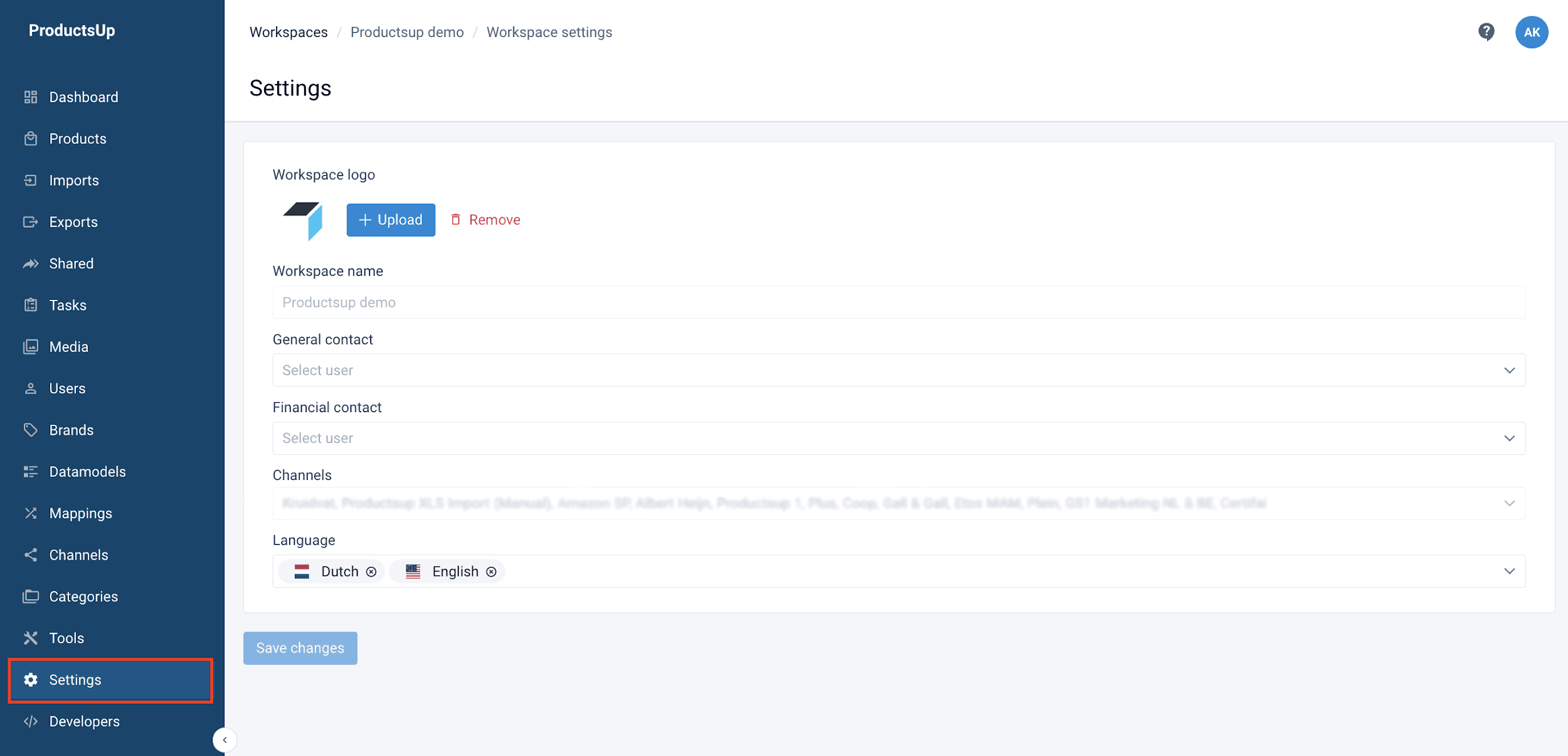
Workspace settings
To manage your workspace settings:
- Go to Settings from the main menu.
- Select Upload to add or change the workspace logo. Or select Remove to delete an existing logo.
- In Workspace name, you can see the name of the workspace. It is inactive as only Admins can change it.
- In General contact, select the name of the person who is the Administrator for your organization and has the right to moderate the workspaces available to you.
- In Financial contact, select the name of the person in charge of financial questions in your organization.
- In Channel, you can only view the channels available to this workspace. The field is inactive, as only Admins can change them.
- In Language, select the languages used in your organization for communication.
- Select Save changes.
How is this guide?