

Delete attributes from an export template
How to remove one or multiple attributes from an export template.
In case of setup mistakes or changing channel requirements, you can delete attributes from an export template.
You can only delete optional attributes. If an attribute is set as mandatory, you need to make it optional before deleting it. See Change attribute settings to make an attribute optional.
You can remove optional attributes from an export template in 2 ways:
- Deleting attributes one by one.
- Deleting attributes in bulk.
If you delete an attribute from an export template, all exports added in the Productsup platform using this export template will lose the deleted attribute in Dataflow and Data View. It can cause errors with rule box setups or on the channel side.
To delete a single attribute:
- On the export template setup page, go to the section Attributes and analyzer tests, and select the name of the attribute you want to delete.
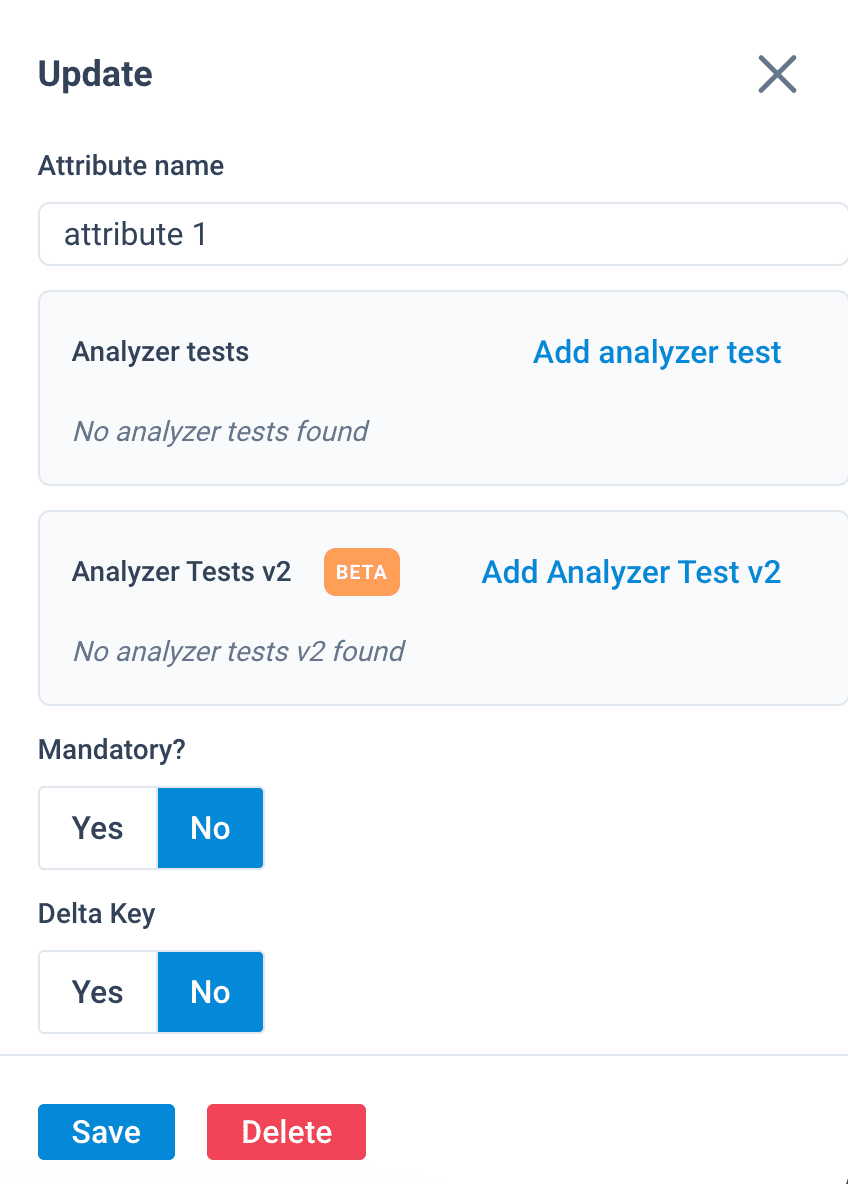
- Select Delete at the bottom of the menu.
- Select Delete once again to confirm the action.
Your changes don't become available in the platform until you select Publish. See Publish export template changes.
To delete attributes in bulk:
- On the export template setup page, go to the section Attributes and analyzer tests, and check the boxes next to all attributes you want to delete.
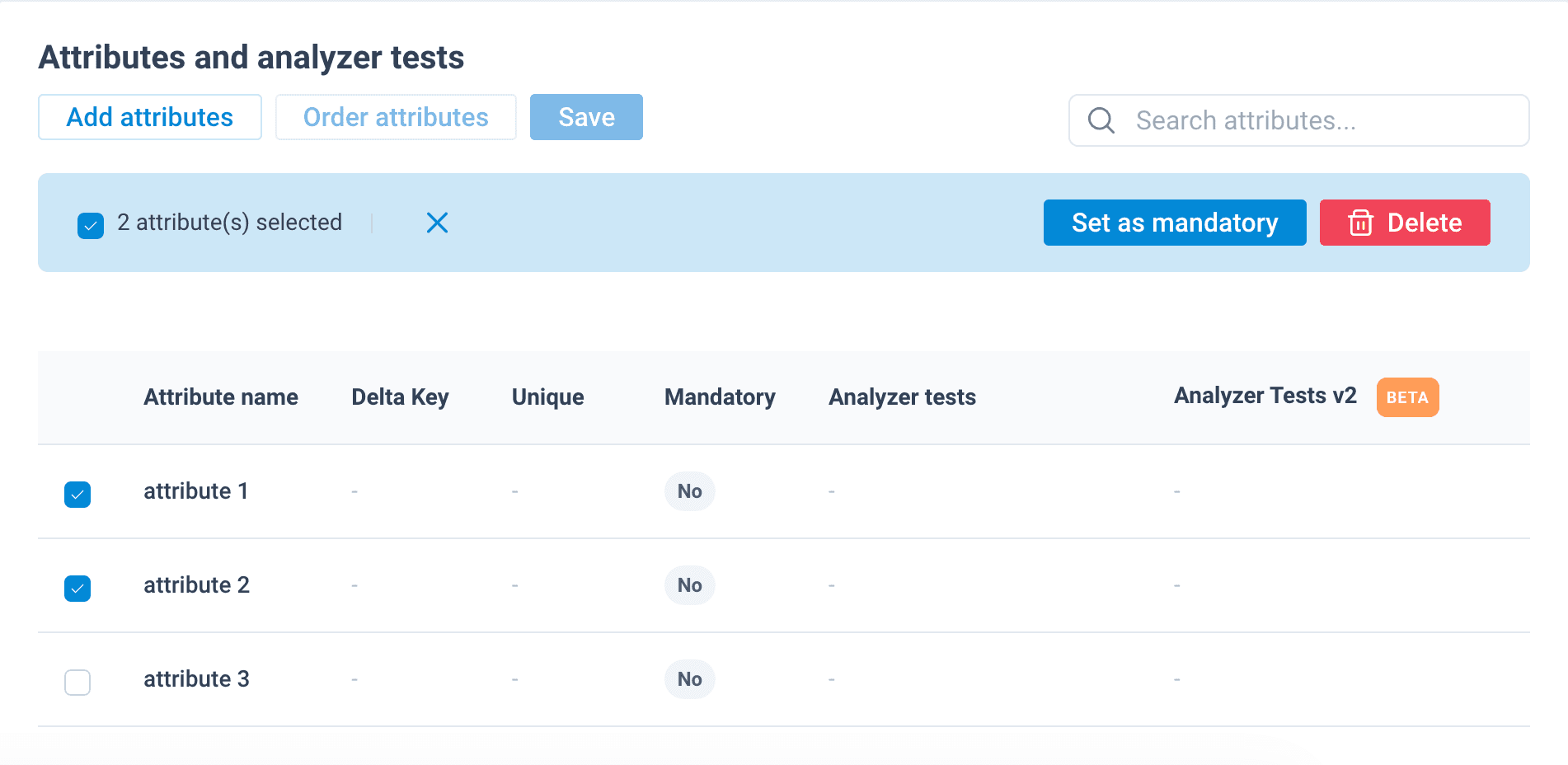
- Select Delete.
- Select Delete once again to confirm the action.
Your changes don't become available in the platform until you select Publish. See Publish export template changes.
How is this guide?