

Manage export templates
How to add, find, rename, duplicate, and delete export templates on the Export templates page of the Developer Portal.
The Export templates page lists the export templates of your organization. From there, you add new export templates and find, rename, duplicate, or delete existing ones. To set up an export template, open it. See Create and update an export template.
Add an export template
Go to Export templates in the Developer Portal.
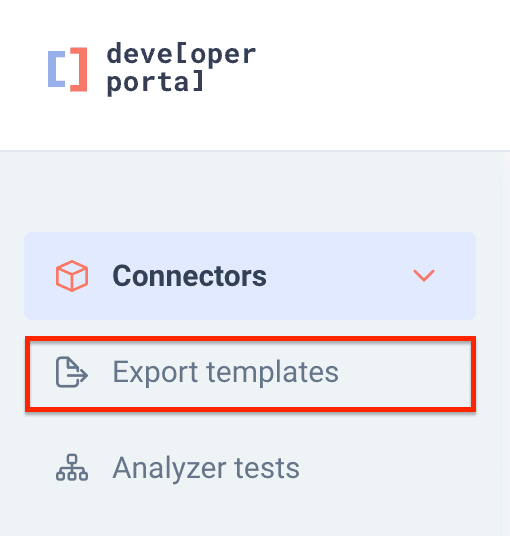
Select Add export template.
Enter a name for your export template and then select Add export template.
Set up the export template. See Create and update an export template.
The new export template belongs to your organization. If you belong to several organizations, you can choose which one in the export template's Advanced settings. See Choose the organization.
A new export template shows the Unpublished status on the Export templates page. It is not available in the Productsup platform until you complete the setup and select Publish. See Publish export template changes.
Find an export template
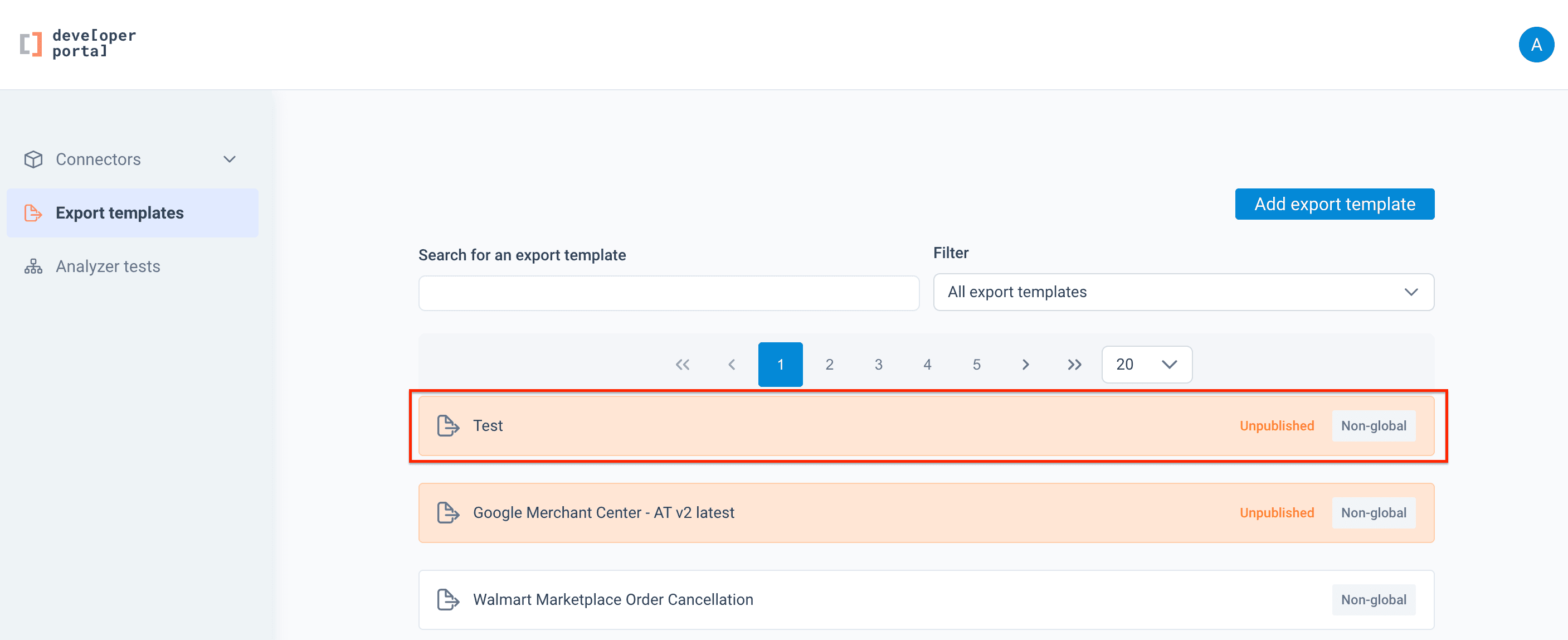
Go to Export templates in the Developer Portal.
Start typing the name of the export template in the search field.
To narrow down the list, filter by Category, Country, Type, or Visibility (global or non-global). Select Clear filters to see all export templates again.
Switch between the card view and the list view with the buttons next to the filters.
Rename an export template
On the Export templates page, open the menu ⋮ of the export template.
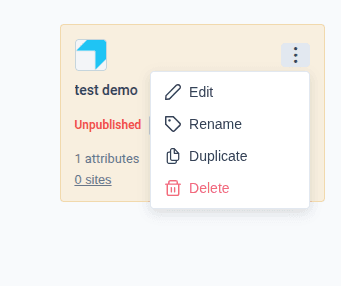
Select Rename.
Edit the name and press Enter. Press Esc to cancel.
You can also change the name on the export template's Export template tab. See Change the name and logo.
Duplicate an export template
Duplicating creates a new export template with the same settings, attributes, analyzer tests, logo, and external metadata. Use it to start a new export template from an existing one.
On the Export templates page, open the menu ⋮ of the export template.
Select Duplicate.
The copy is named after the original with (Copy) at the end, for example My channel (Copy). It belongs to your organization and is not published yet. Rename it, check its setup, and publish it when it is ready.
Some export templates have billing settings that only Productsup can set. These settings are not copied. The Developer Portal tells you before it creates the copy, and you can contact your Productsup representative if the copy needs them.
Delete an export template
You can delete the export templates that you own. Before you delete one, check which sites use it. See Site usage.
On the Export templates page, open the menu ⋮ of the export template.
Select Delete.
Check the list of sites that currently use the export template.
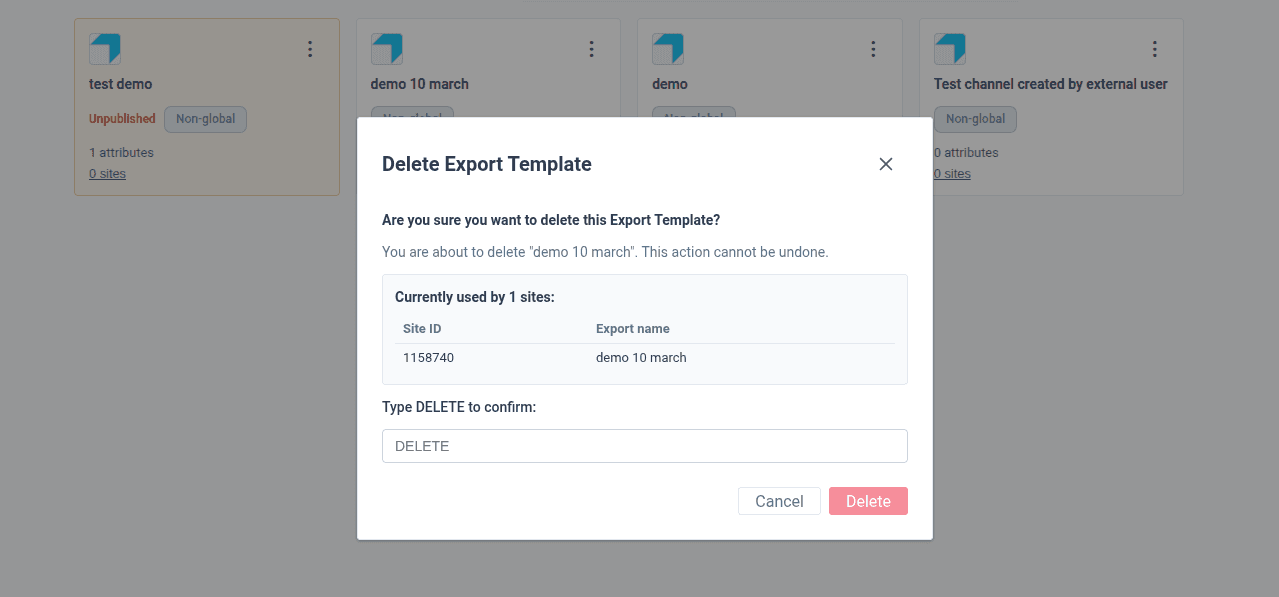
Type DELETE in the field and select Delete.
What happens in the Productsup platform:
- Within a few minutes, the export template is no longer offered when users add an export.
- Sites that already use it keep their export and keep exporting with the last published version.
Caution
You cannot undo a deletion. If sites use the export template, talk to their owners before you delete it.
How is this guide?