

View version history
How to see every published revision of an export template, who published it, and what each revision changed.
The version history lists the revisions of an export template, newest first, together with any unpublished changes. For each revision, it shows who published it, when, and what it changed. Use it as a change log to follow how an export template reached its current state.
Looking for the versions of a connector? See Versions.
Open the version history
Go to Export templates in the Developer Portal and open the export template.
Select Version history in the menu on the left.
You can also select View version history in the bar at the top of the export template page.
You can only see the version history of export templates you own.
Read the list of revisions
The version history of an export template lists one revision per row:
| Column | What it shows |
|---|---|
| Rev. | The revision number |
| Status | Active for the revision the platform uses, Previous for older revisions, Publishing while the platform picks up a newly published revision, and Draft for your unpublished changes |
| Changes | How many template details, attributes, analyzer tests, and metadata fields the revision added, changed, or removed |
| Published | When the revision was published and by whom |
When the export template has unpublished changes, the list starts with a row for the Current draft, numbered with the revision it becomes when you publish it. Select it to see what the draft changes, and select Publish to publish it. See Publish export template changes.
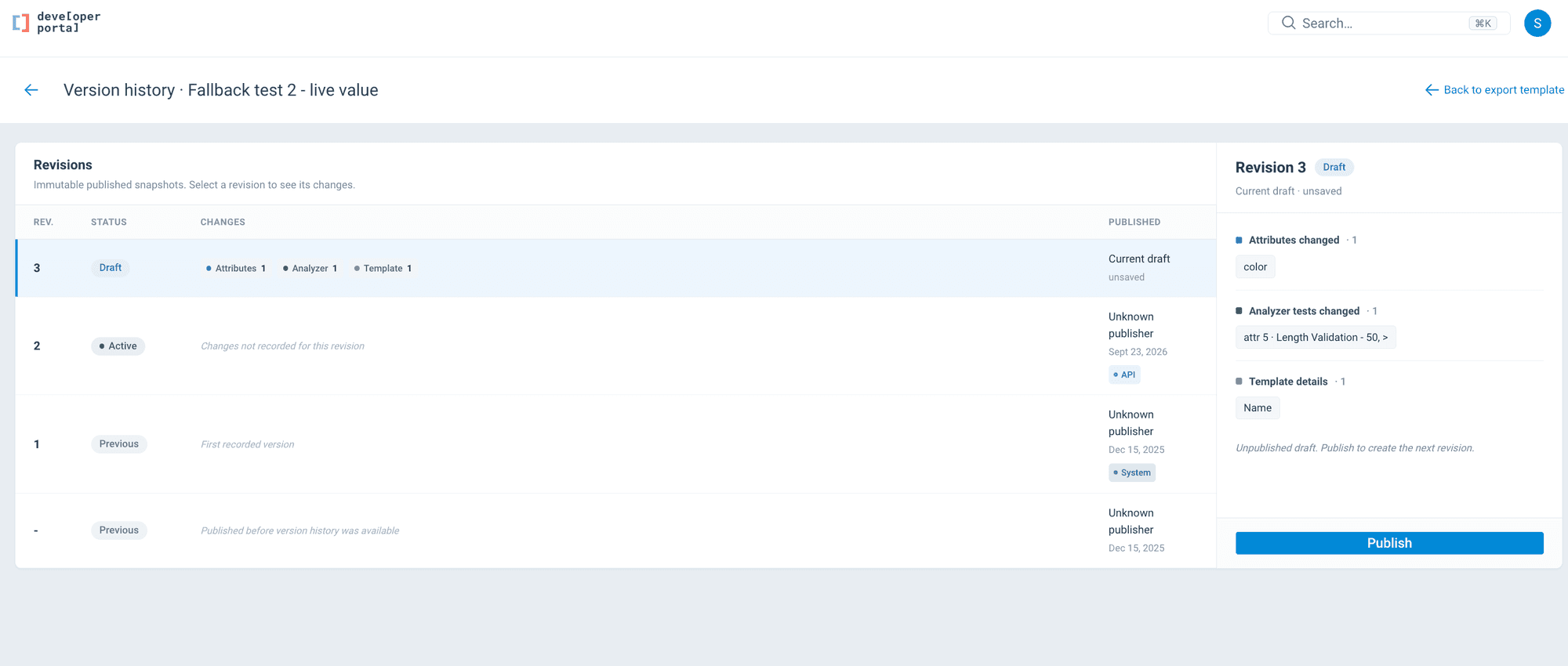
See what a revision changed
In the version history of an export template, select a revision to see its details:
- Who published it and where it was published from, for example the Dev Portal or the API.
- What it changed compared with the revision before it, grouped into Template details, Attributes, Analyzer tests, and Metadata. Each item is marked Added, Removed, or Changed, and changed values show the old and the new value.
Some revisions show a note instead of a list of changes:
| Note | What it means |
|---|---|
| First recorded version | Revision 1 has no earlier revision to compare against |
| No content changes | The revision was published without changes to the content of the export template |
| Changes not recorded for this revision | The revision before it is a legacy revision, so there is nothing recorded to compare against |
Revisions published before version history existed
Export template revisions published before the version history was available did not record what the export template contained. The version history shows them as a Legacy revision with the note Published before version history was available. For these revisions, the version history can show when they were published, but not what they contained or changed.
How is this guide?