

Generate a report with all skipped products
Discover best practices for generating and downloading a report featuring all skipped products using the Negative Export destination in Productsup.
Best practice
If some of your products are missing in the export, you may want to know exactly what products and why. The site may exclude some products from the export without deleting them from the feed if:
- The product data doesn't meet the export channel requirements.
- You exclude certain products from export with the help of rule boxes in Data View or Dataflow or using lists.
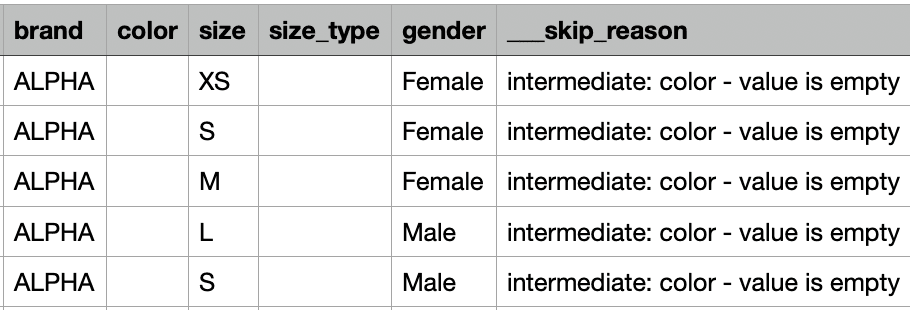
We recommend generating a negative export report to get a list of skipped products. A negative export is a report with all the products skipped from the export and the reasons for their exclusion.
What features to use
To generate a negative export, you need to use the following features:
- An FTP or SFTP account. You can create an FTP account in the Productsup server if you don't have one. See Create an FTP server hosted by Productsup for more detail.
- At least one export added in Exports.
- The FTP (Negative Export) v1 destination in your export channel.
How to set up FTP (Negative Export) v1 destination and generate a negative export report
Go to Exports from your site’s main menu and select the cogwheel icon (⚙) next to a necessary export.
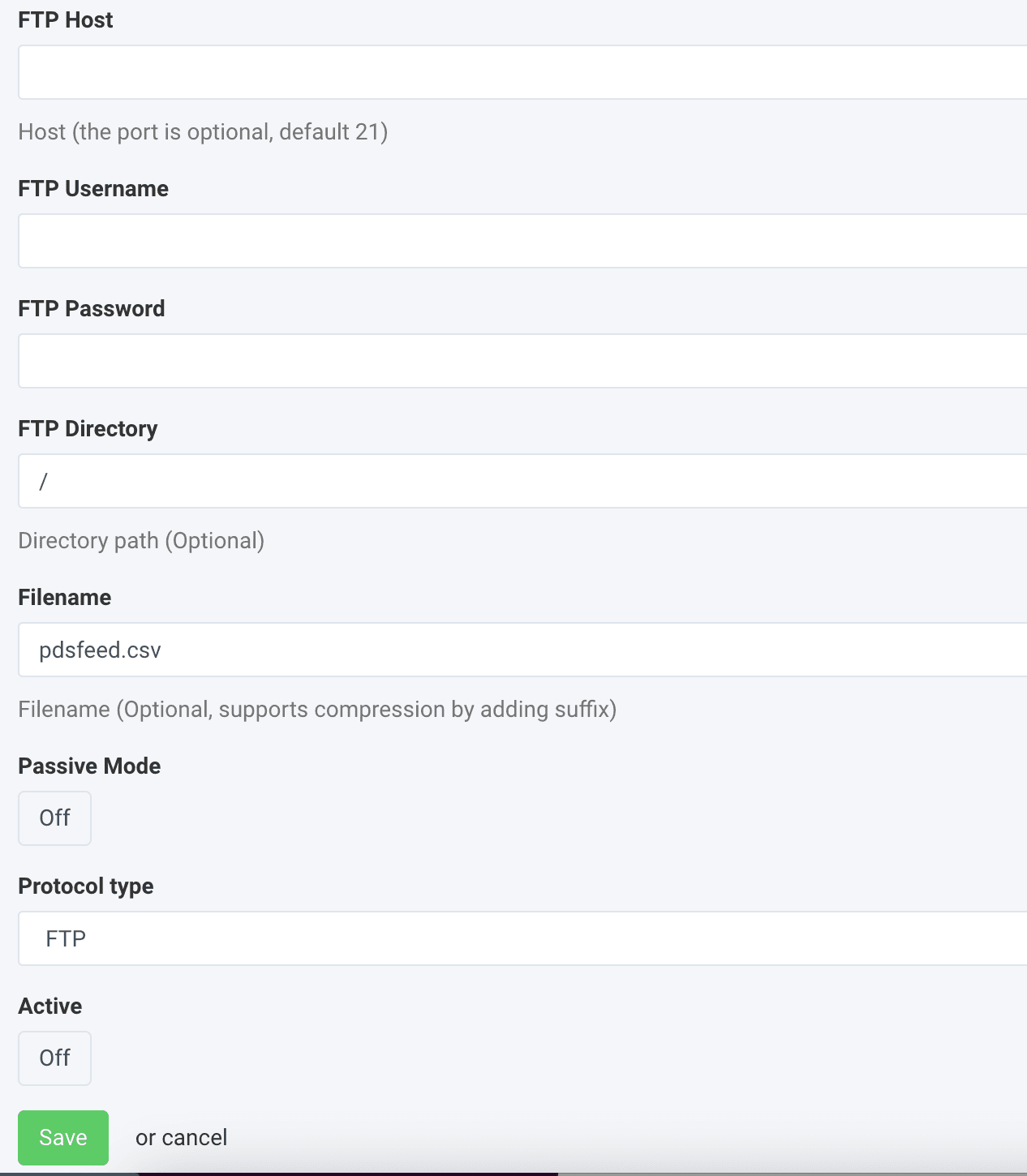
Select Add Destination, choose FTP (Negative Export) v1 from the Destination drop-down menu, give it a name as desired, and select Save.
Enter your FTP or SFTP account data in FTP Host, FTP Username, and FTP Password.
The FTP (Negative Export) v1 export destination doesn't support the inclusion of basic auth within the FTP URL, such as ftp://[user[:password]@]host[:port]/[url-path]. Instead, the destination provides individual fields for each portion of the URL: FTP Host, FTP Username, FTP Password, and FTP Directory.
Optionally, specify a path to your negative export report in FTP Directory and give the file a desired name in Filename.
Toggle the Passive Mode button to On to activate the connection with the FTP server.
Select a protocol type.
Toggle the Active button to On to activate the destination.
Select Save.
Select Export this export in the upper right corner of the page.
Go to your FTP or SFTP server account and download the report file similar to the following:
How is this guide?