

Import from a database
Import product data from a database in Productsup.
You can request product data directly from a database. This lets you skip creating a feed file from the database for import.
Productsup provides a selection of data sources for several types of databases:
- MySQL
- PostgreSQL
- Microsoft Azure SQL Server
- Other SQL databases based on Open Database Connectivity (ODBC)
Productsup can add needed drivers and database imports on request.
Import from MySQL database
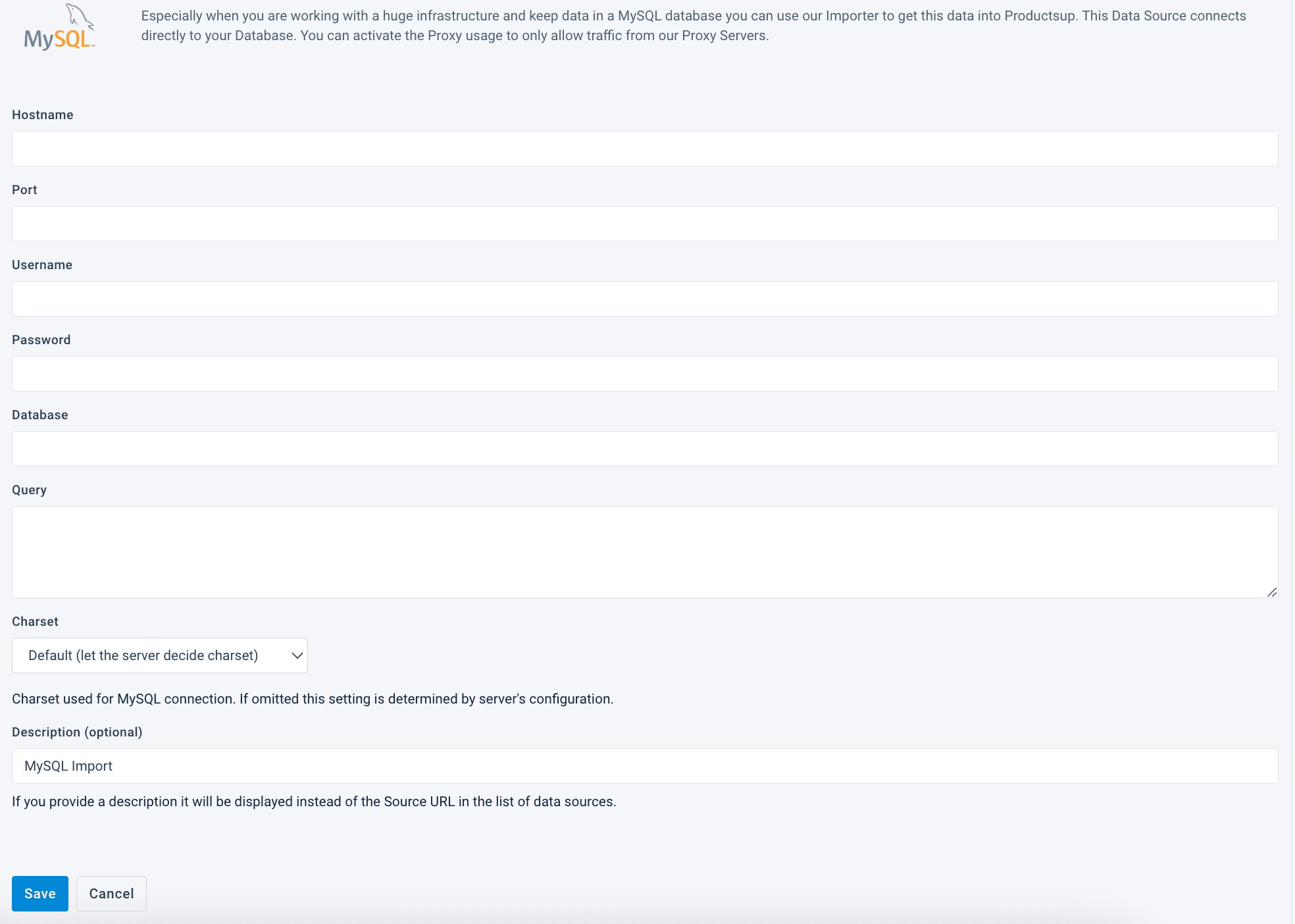
If you work with a vast infrastructure and keep data in MySQL database, use data source MySQL Import to get your data into Productsup. This data source connects directly to your database. If your database firewall requires it, allowlist Productsup's IP ranges — see Network information.
To import from MySQL database:
Go to Data Sources from your site's main menu and select ADD DATA SOURCE.
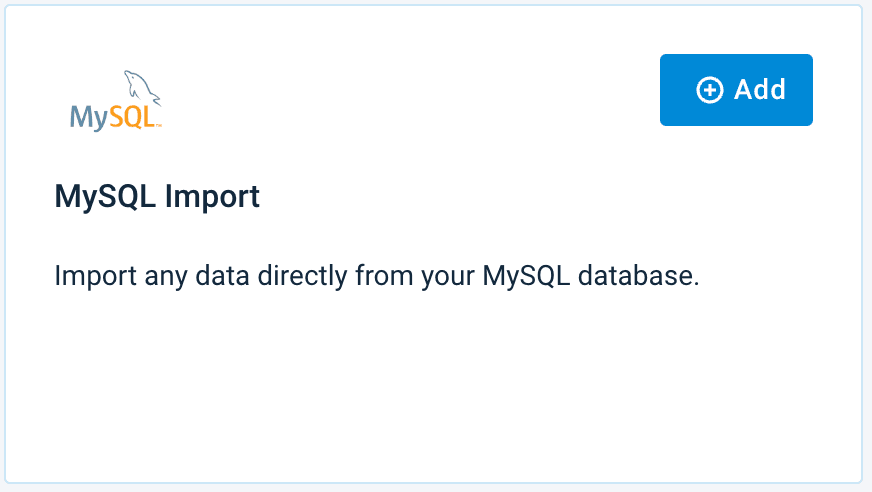
Search for MySQL Import and select Add.
Give your data source a custom name. This custom name replaces the name of the data source on the Data Sources Overview page. Then, select Continue.
Add your hostname in Hostname to connect to your database.
In Port, add the port numbers you assigned to the database.
Add your credentials in the Username and Password fields to connect to the database.
Enter the database name in Database.
In Query, enter a query to select the relevant data. To import your product information from a database, you must create SQL queries to databases. See Write SQL database queries
In Charset, select your database charset from the drop-down menu or leave the default value to let the platform choose the charset.
Select Save.
Import from PostgreSQL database
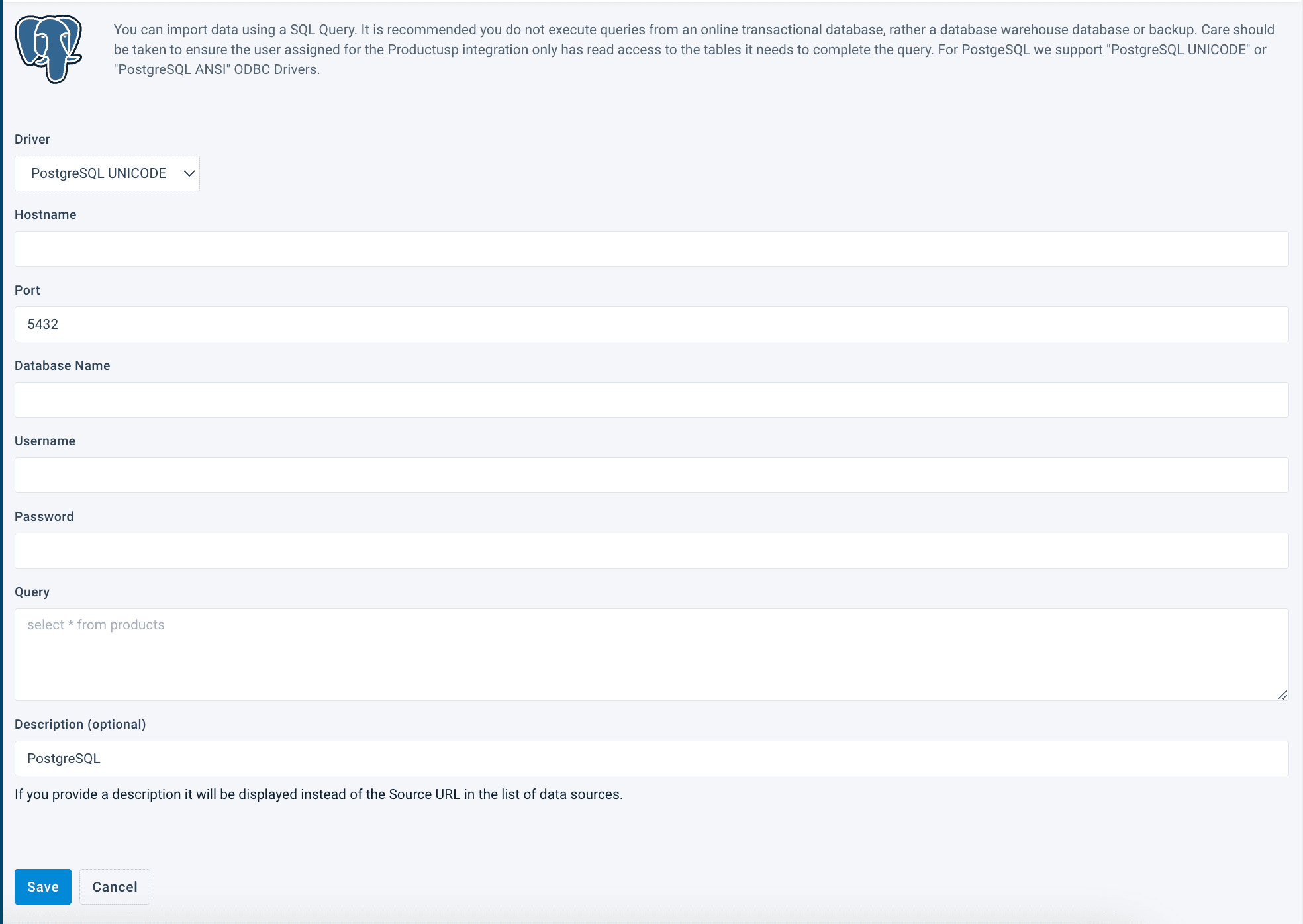
You can import data from PostgreSQL database using a SQL query. Productsup supports PostgreSQL UNICODE or PostgreSQL ANSI ODBC drivers.
Don't execute queries from an online transactional database. Instead do it from a database warehouse database or backup. Ensure the user assigned for the Productsup integration only has read access to the necessary tables to complete the query.
To import from PostgreSQL database:
Go to Data Sources from your site's main menu and select ADD DATA SOURCE.
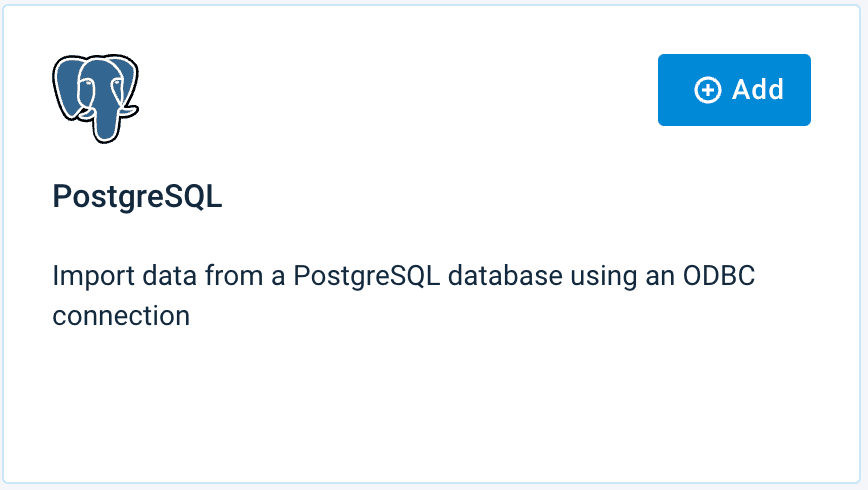
Search for PostgreSQL and select Add.
Give your data source a custom name. This custom name replaces the name of the data source on the Data Sources Overview page. Then, select Continue.
In Driver, choose the relevant driver. Select PostgreSQL UNICODE or Postgre ANSI from the drop-down menu.
Add your hostname in Hostname to connect to your database.
In Port, add the port numbers you assigned to the database.
Enter the database name in Database.
Add your credentials in the Username and Password fields to connect to the database.
In Query, enter a query to select the relevant data. To import your product information from a database, you must create SQL queries to databases. See Write SQL database queries
Select Save.
Import from Microsoft Azure SQL Server database
You can import data from Microsoft Azure SQL Server database using a SQL query. Productsup supports ODBC Driver 17 for SQL Server.
Don't execute queries from an online transactional database. Instead do it from a database warehouse database or backup. Ensure the user assigned for the Productsup integration only has read access to the necessary tables to complete the query.
To import from Microsoft Azure SQL Server database:
Go to Data Sources from your site's main menu and select Add data source.
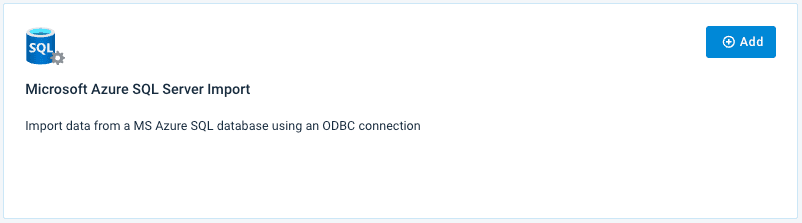
Search for Microsoft Azure SQL Server Import and select Add.
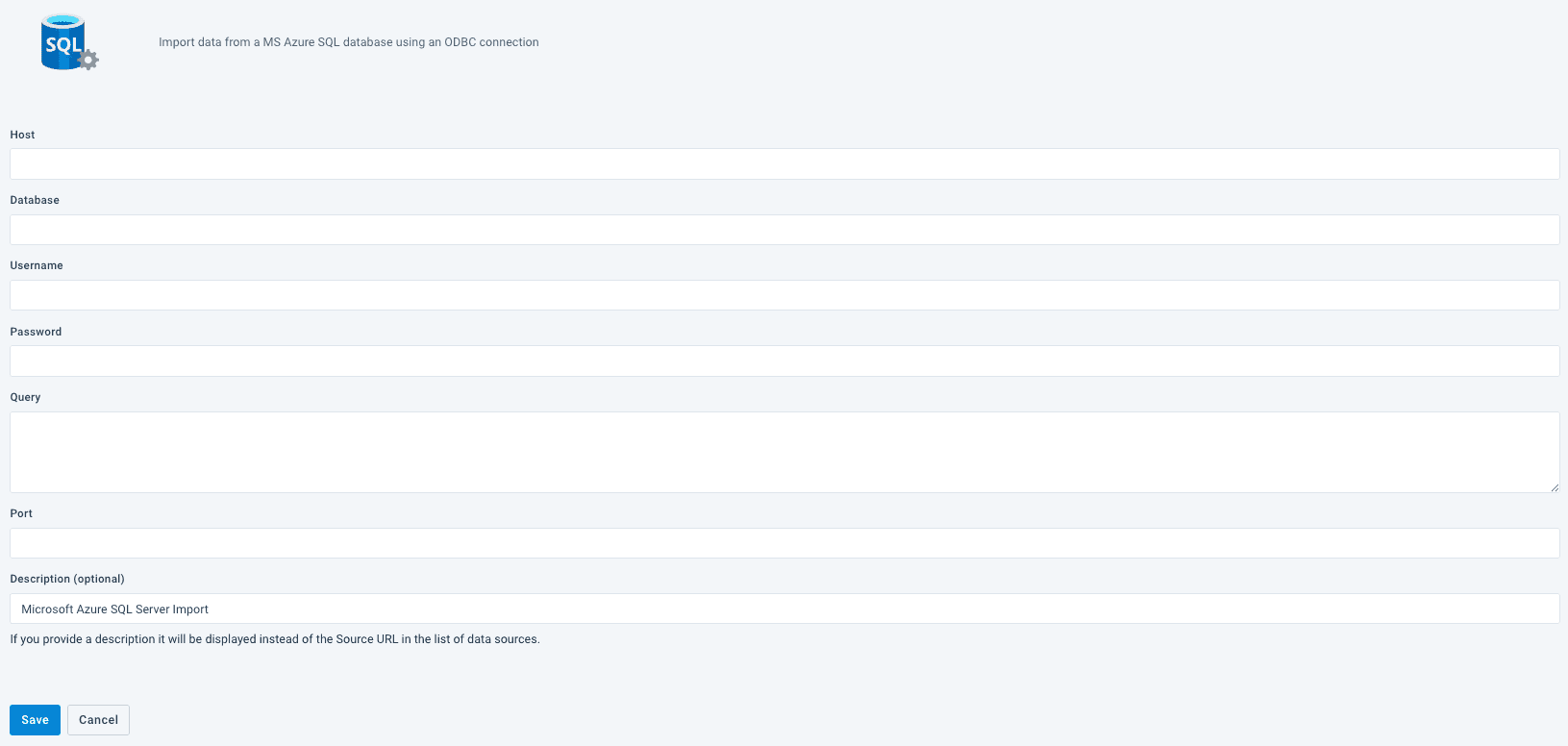
Give your data source a custom name. This custom name replaces the name of the data source on the Data Sources Overview page. Then, select Continue.
Add your hostname in Hostname to connect to your database.
In Port, add the port numbers you assigned to the database.
Enter the database name in Database Name.
Add your credentials in the Username and Password fields to connect to the database.
In Query, enter a query to select the relevant data. To import your product information from a database, you must create SQL queries to databases. See Write SQL database queries
Select Save.
Import from an ODBC database
You can import your data from any other SQL database based on Open Database Connectivity (ODBC). Productsup supports PostgreSQL UNICODE, PostgreSQL ANSI ODBC, and ODBC Driver 17 for SQL Server drivers.
If you need support for other drivers, contact [support@productsup.com](mailto: support@productsup.com ).
Don't execute queries from an online transactional database. Instead do it from a database warehouse database or backup. Ensure the user assigned for the Productsup integration only has read access to the necessary tables to complete the query.
Go to Data Sources from your site's main menu and select ADD DATA SOURCE.
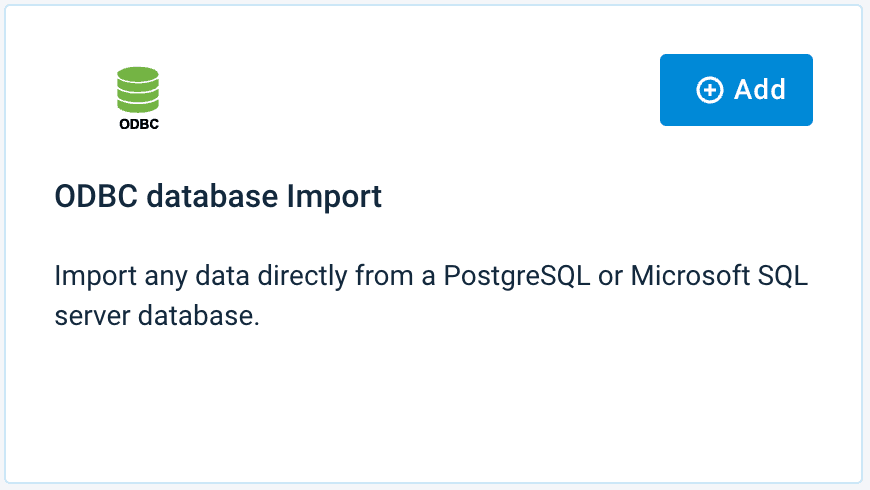
Search for ODBC database Import and select Add.
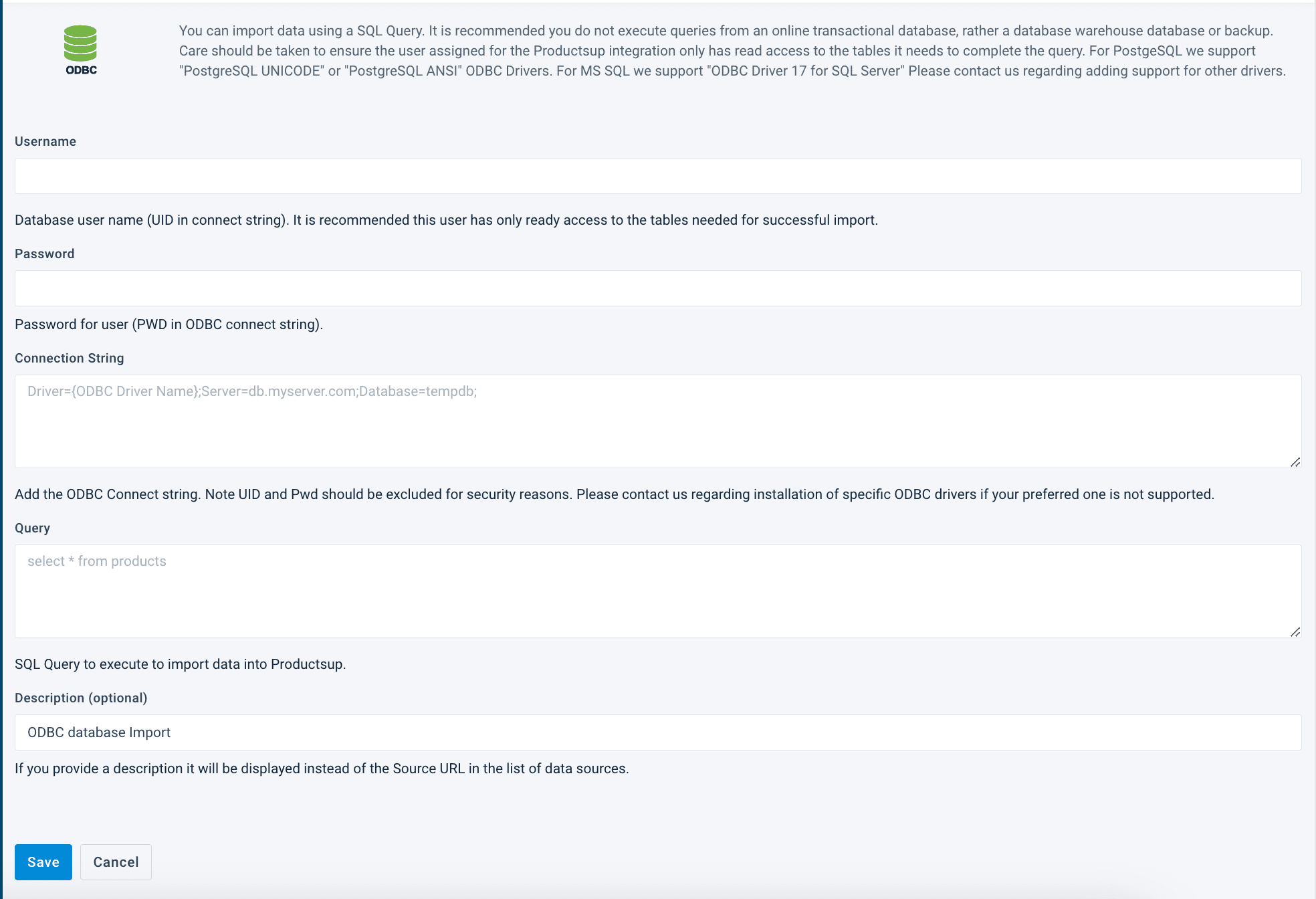
Give your data source a custom name. This custom name replaces the name of the data source on the Data Sources Overview page. Then, select Continue.
Add your credentials in the Username and Password fields to connect to the database.
Enter the database name in Connection String.
- Ask you database administrator to provide this name.
- Add the name in the format such as
Driver={ODBC Driver 17 for SQL Server};Server=mssql.123testing.com;Database=tempdb;.
In Query, enter a query to select the relevant data. To import your product information from a database, you must create SQL queries to databases. See Write SQL database queries
Select Save.
Write SQL database queries
This section gives some helpful tips for writing SQL database queries in Productsup. SQL queries help you access product data from databases. You need to enter your queries into the Query field of the configured data source.
For example, you have two tables containing different data on some products:
| id | product_id | title | type |
|---|---|---|---|
| 1 | 222 | book | direct |
| 2 | 333 | table | dropship |
| 3 | 444 | lamp | dropship |
| id | product_id | price |
|---|---|---|
| 1 | 222 | 9.99 |
| 2 | 333 | 69.99 |
| 3 | 444 | 49.99 |
You can merge the tables and extract Productsup product data by writing a query:
Select needed attributes using the select command followed by a list of product attribute names. You can also define the table you receive the data from using the from command. For example, to show that the product_id and title attributes come from the product_data table, write the following query:
SELECT product_data.product_id,
       product_data.title
FROM product_data
Add information from another table with the join command. Use the on command to specify the id column of each table. The query looks for the matches to the IDs between the tables. The data of the first table merges with the data of the second in case of a match. For example, the product_pricing merges with the product_data table. In this example, the on command specifies that the ID attribute for both tables is product_id.
JOIN product_pricing
ON product_data.product_id = product_pricing.product_id
Specify conditions to fulfill for exporting data using the where command to define how the class type equals dropship in the product_data column.
WHERE product_data.type = 'dropship'Each SQL query should include a select and from command. Use the join and where commands as necessary.
For this example, the final query may look as follows:
SELECT product_data.product_id,
       product_data.title,
       product_pricing.price
FROM product_data
JOIN product_pricing ON product_data.product_id = product_pricing.product_id
WHERE product_data.type = 'dropship'The result table after merging is as follows:
| product_id | title | price |
|---|---|---|
| 333 | table | 69.99 |
| 444 | lamp | 49.99 |
Tip
See W3 Schools SQL Tutorial, to learn more about SQL.
Contact support@productsup.com if you have any questions.
How is this guide?