

Welcome to the Retail platform
An introduction to the Retail platform main functionalities
At Productsup, we are ready and willing to help. You can use this help documentation to quickly find answers to any questions. If you don't find an answer to your questions in the documentation, contact rpxsupport@productsup.com to request personal assistance from our support team.
Getting started
When you first arrive at the Retail platform website, you see a login page where you can sign in to your account.
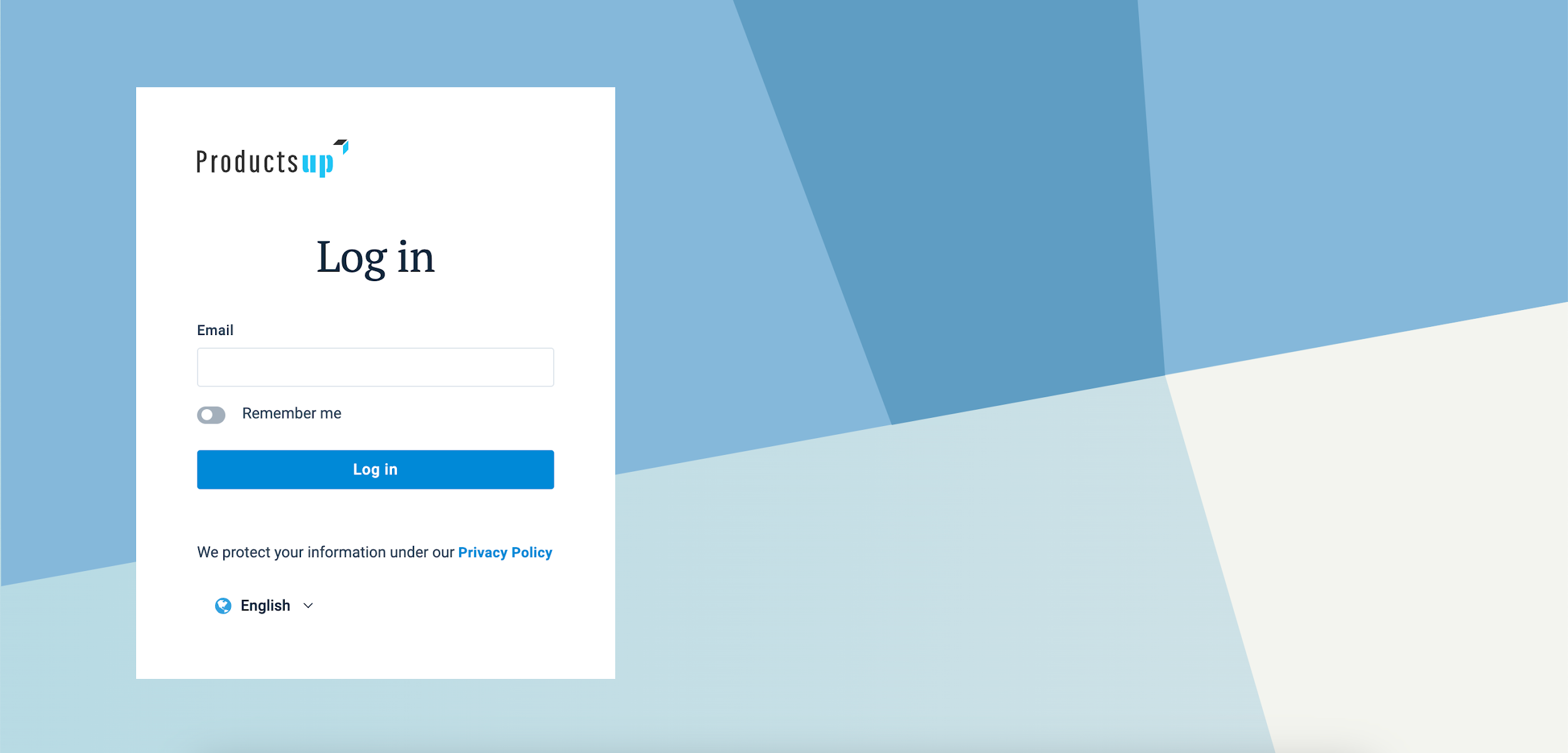
- Enter your email address in Email and select Log in.
- Provide your password and select Log in once again.
- If your account uses two-factor authentication, enter a code from your authenticator app a one-time code.
Tip: You provided your email but can't remember your password? Select Forgot Password? to reset your password via email.
If you also have a Productsup platform account, you can log in with the same credentials or seamlessly switch between the platforms.
The platform components
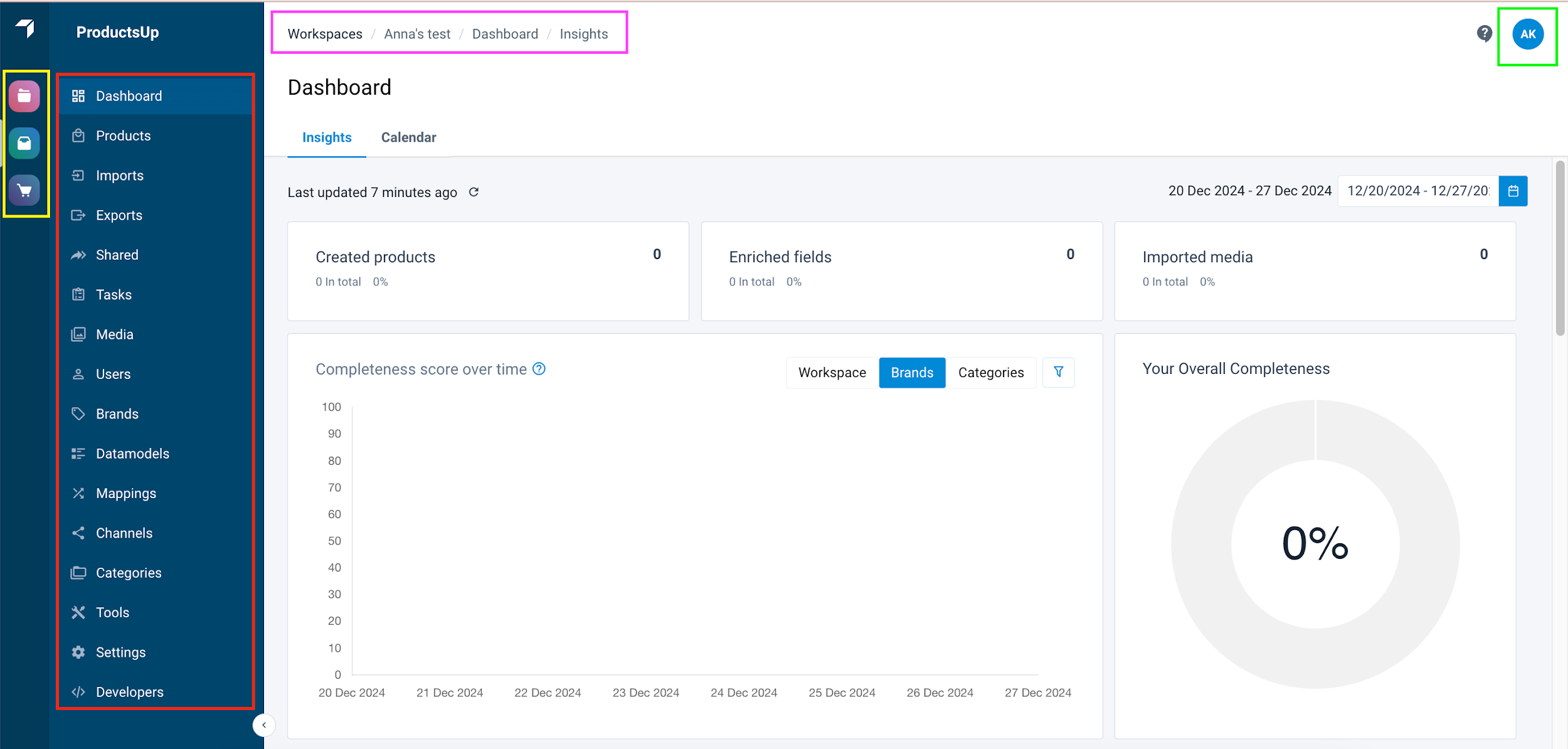
Upon logging in, your Dashboard provides access to the following areas:
| Component | Purpose |
|---|---|
| Main menu | Access the list of available platform functionalities via the left-hand sidebar. |
| Navigation bar | Navigate through page hierarchies using breadcrumbs and switch between Workspaces. |
| Side panel | Provides quick access to Projects, Workspaces, and the Content Portal (for users of both platforms). |
| Profile settings | Manage your profile data, system preferences, and log out from the top-right corner. |
Main menu
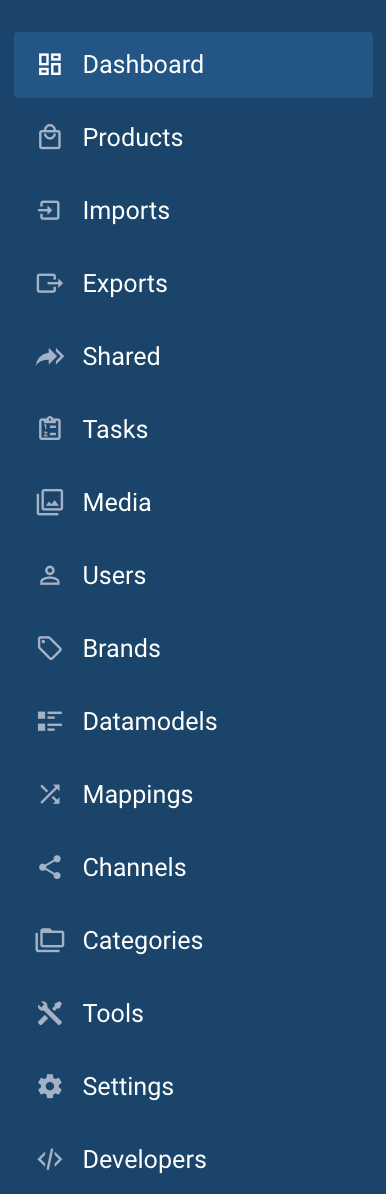
The main menu contains the following items:
| Feature | Purpose |
|---|---|
| Dashboard | The main screen showing important widgets, data overviews, and links to core functions. |
| Products | View a list of all registered products and create new product entries. |
| Imports | Access an overview of all imported products and initiate new import processes. |
| Exports | Access an overview of all exported products and initiate new export processes. |
| Shared | Manage and view lists of products shared by you or shared with you. |
| Tasks | View and manage all open system and user tasks. |
| Media | Manage image files and collections, and upload new media assets. |
| Users | View the user list and information, and create new user accounts. |
| Brands | View brand information and create new brand profiles. |
| Datamodels | Create new data models or manage existing ones for your workspace. |
| Mappings | Access and manage import and export mappings relevant to the workspace. |
| Channels | View and configure the channels available to your current workspace. |
| Categories | View category information and create new categories. |
| Tools | Access the HTML Editor and JSON schema library features. |
| Settings | View and modify your specific workspace settings. |
| Developers | Request activation of the API feature for your account. |
Profile settings
The profile settings icon lets you change your personal information and password in Profile and your overall Retail platform account preferences in System Settings.
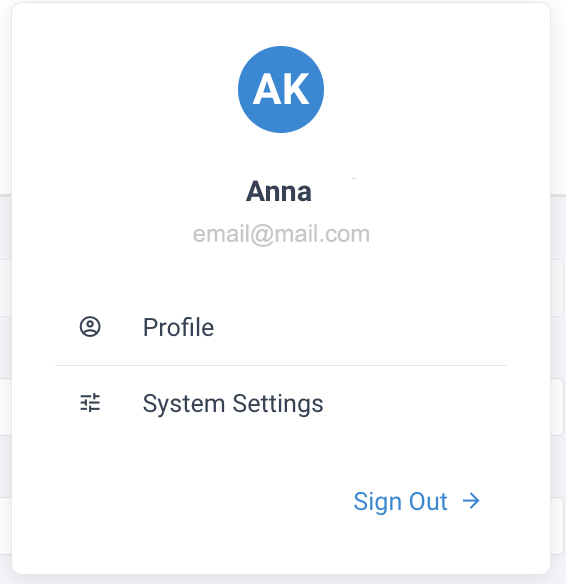
Profile info
Profile settings give an overview of your registered personal information and let you edit it. The available information you can edit is:
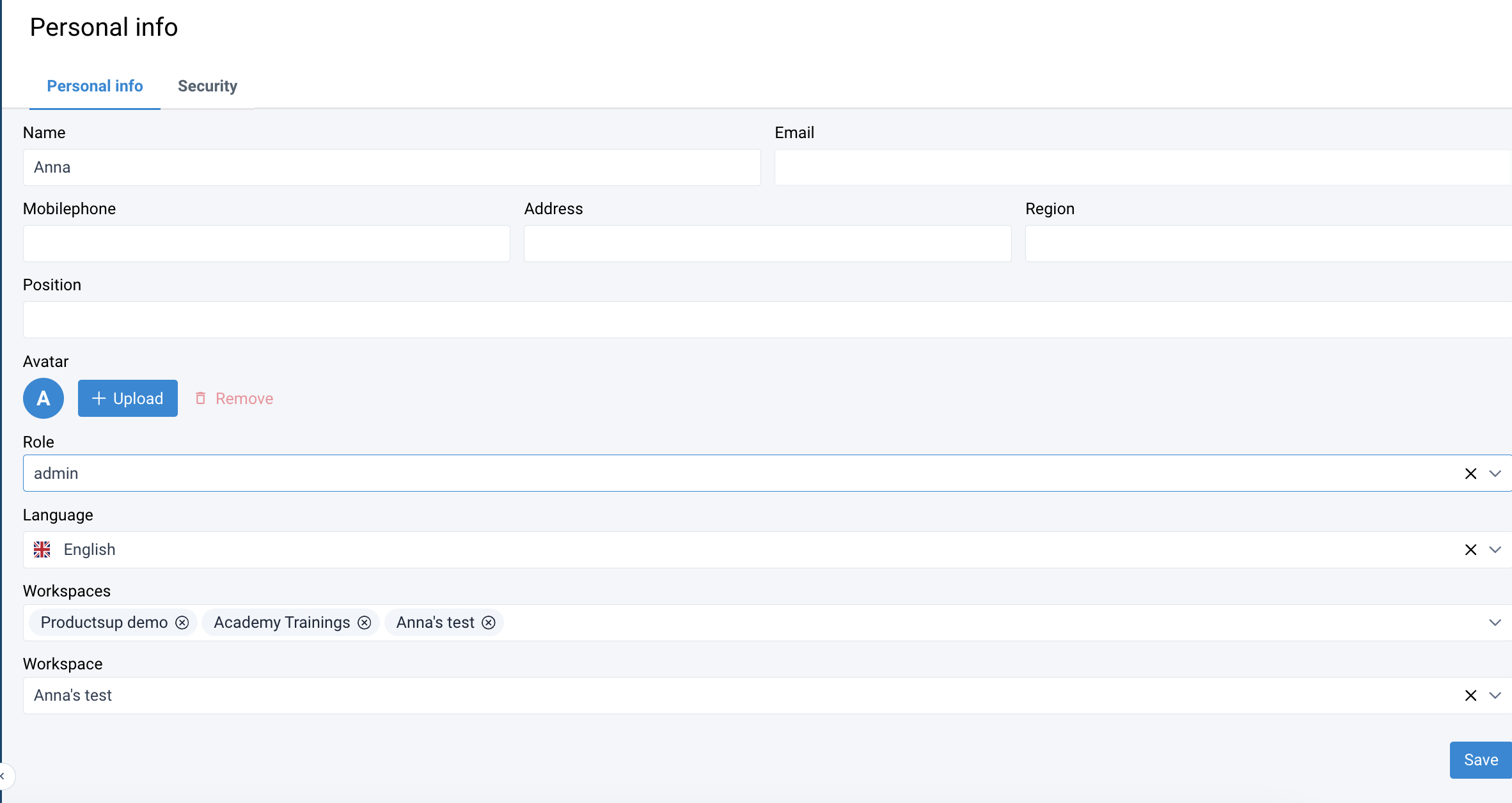
| Attribute | Purpose |
|---|---|
| Name | Your name. |
| Your email address. | |
| Mobilephone | Your mobile phone number. |
| Address | Your address. |
| Region | Your region. |
| Position | Your position in the company. |
| Avatar | Your photo. If left empty, displays your initials. Select Upload to add an image. |
| Role | Select your user role. |
| Language | Choose the language in which to show the website. |
| Workspaces | All the workspaces that you have access to. |
| Workspace | The workspace currently selected. |
Security
In the Security tab, you can change your password:

Help and Support
If you experience issues with the platform and need assistance or have questions about some features, you can reach out to our support team by rpxsupport@productsup.com. You contact Support from the platform:
- In the top-right corner of your view, select the Help and Support icon. You can find it next
to the profile settings bubble.

- In the slide panel, select Contact Support.
- An email app opens a new window on your device. Describe your issue or question and send us an email at rpxsupport@productsup.com.
How is this guide?