

Log in to the Retail platform
How to log in
2 min read
When you first arrive at the Retail platform website, you see a login page where you can sign in to your account.
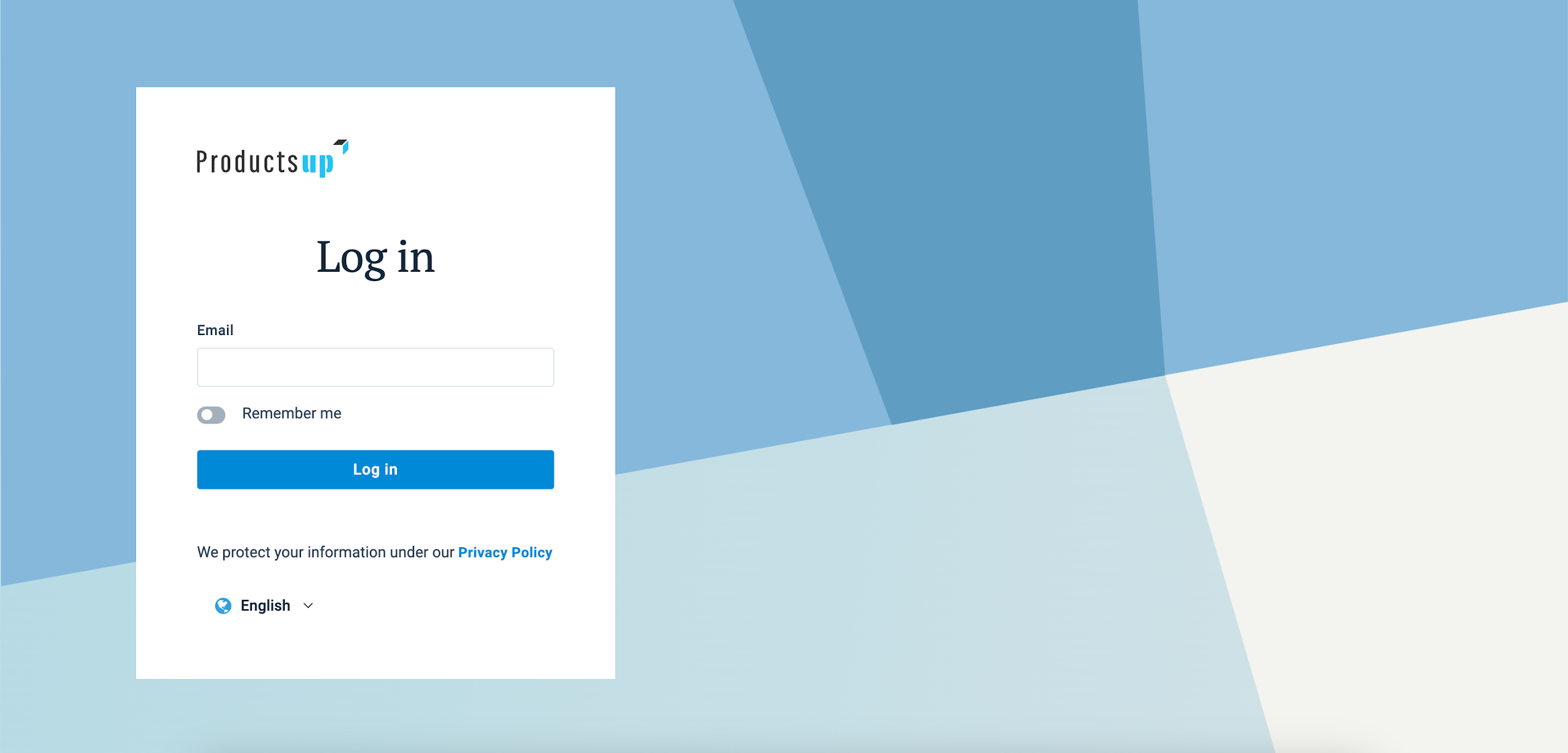
Logging In Enter your email and password to log in. If two-factor authentication is enabled,
enter the one-time code from your authenticator app when prompted.
- Forgot Password? Use the "Forgot Password?" link to receive a reset email if you cannot access your account.
- Language Selection: Use the drop-down menu at the bottom of the login page to set your interface language before entering the platform.
- Unified Access: Your credentials provide shared access to both the Retail and Productsup platforms.
Change your password
If needed, you can change your password in the profile settings:
- Select the profile icon in the top-right corner of the page.
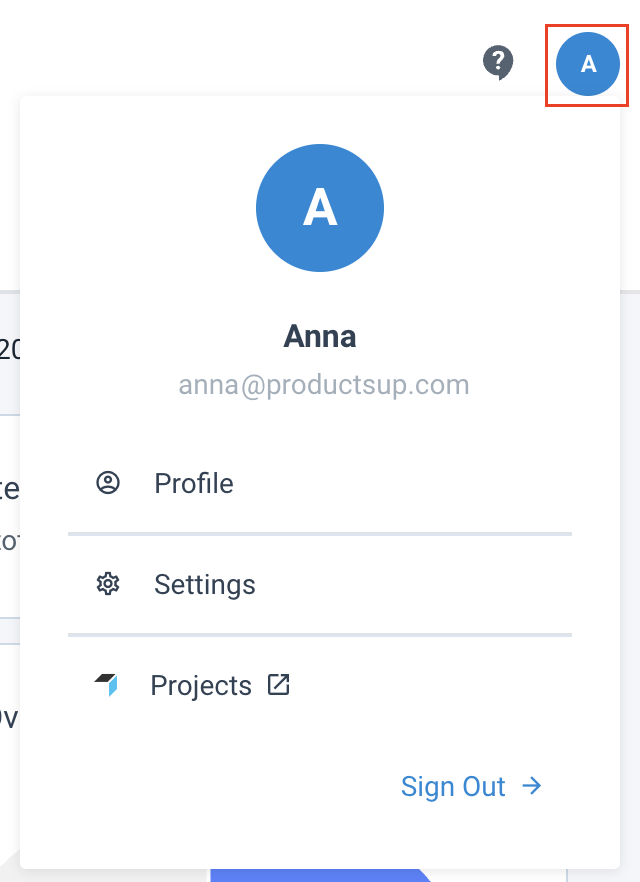
- Choose Profile and open the Security tab.
- Enter a new password in New password, repeat it in Confirm password, and select Save.

NOTE: Your password must contain at least 12 characters, 1 number, both lower- and uppercase
letters, and 1 special character, such as #, ?, !, and so on.
Two-factor authentication
In the Retail platform, there is no way to activate two-factor authentication for your profile.
However, if you have an account in the Productsup platform, you can enable two-factor authentication
there, which secures login for both platforms.
See Use two-factor authentication (2FA).
How is this guide?