

Google Conversational Attributes
Enrich your Google Merchant Center feed with Conversational Attributes to support Google's AI-powered shopping experiences.
AI-driven shopping is changing how buyers find and evaluate products — through AI Mode in Search, conversational agents, and other AI-powered surfaces. To help these systems represent your products accurately, Google Merchant Center supports a set of conversational attributes.
These attributes let you submit richer, more nuanced product information than a standard feed allows: answers to the questions buyers actually ask, links to related products and accessories, and detailed variant options such as size, color, and fit. Feeding this context to Google helps AI systems and conversational agents understand your products the way a well-briefed salesperson would, so buyers find the right product faster — whether they're browsing traditional search results or asking an AI assistant a question.
This feature is built for Productsup clients who already export a product feed to Google Merchant Center and want to enrich that feed with conversational depth, without touching or risking the integrity of their core product data. Because this export complements your existing Google Merchant Center feed rather than replacing it, it's available at no additional cost.
Available conversational attributes include:
| Attribute | What it's for | Example |
|---|---|---|
Question and answer question_and_answer | Product-specific FAQs — the questions buyers actually ask, and your answers | "Does it have a headphone jack?" → "This version doesn't have a headphone jack." |
Document link document_link | Links to related PDFs, such as manuals or assembly instructions | https://example.com/manual.pdf |
Related product related_product | Cross-sells, accessories, or required parts, linked by identifier | accessory:gtin:811571013579 |
Item group title item_group_title | A shared title for a product with multiple variants | "Google Pixel 9" |
Variant option variant_option | The specific properties that distinguish one variant from another | "display:XL,memory:512GB,color:moonstone" |
Popularity rank popularity_rank | How a product ranks in popularity as a percentage of your inventory | 95.5 |
This data is sent to Google Merchant Center to enrich your main product feed. Before setting up conversational attributes, make sure your primary product feed is already flowing into GMC through one of the supported Productsup export options.
Prerequisites
Google recommends submitting conversational data as a supplemental data source, layered on top of your existing primary feed, rather than folding it into the primary feed itself. Keeping these attributes in a separate feed also makes the setup easier to manage and reduces the risk of formatting issues affecting your primary feed — particularly for complex attributes such as question_and_answer, where quotation marks can be misinterpreted during import.
Before setting up the export in Productsup, prepare a supplemental data source in Google Merchant Center:
In your Merchant Center account, go to Settings → Data sources.
Select the Supplemental sources tab, then Add supplemental product data.
The Supplemental sources tab only appears once the Advanced data source management add-on is enabled on your account.
Choose your source type (file, Google Sheets template, or API), and enter:
- File name — must exactly match the file you submit, including its extension.
- Product ID — ties your supplemental data back to the matching product in your primary feed.
- Data source label — a name to help you identify this data in Ads campaigns.
- Language — the language your product data is written in.
Link the new supplemental source to the primary data source it should enrich.
See Google's guide to creating a supplemental data source for full details, and the conversational attributes reference for how each attribute works and how to format its values.
Add the Google Merchant Center Conversational Attributes export
Go to Exports in your site's main menu and select Add export. Search for Google Merchant Center Conversational Attributes, hover over it, and select Add.

Set the recommended file settings for this export: file format .tsv, separator \t (TAB), and CSV enclosure disabled. While .tsv is the recommended format, CSV and XML are also supported if they better fit your existing setup.
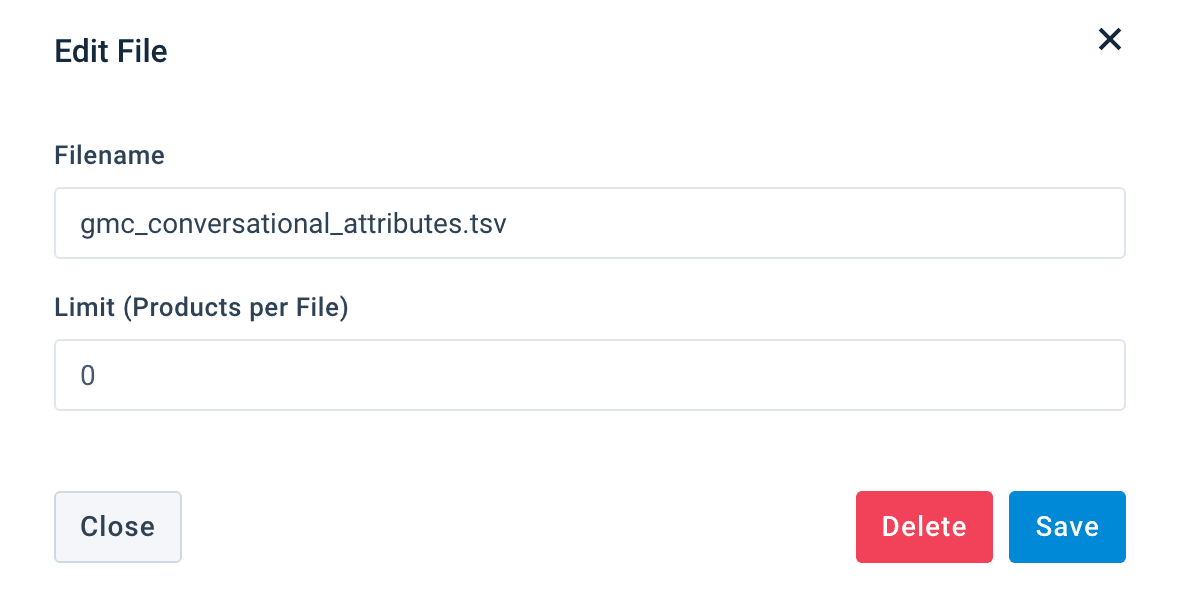
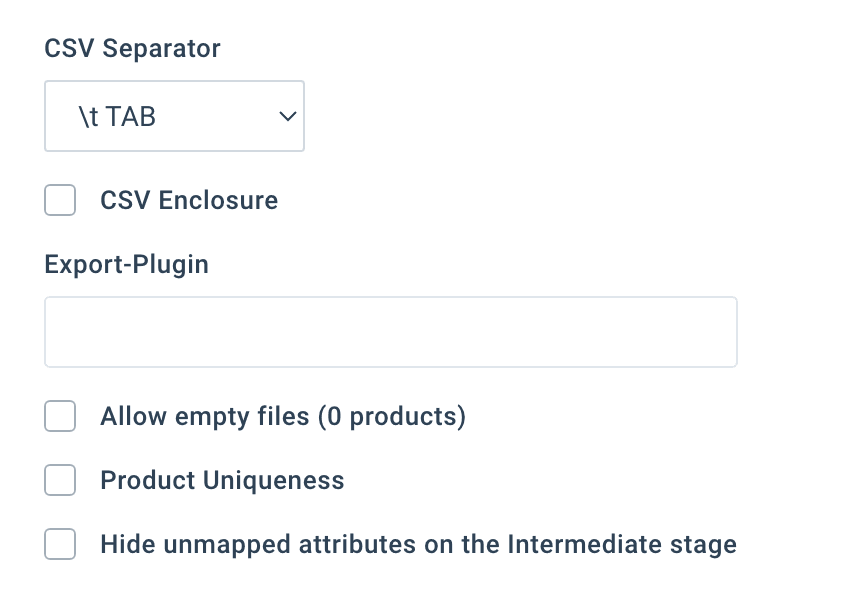
These settings avoid formatting issues with structured attributes such as question_and_answer, where quotation marks combined with CSV enclosure can cause the data to be parsed incorrectly.
Select the newly added Google Merchant Center Conversational Attributes export, then select Add Destination.
Choose one of two ways to deliver conversational data to GMC, matching how your supplemental data source is configured:
- Productsup Server — hosts the generated file on Productsup's servers. Provide the file's URL as the source when configuring the supplemental data source in GMC, or upload it manually. See Google's guide on uploading products to Merchant Center for how GMC consumes a hosted file.
- SFTP/FTP/FTPS — use the credentials Google provides when you set up the supplemental feed data source in GMC.
See Choose how you want to send data to GMC for the full walkthrough of both destination options.
Go to Dataflow to locate the conversational attributes available for Google Merchant Center, and map them from import to export.
This export provides separate fields for each supported attribute. Structured attributes — question_and_answer, document_link, related_product, and variant_option — provide multiple numbered fields, for example variant_option[1].name and variant_option[2].name. Map the raw values from your product data into the corresponding fields; the platform combines them into the structure Google requires when the export runs. If your source data is already formatted the way Google expects it, you can map that pre-formatted value directly to the attribute instead — the platform uses it ahead of any numbered fields you've also mapped. See Map each conversational attribute for details on every field.
Go to Data View to review the mapped data before the export runs. See Before exporting for what to check.
Map each conversational attribute
The numbered fields on structured attributes also let you use rules to decide which information populates each field, depending on the data available for each product.
Tip
Already have a value formatted the way Google expects? Map it directly to the attribute instead of splitting it into numbered fields — the platform prioritizes it over any numbered fields you've also mapped.
Product ID
The id field is required for this export. Map exactly the same product ID that your primary feed sends to Google Merchant Center. Google matches conversational data to existing products by ID — if the identifiers don't align, your enrichment data doesn't attach to the right products and the update has no effect.
Tip
Also map item_group_id when it's available, even if it's already included in your primary feed.
Question and answer
question_and_answer provides product-specific questions and answers. This export supports up to 30 pairs per product, with separate fields for each pair:
question_and_answer[1].question/question_and_answer[1].answerquestion_and_answer[2].question/question_and_answer[2].answer- up to
question_and_answer[30]
Map the raw question and the raw answer into the corresponding fields — for example:
| Field | Example value |
|---|---|
question_and_answer[1].question | Does it have a headphone jack? |
question_and_answer[1].answer | This version doesn't have a headphone jack. |
There's no need to add quotation marks or build Google's final syntax manually — the platform applies the required formatting during export.
Document link
document_link provides links to product-related documents, such as manuals, user guides, or assembly instructions. This export supports up to 5 links per product:
document_link[1]document_link[2]- up to
document_link[5]
Map each document URL into the corresponding field — for example, document_link[1] → https://example.com/product-manual.pdf. The platform builds the required output structure during export.
Item group title
item_group_title provides a shared title for products that belong to the same variant group. Describe the general product without variant-specific details such as size or color.
| Field | Example value |
|---|---|
| Product title | Organic Cotton T-Shirt – Black – Size M |
item_group_title | Organic Cotton T-Shirt |
item_group_title requires an item_group_id on the product. Make sure the corresponding item group ID is available and mapped.
Popularity rank
popularity_rank indicates a product's relative popularity, expressed as a value between 0.0 and 100.0.
Map your calculated value directly into popularity_rank — no additional formatting is required. Define the ranking logic based on your own business data, and apply a consistent methodology across your assortment so values stay comparable.
Related product
related_product links the current product to related products — cross-sells, accessories, or required parts. This export supports up to 30 related products, each defined by three fields:
| Field | Description |
|---|---|
related_product[1].identifier | The identifier of the related product, matching the type set in identifier_type |
related_product[1].identifier_type | The type of identifier provided |
related_product[1].relationship_type | How the two products are related |
identifier_type accepts:
| Value | Description |
|---|---|
id | The product ID from your product data source |
gtin | The product's GTIN, such as UPC, EAN, JAN, or ISBN |
relationship_type accepts:
| Value | Description |
|---|---|
part_of_set | Part of the same set or product line |
required_part | Required for the product to function |
often_bought_with | Commonly purchased together |
substitute | An alternative to the current product |
different_brand | The same or an equivalent product under another brand |
accessory | An accessory for the current product |
For example:
| Field | Example value |
|---|---|
related_product[1].identifier | CASE123 |
related_product[1].identifier_type | id |
related_product[1].relationship_type | accessory |
Use the next numbered fields for additional related products, up to 30, each with its own complete set of values. Map only the raw values — the platform combines them into the format Google requires during export.
Variant option
variant_option captures the specific information that distinguishes one product variant from another within the same item group. Which attributes qualify depends on your product data and how the products sharing an item_group_id differ — for clothing, that might be size, color, material, or fit.
This export supports up to 30 variant options, each with a separate name and value field:
variant_option[1].name/variant_option[1].valuevariant_option[2].name/variant_option[2].value- up to
variant_option[30]
Map only the raw name and value — the platform generates Google's required variant_option structure during export.
Example: map variant options with rules
Suppose products in the same item group vary by size and color.
For variant_option[1].name, create a rule: if size has a value, set the value to Size.
![Rule setting variant_option[1].name to the value Size](/_next/image?url=%2Fimages%2Fhelp-center%2Fexport-data-feeds%2Fagentic-commerce-ai-exports%2Fgmc-conversational-attributes-variant-option-name-size-rule.png&w=3840&q=75)
For variant_option[1].value, create a rule: if size has a value, take the value from the size attribute.
![Rule setting variant_option[1].value from the size attribute](/_next/image?url=%2Fimages%2Fhelp-center%2Fexport-data-feeds%2Fagentic-commerce-ai-exports%2Fgmc-conversational-attributes-variant-option-value-size-rule.png&w=3840&q=75)
For variant_option[2].name, create a rule: if color has a value, set the value to Color.
![Rule setting variant_option[2].name to the value Color](/_next/image?url=%2Fimages%2Fhelp-center%2Fexport-data-feeds%2Fagentic-commerce-ai-exports%2Fgmc-conversational-attributes-variant-option-name-color-rule.png&w=3840&q=75)
For variant_option[2].value, create a rule: if color has a value, take the value from the color attribute.
![Rule setting variant_option[2].value from the color attribute](/_next/image?url=%2Fimages%2Fhelp-center%2Fexport-data-feeds%2Fagentic-commerce-ai-exports%2Fgmc-conversational-attributes-variant-option-value-color-rule.png&w=3840&q=75)
This produces, for example:
| Field | Example value |
|---|---|
variant_option[1].name | Size |
variant_option[1].value | M |
variant_option[2].name | Color |
variant_option[2].value | Black |
Continue the same pattern for additional variant options.
Rules are also useful for excluding attributes that don't actually distinguish the variants. For example, if every product in an item group shares the same size, size isn't a distinguishing attribute for that group — create a rule to leave the corresponding variant option empty in that case.
The key is to look at the products sharing an item_group_id and identify which attributes genuinely distinguish them from each other.
Before exporting
Before you export the feed, review the mapped attributes in Data View and confirm:
idexactly matches the ID used in your main Google Merchant Center feed.item_group_idis provided wherever relevant.- Question and answer values are mapped without manually added formatting.
- All required fields are populated for each related product.
- For
related_productandvariant_option, make sure every sub-field in a numbered entry is mapped — a partially filled entry (for example, an identifier without itsidentifier_type, or a name without its value) is dropped from the export entirely. - Variant options represent attributes that actually distinguish products within the same item group.
- Variant option names and values use matching numbered positions.
- Irrelevant variant information is left empty.
- The export uses the recommended
.tsvfile format, TAB separator, and disabled CSV enclosure.
Expected export output
When the export runs, the platform combines the individual fields into the structure Google Merchant Center expects for the supplemental feed. For example, a product might produce the following output:
| Attribute | Example exported value |
|---|---|
id | TSHIRT123-BLK-M |
item_group_id | TSHIRT123 |
item_group_title | Organic Cotton T-Shirt |
popularity_rank | 92.5 |
document_link | https://example.com/product-guide.pdf, https://example.com/care-instructions.pdf |
question_and_answer | "Is this product waterproof?":"Yes, this product is waterproof.", "Does it have a headphone jack?":"No, this version doesn't have a headphone jack." |
related_product | accessory:id:CASE123, often_bought_with:id:BAG456 |
variant_option | Size:M, Color:Black |
Best practices
- Don't duplicate what you already have. If your
description,product_highlight, orproduct_detailattributes already cover a piece of information, leave it out of the conversational attributes to avoid redundant, bloated feeds. - Start with your best Q&A content. Pull from real customer questions — support tickets, live chat logs, product review comments — rather than guessing what buyers might ask. This is where conversational attributes add the most value for AI-driven surfaces.
- Keep variant data consistent. Use the same naming conventions for
variant_optionvalues (for example, alwayscolor, not sometimescolour) across your whole catalog so AI systems can reliably group and compare variants. - Confirm the Advanced data source management add-on is enabled in GMC before you start. Without it, the Supplemental sources tab doesn't appear, and setup stalls at the first step.
- Remember this is additive, not destructive. Conversational attributes can't add or remove products, and submitting them doesn't affect your existing products' approval status, making this a low-risk way to enrich what's already working.
How is this guide?