

Add Google Merchant Center export
Google Merchant Center and Google Shopping: Learn how to use the Productsup platform to export your product data to GMC.
Google Shopping shows your products as search results in the Shopping tab of Google Search.
Google Shopping ads are product advertisements visible across the entire Google ecosystem. Although possible locations of your Google Shopping ads depend on your chosen type of Google Shopping campaign, your product ads can generally appear in Google Shopping, Google Search, Google Images, Google Maps, etc.
In Productsup, you can use multiple exports to send your data to Google Merchant Center (GMC), which lets you post your products in Google Shopping and advertise them with Google Shopping ads.
You can send different types of data to Google Merchant Center from Productsup using different exports:
| Type of data | Exports in Productsup that send this data to GMC |
|---|---|
| General product data (titles, images, prices, descriptions, brands, stock levels, etc.) | Google Merchant Center, or Google Merchant API (single account, supplemental, or multi account).See the following sections in this document for the setup of these exports. |
| Promotion data and promo text for ads | Google Merchant Promotions or Google Merchant Center - Promotions (API).See Add Google Merchant Promotions export.See Add Google Merchant Center - Promotions (API) export. |
| Star-based product ratings, overall number of product reviews, and other reviews data | Google Product Ratings or Google Products Reviews |
Choose how you want to send data to GMC
The Productsup platform lets you export your product feed to Google Merchant Center. The specific way of setting up the export in the platform depends on how you want GMC to ingest your product data:
- Via URL generated by Productsup.
- Via SFTP server provided by Google Merchant Center.
Google stopped supporting FTP in Merchant Center. See End of support for FTP in Merchant Center for more information.
- Via API integration between Productsup and GMC that lets you automate and schedule data uploads.
You can choose any option based on the number of products you have and the rate of their data changeability:
- If your feed contains few products and the data doesn't change often, consider using the URL or the SFTP server.
- If your feed contains many products and the data constantly updates, select API. With API, you can only send product data updates to GMC instead of entire feeds, which speeds up the export.
Prerequisites
To export your product data to Google Merchant Center via URL, you need:
- A Google Merchant Center account.
- Product data containing the needed product attributes. See Product data specification for information on all mandatory and optional attributes for GMC.
To export your product data to Google Merchant Center via SFTP, you need:
- A Google Merchant Center account.
- Relevant SFTP server credentials, such as a username and a password.
- Product data containing the needed product attributes. See Product data specification for information on all mandatory and optional attributes for GMC.
To export your product data to Google Merchant Center via API, you need:
- A Google Merchant Center account.
- GMC authentication in your Productsup organization. See Add OAuth authentication to external systems for more information.To add GMC authentication to your Productsup organization:
Go to Authentication from the organization's, project's, or site's menu and select ADD AUTHENTICATION.
In Type, select Google Merchant Center, give it a custom name as desired, and select Next.
Select Connect for Productsup to redirect you to a Google account page where you can give Productsup access to your Google Merchant Center account. Once ready, Google redirects you back to Productsup. Close the confirmation window to proceed.
- Your Merchant ID that Google assigned to your payment profile. See Find your Merchant ID for more information.
- Product data containing the needed product attributes. See Product data specification for information on all mandatory and optional attributes for GMC.
- A clear strategy for migrating to the API export method:
Tip
You can skip this requirement if you have never uploaded any products to your GMC account.
- If you have already uploaded product data to your Google Merchant Center account, use the same product IDs you used with your previous data upload mechanisms to avoid data conflicts and loss.
- You must stop uploading product data using other mechanisms and let the API method in Productsup be the only way you send product data to your GMC account.
Upload data to Google Merchant Center via URL
To upload your product data to Google Merchant Center via URL, add the Google Merchant Center export template to your site and use the Productsup Server destination:
Go to Exports from your site's main menu and select Add export.
Search for Google Merchant Center, select Add, give it a name as desired, and again select Add.

Select Add Destination, choose Productsup Server from the dropdown, give it a name as desired, and then select Save.
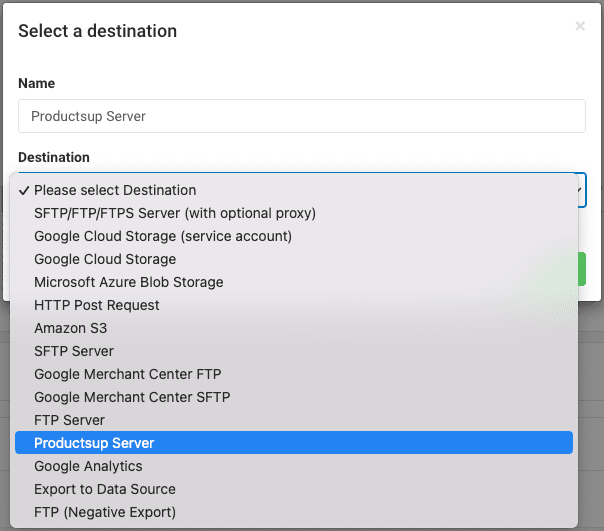
Go to Dataflow to locate all the attributes mandatory for Google Merchant Center and map them from import to export.
Go to Data View to optimize your data as needed. See Rule box category Google Merchant Center for more information.
Upload data to Google Merchant Center via the SFTP server
To upload your product data to GMC via the SFTP server, add the Google Merchant Center export template to your site and use the Google Merchant Center SFTP destination:
Go to Exports from your site's main menu and select Add export.
Search for Google Merchant Center, select Add, give it a name as desired, and again select Add.
Select Add Destination, choose Google Merchant Center SFTP from the dropdown, give it a name as desired, and select Save.
Set up Google Merchant Center SFTP destination:
- In User, enter your SFTP server username.
- In Password, enter the password for your SFTP server account.
- Select On in Active to activate the destination.
- Select Save.
Go to Dataflow to locate all the attributes mandatory for Google Merchant Center and map them from import to export.
Go to Data View to optimize your data as needed. See Rule box category Google Merchant Center for more information.
Upload data to Google Merchant Center via API
When you use the API option to upload your product feed to Google Merchant Center, Productsup continuously processes all changes you perform in your data and syncs only the changed parts of the data with GMC. The API uploads delta files only.
Besides automating data synchronization and helping you work with more products, uploading data to GMC via API surfaces error responses from GMC in Export Feedback, so you can troubleshoot your product data without leaving Productsup. See Export Feedback for more information.
Already have a Google Content API for Shopping export? You don't need to add a new one. Open that existing export and add the Merchant API destination to it instead — see Migrate your Google Content API export to Merchant API (single account).
Understand GMC data sources
Every product you push to Google Merchant Center via API lands in a GMC data source: a feed object inside Merchant Center, not a Productsup data source. Each GMC data source holds the products for one combination of Feed Label (the country or market it targets) and Content Language.
- Feed Label identifies the GMC data source. If you reuse the same Feed Label and Content Language you've always used, Productsup keeps pushing into the same existing GMC data source — no manual setup needed in Merchant Center.
- Feed Label can't be changed once the GMC data source exists. Double-check it before you save the destination for the first time.
- You don't need to create anything new in Merchant Center to get started, including if you previously exported to this account: Productsup automatically finds and reuses the matching GMC data source.
Caution
If an active GMC data source already exists for your account (or sub-account, for multi account), Productsup pushes into it — it never creates a new data source to work around a mismatch. Feed Label, Content Language, and Default Currency Code must match that data source exactly, or the run fails with a mismatch error. Productsup only creates a new account (or sub-account) when none exists yet.
Add Google Merchant API export (single account)
Use this option to export one product feed to one Google Merchant Center account.
Go to Exports from your site's main menu and select Add export.
Search for Google Merchant API. Select Add, give it a name as desired, and again select Add.
Select Add Destination and choose Google Merchant API — single account from the dropdown. You can optionally customize the destination's description in Name. Select Save.
In Account ID, enter your Merchant Center Merchant ID (also called Account ID). If you have a multi-client GMC, enter the ID of your sub-account.
Fill in the three fields that identify your GMC data source — see Understand GMC data sources:
- Feed Label: the uppercase ISO country code, for example
DE. Up to 20 characters (A–Z, 0–9, hyphen, underscore). - Content Language: the lowercase ISO 639-1 language code, for example
de. Google validates this against your feed and flags mismatches. - Default Currency Code: the uppercase ISO 4217 currency code, for example
EUR. Used as a fallback for prices that don't carry an inline currency.
Define how often you want the platform to perform a complete product upload in Full Upload Interval (in days). To avoid product expiration, the platform exports new, deleted, changed, and unchanged products during a complete upload performed once every defined time interval.
Google removes products that haven't been refreshed within 28 days. The more often your site runs, the higher this value should be, closer to 28. The less often it runs, the lower it should be, for example 7–14, so unchanged products still get refreshed in time.
Choose your GMC authentication in Authentication to use. If you haven't created the authentication in the platform yet, select Add New Authentication and create it, as previously seen in Prerequisites.
Optionally, switch on Force Full Upload to trigger a one-time full resend of your catalogue on the next run, for example for the initial load or after changing your export template.
Optionally, switch on Merchant Center Cleanup to delete products in GMC that don't originate from Productsup.
Caution
Only switch this on when there's a clear need, for example migrating from another provider, and only once — leaving it on increases the risk of hitting your daily quota and can cause unexpected deletions if your feed is incomplete during a run. Switch it off again once you've confirmed the sync is correct.
Optionally, switch on Dry Run to process your feed without sending any data to Google. Useful for a safe first run before you go live, but not if your site is already in production, since it skips your normal delta flow.
Turn on the destination by selecting On in Active.
Select Save.
Go to Dataflow to locate all the attributes mandatory for Google Merchant Center and map them from import to export.
Go to Data View to optimize your data as needed. See Rule box category Google Merchant Center for more information.
The API is more restrictive than the SFTP or URL upload. If you upload an incorrect category or your feed is missing mandatory attributes, the product upload fails.
Tip
Only need to send partial updates, for example just prices or availability, on top of an existing feed? Add the Google Merchant API — Product Export Supplemental destination instead. It uses the same fields as above, plus Default Data Source ID (Supplemental), which points to the supplemental GMC data source you're updating. If your primary feed manages availability, include that field in the supplemental feed too — otherwise out-of-stock products can revert to in-stock.
Add Google Merchant API export (multi account)
Use this option to export one product feed to multiple sub-accounts within your parent GMC account (MCA).
Go to Exports from your site's main menu and select Add export.
Search for Google Merchant API. Select Add, give it a name as desired, and again select Add.
Select Add Destination and choose Google Merchant API — Product Export (multi account) from the dropdown. You can optionally customize the destination's description in Name. Select Save.
In Account ID, enter the Merchant ID of your GMC parent account (the MCA), not a sub-account.
In Reference Column, choose the attribute in your feed that identifies which sub-account each product goes to.
Fill in the three fields that identify your GMC data source — see Understand GMC data sources:
- Feed Label: the uppercase ISO country code, for example
DE. - Content Language: the lowercase ISO 639-1 language code, for example
de. - Default Currency Code: the uppercase ISO 4217 currency code, for example
EUR.
Define how often you want the platform to perform a complete product upload in Full Upload Interval (in days). To avoid product expiration, the platform exports new, deleted, changed, and unchanged products during a complete upload performed once every defined time interval.
Google removes products that haven't been refreshed within 28 days. The more often your site runs, the higher this value should be, closer to 28. The less often it runs, the lower it should be, for example 7–14, so unchanged products still get refreshed in time.
Choose your GMC authentication in Authentication to use. If you haven't created the authentication in the platform yet, select Add New Authentication and create it, as previously seen in Prerequisites.
Select On in Create Sub-Accounts to let the platform create new sub-accounts in your GMC account. This option only works when Reference Column contains the sub-account name or seller ID. By default, this option is on.
Optionally, switch on Force Full Upload to trigger a one-time full resend of your catalogue on the next run, for example for the initial load or after changing your export template.
Optionally, switch on Merchant Center Cleanup to delete products in GMC that don't originate from Productsup.
Caution
Only switch this on when there's a clear need, for example migrating from another provider, and only once — leaving it on increases the risk of hitting your daily quota and can cause unexpected deletions if your feed is incomplete during a run. Switch it off again once you've confirmed the sync is correct.
In Reference Validation (regex), leave the default value #.+# for Productsup to check whether your products follow the data structure required by GMC. Once the platform validates your products, it can send them to Google Merchant Center.
From the Reference Type drop-down list, choose one of the following options depending on what the attribute you chose in Reference Column contains:
- Reference Column contains the sub-account name
- Reference Column contains the sub-account ID
- Reference Column contains the seller ID
Enter the name of each newly created sub-account in New Account Name, or map an Account Name Column if the name differs per product. This setting applies only if you use the seller ID or name as your reference.
Optionally, enter a comma-separated list of account IDs in Protected sub-accounts that no automatic cleanup should ever touch, for example sub-accounts a client maintains outside Productsup. Exporting to them is unaffected.
Select On in Remove Empty Sub-Accounts to remove every empty sub-account in the MCA before a new export runs, not only the ones created by this export. Enable only for accounts where empty sub-accounts are expected to pile up; use Protected sub-accounts above to exclude any that should survive.
Turn on the destination by selecting On in Active.
Select Save.
Go to Dataflow to locate all the attributes mandatory for Google Merchant Center and map them from import to export.
Go to Data View to optimize your data as needed. See Rule box category Google Merchant Center for more information.
The API is more restrictive than the SFTP or URL upload. If you upload an incorrect category or your feed is missing mandatory attributes, the product upload fails.
Export your feed to GMC via API
When you export to GMC via API, you can't download your export file from the Files panel in the Overview tab of your export setup.
Export your product feed by selecting Export or Run in the top-right corner of your site's view.
Make sure to export unavailable products with the status out of stock. Otherwise, they appear available in GMC.
Once the run completes, check Export Feedback to see the results, including any errors. See Export Feedback for more information.
After the first upload in GMC, your products could take longer than expected to display in your organization. If you have already exported your feed to GMC via API, the process should take less time.
How is this guide?