

Export Feedback
Export Feedback gives you uniform reporting from your export channels, highlighting the critical errors and issues on products per export run that directly impact your feed performance and revenue potential.
Export Feedback is a centralized feedback hub on the platform that consolidates product feed submission diagnostics into a single, comprehensive, and actionable view. It eliminates the complex, time-consuming process of tracking feed issues across multiple export channels separately, so you can autonomously and quickly diagnose exactly where your product feed needs optimization, reducing error resolution time and minimizing missed revenue.
Export Feedback graph
The Export Feedback graph, located on the site dashboard, gives you a visual summary of diagnostics from your recent product feed submissions to export channels. It displays the distribution of errors and issues relative to the total number of products exported for each export channel, so you can quickly spot trends and jump into a detailed analysis of any specific export run.
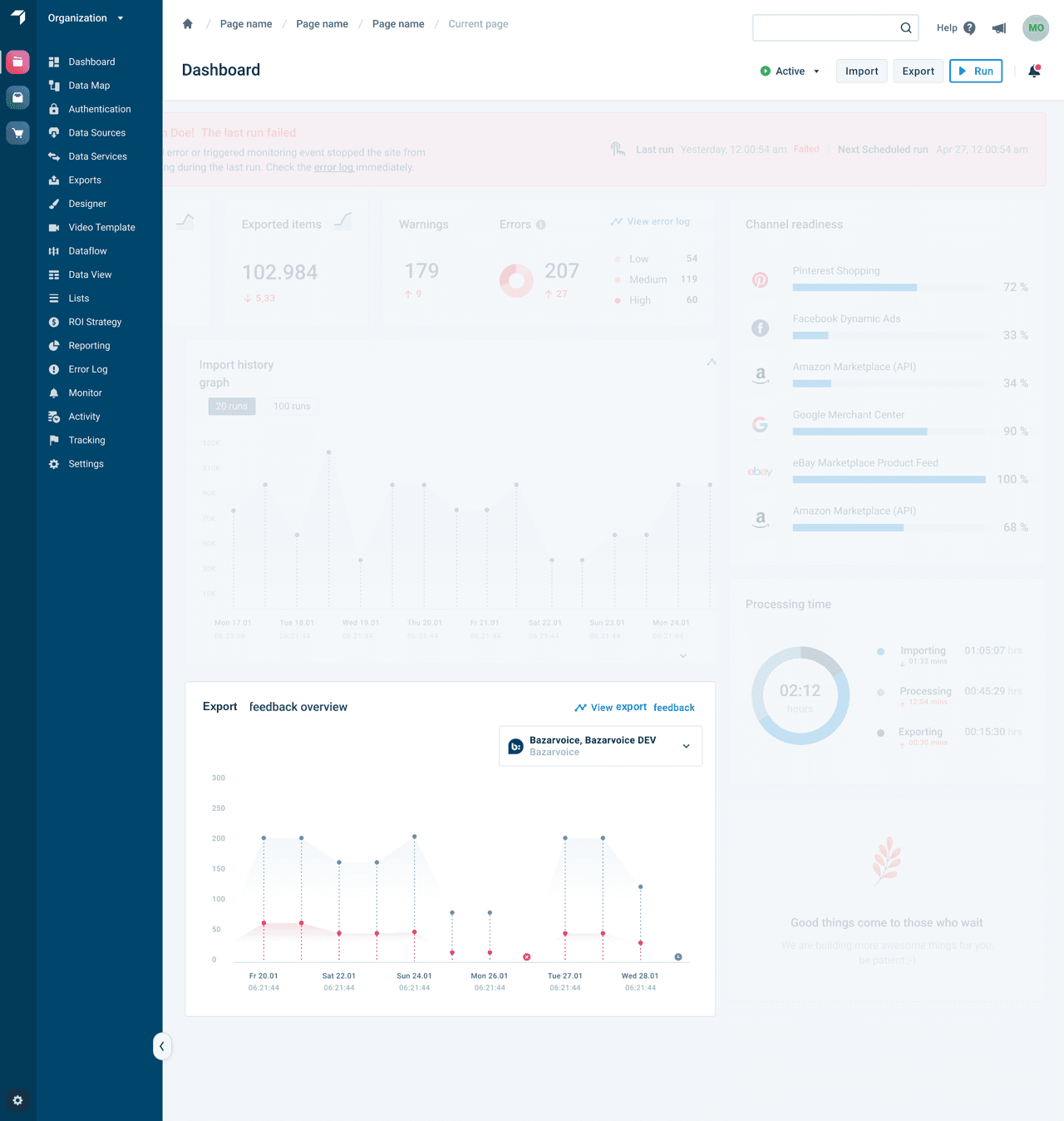
- Channel selection — Use the export channel destination dropdown to select the export channel you want to view feedback for.
- Issue trend analysis — For the selected export channel, the graph shows the issue trend relative to the total number of exported products across your latest 12 export runs.
- Historical review access — Select View Export Feedback to go to the Export Feedback History page, where you can review feedback from export runs conducted within the last 30 days.
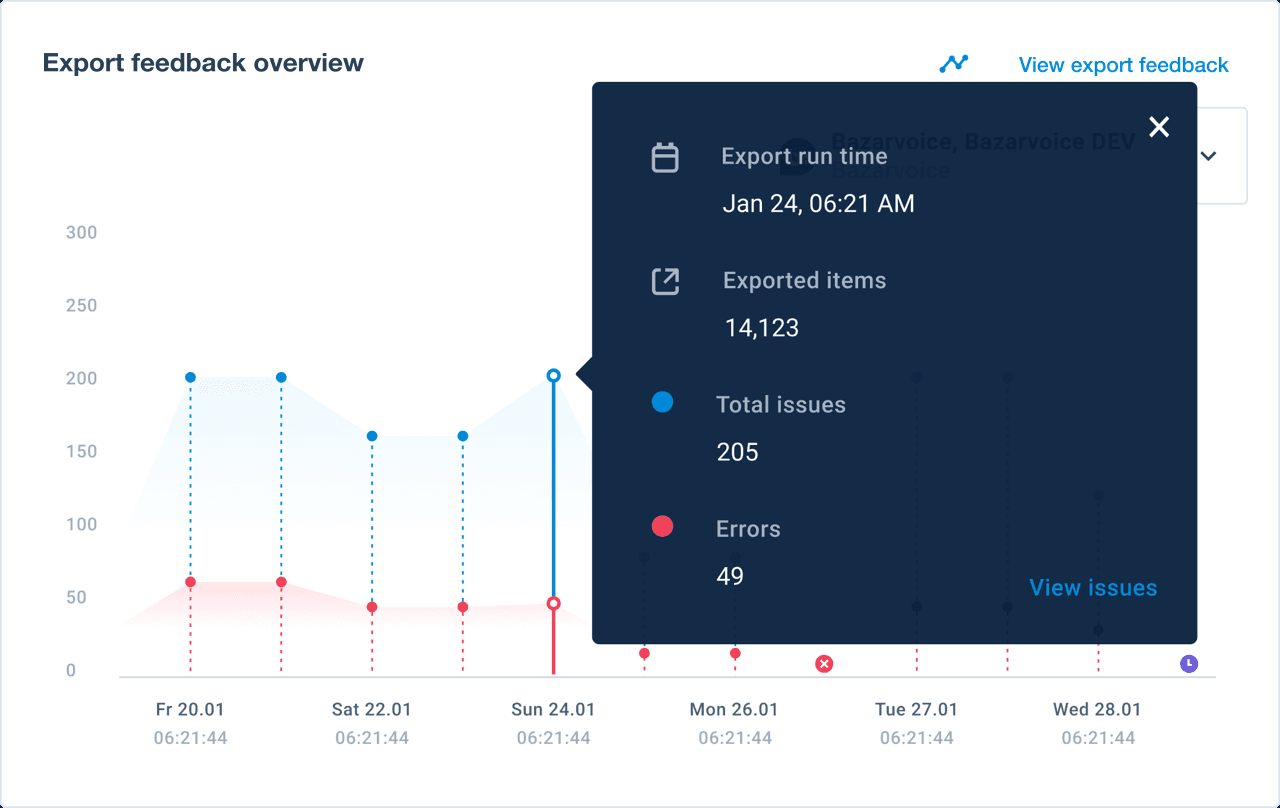
- Summary of an individual feed submission — Hover over a data point on the graph to instantly see the number of errors and warnings, along with the total number of products exported for that run.
- Access to submission details — Select View Issues in the pop-up to go to the Export Feedback Detail page, where you can review the error and warning messages received for that export run.
Export Feedback History page
The Export Feedback History page is the landing page for Export Feedback on the platform menu, and is also accessible from the Export Feedback graph. It gives you a visual summary of diagnostics from your feed submissions over the last 30 days.
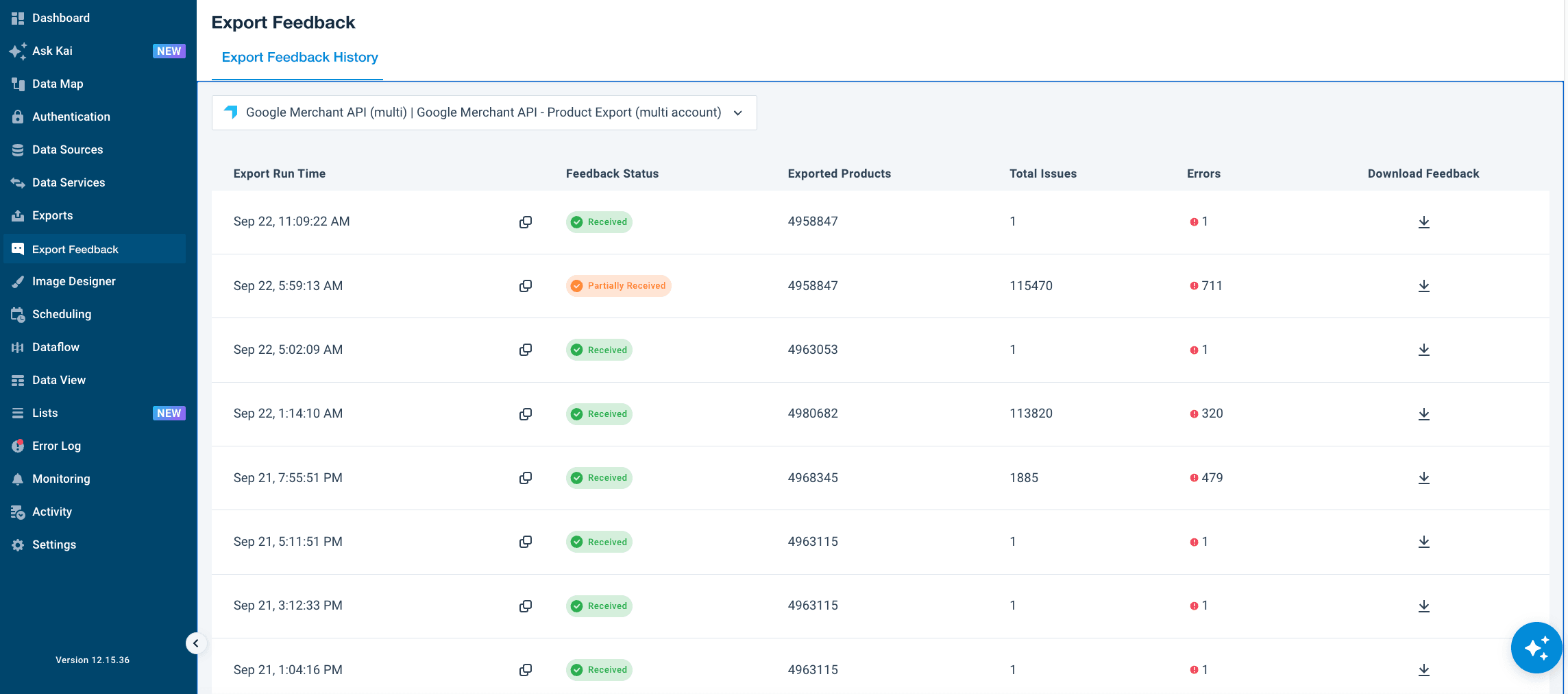
| Field | Description |
|---|---|
| Export Run Time | The date and time of the export run the feedback relates to. |
| Process ID | The process ID of the export run, similar to the Error Log, that the feedback relates to. |
| Feedback Status | The status of the feedback-receiving process (see below). |
| Exported Products | The total number of products exported to the channel in that run. |
| Total Issues | The total number of products with issue messages (errors and warnings combined). |
| Errors | The total number of products with error messages. Errors usually mean your submitted product data wasn't approved by the target channel, or that mandatory data is missing, which may take the product offline on that channel. |
Each export run also shows a feedback status, indicating whether the platform successfully synced feedback from the target channel:
| Status | Meaning |
|---|---|
| Received | Data is ready. Feedback has synced successfully. You can review the details and start troubleshooting. |
| Partially Received | Data is incomplete. Some feedback synced, but technical errors prevented a full report. You can start troubleshooting, but be aware some issues may be missing. |
| Not Received | Sync failed. The platform couldn't retrieve feedback from the channel. No action can be taken yet — raise a Zendesk ticket for investigation. |
| Awaiting | Sync in progress. The platform is currently fetching the latest feedback. Check back in a few minutes. |
| 0 Issues Found | No errors or issues found. No troubleshooting required. |
Select the download icon on a row to download the feed submission results for that export run as a CSV file. This file contains all feedback received from the target channel for that submission, without the pre-built error and issue analysis.
Select a feed submission on this page to go to the Export Feedback Detail page, where you can review the pre-built analysis of the feedback received from the target channel.
Export Feedback Detail page
The Export Feedback Detail page displays clear issue messages received from the target channel for a selected feed submission, grouped and prioritized by their impact. Reach this page either by selecting a feed submission on the Export Feedback History page, or by selecting View Issues for a submission on the Export Feedback graph.
The page offers two view modes: issues grouped by Issue, or grouped by Product ID. Select the view that best fits your troubleshooting habits.
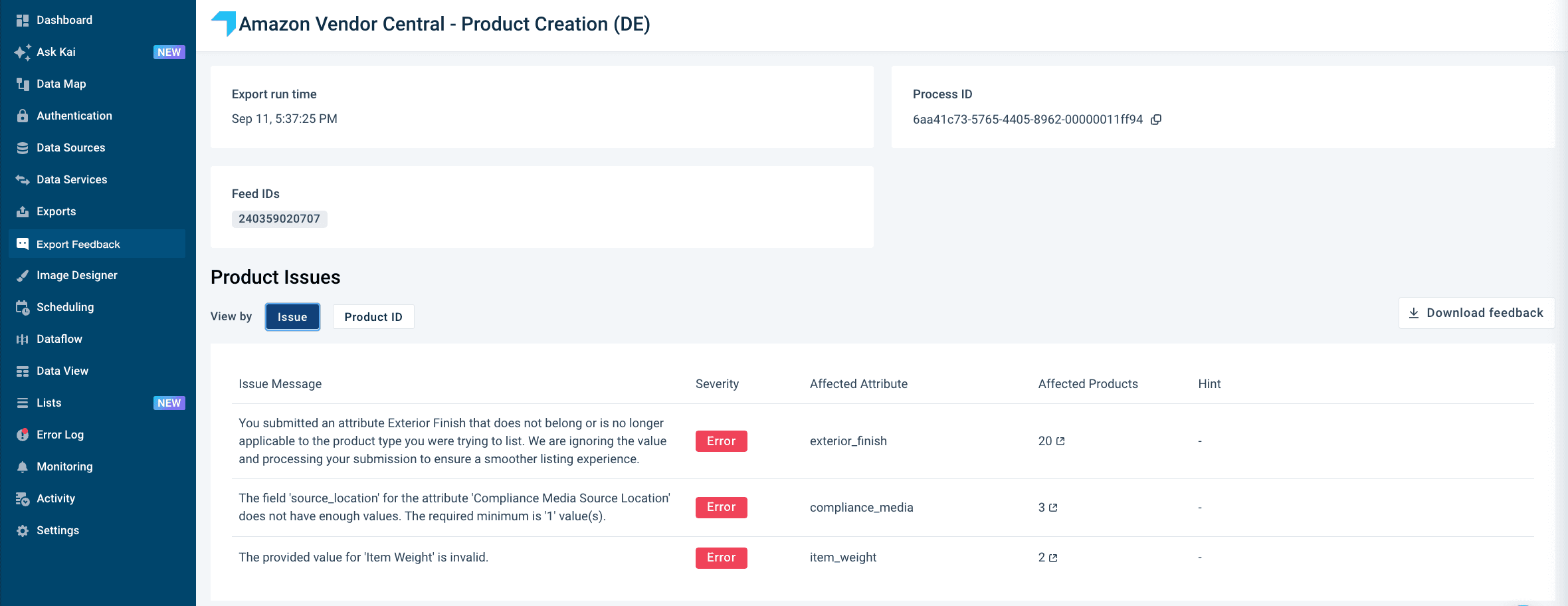
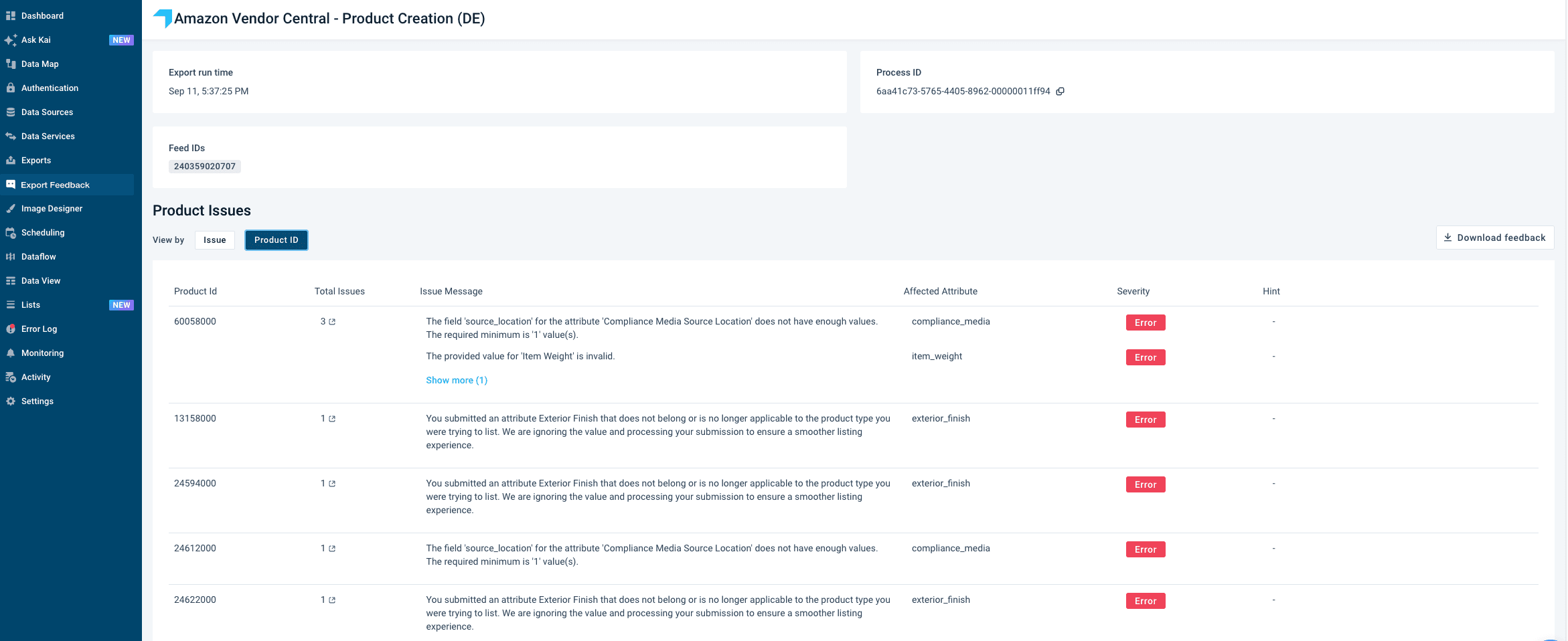
| Field | Description |
|---|---|
| Issue Message | Feedback received from the target channel about a product and/or its data in the submitted feed. |
| Severity | Error means your submitted product data wasn't approved by the target channel, which may take the product offline on that channel. Warning means your submitted product data can be optimized to better meet the target channel's expectations. |
| Affected Attribute | The attribute or column where the issue was raised. |
| Affected Products | The number of products affected by that issue. |
This page doesn't show feedback messages for product data that's 100% compliant with the target channel's requirements.
Select the download icon to download the feed submission results for that export run as a CSV file, containing all feedback received from the target channel without the pre-built analysis.
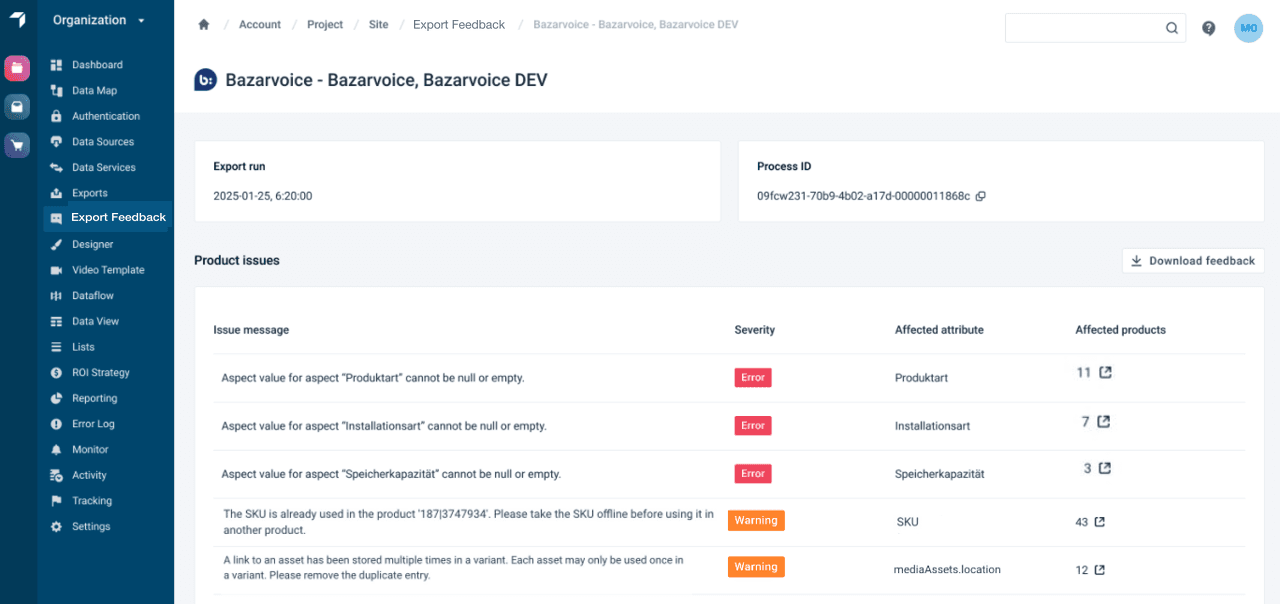
Issue messages are grouped by affected attribute and ranked by priority: severity first (errors are always prioritized over warnings, regardless of how many products are affected), then by the total number of products affected within the same severity.
Troubleshoot affected products
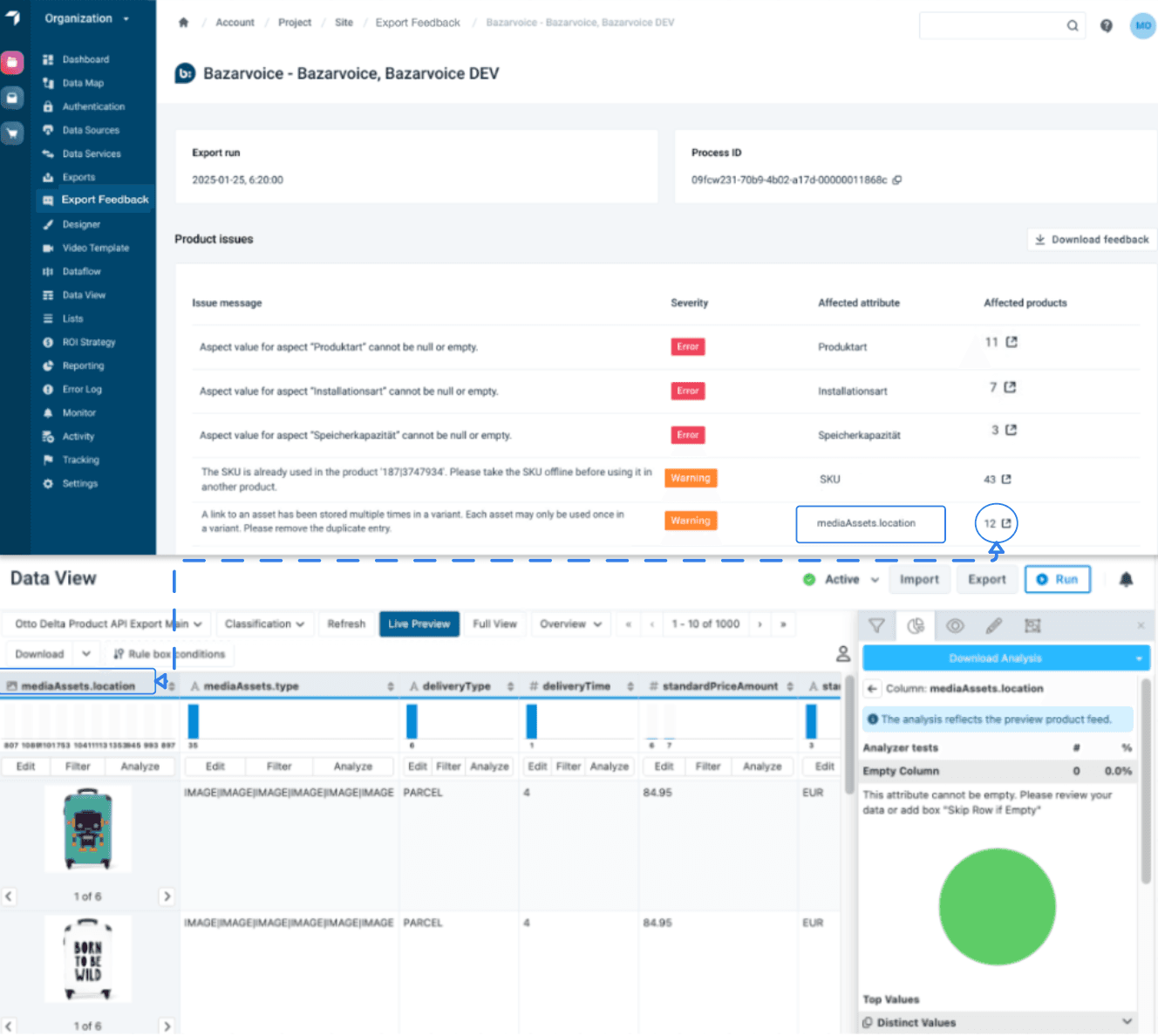
Productsup is working toward guided troubleshooting for Export Feedback. As a first step, selecting Affected Products on the Export Feedback Detail page takes you directly to a pre-filtered Data View showing the products impacted by the selected error, so you can identify exactly which products need attention and start fixing your data right away.
Setup requirements
Export Feedback shows feedback for each export channel destination. This feature requires an established connection between your export channel and Export Feedback — see Supported export channels for the channels currently connected.
To get access to Export Feedback, reach out to your Client Success Manager.
Supported export channels
Export Feedback is currently connected to the following export channels:
- Amazon Seller Central
- Amazon Vendor Central
- BMEcat 2005 (v4.0.2, v4.0.3, v5.0.1)
- Bol
- eBay
- Facebook Dynamics Ads (Delta)
- Idealo API
- Google Merchant API
- OTTO
- TikTok Shop API
- Walmart
More channels are added regularly. If you need Export Feedback for a specific channel that isn't listed, reach out to your Client Success Manager for support to be added.
Known limitations
Export Feedback is currently compatible only with certain API export channels. This means Export Feedback isn't available for flat file export channels, with one exception: BMEcat 2005 gets Export Feedback through a dedicated BMEcat Feedback Validation destination that validates the generated file directly, rather than through an API connection.
Export Feedback relies on each target channel for its feedback messages. Every target channel provides diagnostics in its own way — not unified, and not always translated clearly. While the feedback connectors present issue messages as clearly as possible, some messages on the Export Feedback Detail page may still contain technical terms that can't be simplified or translated.
How is this guide?