

Export your feed as an Email
Send your feed as an email directly to the designated inbox with the Email destination.
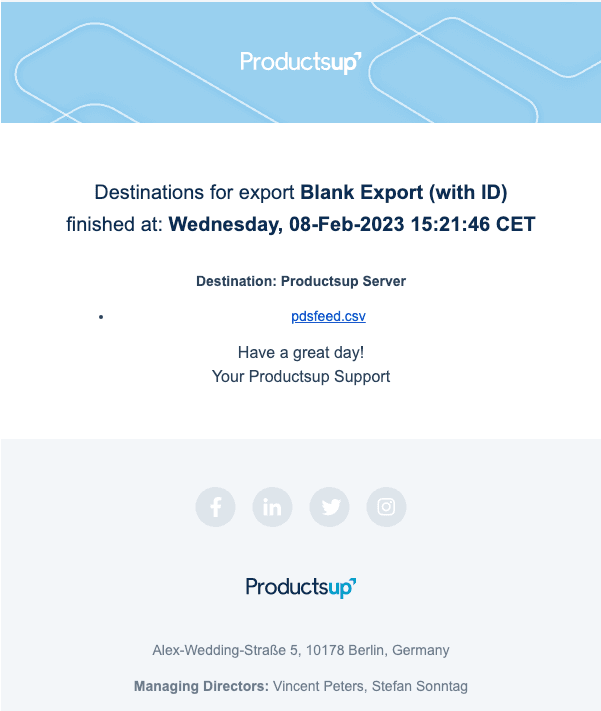
The Email destination generates and hosts your feed, then issues an email to the assigned inbox with a URL link to the file.
The issued email will resemble this example:
Prerequisites
Fully configure an Export. See Add export.
Add and configure one of the supported destinations:
- Productsup Server
- SFTP/FTP/FTPS Server
- Excel Macro Files (xlsm)
- Image Exporter (FTP or SFTP)
The Email destination picks up the file URL link directly from the other configured destination, and sends the email to the configured email address.
This process doesn't work if the Email destination is the only one added to an export, or if the other destination is not one of the supported types.
If you want to use an FTP server to share export output files with third parties via links in an email, make sure the email recipients have access to that FTP server.
How to configure the Email destination
The steps you need to take to set up the emails depend on the kind of data your export produces:
- See Configure the Email destination to export products and other data if your export produces a variety of product data types.
- See Configure the Email destination to export images if your export produces image data only.
Configure the Email destination to export products and other data
Follow these steps after you have completed the prerequisites:
Go to Exports from your site's main menu and select the cogwheel icon (⚙) next to the desired export.
Select Add Destination and choose the Email destination from the drop-down list, give it a name as desired, and select Save.
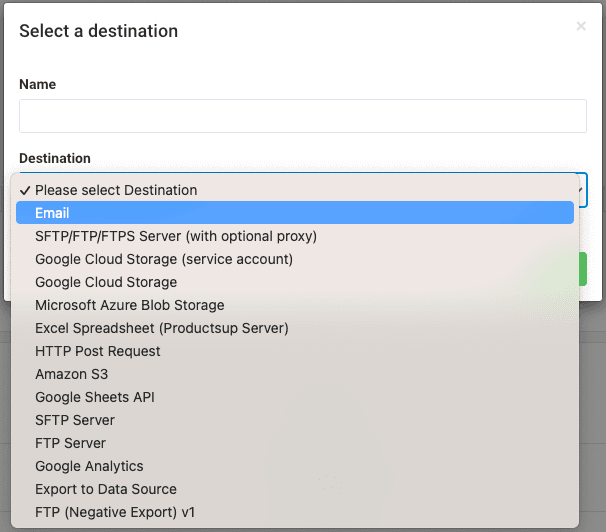
On the destination setup page, enter the email addresses that should receive output file links in Recipients. If you need to enter multiple email addresses, separate them with a comma (,). For example, email1@example.com,email2@example.com.
To add carbon copy and blind carbon copy recipients, you can enter their email addresses in CC and BCC. Separate the addresses with a comma (,) if necessary.
If you have only one email in Recipients and add the same email in BCC, the destination fails.
In Subject, enter the subject line of your email. You can use Twig to create dynamic subject lines. For example, Productsup - {{ Export.name }} is the default field value that adds the name of this destination's export to the subject line. See Twig - The flexible, fast, and secure PHP template engine.
In Reply to, add an address where your recipients can send a reply to the auto-generated email. Otherwise, they send it directly to support@productsup.com.
In Custom Body Addition, you can enter the text you want the platform to add to the email body. The platform adds this text at the bottom of the email above the signature.
In Time Format, choose a time format the platform should use to add a timestamp to your email.
Toggle the Active button to On to activate the destination.
Select Save.
Select Run or Export in the top-right corner of your view to let the site run the export.
Configure the Email destination to export images
Follow these steps after you have completed the prerequisites:
Exporting images is only supported if you implemented the Image Exporter destination during the prerequisites.
Go to Exports from your site's main menu and select ADD EXPORT.
Search for Image Exporter, hover over this export, and select Add.

On the Exports page, select the name of the added export to set it up.
Select Add Destination, choose Image Exporter (FTP or SFTP) from the drop-down list, give it a name as desired, and select Save.
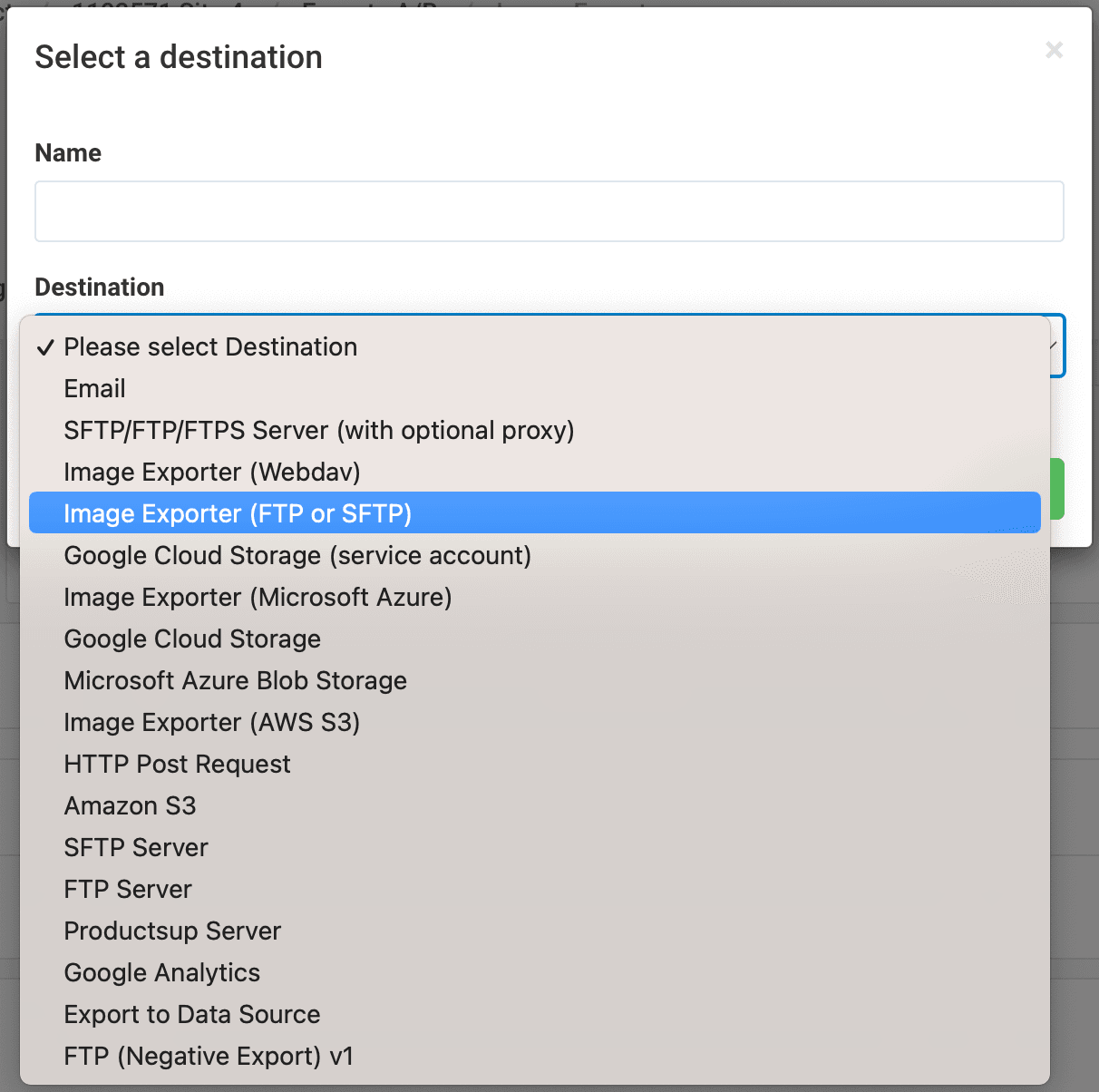
In the destination setup, enter your connection data in FTP Hostname, FTP Username, and FTP Password. The hostname should include a prefix, such as ftp://your.example-hostname.com.
The hostname has to start with ftp:// or sftp://.
In Base path, you can enter a path to the server folder where you want to store the images.
In Concurrency, you can enter how many images the export should simultaneously download and send to your server. The expected input format is a digit. If you have a lot of products in your site, the number in this field should not be high.
In Download Progress Notification Interval, you can enter how many images the platform should send to the server before notifying you of the export's progress. The expected input format is a number.
The destination sends your images to the server as separate image files. To let the destination send your images to the server in a .zip file, give that file a desired name in Zipfile (optional). The platform uses the input you provide in this field and adds _0001 as a postfix to create the full name of the .zip file. For example, the full name of your exported file can be name-example_0001.zip.
If you provide a desired name for your .zip file in step 9, you can also use the Zip Size Limit field to specify a maximum file size in bytes. The expected input format is a number. If the size of the .zip file with all your exported images exceeds this limit, the destination sends the images to the server in multiple .zip files. Each .zip file has its number specified in a postfix that the platform adds to its name. For example, if the platform splits all your images into three (3) files, their names can be name-example_0001.zip, name-example_0002.zip, and name-example_0003.zip.
If you enter 0 in this field, the destination sends all images to one .zip file on your server without restricting its size or amending its name with a postfix.
Toggle the Skip failures button to On to let the destination ignore image download failures and export the rest of the images.
Toggle the Active button to On to activate the destination.
Select Save.
Go to Dataflow, select Image Exporter in the drop-down menu on the left, and map all required attributes from import to export.
Test the destination by selecting Run or Export in the top-right corner of your view to let the site run the export.
Caution
The Image Exporter export sends only new and changed images to your destination. If your destination doesn't receive any images, you may have to change your image data, such as image links or names, to make images eligible for export.
Configure the Email destination as described in steps 2-11 of How to configure the Email destination.
Troubleshooting: if you receive no email
If you set everything up and run your export, but the recipients don't get an email, perform the diagnostic steps below:
Open the Run log panel in the top-right corner of your view.
If you see the notification Destination Failed highlighted in red, go to Error Log to check what destination failed during the last run:
- If the Email destination failed, go to the settings of the affected export and check if:
- The spelling of the added email addresses is correct.
- The Active field is On.
- The same email isn't both in Recipients and BCC.
- If your main destination failed, such as FTP server or Image Exporter (FTP or SFTP), go to the setup page of the affected export and check the settings of the main destination, such as credentials or file paths.
If there are no errors in the Run log, then check the site Error Log for errors.
If no errors are found in either, then check your email Spam and Promotions folder.
Check with your internal admin who manages your email service to evaluate if the email might have been blocked.
If issues persist after exhausting these diagnostic steps, contact support@productsup.com.
The Image Exporter export sends only new and changed images to your destination. If your Image Exporter (FTP or SFTP) destination doesn't receive any images, you may have to change your image data, such as links or names, to make images eligible for export. For example, add a rule box to one of the image attributes.
How is this guide?