

Use Smart Mapping to populate your lists
Learn how to use Smart Mapping to automatically suggest values for your Partner Taxonomy Mapping and Classification Mapping lists in Productsup.
Smart Mapping suggests values for your Partner Taxonomy Mapping and Classification Mapping lists, so you don't have to search through large taxonomies or classification systems by hand. Instead of manually assigning a term to every unique value, Smart Mapping compares your unmapped values against the target list and proposes a match for you to review before applying it.
Smart Mapping only suggests values for entries you haven't mapped yet. It doesn't offer suggestions for, or change, terms you already mapped.
Beta feature
Smart Mapping is currently available as a beta feature. If you encounter any issues while using it, contact support@productsup.com.
Prerequisites
Before using Smart Mapping, make sure the following conditions are met:
- A Partner Taxonomy Mapping list or Classification Mapping list is set up in your site. See Replace attributes with Partner Taxonomy Mapping list or Set up the Classification Mapping list for more information.
- The list contains at least one unmapped value under Replace Term.
How Smart Mapping resolves suggestions
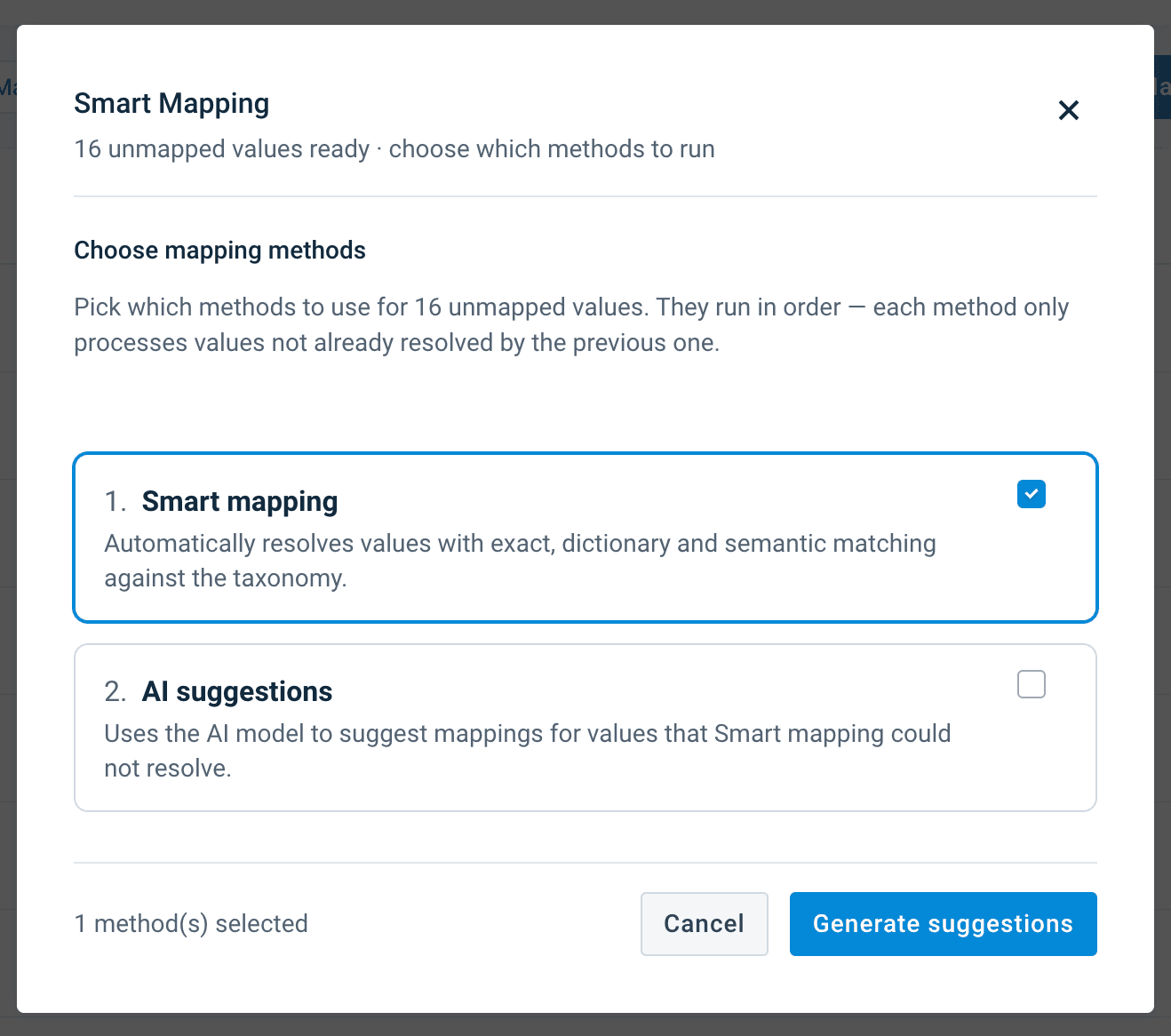
When you start Smart Mapping, the method-selection screen offers two options: Smart mapping and AI suggestions. Since one method shares its name with the feature itself, this article refers to them as Smart and AI for clarity. You can select one or both.
Smart runs three checks internally, in a fixed order, and stops as soon as one finds a match for a value:
- Exact match — checks whether your value is identical to a target term, ignoring case and extra spaces.
- Dictionary — checks a database of previously accepted mappings for the same value (ignoring case and extra spaces).
- Semantic match — checks whether your value closely resembles a target term, using text similarity rather than an exact match.
AI uses an AI model to suggest a match. If you select AI on its own, the platform runs it for all your unmapped values. If you select both Smart and AI, the platform only runs AI for values Smart couldn't resolve at all, unless you also turn on the low-confidence fallback described below.
Each unmapped value normally receives one suggestion, from the first check that found a match for it. The suggestion is labeled with the check that found it, so you can tell whether it came from Exact, Dictionary, Semantic, or AI. More than one of your values can be suggested for the same target term — for example, both sneaker and trainers might resolve to Footwear > Athletic. This is expected.
If none of the methods you selected find a match for a value, that value still appears in the suggestions list with a No suggestion found label. You cannot select these rows to apply.
Dictionary suggestions rely on mappings that have previously been accepted for the same value, not just a similar one, so their accuracy improves as more mappings are accepted over time.
Get a second opinion from AI on low-confidence matches
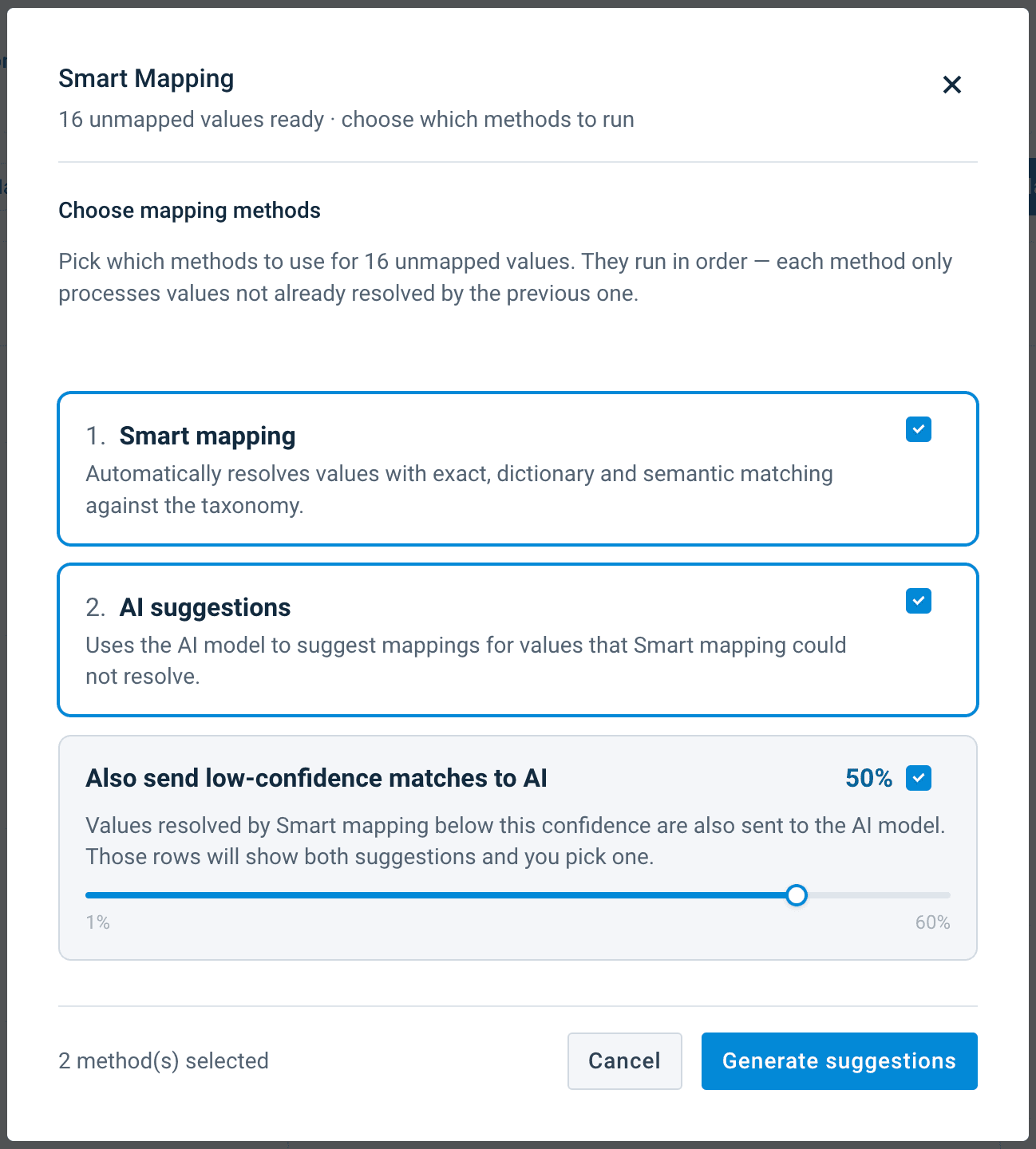
When you select both Smart and AI, you can turn on a fallback slider that sends any low-confidence Dictionary or Semantic suggestion to AI for a second opinion, in addition to the Smart checks. The fallback is off by default. Once you turn it on, set the threshold anywhere from 1% to 60% (50% by default) — Smart Mapping routes every suggestion below that confidence to AI as well. Exact matches are never sent to AI, since they're already 100% confident.
When this produces more than one candidate for the same value, the row shows a +N icon, where N is the number of additional candidates beyond the one already shown in the row — for example, +1 if only AI found an alternative, or +2 if both Dictionary and Semantic did. Select the icon to compare all candidates side by side, each with its own source and confidence score, and choose the one you want to keep. Only one candidate applies per row.
Set up Smart Mapping
Go to Lists from your site's main menu and open the Partner Taxonomy Mapping or Classification Mapping list you want to populate.
Select Smart Mapping.
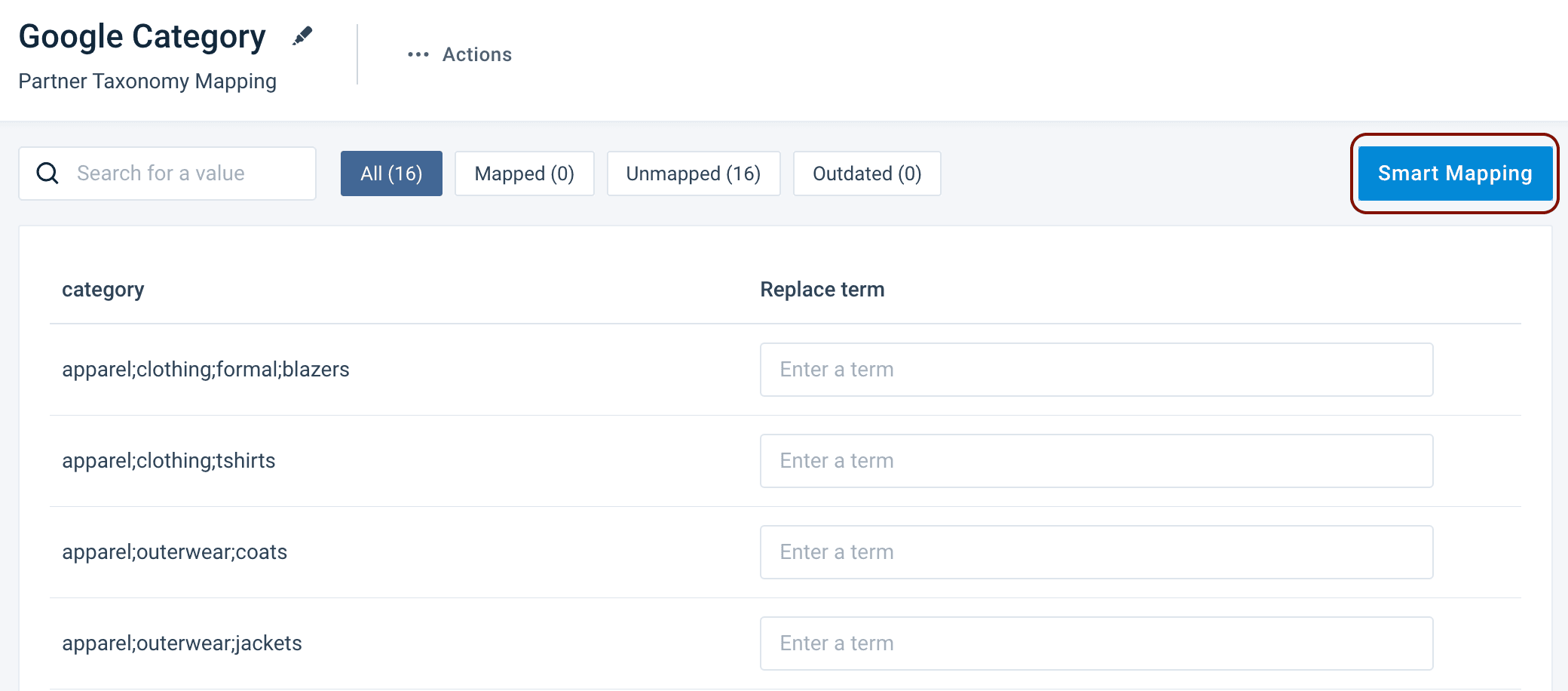
Smart Mapping is disabled if your list doesn't have any unmapped values.
Select Smart, AI, or both, then select Generate suggestions.
Tip
Smart already covers Exact, Dictionary, and Semantic checks automatically — you don't choose among them individually.
If you select both Smart and AI, you can also set the fallback slider to send low-confidence Dictionary or Semantic suggestions to AI for a second opinion. See Get a second opinion from AI on low-confidence matches for more information.
If you selected AI and haven't used it before, confirm the consent prompt that explains your values are processed by OpenAI to generate suggestions.
If you decline, the platform doesn't generate any suggestions for this run. Reopen Smart Mapping and select Smart on its own if you want suggestions without AI.
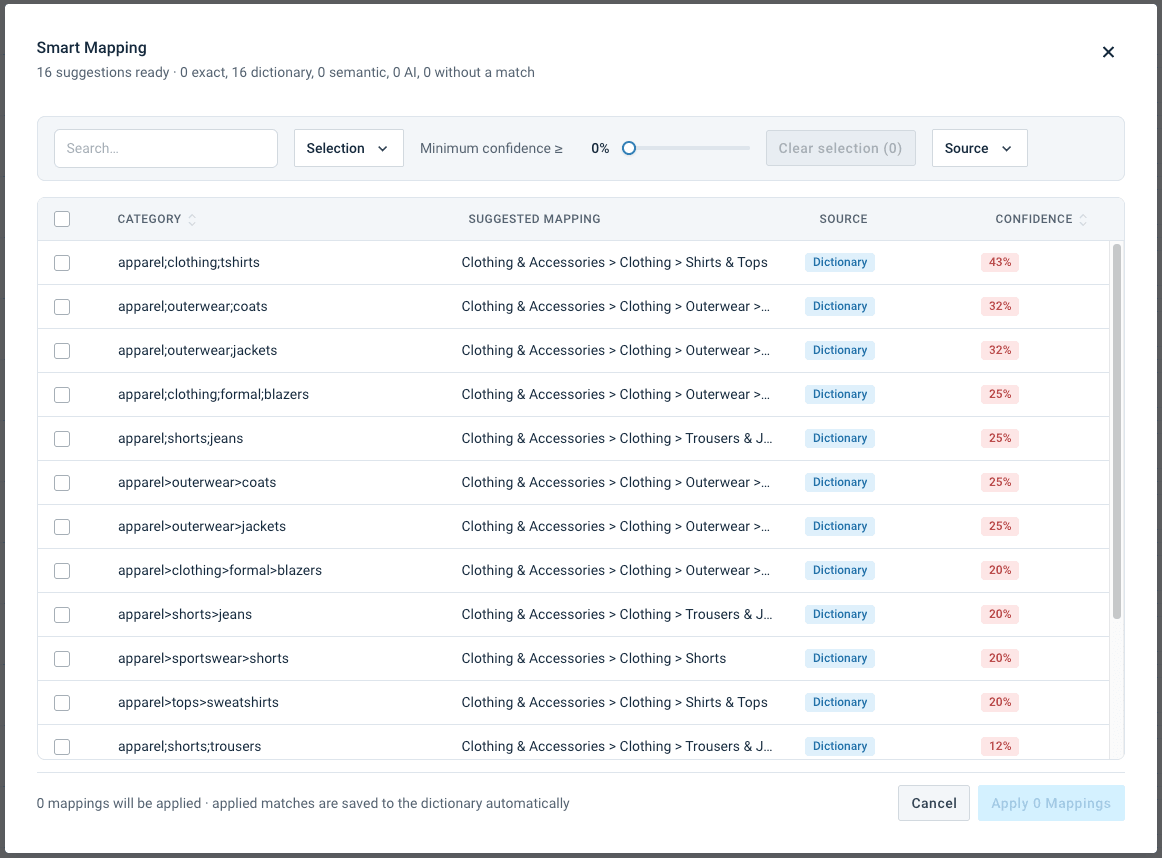
Review the suggestions in the list that opens. Each row shows the source value, the suggested term, the method that found it, and a confidence score.
Use the following to narrow down what you see:
- The confidence slider to hide suggestions below a threshold. It starts at 0%, showing every suggestion.
- The source filter to show only suggestions from specific methods.
- The selection filter to show All, Selected, or Unselected rows.
- The search bar to find a specific source value or suggested term.
Select a column header to sort by source value or confidence.
If a row has more than one candidate because of the AI fallback, select the +N icon next to it to compare all candidates and choose which one to keep.
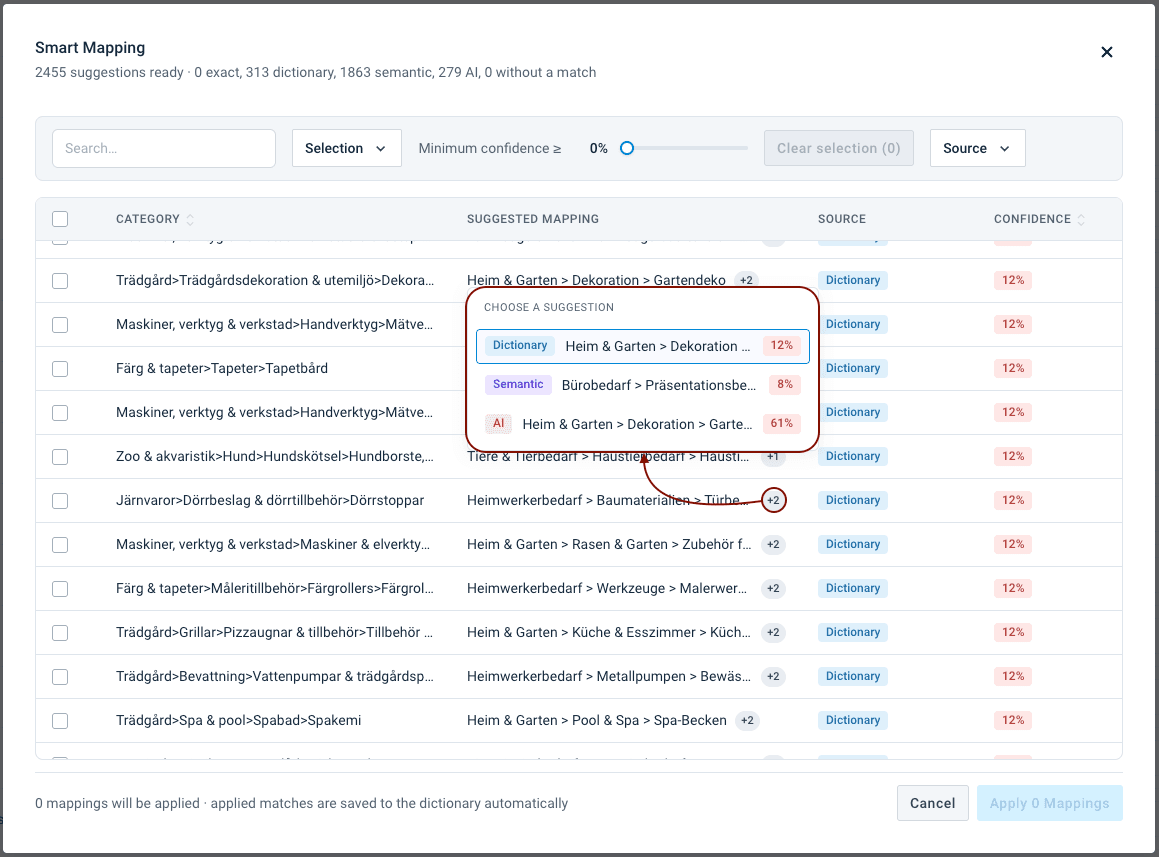
Select the checkbox next to each suggestion you want to apply, or use Select all to select every suggestion currently in view.
Select Apply X Mappings, where X reflects the number of suggestions you currently have selected.
The platform applies the selected suggestions to your list and leaves values you already mapped untouched.
If your list still has unmapped values after applying suggestions, reopen Smart Mapping to continue mapping the rest.
Confidence scores
Every suggestion carries a confidence score, which reflects how certain the platform is that the suggestion is correct. The scoring depends on which method found the match:
- Exact match always scores 100%, since the value matches the target term exactly (ignoring case and extra spaces).
- Dictionary scores based on how popular a mapping is, not on whether it's correct. The platform recalculates this score overnight, based on how often a value has previously been mapped to the same term — so a mapping you apply today may not raise its confidence until the next day. The more popular that specific mapping is, the higher the confidence.
- Semantic match scores based on how closely your value resembles the target term, so its confidence can range widely depending on the strength of that resemblance. It tops out at 95% for near-identical values — for example, matching
foot-balltofootball— and 90% for weaker matches. Semantic match never reaches 100%. - AI scores based on how closely the meaning of your value matches the meaning of the suggested term, not on how confident the AI model is in its own answer.
A Dictionary suggestion that has only been made once starts at a very low confidence, even when it's the right mapping. Dictionary confidence reflects how popular a mapping is, not how accurate it is, so values that are specific to your list or industry can take a while to build up a high confidence, since the same mapping needs to be made more than once before it does.
Use the confidence slider in the suggestions list to hide suggestions below a threshold you set, so you can focus on reviewing the mappings you're most likely to accept.
Important considerations
- Smart Mapping only maps unmapped values. It's a list-completion assistant, not a maintenance tool. To remap a single value, edit its Replace Term directly in the list, or clear the whole list at once with Reset List (in the Actions menu) — use Reset List only when you want to start over, since it clears every mapped term, not just one. Once a value's mapping is removed either way, it becomes unmapped again, so Smart Mapping can suggest a value for it the next time you run it.
- Declining the AI consent prompt cancels the run. The platform doesn't generate any suggestions — reopen Smart Mapping and select Smart on its own if you want suggestions without AI.
Use cases
Which method fits best depends on your list and how it relates to the rest of Productsup. The following are common scenarios:
| Scenario | Best method | Why |
|---|---|---|
| Your list values are in a different language than the target list's terms, for example mapping German product categories to an English taxonomy | AI | Dictionary and Semantic rely on matching previously accepted mappings or text in the same language. AI can often still find a match across languages, though cross-language matches tend to be less reliable than same-language ones. |
| Migrating a Classification Mapping list to a new classification version, for example a new ETIM release, where most trigger-description pairs stay the same between versions | Smart, particularly Dictionary | Many of the same trigger-to-term mappings are likely to already be popular in the Dictionary from earlier migrations, so it can resolve most of your list automatically. |
| Populating a new list with common, well-known values, for example standard Google Product Category or industry-standard classification terms | Smart, particularly Dictionary | Widely used values are likely to already have popular mappings in the Dictionary, so it can resolve them with high confidence. |
| Populating a list built around a highly specific or newly created taxonomy that isn't widely used elsewhere | Smart, particularly Semantic, or AI | Dictionary has little or no history to draw on for values that are unique to your list, so the Semantic check within Smart, or AI, is more likely to find a match. |
Related articles
How is this guide?