

Split parent items to create product variants with the Split Variants data service
Split parent attributes to create product variants using the Split Variants data service in Productsup.
Introduction
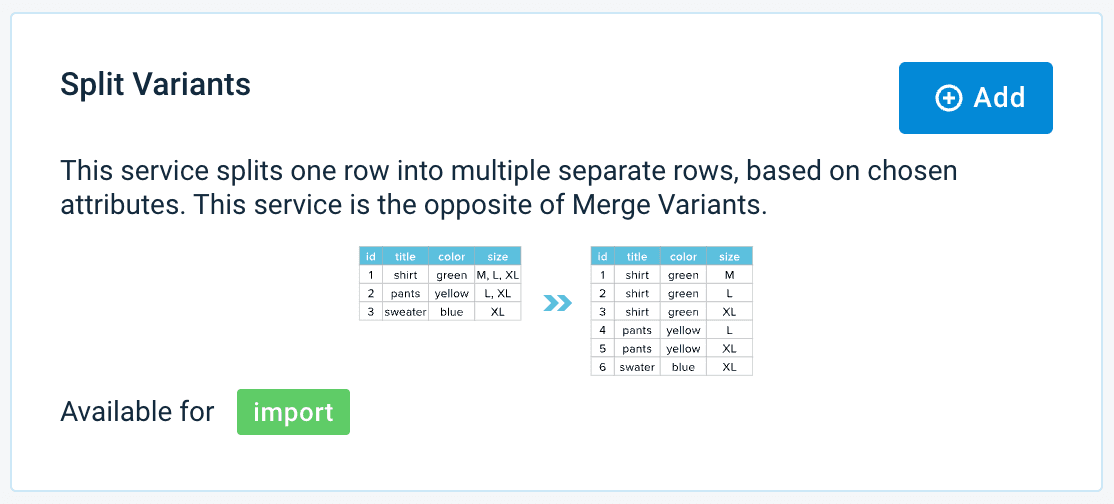
If a product attribute in your feed contains all product variants, such as sizes or colors, in one (1) row, you can split these product variants into separate rows using the Split Variants data service.
The Split Variants data service is only available for the import stage.
For example, the following feed contains the size attribute that stores all sizes of each product in the same row, separated by a comma:
| parent_id | size | title |
|---|---|---|
| 1 | XS,S,L | t-shirt |
| 2 | XS,M | polo shirt |
After applying the Split Variants data source with the Mutliply Variants mode, each size takes a separate row, and the feed looks as follows:
| parent_id | size | title |
|---|---|---|
| 1 | XS | t-shirt |
| 1 | S | t-shirt |
| 1 | L | t-shirt |
| 2 | XS | polo shirt |
| 2 | M | polo shirt |
The Split Variants data service creates more rows in your feed, increasing the number of imported and maintained products.
This service is the opposite of the Merge Variants data service. See Combine product variants into one parent item with the Merge Variants data service.
Prerequisites
To set up the Split Variants data service, you need:
- A unique item identifier. See Set a unique item identifier.
- Products in your feed that contain variants in one of their attributes.
Add the Split Variants data service
Go to Data Services from your site's main menu and select ADD SERVICE.
Search for Split Variants and select Add.
Give the service a desired name and column prefix, and select Add.
By default, ___service_split is the column prefix.
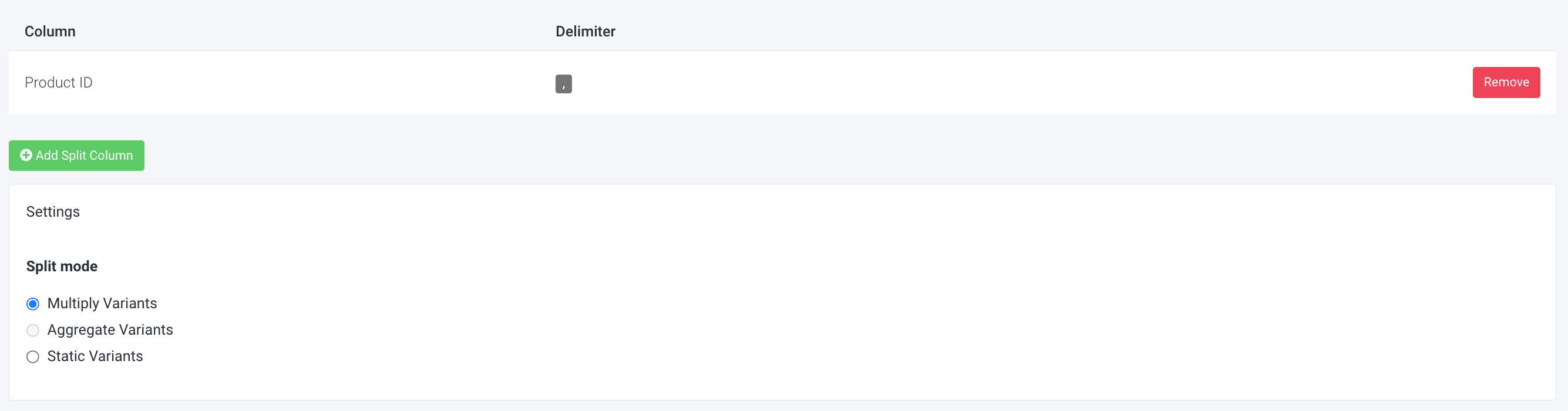
Select Add Split Column.
Select the column that you want to split in Source Columns. The source column is typically the parent_id or the item_group_id attribute.
In Delimiter, enter the character that currently separates the values in the source column.
In Split mode, select from one of the options. See Set up split modes for more information.
Select Save.
To run the data service, select Import in the top-right corner of your site's view.
Set up split modes
You can select from three (3) different modes to split your product variants:
- Multiply Variants mode creates separate rows for each product variant.
- Aggregate Variants mode creates separate rows for each product variant combining values from different columns according to their position in a row.
- Static Variants appends and/or prepends static strings to the attribute values creating a new row for each added variant.
Multiply Variants split mode
The Multiply Variants split mode lets you select one (1) or more source attributes to split them into new rows with all possible combinations of product variants.
For example, you have the following feed:
| id | size | color |
|---|---|---|
| 123 | S,M,L | blue,red |
To split product variants of products by sizes and colors into separate rows, use the following setup:
- Select Add Split Column.
- Select
sizeandcolorin Source Columns and enter a comma (,) in Delimiter.Using Multiple Variants, you must add one (1) or several columns in Source Columns.
- Select Multiply Variants in Split mode.
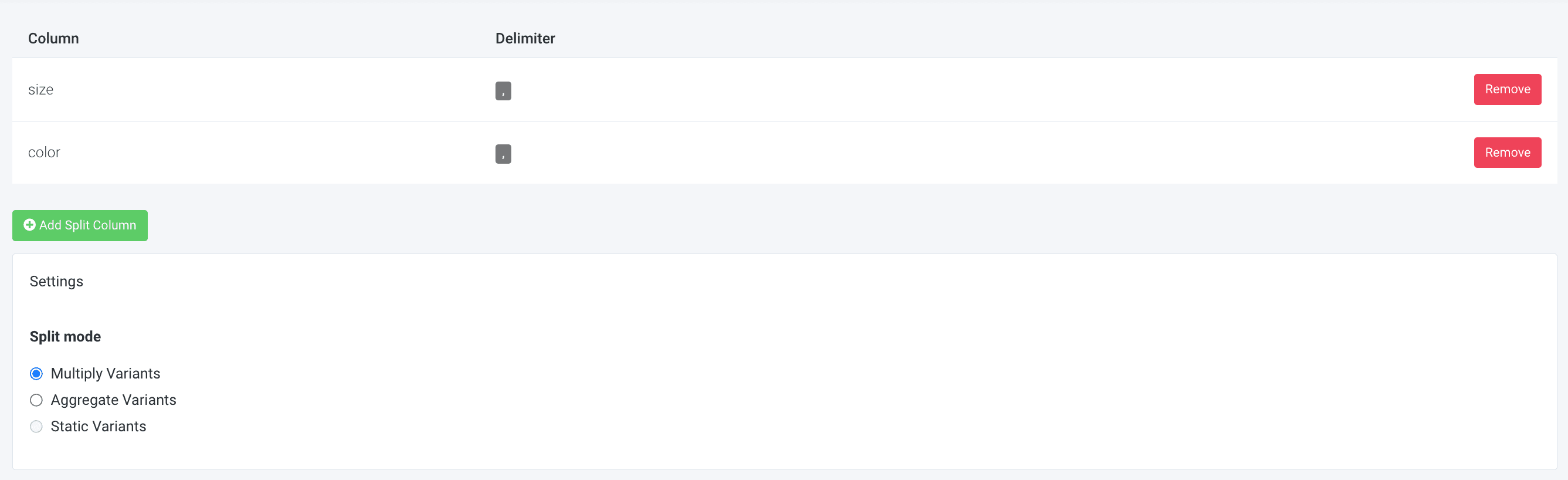
- Select Import in the top-right corner of your site's view to let the platform split the product variants into separate rows as follows:
id size color 123 S red 123 M red 123 L red 123 S blue 123 M blue 123 L blue
Aggregate Variants split mode
The Aggregate Variants split mode lets you split two (2) or more columns into separate product variant rows combining values by their position in the source columns.
For example, you have the following feed:
| id | country | food |
|---|---|---|
| 123 | France,Germany,United Kingdom | cheese,sausage,pudding |
To split variants of products into separate rows where each row contains a country and its corresponding food, use the following setup:
- Select Add Split Column.
- Select
countryandfoodin Source Columns and enter a comma (,) in Delimiter.Using Aggregate Variants, you must add at least two (2) columns in Source Columns.
- Select Aggregate Variants in Split mode.
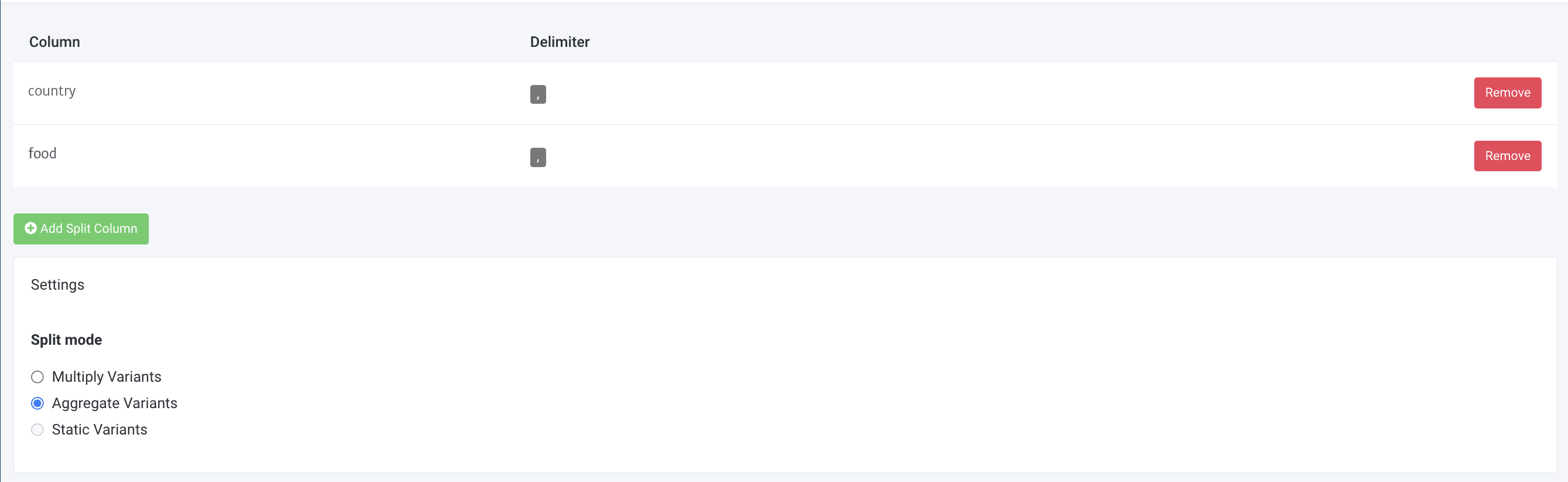
- Select Import in the top-right corner of your site's view to let the platform split the product variants into separate rows as follows:
id size color 123 France cheese 123 Germany sausage 123 United Kingdom pudding
Static Variants split mode
The Static Variants split mode lets you append and/or prepend static variants to the attribute values creating a new row for each variant.
For example, you have the following feed:
| id | title |
|---|---|
| 123 | My product is the best |
To append the static variants Alpha, Bravo, and Charlie to the title attribute, use the following setup:
- Select Add Split Column.
- Select
titlein Source Columns.The Static Variants split mode is only available if you select one (1) column in Source Columns.
- Select Static Variants in Split mode.
- Enter variants separated by a comma in Comma separated list of variants.
- In Variant Format, enter how you want the data service to add your variants to the attribute. By default, the value is
{{ value }} {{ variant }}, which means that your variant appears after the title value. - Select Save.
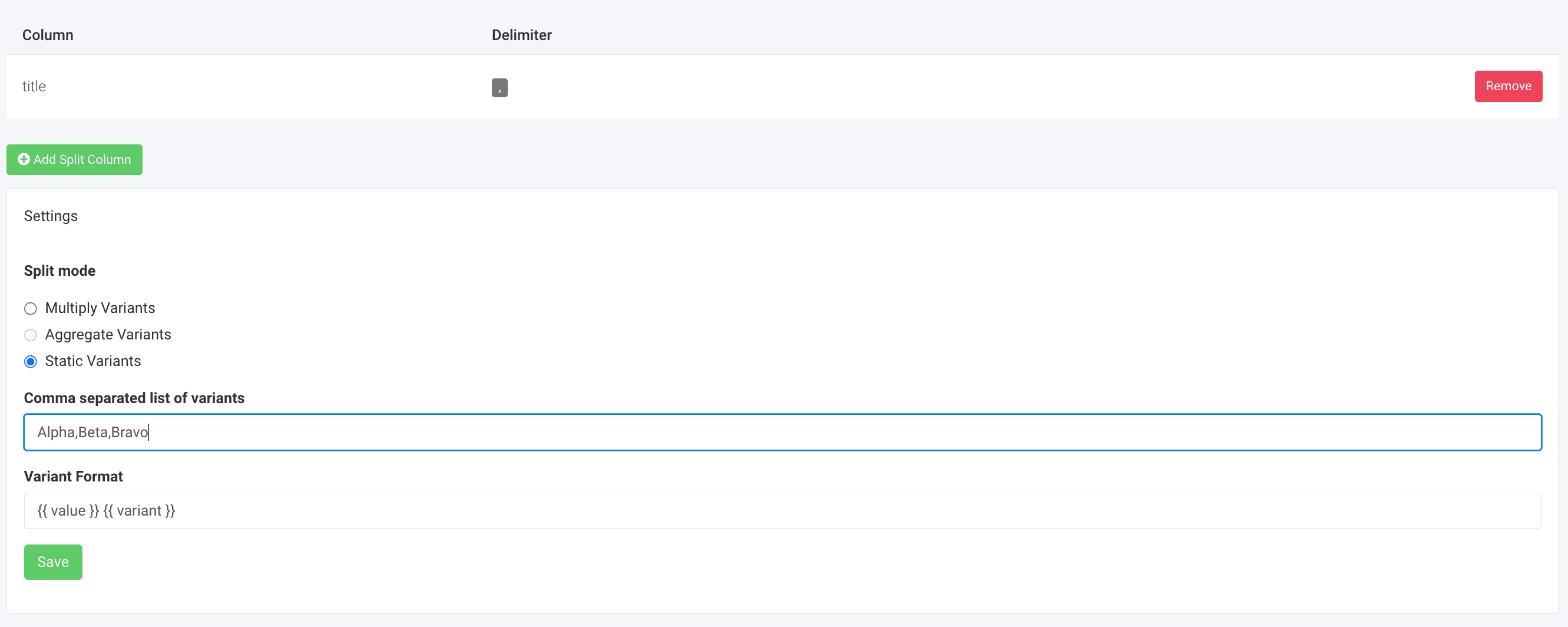
- Select Import in the top-right corner of your site's view to let the platform split the product variants into separate rows as follows:
id title 123 My product is the best Alpha 123 My product is the best Bravo 123 My product is the best Charlie
Edit the Split Variants data service
Go to Data Services from your site's main menu.
Search for your data service.
Select the cogwheel icon (⚙) next to the desired data service to edit settings.
Select Save.
Delete the Split Variants data service
Go to Data Services from your site's main menu.
Select the cogwheel icon
 next to the desired data service.
In the Danger Area panel, select Remove this service.
Select Yes.
How is this guide?