

Set up user profile
Set up and personalize your user profile in Productsup.
Introduction
Personalize your Productsup user profile settings, such as your name, email, password, job title, country, timezone, and language. In profile settings, you can also enable two-factor authentication (2FA).
Access your user profile settings
To access user profile settings, select the profile icon in the top-right corner of the page from the organization, project, or site level. Alternatively, go directly to user profile settings.
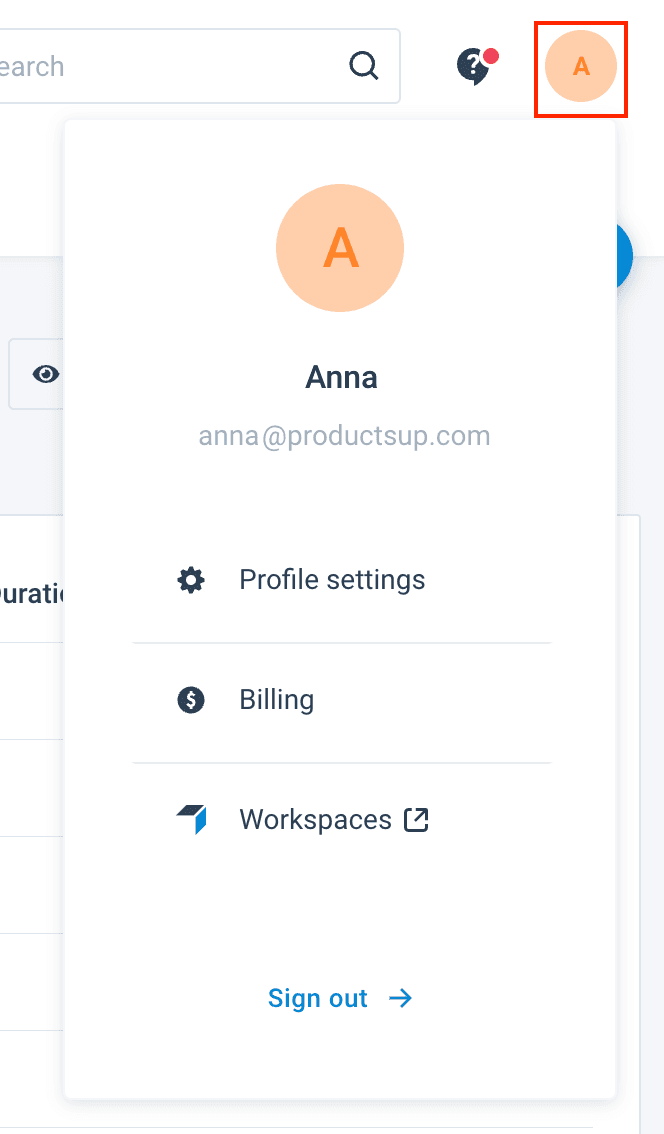
You can only see the Workspaces link leading to the Retail platform if you have a Retail platform account.
Billing is only available to admin users. See Usage Data Dashboard and overage calculations.
Change your profile name and email
You can change your profile name and email in profile settings. However, if your email is the main email registered for your organization, you can't change it in your profile settings. Contact support@productsup.com to change the main email registered in Productsup for your organization.
To change your name and email:
Go to Profile settings from your user profile icon in the top-right corner of the page.
Enter your name and email in Full Name and Your email.
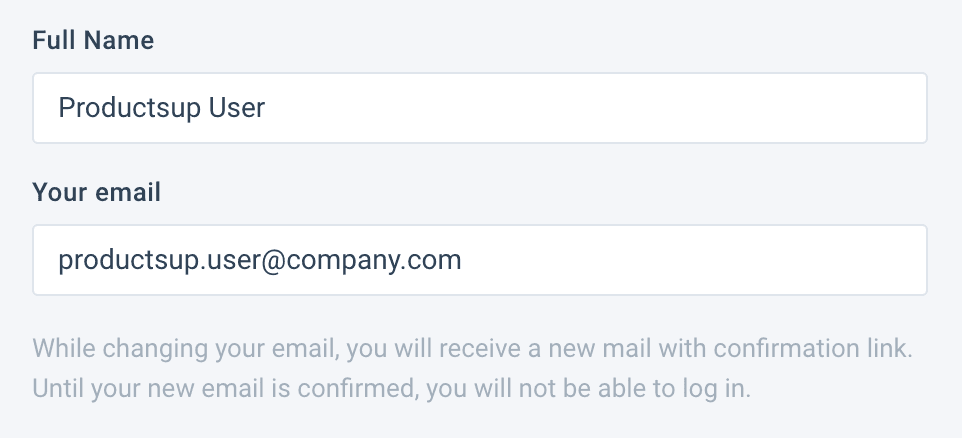
Select Save.
If you have updated your email, go to your inbox to confirm the new email address.
Change your password
You can change your password in the user profile settings.
Go to Profile settings from your user profile icon in the top-right corner of the page.
Select Change near the Current password field to open the CHANGE PASSWORD window.
Enter your existing password in Current password.
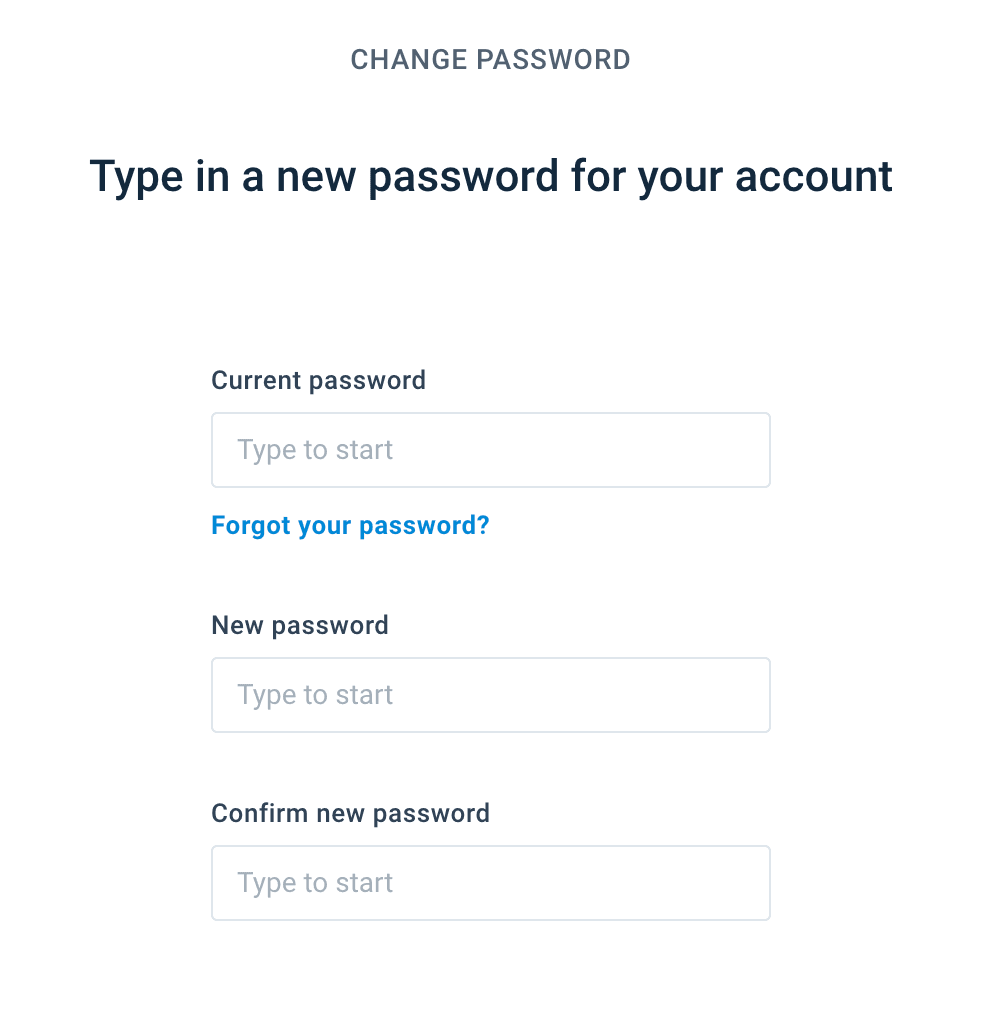
Add a new password that meets platform requirements in New password and repeat it in Confirm new password.
Your password must contain at least 12 characters, 1 number, both lower- and uppercase letters, and 1 special character, such as #, ?, ! and so on.
Select Save.
Enter job title, location, and timezone
Enter your job title, location, and timezone to better identify your professional role and place within your organization.
Go to Profile settings from your user profile icon in the top-right corner of the page and enter your position in Job title.
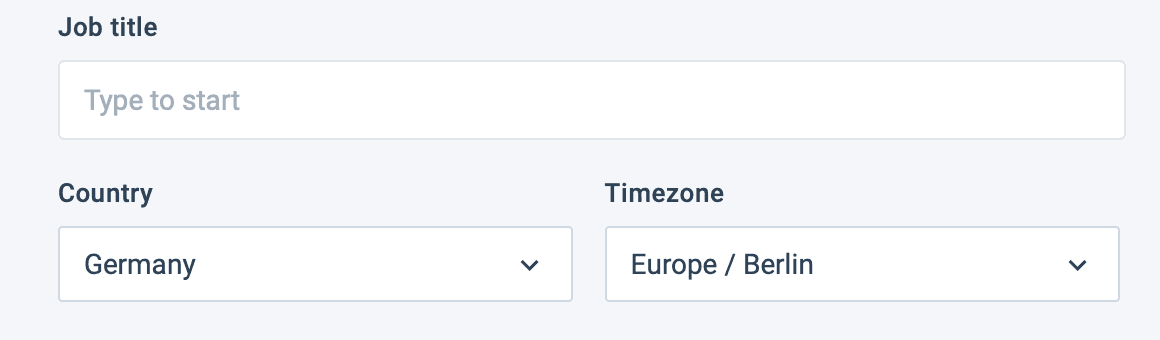
Select your location in Country and choose a suitable option in Timezone.
Select Save.
See Set up user profile time zone for more information.
Change the platform language
You can use the Productsup platform in English, German, or French. To choose the needed language option, do the following:
Go to Profile settings from your user profile icon in the top-right corner of the page.
In Language, select the desired language.
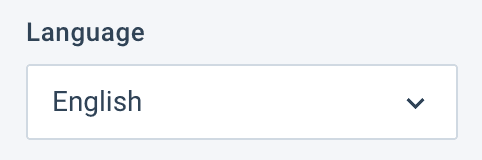
Select Save.
Use two-factor authentication (2FA)
You can set two-factor authentication (2FA) as a login standard for your organization.
Go to Profile settings from your user profile icon in the top-right corner of the page.
Use the toggle Enable two factor authentication to start the setup and select Save.

When the platform saves your new settings, you see the following pop-up window. Select Continue to proceed.
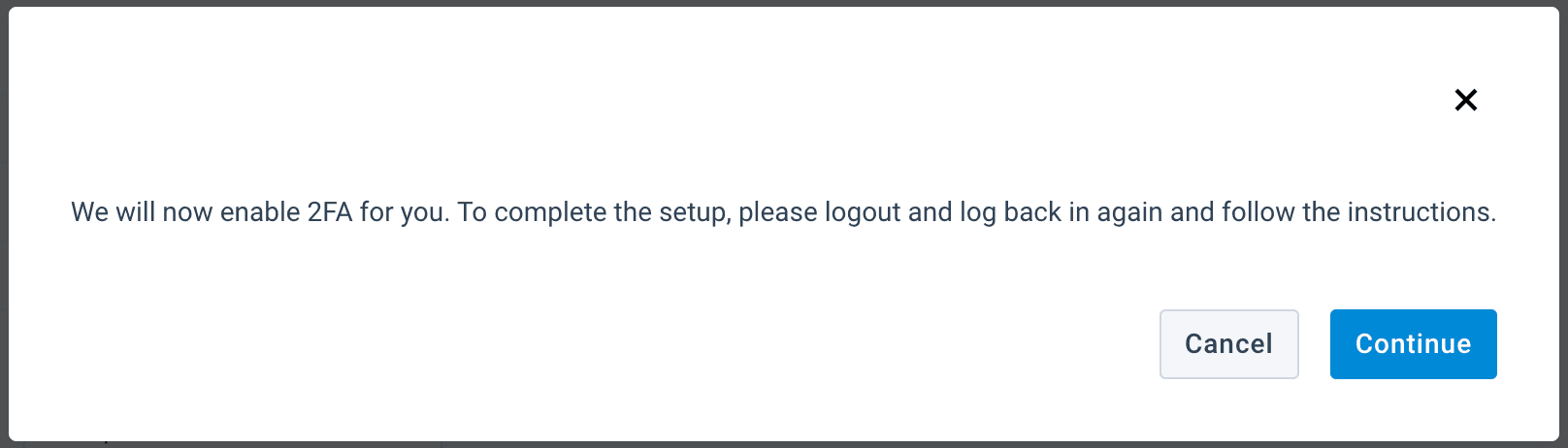
On the login page, enter your email and password to see 2FA instructions.Follow the instructions on the page Mobile Authenticator Setup to install an authenticator app and add a device.
Tip
You can use the following apps:
- Google Authenticator
- FreeOTP
- Microsoft Authenticator
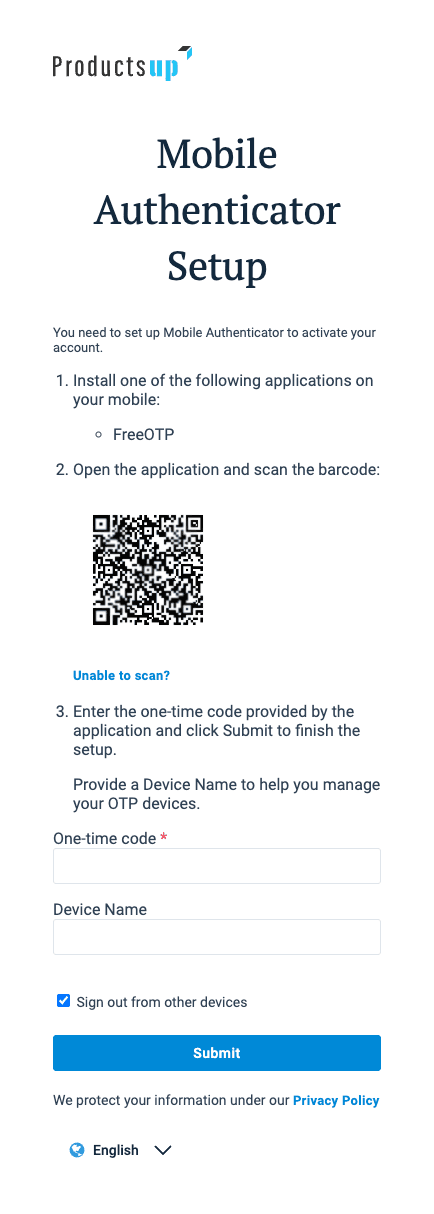
Enter a code from your authenticator app in One-time code. You will need to enter authentication codes in this field every time when logging in.
When logging in, use the last added code in your authenticator app called Productsup: {your-address@email.com}. If you have used 2FA with Productsup previously, you may have multiple codes with this name in the app. All previously added codes are no longer relevant.
If desired, provide a name for your authentication device in Device Name.
Select Submit.
Changed phones?
If you change your mobile device, you can turn two-factor authentication off to disconnect the old device and save the settings. Then, reactivate 2FA and connect your new device by following the previously mentioned steps.
Lost your phone?
If you don't have access to your 2FA device anymore, contact support@productsup.com.
How is this guide?