

Rule box category Use regular expressions
Learn to transform your product data in Productsup with the rule box category Use regular expressions.
Introduction
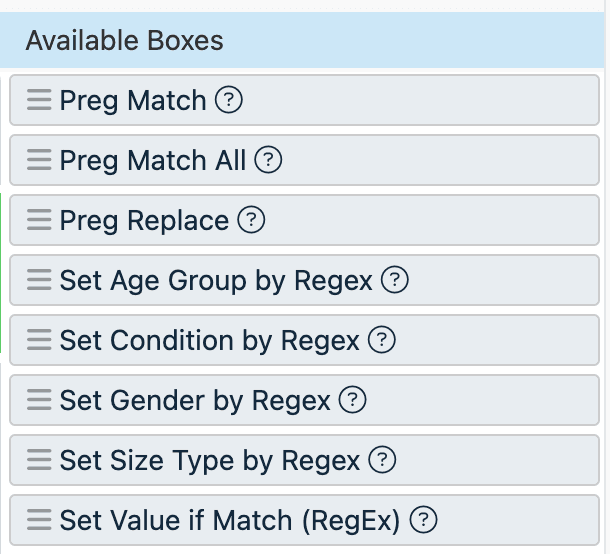
The category Use regular expressions contains all rule boxes that let you use regex to search, match, and replace values in your attributes. Some rule boxes in this category let you use regex to set age groups, conditions, gender, and size types and prepare your product data for Google Merchant Center.
A regular expression (regex) is a sequence of characters that uses specific syntax or structure rules to define a search pattern. Using a regex, you can search your data for specific text pattern matches instead of exact text matches.
An example of a regex is /([A-Z])\w+/. If you run a search in a text and use this regular expression, you can find all words in the searched text that have uppercase letters from A to Z. In Productsup, you can use this regex as is or change the opening and closing forward slashes to hash signs: #([A-Z])\w+#.
Find a regular expression with Regex generator
To work with regex easier, you can get suggestions for necessary regular expressions using the Regex generator:
Select a necessary rule box.
Select the >_ icon in a rule box and describe the result you want to achieve in the Regex generator window.
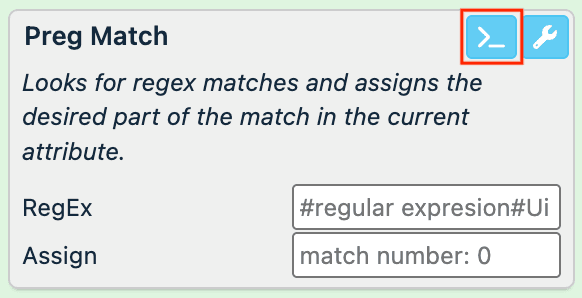
Select Generate.
Select Copy below the Answer field.
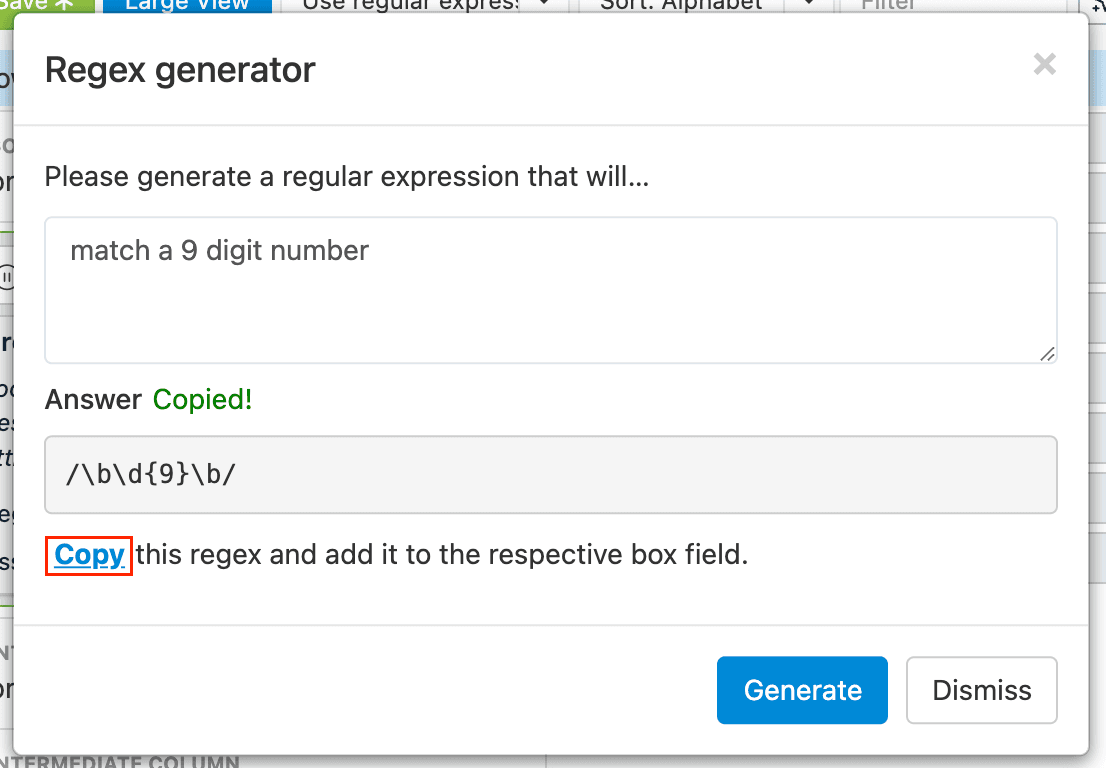
Paste the copied answer into the regex field of the rule box.
Tip
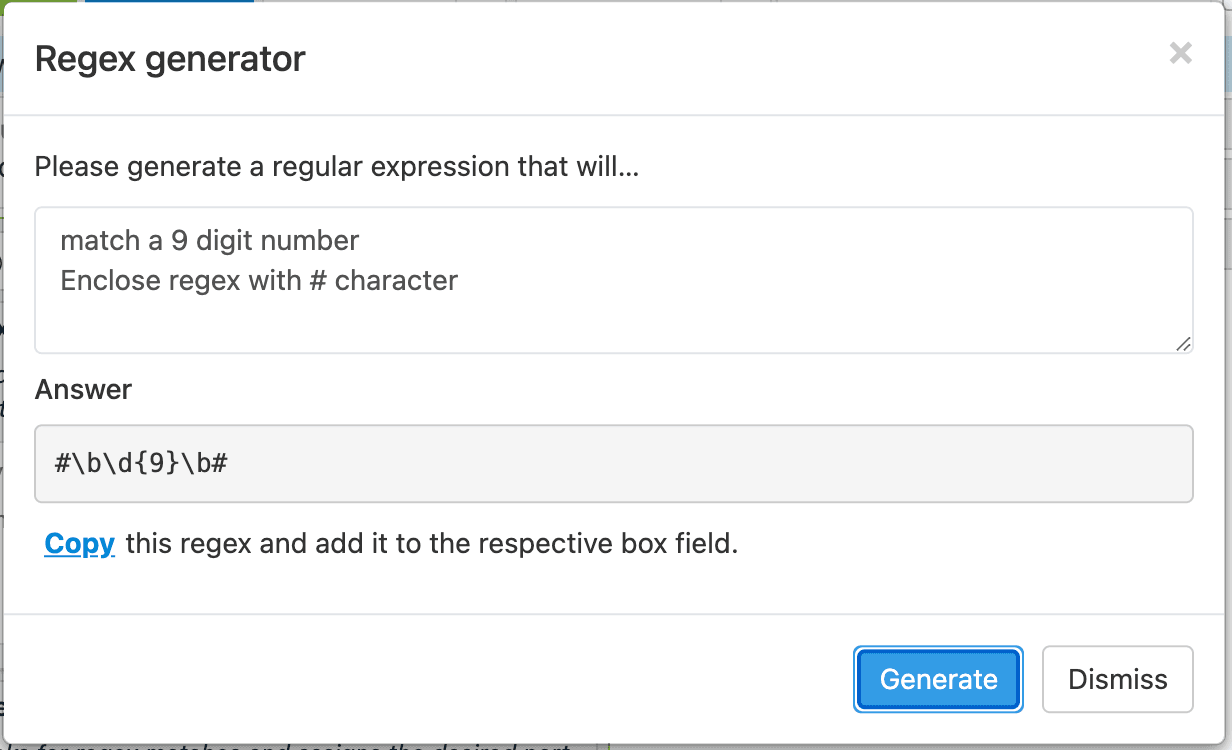
You must enclose regular expressions with / or # characters so that they function in rule boxes. The Regex generator doesn't always automatically enclose output with these characters. You can manually add the / or # at the beginning and end of the generated answer.Alternatively, you can include one of the following texts within the prompt:
- Enclose regex expression / characters.
- Enclose regex with # characters.
Preg Match
The Preg Match rule box searches the values of the current attribute to match the pattern you specified with a regex. When the platform finds a match in a value, it preserves the matching part of the value and removes the rest. The rule box stops scanning a value as soon as it finds a first match.
If an attribute contains long-string values and you want the platform to display only specific parts of those values, you can use this rule box.
- The difference between Preg Match All and Preg Match is that the former makes the platform review the entire value to find all matches within it, while the latter stops scanning a value after the first match. See Preg Match All for more information.
Take the steps from Add a rule box to add the Preg Match rule box.
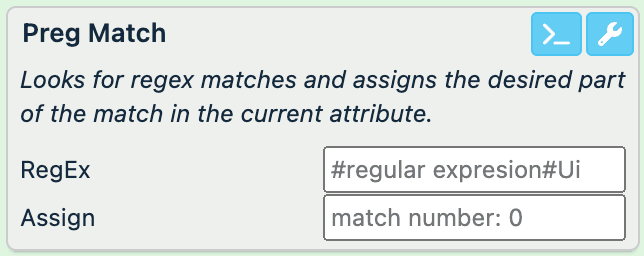
Enter a valid regex in RegEx. See regex101 to verify your regular expressions.
Make sure to add a forward slash (/) or a hash sign (#) at the start and end of your regular expression.
In Assign, specify the number of the capturing group within your regex that you want the platform to extract.A capturing group is a sequence of characters within a regex enclosed in parentheses. For example, this regex /(color\: [a-z]+).*(size\: [A-Z])/ has two capturing groups: (color\: [a-z]+) and (size\: [A-Z]).
Providing input in the Assign field isn't always necessary. It applies primarily to complex regular expressions with multiple capturing groups.For Productsup to extract and display only those parts of the values you specified in a relevant capturing group, you must provide input in Assign.
- To extract and display the data matching the entire regular expression, enter
0or leave the field empty. - To extract and display only the data matching the first capturing group, enter
1. - To extract and display only the data matching the second, third, or fourth capturing groups, enter
2,3, or4, respectively.
Select Save.
For example, you want to extract color and size information from your description attribute. You can do so using the Preg Match rule box with different regular expressions and capturing groups:
| Rule box setup | description (before) | description (after) |
|---|---|---|
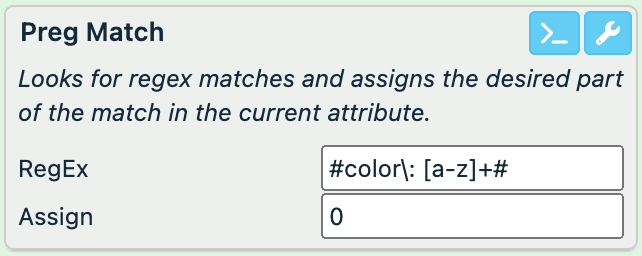 Regex used: Regex used: #color\: [a-z]+#. | These T-shirts are available in color: red, size: M. | color: red |
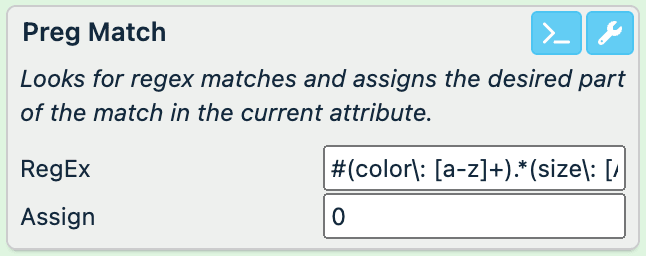 Regex used: Regex used: #(color\: [a-z]+).*(size\: [A-Z])#. | These T-shirts are available in color: red, size: M. | color: red, size: M |
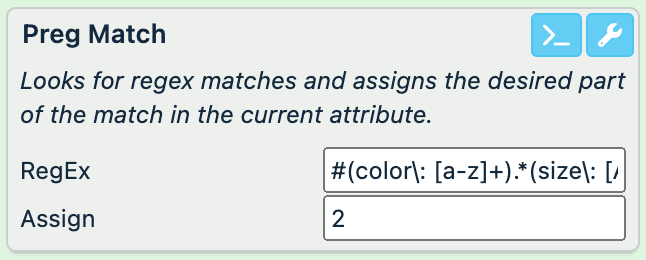 Regex used: Regex used: #(color\: [a-z]+).*(size\: [A-Z])#. | These T-shirts are available in color: red, size: M. | size: M |
Preg Match All
The Preg Match All rule box searches the values of the current attribute to match the pattern you specified with a regex. When the platform finds all matches of the regex in a value, it preserves the matching parts of the value and removes the rest.
If an attribute contains long-string values and you want the platform to display only specific parts of those values, you can use this rule box.
- The difference between Preg Match All and Preg Match is that the former makes the platform review the entire value to find all matches within it, while the latter stops scanning a value after the first match. See Preg Match for more information.
Take the steps from Add a rule box to add the Preg Match All rule box.
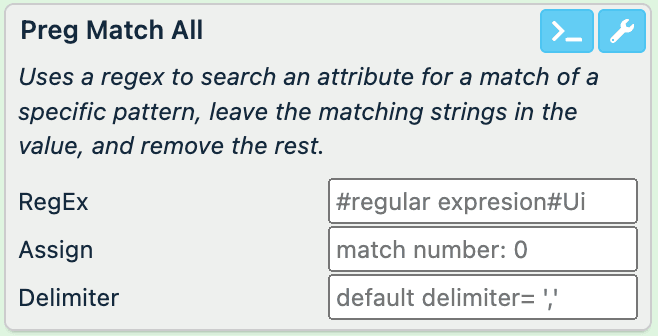
Enter a valid regex in RegEx. See regex101 to verify your regular expressions.
Make sure to add a forward slash (/) or a hash sign (#) at the start and end of your regular expression.
In Assign, specify the number of the capturing group within your regex that you want the platform to extract.A capturing group is a sequence of characters within a regex enclosed in parentheses. For example, this regex /(color\: [a-z]+).*(size\: [A-Z])/ has two capturing groups: (color\: [a-z]+) and (size\: [A-Z]).
Providing input in the Assign field isn't always necessary. It applies primarily to complex regular expressions with multiple capturing groups.For Productsup to extract and display only those parts of the values you specified in a relevant capturing group, you must provide input in Assign.
- To extract and display the data matching the entire regular expression, enter
0or leave the field empty. - To extract and display only the data matching the first capturing group, enter
1. - To extract and display only the data matching the second, third, or fourth capturing groups, enter
2,3, or4, respectively.
In Delimiter, define the character that should separate your matches in the output value after removing all unneeded info.The comma (,) is the default delimiter the platform uses if the field is empty.
Select Save.
For example, you want to extract phone numbers from the following values in your phone attribute. You can achieve this with the Preg Match All rule box and compare using it to the Preg Match rule box result:
| Rule box setup | phone (before) | phone (after) |
|---|---|---|
Preg Match AllRegex used: /(\+[0-9])*([0-9])+/. 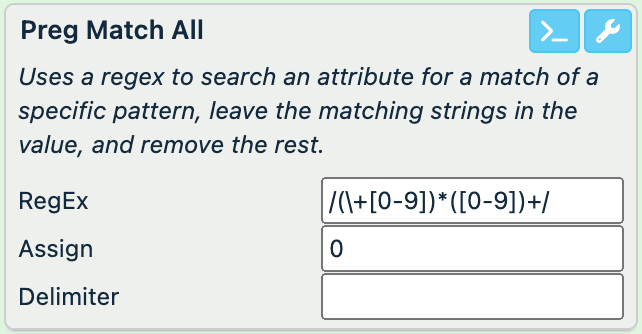 | country code: +44, county code: 1844, individual dialing part: 123456 | +44 1844 123456 |
Preg MatchRegex used: /(\+[0-9])*([0-9])+/. 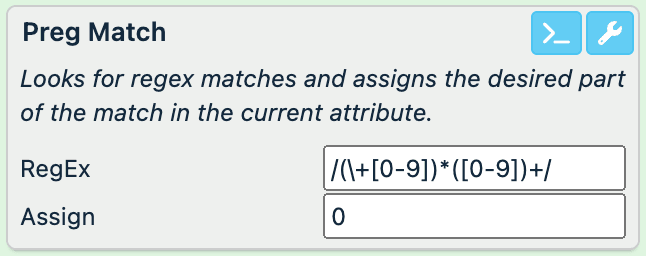 | country code: +44, county code: 1844, individual dialing part: 123456 | +44 |
The Preg Match All rule box returns a longer string because it looks for all matches within a value, while the Preg Match rule box stops after finding the first match.
Preg Replace
The Preg Replace rule box searches the values of the current attribute with a regex and replaces all the matches the platform finds with a value of your choice.
Take the steps from Add a rule box to add the Preg Replace rule box.
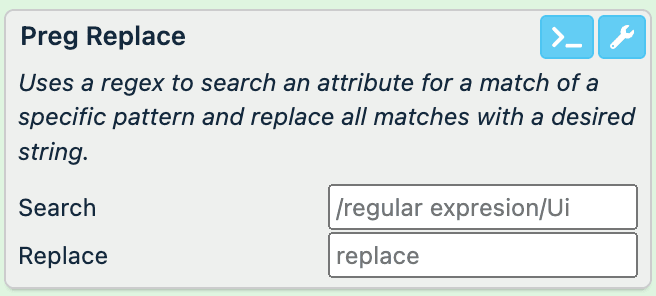
Enter a valid regex in Search. See regex101 to verify your regular expressions.
Make sure to add a forward slash (/) or a hash sign (#) at the start and end of your regular expression.
In Replace, enter the value that should replace your regex matches.
Select Save.
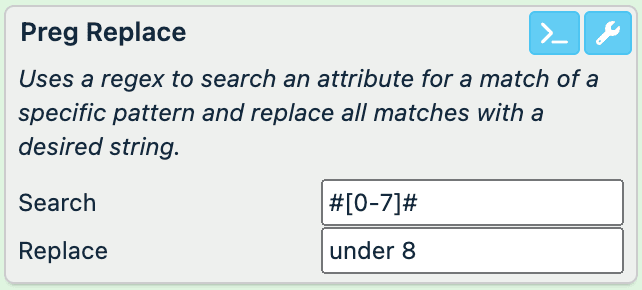
For example, you don't want your description attribute to mention the exact number of settings for your food processors if the products have fewer than 8 settings. Instead, you want your description attribute values to say under 8. You can achieve this with the following setup of the Preg Replace rule box:
| description (before) | description (after) |
|---|---|
| This food processor has 6 settings. | This food processor has under 8 settings. |
| This food processor has 9 settings. | This food processor has 9 settings. |
Add a thousands separator for decimal numbers with Preg Replace
You can use the Preg Replace rule box to add a thousands separator to numbers with many digits:
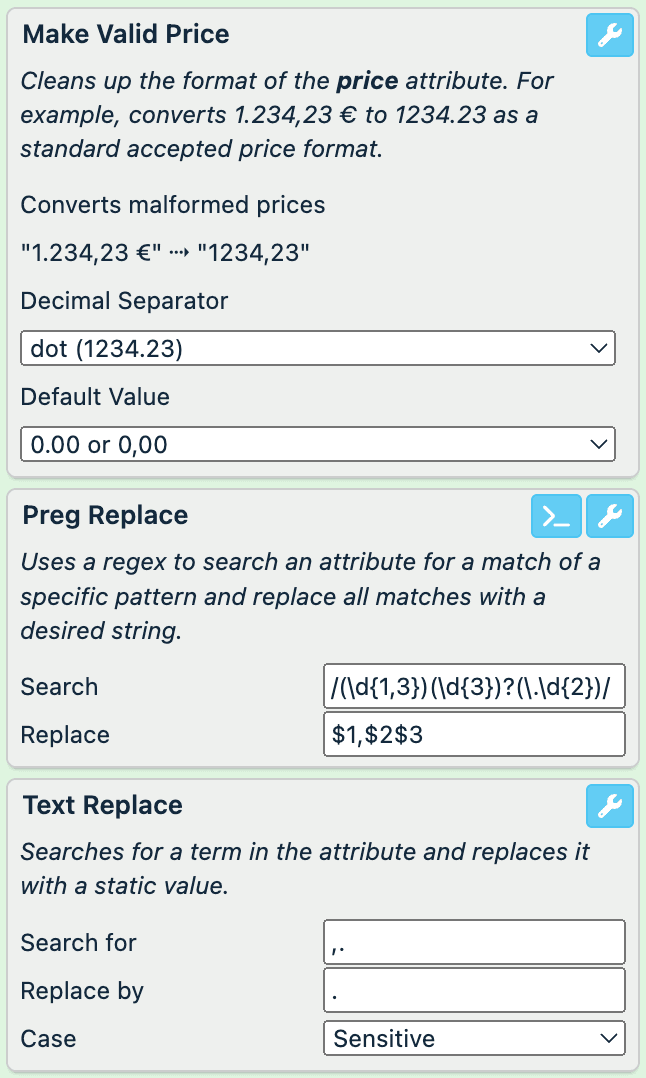
- Add the Make Valid Price rule box or otherwise ensure that your price format is correct. See Work with prices & math for more information.
- Add the Preg Replace rule box and set it up in the following way:
- Enter
/(\d{1,3})(\d{3})?(\.\d{2})/in Search to split your current prices into capturing groups. - Enter
$1,$2$3in Replace to use a comma (,) as a thousands separator between your capturing groups. If you want to use a different symbol as a thousands separator, add it between $1 and $2$3.This works for prices between 1,000.00 and 999,999.99.
- Enter
- If some of the prices in your current attribute are under 1,000.00, this setup adds an unnecessary comma (,) before the decimal point, for example,
40,.99. To remove the unneeded comma, add the Text Replace rule box and set it up as follows:- Enter
,.in Search for. - Enter
.in Replace by.
- Enter
- Once you save the three rule boxes, your attribute values should look similar to this:
price (before) price (after) 9999.99 9,999.999.99 9.99
Remove GTINs in the restricted and coupon ranges with Preg Replace
According to Google's requirements, the GTINs you submit for your products shouldn't be in the restricted or coupon ranges. See GTIN [gtin] for more information.
You can use the Preg Replace rule box to remove GTINs in the restricted and coupon ranges from your gtin attribute:
- Add the Preg Replace rule box and set it up in the following way:
- To remove restricted GTINs only, enter
#^(02|04|2).*#in Search. Leave the field Replace empty, and select Save. - To remove coupon GTINs only, enter
#^(05|98|99).*#in Search. Leave the field Replace empty, and select Save. - To remove both restricted and coupon GTINs, enter
#^(02|04|2|05|98|99).*#in Search. Leave the field Replace empty, and select Save.
- To remove restricted GTINs only, enter
Set Value if Match (RegEx)
The Set Value if Match (RegEx) rule box assigns a static value in the current attribute if a selected attribute contains a regex match.
Take the steps from Add a rule box to add the Set Value if Match (RegEx) rule box.
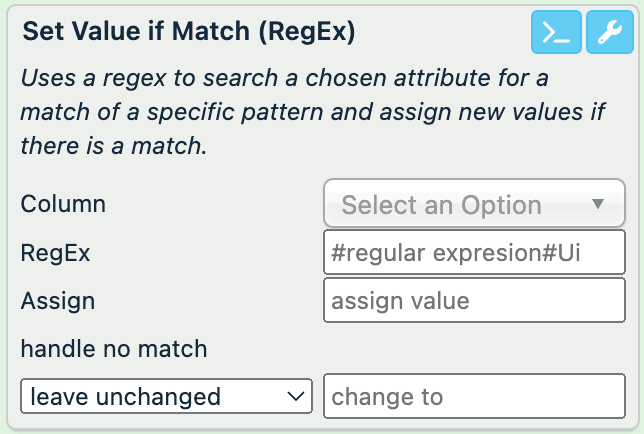
In Column, choose the attribute you want to search for regex matches.
Enter a valid regex in RegEx. See regex101 to verify your regular expressions.
Make sure to add a forward slash (/) or a hash sign (#) at the start and end of your regular expression.
In Assign, specify the value that the current attribute should display if the platform finds a regex match in the searched attribute.
In the handle no match drop-down menu, choose how the platform should treat the values of the current attribute if there is a product with no regex match in the searched attribute:
- leave unchanged makes sure the values of the current attribute stay the same.
- assign makes sure the platform changes the values of the current attribute. Enter what value the platform should assign to products with no matches in change to.
Select Save.
For example, you can use the Set Value if Match (RegEx) rule box to get the price_range attribute to contain information on whether a product is cheap or expensive based on the values of the price attribute.
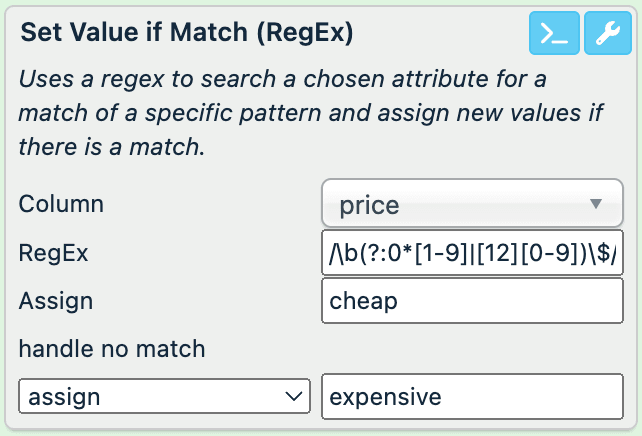
The regex /\b(?:0*[1-9]|[12][0-9])\$/ lets the rule box search the price attribute for products that cost less than 30$. If the platform finds a product that costs less than that, it assigns the value cheap to this product in the price_range attribute. If the platform discovers products that don't match the regex and cost 30$ or more, such products get the value expensive.
| price (no changes) | price_range (before) | price_range (after) |
|---|---|---|
| 11$ | 10-19$ | cheap |
| 20$ | 20-29$ | cheap |
| 90$ | 90-99$ | expensive |
| 110$ | 110-119$ | expensive |
Regex rule boxes for Google Merchant Center
The following rule boxes can help you prepare your data for Google Merchant Center using regex. See Rule box category Google Merchant Center for more information on rule boxes for GMC.
Set Age Group by Regex
Google accepts the following values for the age_group attribute:
- adult
- kids
- infant
- toddler
- newborn
With the Set Age Group by Regex rule box, you can use regular expressions to search your current values for matches and replace them with corresponding valid age groups accepted by Google.
Once the Set Age Group by Regex rule box finds a regex match in a value, it changes the entire current value to the corresponding value accepted by Google. If one value contains multiple regex matches related to different age groups, the rule box assigns the age group related to the first regex match within the value.
If the rule box doesn't find a regex match in a value, it assigns the value adult to make sure your age_group attribute contains only valid entries.
Take the steps from Add a rule box to add the Set Age Group by Regex rule box.
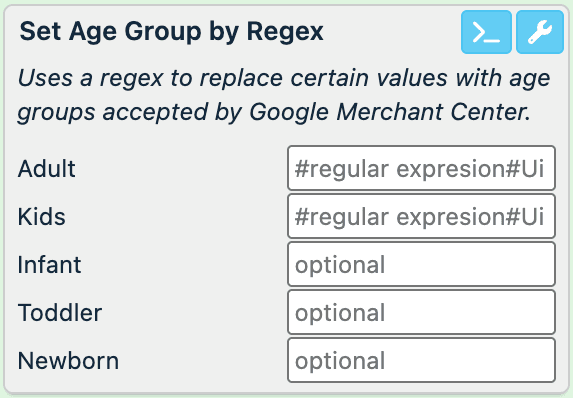
In Adult, Kids, Infant, Toddler, and Newborn, enter regular expressions to search your values and replace the matching parts with a relevant age group value.
Tip
Use the Regex generator by selecting >_ to get a regex suggestion.
Select Save.
For example, you have different non-valid values in the age_group attribute, and you need to assign a valid age group to each product based on its current value.
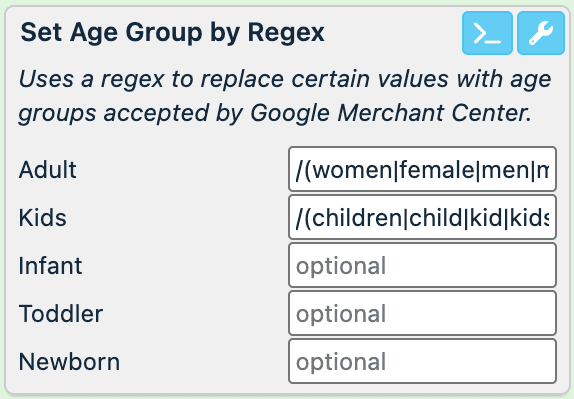
With the regular expressions /(women|female|men|male|adult|adults)/g and /(children|child|kid|kids|boy|girl|boys|girls)/, you can search your current values for the possible alternatives to the valid adult and kids values and then change the current values to the appropriate valid age group.
| age_group (before) | age_group (after) |
|---|---|
| women | adult |
| all ages | adult |
| children, men | kids |
Set Condition by Regex
Google accepts the following values for the condition attribute:
- new
- refurbished
- used
With the Set Condition by Regex rule box, you can use regular expressions to search your current values for matches and replace them with corresponding valid conditions accepted by Google.
Once the Set Condition by Regex rule box finds a regex match in a value, it changes the entire current value to the corresponding value accepted by Google. If one value contains multiple regex matches related to different condition types, the rule box assigns the condition type related to the first regex match within the value.
If the rule box doesn't find a regex match in a value, it assigns the value new to make sure your condition attribute contains only valid entries.
Take the steps from Add a rule box to add the Set Condition by Regex rule box.
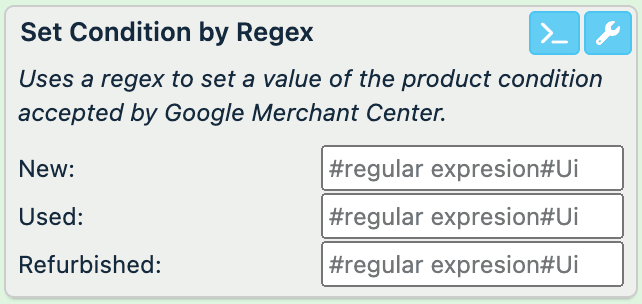
In New, Used, and Refurbished, enter regular expressions to search your values and replace the matching parts with a relevant condition value.
Tip
Use the Regex generator by selecting >_ to get a regex suggestion.
Select Save.
For example, you have different non-valid values in the condition attribute, and you need to assign a valid condition type to each product based on its current value.
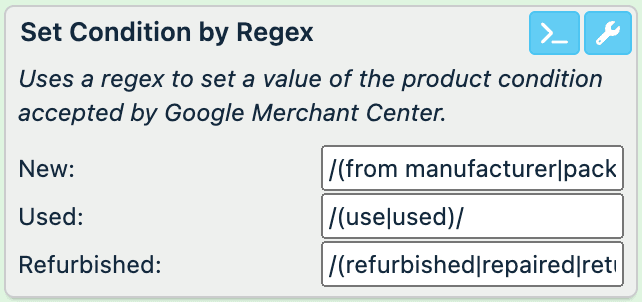
With the regular expressions /(from manufacturer|packaged|new)/, /(use|used)/, and /(refurbished|repaired|returned)/, you can search your current values for the possible variants of the valid new, used, and refurbished values and then change the current values to the appropriate valid conditions.
| condition (before) | condition (after) |
|---|---|
| returned, new | new |
| signs of use | used |
| brand new | new |
Set Gender by Regex
Google accepts the following values for the gender attribute:
- unisex
- female
- male
With the Set Gender by Regex rule box, you can use regular expressions to search your current values for matches and replace them with corresponding valid gender options accepted by Google. You need to provide regex only for male and female gender options. Products with no matches of these regular expressions get the value unisex.
Once the Set Gender by Regex rule box finds a regex match in a value, it changes the entire current value to the corresponding value accepted by Google. If one value contains multiple regex matches related to different gender options, the rule box assigns the gender option related to the first regex match within the value.
Take the steps from Add a rule box to add the Set Gender by Regex rule box.
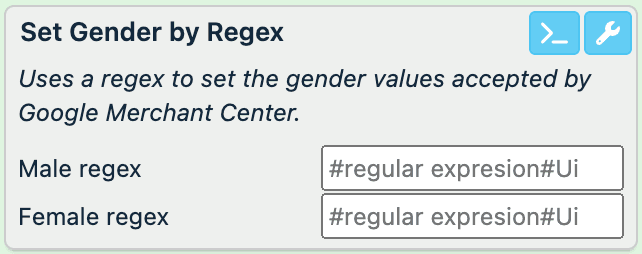
In Male regex and Female regex, enter regular expressions to search your values and replace the matching parts with a relevant gender option.
Tip
Use the Regex generator by selecting >_ to get a regex suggestion.
Select Save.
For example, you have different non-valid values in the gender attribute, and you need to assign a valid gender option to each product based on its current value.
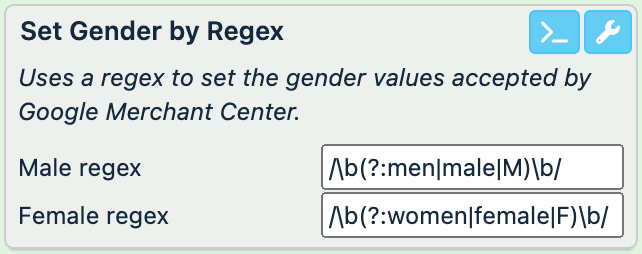
With the regular expressions /\b(?:women|female|F)\b/ and /\b(?:men|male|M)\b/, you can search your current values for the possible variants of the valid female and male values and then change the current values to the appropriate valid gender option. The products that don't contain regex matches get the value unisex.
| gender (before) | gender (after) |
|---|---|
| women | female |
| men and women | male |
| M | male |
| all | unisex |
Set Size Type by Regex
Google accepts the following values for the size_type attribute:
- regular
- petite
- plus
- big
- tall
- maternity
With the Set Size Type by Regex rule box, you can use regular expressions to search your current values for matches and replace them with corresponding valid size types accepted by Google.
Once the Set Size Type by Regex rule box finds a regex match in a value, it changes the entire current value to the corresponding value accepted by Google. If one value contains multiple regex matches related to different size types, the rule box assigns the size type related to the first regex match within the value.
If the rule box doesn't find a regex match in a value, it assigns the value regular to make sure your size_type attribute contains only valid entries.
Take the steps from Add a rule box to add the Set Size Type by Regex rule box.
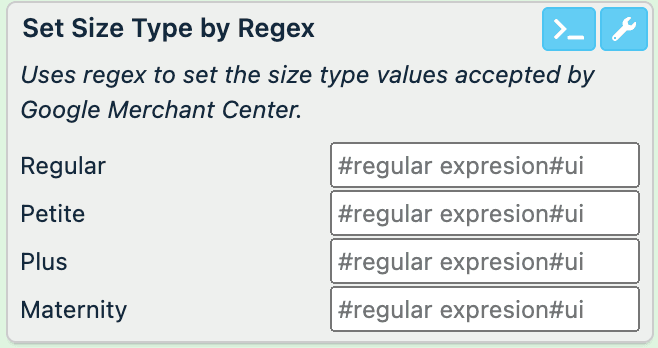
In Regular, Petite, Plus, and Maternity, enter regular expressions to search your values and replace the matching parts with a relevant size type.
Tip
Use the Regex generator by selecting >_ to get a regex suggestion.
Select Save.
For example, you have different non-valid values in the size_type attribute, and you need to assign a valid size type to each product based on its current value.
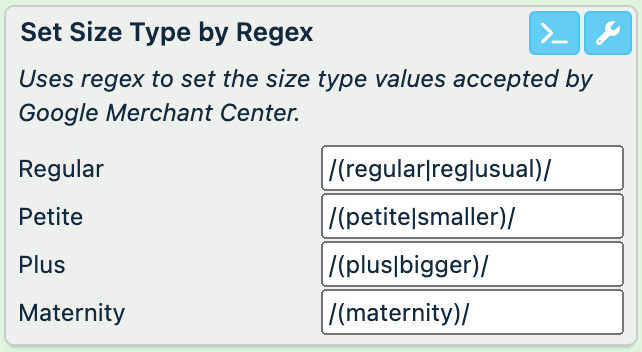
With the regular expressions /(regular|reg|usual)/, /(petite|smaller)/, /(plus|bigger)/, and /(maternity)/, you can search your current values for the possible variants of these valid size types and then change the current values to the appropriate valid size types.
| size_type (before) | size_type (after) |
|---|---|
| one size | regular |
| maternity clothes | maternity |
| petite, regular | regular |
How is this guide?