

Rule box category Edit text
Learn how to use rule boxes in the category Edit text to change capitalization, remove duplicate words, and use keywords to predict categories in Productsup.
Introduction
The category Edit text contains all rule boxes that can help you edit text values. Using the rule boxes in this category, you can perform a variety of tasks, such as change text capitalization, remove emojis and repeating words, use keywords to predict categories, work with HTML tags, and translate Google categories.
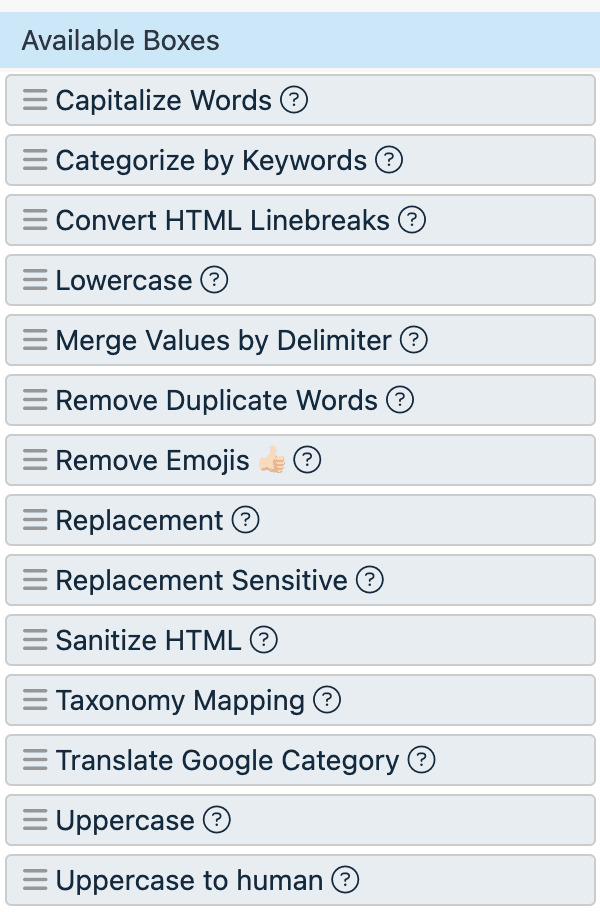
This category can be divided into several subgroups. In the following sections, you can find how to use the rule boxes of the Edit text category:
Change capitalization
The Edit text rule box category contains the rule boxes Capitalize Words, Lowercase, Uppercase, and Uppercase to human to let you modify the capitalization of words in your text values.
Capitalize Words
The Capitalize Words rule box edits your text values by capitalizing every word or only the first word in a text. If needed, it can also convert other capital letters in your text values into lowercase.
You can use the Capitalize Words rule box to remove the camel case, such as brownShoesWithBuckle, from your texts. However, this rule box doesn't add spaces between words when removing the camel case. For this purpose, we recommend using the Separate Words rule box instead. See Separate Words.
Take the steps from Add a rule box to add the Capitalize Words rule box.
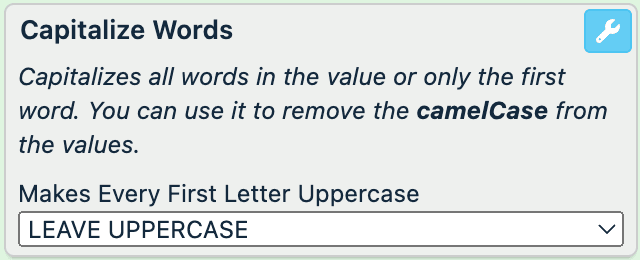
Select a capitalization method in Makes Every First Letter Uppercase:
- LEAVE UPPERCASE capitalizes each word in the text. If any other letters in a word, besides the first letter, are uppercase, this option leaves them unchanged.For example, it converts All WordsIn the string into
All WordsIn The String. - Convert Uppercase capitalizes each word in the text and converts uppercase letters within words into lowercase.For example, it converts only theFirst letter of each word into
Only Thefirst Letter Of Each Word. - Only first letter capitalizes the first letter in the value and converts the rest of the text into lowercase.For example, it converts not all words. Only the first letter IN THE STRING into
Not all words. only the first letter in the string.
Select Save.
For example, you have the following values in the description attribute and want to capitalize all words in the texts without removing capital letters within words. You can achieve this with the Capitalize Words rule box by selecting LEAVE UPPERCASE as the capitalization method:
| description (before) | description (after) |
|---|---|
| TheManufacturerUsesOnlyNaturalMaterials | TheManufacturerUsesOnlyNaturalMaterials |
| the manufacturer uses only natural and hypoallergenic materials to produce these dog blankets. colors available: brown, gray, green, and blue. size range: XS, S, L, and XXL | The Manufacturer Uses Only Natural And Hypoallergenic Materials To Produce These Dog Blankets. Colors Available: Brown, Gray, Green, And Blue. Size Range: XS, S, L, And XXL |
| COLORS AVAILABLE: black, gray, white, green, yellow, and lilac. Size range: XS, S, M, L, XL, and XXL | COLORS AVAILABLE: Black, Gray, White, Green, Yellow, And Lilac. Size Range: XS, S, M, L, XL, And XXL |
Lowercase
The Lowercase rule box edits your text values by converting all capital letters to lowercase.
Take the steps from Add a rule box to add the Lowercase rule box.

Select Save.
For example, you have the following values in the description attribute and want to make all your text lowercase. You can achieve this with the Lowercase rule box:
| description (before) | description (after) |
|---|---|
| TheManufacturerUsesOnlyNaturalMaterials | themanufacturerusesonlynaturalmaterials |
| the manufacturer uses only natural and hypoallergenic materials to produce these dog blankets. colors available: brown, gray, green, and blue. size range: XS, S, L, and XXL | the manufacturer uses only natural and hypoallergenic materials to produce these dog blankets. colors available: brown, gray, green, and blue. size range: xs, s, l, and xxl |
| COLORS AVAILABLE: black, gray, white, green, yellow, and lilac. Size range: XS, S, M, L, XL, and XXL | colors available: black, gray, white, green, yellow, and lilac. size range: xs, s, m, l, xl, and xxl |
Uppercase
The Uppercase rule box edits your text values by converting them into all capital letters.
Take the steps from Add a rule box to add the Uppercase rule box.

Select Save.
For example, you have the following values in the description attribute and want to capitalize all the text. You can achieve this with the Uppercase rule box:
| description (before) | description (after) |
|---|---|
| TheManufacturerUsesOnlyNaturalMaterials | THEMANUFACTURERUSESONLYNATURALMATERIALS |
| the manufacturer uses only natural and hypoallergenic materials to produce these dog blankets. colors available: brown, gray, green, and blue. size range: XS, S, L, and XXL | THE MANUFACTURER USES ONLY NATURAL AND HYPOALLERGENIC MATERIALS TO PRODUCE THESE DOG BLANKETS. COLORS AVAILABLE: BROWN, GRAY, GREEN, AND BLUE. SIZE RANGE: XS, S, L, AND XXL |
| COLORS AVAILABLE: black, gray, white, green, yellow, and lilac. Size range: XS, S, M, L, XL, and XXL | COLORS AVAILABLE: BLACK, GRAY, WHITE, GREEN, YELLOW, AND LILAC. SIZE RANGE: XS, S, M, L, XL, AND XXL |
Uppercase to human
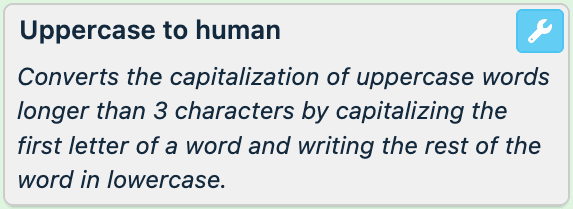
The Uppercase to human rule box edits your text values by converting all words in uppercase to the title case. A word must be over 3 characters long and contain only capital letters for the rule box to change its capitalization.
Here, using the title case means capitalizing the first letter of a word and writing the rest of the word in lowercase.
Take the steps from Add a rule box to add the Uppercase to human rule box.
Select Save.
For example, you have the following values in the description attribute and want to convert all-caps words to lowercase but capitalize their first letters. You can achieve this with the Uppercase to human rule box:
| description (before) | description (after) |
|---|---|
| The MANUFACTURER uses ONLY natural and hypoallergenic materials to produce these DOG beds. Colors available: black, gray, white, green, yellow, and lilac. Size range: XS, S, M, L, XL, and XXL | The Manufacturer uses Only natural and hypoallergenic materials to produce these DOG beds. Colors available: black, gray, white, green, yellow, and lilac. Size range: XS, S, M, L, XL, and XXL |
| The manufacturer USEs only natural and hypoallergenic materials to produce these dog blankets. Colors available: brown, gray, green, and blue. Size range: XS, S, L, and XXL | The manufacturer USEs only natural and hypoallergenic materials to produce these dog blankets. Colors available: brown, gray, green, and blue. Size range: XS, S, L, and XXL |
| COLORS AVAILABLE: black, gray, white, green, yellow, and lilac. size range: XS, S, M, L, and XXL | Colors Available: black, gray, white, green, yellow, and lilac. size range: XS, S, M, L, and XXL |
Replace words using lists
The Edit text rule box category contains the rule boxes Replacement, Replacement Sensitive, and Taxonomy Mapping to let you replace words or phrases in your texts using lists. See Use lists for more information on these rule boxes.
See Lists for more information on available list types.
Remove unnecessary words, tags, or symbols
The Edit text rule box category contains the rule boxes Remove Duplicate Words, Remove Emojis 👍🏻, Convert HTML Linebreaks, and Sanitize HTML to let you remove unnecessary content from your texts.
Remove Duplicate Words
The Remove Duplicate Words rule box edits your text values by deleting repetitive terms and preserving only the first mention of a term in the value.
Take the steps from Add a rule box to add the Remove Duplicate Words rule box.
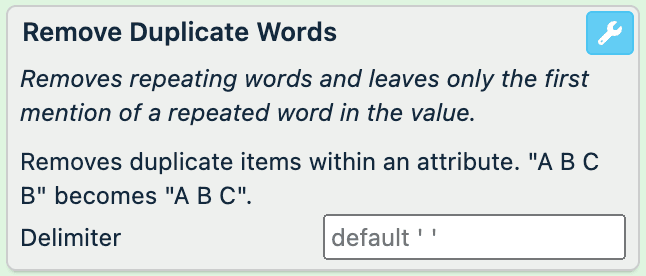
In Delimiter, enter the character or characters that separate terms in your values. For example, it can be a comma, a colon, a slash, or any combination of alphanumeric characters that function as a delimiter in your values. If you leave this field empty, the rule box uses one space character as a delimiter.
Select Save.
For example, you have the following values in the sizes attribute and want to remove all repeating sizes. You can achieve this with the Remove Duplicate Words rule box by entering a comma and a space character (,) as the delimiter:
| sizes (before) | sizes (after) |
|---|---|
| XS, S, M, S, L, XL, M, XXL | XS, S, M, L, XL, XXL |
| XS, S, M, L, S, XS, XL, XXL, and XXL | XS, S, M, L, XL, XXL, and XXL |
| M L M XL | M L M XL |
| S, L, XXL | S, L, XXL |
In the second row, XXL stays twice because you use a comma and a space (,) as a delimiter. The platform considers terms in between these delimiters. Thus, the terms XXL and and XXL aren't duplicates.
Remove Emojis 👍🏻
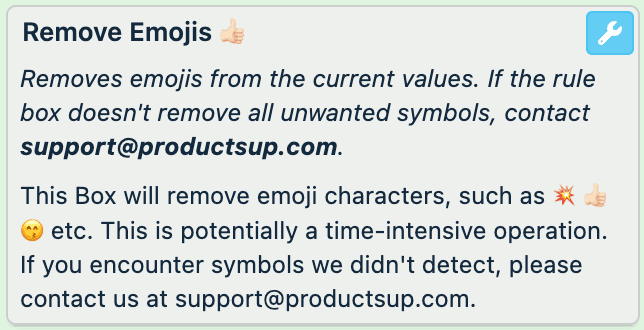
The Remove Emojis 👍🏻 rule box edits your text values by deleting emojis.
If the rule box doesn't detect and delete all unwanted emojis from your texts, contact support@productsup.com.
Take the steps from Add a rule box to add the Remove Emojis 👍🏻 rule box.
Select Save.
For example, you have the following values in the description attribute and want to delete all emojis. You can achieve this with the Remove Emojis 👍🏻 rule box:
| description (before) | description (after) |
|---|---|
| The manufacturer uses only natural and hypoallergenic materials to produce these dog beds 🛏️ | The manufacturer uses only natural and hypoallergenic materials to produce these dog beds |
| COLORS AVAILABLE: black 🖤, green 💚, yellow 💛, and lilac 💜. Size range: XS, S, M, L, XL, and XXL | COLORS AVAILABLE: black , green , yellow , and lilac . Size range: XS, S, M, L, XL, and XXL |
Tip
If you have unneeded spaces left in the values after applying the Remove Emojis 👍🏻 rule box, you can use the Text Replace rule box to replace commas and periods preceded by spaces with commas and periods with no spaces. See Text Replace.
If the unneeded spaces are at the start or end of the value, you can delete them using the rule box Remove Spaces At Beginning And End (Trim). See Remove Spaces At Beginning And End (Trim).
Convert HTML Linebreaks
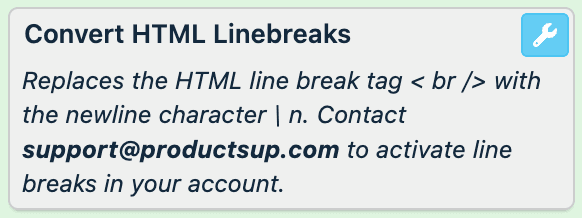
The Convert HTML Linebreaks rule box edits your text values by separating them into paragraphs at the HTML tag <br/>. To separate your texts into paragraphs, you should first add <br/> tags within your values where you want new paragraphs to start.
Line breaks aren't available in your Productsup organization by default. To activate line breaks for the needed sites and use the Convert HTML Linebreaks rule box, contact support@productsup.com.
Take the steps from Add a rule box to add the Convert HTML Linebreaks rule box.
Select Save.
For example, you have the following values in the description attribute and want to separate them into paragraphs using <br/> tags. You can achieve this with the Convert HTML Linebreaks rule box:
| description (before) | description (after) |
|---|---|
| The manufacturer uses only natural and hypoallergenic materials to produce these dog blankets. <br/>Colors available: brown, gray, green, and blue. <br/>Size range: XS, S, M, L, XL, XXL | The manufacturer uses only natural and hypoallergenic materials to produce these dog blankets.``Colors available: brown, gray, green, and blue.``Size range: XS, S, M, L, XL, XXL |
| This white wine is produced with aromatic Riesling grapes and comes from the Mosel region in southwest Germany. It is the most iconic region of German Rieslings that boasts an abundance of well-known vineyards. <br/>This bottle of white wine is from the 2002 vintage. It has a nice balanced palette with white-flower notes. | This white wine is produced with aromatic Riesling grapes and comes from the Mosel region in southwest Germany. It is the most iconic region of German Rieslings that boasts an abundance of well-known vineyards.``This bottle of white wine is from the 2002 vintage. It has a nice balanced palette with white-flower notes. |
Sanitize HTML
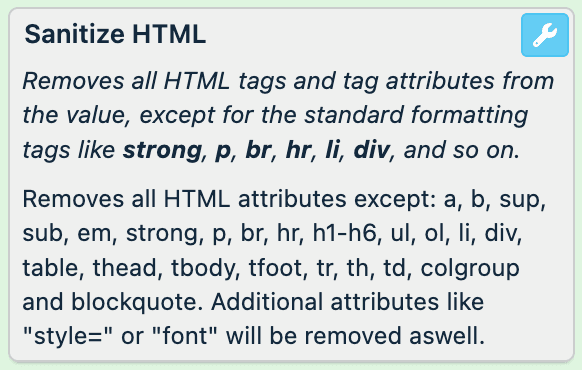
The Sanitize HTML rule box simplifies your HTML values by removing all HTML tags and tag attributes except for the standard formatting tags, such as a, b, sup, sub, em, strong, p, br, hr, h1, h2, h3, h4, h5, h6, ul, ol, li, div, table, thead, tbody, tfoot, tr, th, td, colgroup, and blockquote.
Take the steps from Add a rule box to add the Sanitize HTML rule box.
Select Save.
For example, you have the following values in the description_html attribute and want to remove excessive tags and tag attributes from these HTML bodies. You can achieve this with the Sanitize HTML rule box:
| description_html (before) | description_html (after) |
|---|---|
<div id="productName" class="align-top product-name-container"> <h1 class="product-name title"> Flat leather sandals with a bow</h1> </div> | <div> <h1> Flat leather sandals with a bow</h1> </div> |
<meta content="High-heel sandals with a buckle, Made in Spain, Heel: 5 cm" name="description"> </meta> | [empty] |
<h4 class="text">Power Smoothie - Start the day with an energy boost. </h4> <br/> 5 reasons to buy it:<ul class="text"> <li>Gluten free,</li> <li>Vitality,</li> <li>Iron and Calcium,</li> <li>100% organic,</li> <li>Brazilian fruits: Acai (29%), Grape (25%), Mango (18%), Banana (17%), Pineapple (11%).</li> </ul> <br/> | <h4>Power Smoothie - Start the day with an energy boost. </h4> <br/> 5 reasons to buy it:<ul> <li>Gluten free,</li> <li>Vitality,</li> <li>Iron and Calcium,</li> <li>100% organic,</li> <li>Brazilian fruits: Acai (29%), Grape (25%), Mango (18%), Banana (17%), Pineapple (11%).</li> </ul> <br/> |
Merge, translate, or predict text values
The Edit text rule box category contains these rule boxes:
- Merge Values by Delimiter to merge text values from other attributes.
- Categorize by Keywords to predict category values using the content of other attributes.
- Translate Google Category to translate category values.
Merge Values by Delimiter
The Merge Values by Delimiter rule box finds delimiter-separated items in the values of two chosen attributes, rearranges them, and assigns the rearranged items in the current attribute, separating them with a desired delimiter. See the rule box setup example to understand how the rule box rearranges delimiter-separated items.
Take the steps from Add a rule box to add the Merge Values by Delimiter rule box.
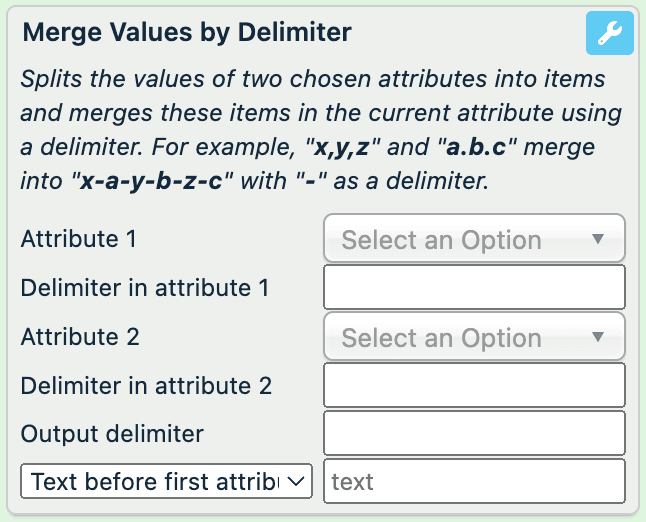
In Attribute 1, choose the first attribute where the rule box should look for delimiter-separated items.
In Delimiter in attribute 1, enter the delimiter used in the first attribute.
In Attribute 2, choose the second attribute where the rule box should look for delimiter-separated items.
In Delimiter in attribute 2, enter the delimiter used in the second attribute.
In Output delimiter, enter the delimiter that should separate newly arranged items in the current attribute.
To add any symbols before or after all rearranged items of the first attribute:
- Enter the desired text in the input field next to the drop-down list.
- Choose the suitable option in the drop-down list:
- Text before first attribute adds the desired text before each item of the first attribute.
- Text after first attribute adds the desired text after each item of the first attribute.
Select Save.
For example, you have the following values in the sizes and items_in_stock attributes and want to display stock levels per each size in stock_per_size. You can achieve this with the following setup of the Merge Values by Delimiter rule box:
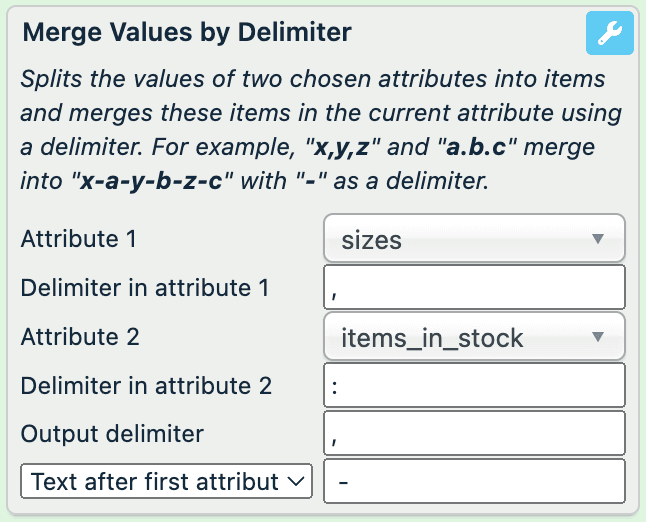
All input fields in this setup example have a space character at the end, except for Delimiter in attribute 2.
| sizes (no changes) | items_in_stock (no changes) | stock_per_size (before) | stock_per_size (after) |
|---|---|---|---|
| XS, S, M, L, XL, XXL | 17:20:39:40:29:13 | XS - 17, S - 20, M - 39, L - 40, XL - 29, XXL - 13 | |
| S, M, XL | 7:22 | S - 7, M - 22, XL | |
| 62:20:1 | - 62 | ||
| XXS, M, L | 14:34.26 | XXS - 14, M - 34.26, L | |
| S, L, XXL | 1:33:18 | S - 1, L - 33, XXL - 18 |
If the attributes you choose in the rule box setup don't contain any data, the rule box assigns an empty value or, if provided, the text from the input field at the bottom of the rule box.
If the delimiters entered in the rule box setup don't exist in the chosen attributes, the rule box doesn't work as expected.
Categorize by Keywords
The Categorize by Keywords rule box uses a replacement list to assign a category based on the keywords found in the needed attribute, such as description or title. This rule box can be useful if you don't need categorization for any specific classification system but want to create your categories based on the existing product titles or descriptions. The rule box can scan large texts to find the keywords and assign a corresponding category based on the highest score. The scoring rules are as follows:
- If there is no match, the output is empty.
- The text should have all the words from the search term in the replacing list.
- The order of the words in the text doesn't matter.
- Text matching is case-insensitive; for example,
bluematchesBlue. - The repeating words are counted only once. For example,
women’s shoes, ladies’ shoes, girls’ shoesmatched againstwomen's shoes, ladies' shoeswould score 3:women's,ladies',shoes. - Only whole words match: the word
shoedoesn't matchshoes. - Every word, including 1-letter words, counts. For example,
Three Men in a Boat: To Say Nothing of the Dogmatched againsta dogwill result in a score of 2:aanddog.
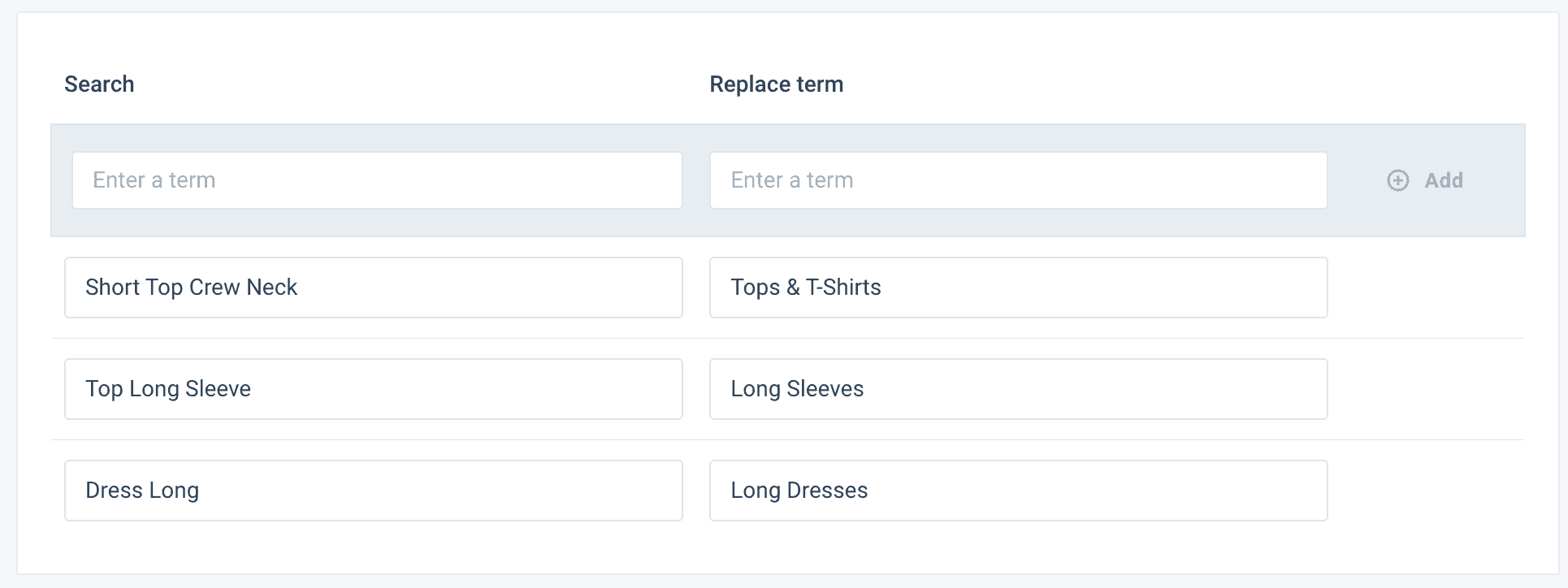
Create a list of terms you need to replace using the Standard or Dynamic Replacement list. See Lists to choose a required type.
In Dataflow, connect from import to intermediate the attribute containing keywords to the attribute where you want to store categories. For example, you can connect description to category.
Take the steps from Add a rule box to add the Categorize by Keywords rule box to the attribute where you want to store categories.
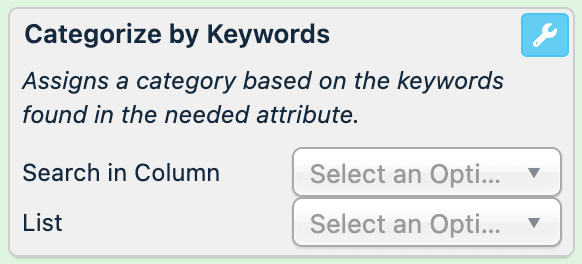
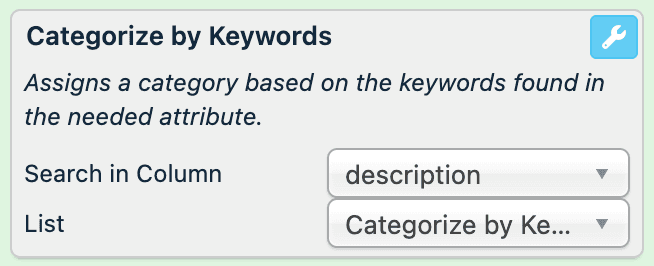
In Search in Column, select an attribute where you want to search for the keywords from the list.
Choose the replacement list from the List drop-down menu.
Select Save.
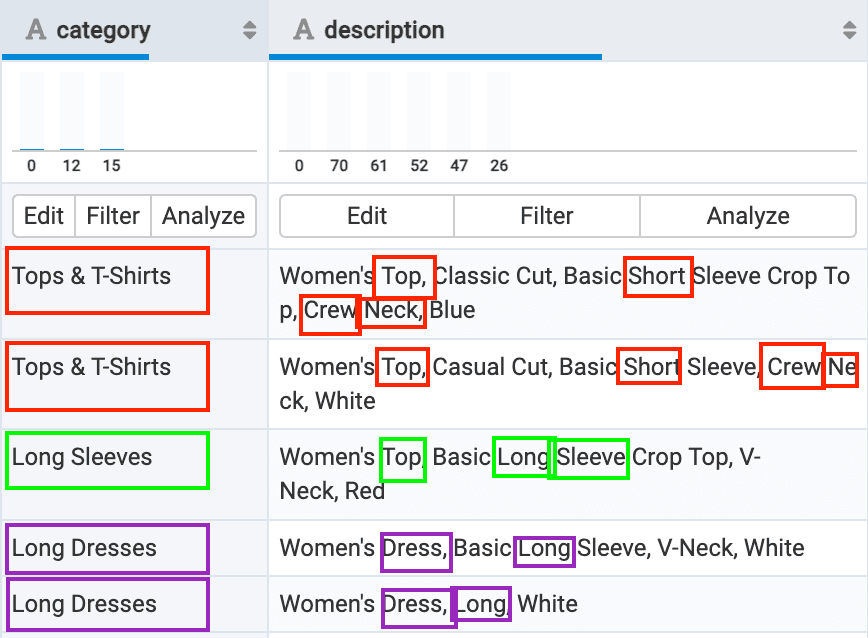
For example, you want to create categories based on the existing product descriptions. You can achieve this by adding terms to the replacement lists and setting up the Categorize by Keywords rule box as follows:
| description | category (before) | category (after) |
|---|---|---|
| Women's Top, Classic Cut, Basic Short Sleeve Crop Top, Crew Neck, Blue | clothes | Tops & T-Shirts |
| Women's Top, Casual Cut, Basic Short Sleeve, Crew Neck, White | clothes | Tops & T-Shirts |
| Women's Top, Basic Long Sleeve Crop Top, V-Neck, Red | clothes | Long Sleeves |
| Women's Dress, Basic Long Sleeve, V-Neck, White | clothes | Long Dresses |
| Women's Dress, Long, White | clothes | Long Dresses |
| Women's Dress | clothes |
In this example, the rule box replaces existing category values with the categories in the replacement list and makes values that don't match empty.
The matching and category assignment is based on the scoring rules. In this example, the category with more unique words in the text wins. Also, when the number of unique words is equal, the exact match wins. For example, the fourth row contains two matches for two categories: Long Sleeve and Dress Long. The Long Dresses category wins as the keywords match exactly the search term in the list. In case of the Long Sleeve win, the text should contain Top Long Sleeve.
Translate Google Category
Google accepts only a predefined list of values in the category attribute.
Tip
You can use a Partner Taxonomy Mapping list to ensure your category attribute contains values accepted by Google. See Replace attributes with Partner Taxonomy Mapping list for more information.
With the Translate Google Category rule box, you can translate your Google categories from one language to another. You can also change your Google categories in any language to the associated category IDs, which are the same for all languages. The rule box empties the values in those products that contain invalid categories.
Take the steps from Add a rule box to add the Translate Google Category rule box.
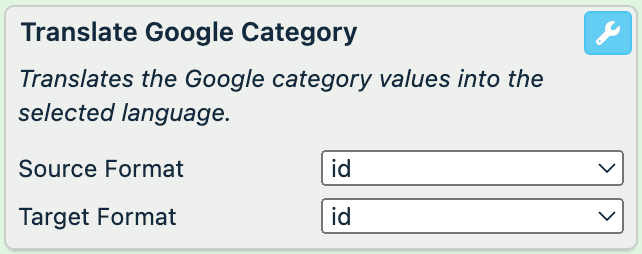
In Source Format, select the current language and country of your Google categories.Choose id if your category attribute contains category IDs instead of spelled-out category names.
In Target Format, select the language and country you want to translate your Google categories into.Choose id if you want to transform your spelled-out category names into category IDs.
Tip
You can remove all invalid categories from your category attribute without translating them by selecting the same languages in Source Format and Target Format.
Select Save.
For example, your category attribute contains valid Google categories for the US in English, and you need to translate them into valid Google categories in German.
| category (before) | category (after) |
|---|---|
| Apparel & Accessories > Shoe Accessories > Slippers | [empty] |
| Home & Garden > Linens & Bedding > Bedding > Blankets | Heim & Garten > Bett- und Haushaltswäsche > Bettwäsche > Decken |
| Apparel & Accessories > Clothing > Underwear & Socks | Bekleidung & Accessoires > Bekleidung > Unterwäsche & Socken |
If you select id in Target Format for the same use case, the rule box outputs the following:
| category (before) | category (after) |
|---|---|
| Apparel & Accessories > Shoe Accessories > Slippers | |
| Home & Garden > Linens & Bedding > Bedding > Blankets | 1985 |
| Apparel & Accessories > Clothing > Underwear & Socks | 213 |
How is this guide?