

Set up FabDis 3.0 exports
Set up the FabDis 3.0 exports in Productsup to define product files' structure, fields, and values for your partner or distributor networks.
Introduction
FAB-DIS (Fabrication Distribution) is a standard file format used by French manufacturers in the construction, parts, and tools industries to simplify and standardize product data exchange amongst their partner or distributor networks. See FAB-DIS for more information.
The FAB-DIS file format is a complex XLSX file consisting of many datasheets or tabs. Each datasheet requires a specific format for data input. Productsup exports help you organize your data feeds in different datasheets and combine them into the final FAB-DIS file.
Productsup supports the FAB-DIS versions 2.3 and 3.0. This document describes the FabDis 3.0 exports and the way to set them up to generate the final FAB-DIS Excel sheet.
For FAB-DIS 3.0, you can add and set up the following exports that correspond to the datasheet in the FAB-DIS file:
| Export | Purpose | Mandatory or not |
|---|---|---|
| FabDis 3.0 - B00_Cartouche | Identifies the issuer, FAB-DIS version, and the referencing data parameters. | Mandatory |
| FabDis 3.0 - B01_Commerce | Enables the commercial transaction by efficiently feeding the distributors' ERP. This is a head block for B02_Logistique, B03_Media, B04_Reglementaire, C01_Extension, C02 - CORRESPONDANCE, C03_VARIANTE, and C04 - ETIM. | Mandatory |
| FabDis 3.0 - B02_Logistique | Optimizes logistics management, deals with the cases of items multiple-packing, and shares net product dimensions. | Mandatory |
| FabDis 3.0 - B03_Media | Enhances the offers in all multi-channel media, including web, print, ERP, and applications. | Mandatory |
| FabDis 3.0 - B04_Reglementaire | Certifies that the products comply with the regulations that have an immediate impact on the company's marketing and the legal liability of the participants. | Conditional |
| FabDis 3.0 - C01_Extension | The extension for B01_Commerce and B02_Logistique for occasionally used attributes. It provides high flexibility for adding new attributes without changing the structure in B01_Commerce and B02_Logistique. It also suggests a predefined structure for specific data between a manufacturer and distributor. | Conditional |
| FabDis 3.0 - C02 - CORRESPONDANCE | Enhances the offers on the e-commerce websites or ERP. It also generates upsells by suggesting products to customers and guiding customers through the website, finds the solution to the availability issue, offers spare parts for product repair and maintenance, and optimizes order processing and inventory management. | Conditional |
| FabDis 3.0 - C03_VARIANTE | Simplifies access to the product variants on the web and facilitates a compact paper version of variants. | Conditional |
| FabDis 3.0 - C04 - ETIM | Enhances the product attributes with the technical information of the ETIM standard integrated into FAB-DIS. | Conditional |
| FabDis 3.0 - C05_ARRET | Confirms the end date of marketing and meets the requirement for the availability of spare parts after this date. This is a stop block. | Conditional |
| FabDis 3.0 - C06_SUBSTITUTION | Identifies the current or the most relevant product or offer that replaces the old one, corresponding to a substitution level or a maintenance activity. | Conditional |
| FabDis 3.0 - F01_PYRAMIDE | Represents the pyramid of the manufacturer's marketing nomenclature. It organizes the offers expressions and the structure of sales statistics. | Optional |
To use the FabDis exports, you need to have the Distribution PX Module in your contract. Contact your Customer Success Manager to add it to your contract.
Decide how to set up the FabDis 3.0 Excel sheet file
Depending on your data sources and aims, there can be different ways to set up the FabDis export. If your data needs optimization such as cleaning and formatting, you can do it in the pre-processing sites first and then set up the FabDis exports with one of the following methods:
- You can create separate sites for all the necessary FAB-DIS tabs that you need for generating the final Excel file. See Set up FabDis 2.3 exports to learn how to set up FAB-DIS with the method.
- You can create one site for all FAB-DIS tabs and export the pre-processed data into CSV files to use them as data sources for the final FAB-DIS export file. In this document, we describe this method.
You may also need to convert your raw data into ETIM classes and use it as a data source. See Set up ETIM Classes exports.
Import, optimize, and map your data for FAB-DIS
If you choose to set up all the FabDis exports, except for the final file, in one site, use the following approach.
Prerequisites
Create a separate site for all FabDis exports that correspond to the necessary FAB-DIS datasheets in the final FAB-DIS file.
Import your data feed in Data Sources.
Add and set up the necessary FabDis exports
Add your data in Data Sources.
Go to Exports from your site's main menu and select ADD EXPORT. Search for a needed FabDis export, for example, FabDis 3.0 - B03_Media, and select Add
Optionally, give your export a custom name in Name. The custom name replaces the export's name on the Overview page. Then select Add.
Select Add Destination and choose your destination, for example, Productsup Server. Optionally, give this destination a custom name in Name. Select Save.
Go back to the Exports Overview page. Add and set up other exports one by one repeating these steps for each export.
Go to Dataflow from your site's main menu. Select an export from the channel selection drop-down menu in the upper ribbon and map the attributes from import to export. Repeat this for each added FabDis export.
Select Run.
After the export run, you can see that pdsfeed.csv appears in the Filename section of each export's overview. Copy the file's URL to use it as a data source for the final FabDis file.
Generate the final FAB-DIS file
Now you can use the generated CSV files from all the exports set up in the first site as data sources for the final FAB-DIS Macro Excel File.
Prerequisites
Create a separate site for the final FabDis export.
Go to Data Sources and select Feed URL to upload all CSV files generated by the first site's exports as main data sources.
Add a column name for each data source:
Go to Data Sources from your first site’s main menu.
Select the cog wheel (⚙) icon next to a data source.
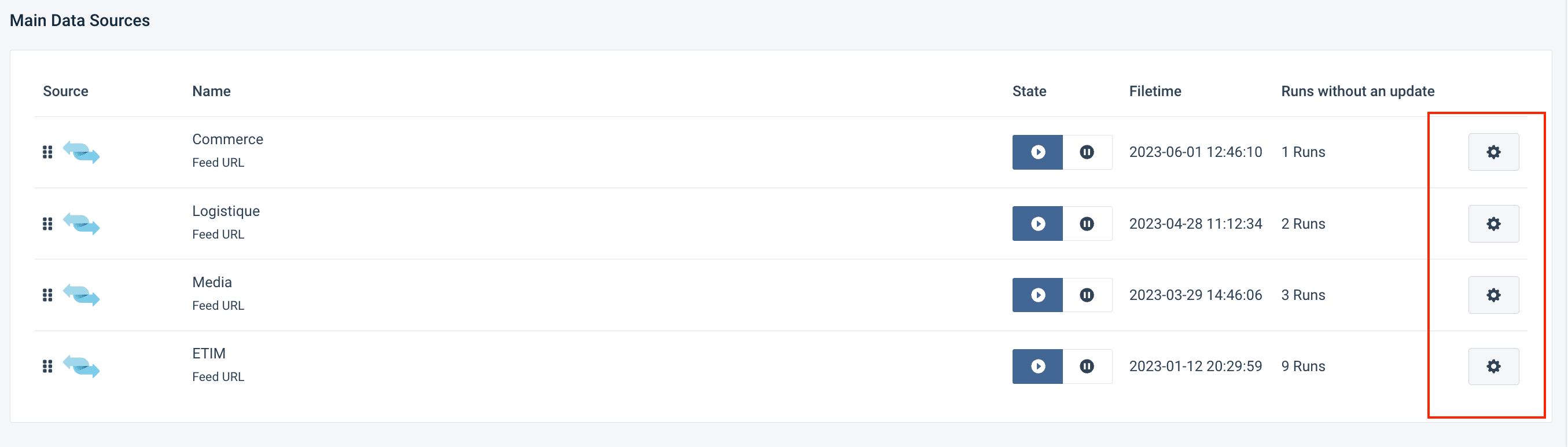
Scroll down to Content Options and select Add/Filter columns.
In Column name, enter the name of the column, for example, sheet_name, and, in Value, add the name of the data source which should be exactly the same name as your sheet name in the placeholder file, for example, 02_LOGISTIQUE.
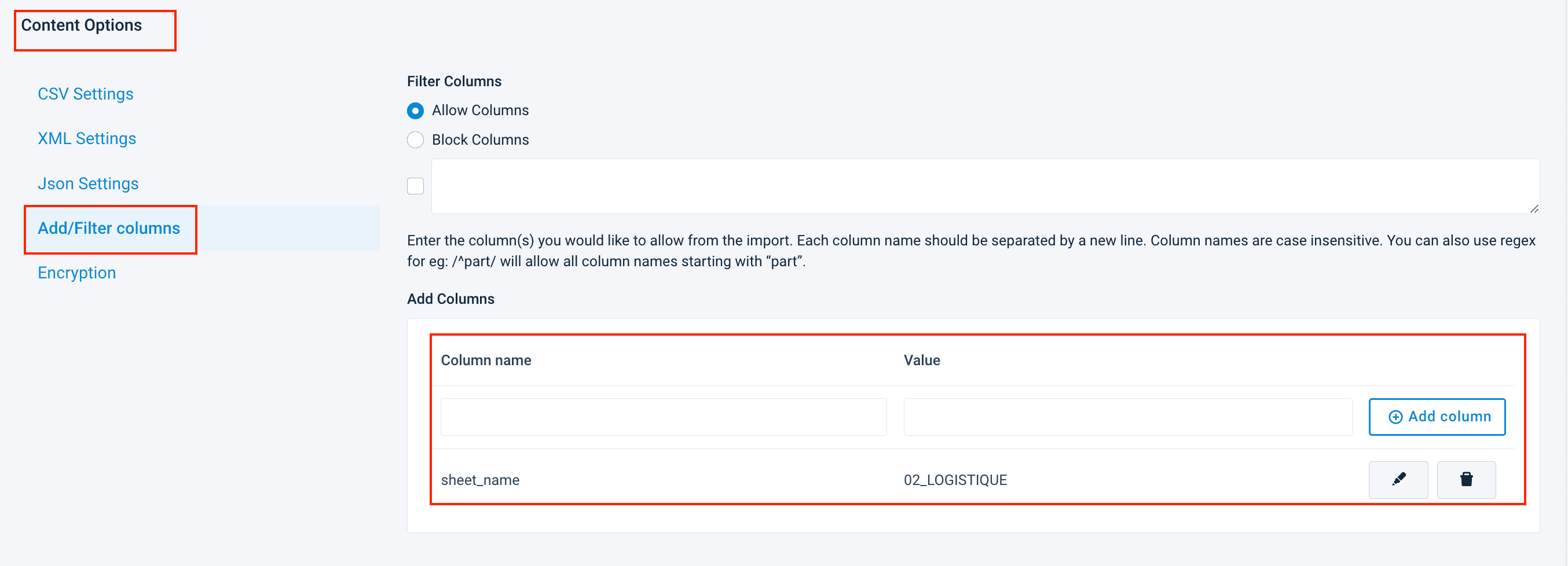
Repeat the procedure for each data source.
Create a placeholder template. See Use an item setup sheet to do it manually or contact [support@productsup.com](mailto: support@productsup.com) to ask for the template Fabdis_v3.0_placeholderfile.xlsx.
Upload your placeholder template to an FTP of your choice.
Select Import.
Add and set up the final FabDis export
Go to Exports from your site's main menu and select ADD EXPORT. Search for Blank Export (empty) and select Add.
Optionally, give your export a custom name in Name. The custom name replaces the export's name on the Overview page. Then select Add.
Select Add Destination and choose your destination, for example, Excel Macro Files (.xlsm). Optionally, give this destination a custom name in Name. Select Save.
On the destination settings page, set up the destination:
In Template file, enter the URL of the file.
In Template File FTP Username and Template File FTP Password enter your FTP credentials to let the platform connect to the FTP server and download the file.
Leave Factsheet empty.
You need to add the Factsheet only when you need to generate a sheet for each product.
Leave Populate By Columns button Off as you've prepared data in the first site.
In Sheet Name Column, enter sheet_name which will populate the corresponding column dynamically. See the Prerequisites.
Switch Active to On to turn on the destination.
Select Save.
Go to the Overview tab of your export, scroll to the Filename section, and select the Setup button. In Filename, change the name of your output file. The extension of your file should be .xlsx or .xlsm.
Go to Dataflow from your site's main menu. Select your export from the channel selection drop-down menu in the upper ribbon and map the attributes from import to export.
The attributes in the import stage are the attributes from all CSV files uploaded as data sources. You can use automatic mapping, by selecting Map ALL Import columns to Export in the Automap connections drop-down menu.
Select Export or Run.
After the export run, you can see that Excel or a Macro Excel File appears in the Filename section of each export's overview and you can download it.
Tip
Go to Scheduling and set up triggers for the sites. See Set up scheduling and triggering processes in Scheduling.
How is this guide?