

Add Google Merchant Promotions export
Add the Google Merchant Promotions export in Productsup to send promotions data to Google Merchant Center and supplement your product feed.
In Google Merchant Center (GMC), you can use promotions data to let shoppers discover your products as discount deals in Google Search or Google Shopping. See Get started with Promotions for more information on GMC promotions.
The Google Merchant Promotions export lets you send promotions data to supplement your product feed in Google Merchant Center. This export includes such attributes as promotion_id, promotion_effective_dates, offer_type, redemption_channel, product_applicability, etc. This is a flat-file export, which should cover most cases. If your promotions data frequently changes, you can send it to GMC via API using the export Google Merchant Center - Promotions (API). See Add Google Merchant Center - Promotions (API) export.
Tip
If you want to add 10 or fewer promotions in Google Merchant Center, it may be worth doing so manually right in GMC. You need to use the promotion_id attribute to map the created promotions to the needed products in your GMC feed.
The more promotions data you have, the more sense it makes to send it as a feed from Productsup.
Prerequisites
To send promotions data to GMC using the export Google Merchant Promotions, you need:
- Promotions data located in a third-party system or file that you can use as a data source in Productsup. See Promotions data specification for information on all mandatory and optional promotions attributes. See Promotions policies for Google's general promotions guidelines.
- A separate site in your Productsup organization where you can add a relevant data source and import your promotions data.
- A Google Merchant Center account.
- The Promotions add-on in your Google Merchant Center account that lets you add promotions data. See Get started with Promotions for more information.
- The attribute promotion_id both in your product and promotions feeds. If you plan to use promotions that apply to specific products instead of your entire product catalog, your promotions data and product feed must contain the attribute promotion_id to let GMC upload promotions data to the needed products.Alternatively, you can use product filter attributes to tie your promotions to the needed products. See Product filters for more information.Here is an example of how your product feed and promotions data should correlate through the promotion_id attribute.
This is a version of a product feed:
These are only feed examples. See Promotions data specification for the latest requirements for all mandatory and optional attributes.
id title price brand description availability link image_link promotion_id 1 Slippers 10.00 EUR Gucci These are slippers by Gucci. in stock https://www.your-store.com/Slippers/1 https://www.your-store.com/images/Slippers/1 111111 2 Socks 5.00 EUR Prada These are socks by Prada. in stock https://www.your-store.com/Socks/2 https://www.your-store.com/images/Socks/2 222222 3 Blanket 70.00 EUR Givenchy This is a blanket by Givenchy. out of stock https://www.your-store.com/Blanket/3 https://www.your-store.com/images/Blanket/3 333333 And this is an example of a separate promotions feed for the mentioned products: promotion_id product_applicability offer_type long_title redemption_channel promotion_effective_dates generic_redemption_code --- --- --- --- --- --- --- 111111 SPECIFIC_PRODUCTS no_code 5% on all Gucci slippers below 20.00 EUR online,in_store 2025-05-10T07:05:09/2025-05-11T07:05:09 222222 SPECIFIC_PRODUCTS no_code Buy 1 pair of Prada socks, get 1 for free online 2025-04-10T07:04:09/2025-04-20T07:04:09 333333 SPECIFIC_PRODUCTS generic_code 50 EUR for a Givenchy blanket in_store 2025-06-10T07:04:09/2025-09-20T07:04:09 GIVENCHY50 If you apply promotions to all products in your data feed, the value in product_applicability should be ALL_PRODUCTS. You also don't need to map promotion IDs to specific products in this case.
Set up Google Merchant Promotions export
Go to Exports from your site's main menu, and select Add export.
Search for Google Merchant Promotions, hover over it, and select Add.

In Exports, select the added export Google Merchant Promotions.
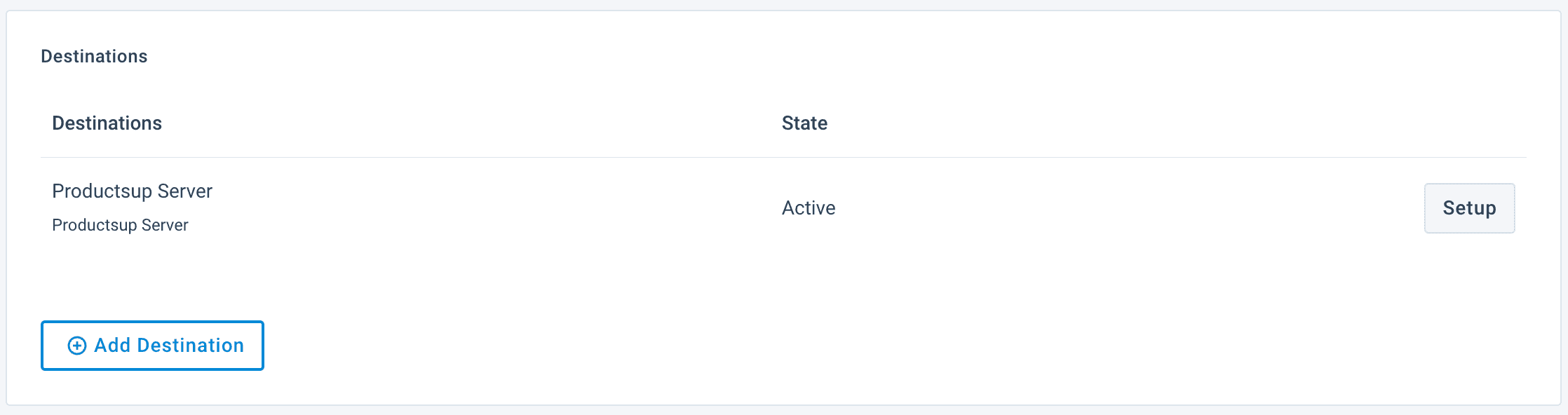
Select Add Destination.
Select Productsup Server from the Destination drop-down menu, and choose Save.See Add the Productsup Server destination to set up the destination Productsup Server.
Tip
Optionally, you can use other destinations to send your promotions data to GMC, such as SFTP servers or Google Cloud Storage. See Add an FTP, SFTP, or FTPS destination or Export your data to Google Cloud Storage to set up those destinations.
Go to Dataflow from the site's main menu and choose the added export from the dropdown in the toolbar.
Map mandatory and then optional attributes from import to export. See Use Dataflow to map your attributes from import to export for more information.The mandatory attributes already available in the export:
- promotion_id
- product_applicability
- offer_type
- long_title
- redemption_channel
- promotion_effective_dates
- generic_redemption_code The Google Merchant Promotions export only contains basic mandatory and optional attributes. Based on your specific promotions data and its purpose (local promotions or sale events), you may need to send more attributes to GMC than are automatically available in the export.For example, you may need to send more mandatory attributes for your type of promotions:
- promotion_destination
- store_applicability
- store_codes_inclusion or store_codes_exclusion
- promotion_url You might also want to send more optional attributes than originally available in the export (promotion preconditions, promotion categories, limits, or other additional attributes).See Promotions data specification for information on all possible promotions-related attributes you can send to GMC.If you need to send any additional attributes, you can create them in the intermediate and export stages by selecting Drop or Click to add new attribute. See Create new attributes for more information on adding user-generated attributes.If you have created any user-generated attributes in the intermediate and export stages, connect them from import to export.
If your data is ready, select Run or Export in the upper right corner of the page. If you don't want to run the entire site, including all active exports set up in it, you can go to Exports, select the added Google Merchant Promotions export, and then choose Export this export.
Go to the Promotions add-on in Google Merchant Center, and upload the link generated by the Productsup Server destination once the site run finishes. You can access the link on the export setup page where you added the destination. See Register and upload your data source for more information on uploading the generated file in GMC.If you are using other destinations, upload your data to GMC using the output of your chosen destination.
How is this guide?