

Search and preview any product in the Image Designer
Find a specific product by any attribute and preview instantly how your designs created in the Image Designer apply to this specific product.
Introduction
By default, the Image Designer preview shows the first 50 products of your product feed, and you can move between them with the Preview Product arrows. The Product Search feature lets you jump straight to a specific product instead of paging through the list.
You can search by any product attribute, such as ID, SKU, GTIN, Title, etc - no limitation here. The search is case-insensitive and supports partial values, and the preview navigates to the products that match your query.
How to search for a product in the Image Designer preview
Go to Designer from your site's main menu.
Select an attribute in the drop-down next to Search by in the upper toolbar. For example, sku.
Enter a full or partial value in the search input and select the magnifying glass icon.
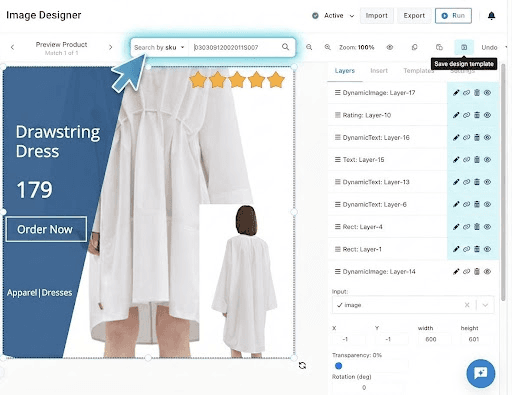
Use the Preview Product arrows to move between the matching products. The counter below the arrows shows your position in the search results, for example, Match 1 of 1.
The preview shows the selected product with all layers of your template, so you can check how the template renders for that exact product before saving it.
Clear the search input to return to the default preview of your feed's products.
When to use the Product Search
The product search is useful in the following scenarios:
- You run prioritized product campaigns, such as hero SKUs or limited assortments, and need to verify the template on the exact products of the campaign.
- Your feed is large or contains duplicates, and the product you want to preview is not among the first products of the feed.
- You use your own prioritization logic and want to confirm which product variant the template picks up.
How is this guide?