

Twig-based rule box capabilities to enhance your product data
Use Twig in Text Template, Math Template, and other rule boxes to transform product data in Productsup.
Twig is a template engine for PHP. In Productsup, several rule boxes accept Twig code, so you can combine attribute values with text, do calculations, update URLs dynamically, and apply conditional logic such as if/else conditions in Data View or Dataflow. Use Twig when the standard rule boxes do not cover the logic you need.
This page explains how Twig works in rule boxes. The following pages go into more detail:
- Use conditional logic in Twig shows how to assign values based on conditions and when to use rule box conditions instead.
- Twig variables, functions, and filters lists what you can use in a Twig in Productsup, including site variables and lists of values.
- Twig examples for common data transformations contains ready-to-adapt examples.
- Troubleshoot Twig in rule boxes explains the most common causes of unexpected results.
Rule boxes that support Twig
The following rule boxes accept Twig. Each one refers to values in a slightly different way:
| Rule box | What you use Twig for | How you refer to values |
|---|---|---|
| Text Template | Create or edit text, add conditional logic | Attribute names and currentValue |
| Text Template With List | Create or edit text using the values of a list from Lists | Attribute names, currentValue, and ListValues for the values of the selected list |
| Math Template | Do calculations | value for the current attribute and column1, column2, column3 for up to three selected attributes |
| Set Property Value | Add site information, such as the site ID or a site tag | Site variables, such as Site.id |
| Extract with JSONPath | Use values of other attributes inside a JSONPath query | Attribute names |
The Twig pages focus on the Text Template rule box, which is the most common way to use Twig. Most rules also apply to the other rule boxes.
Use rule boxes with Twig to edit the text and do calculations
You can enhance your data with rule boxes that use Twig to change the content of attributes dynamically. To add a rule box with Twig in Data View, take the following steps:
Go to Data View from the site's main menu.
Choose the needed export or the intermediate stage in the drop-down menu on the left.
Select Edit in the attribute column where you want to apply the rule box.
Add the rule box that fits your task:
- To create or edit text in the attributes, use the Text Template or Text Template With List rule box. See Create text template using data from other attributes to learn how to set up these rule boxes.
- To make math calculations in the attributes, use the Math Template rule box. See Work with prices & math to learn how to set up the rule box.
Enter your text with Twig to integrate attributes' values in your text. See Write Twig in a rule box.
Select Save.
You can also add these rule boxes in Dataflow. See Add a rule box to learn how.
Write Twig in a rule box
A Twig template combines static text with Twig tags. The platform outputs the static text exactly as you enter it and replaces each tag with its result. There are three kinds of tags:
| Tag | What it does | Example |
|---|---|---|
{{ … }} | Outputs a value | {{ brand }} |
{% … %} | Runs logic, such as conditions, loops, or variables, without output | {% if price < 130 %}Sale{% endif %} |
{# … #} | Adds a comment that the platform does not output | {# Adds the sale label #} |
Spaces inside the brackets are optional, so {{ brand }} and {{brand}} work the same.
To refer to values in a Twig, follow these rules:
- Names in Twig are case-sensitive. Enter attribute names exactly as they appear in your data. For example, if your attribute is called long_description,
{{ long_description }}returns its values, but{{ Long_description }}returns an empty value. The same applies to functions and filters:fromFieldworks, butFromFielddoes not. - To get values from an attribute, use the syntax that matches the attribute name:
- If the attribute name consists only of alphanumeric characters and underscores, use
{{ attribute_name }}. - If the attribute name contains spaces, dots, commas, or other special characters, use
{{ fromField('attribute name') }}.
Tip
Alternatively, you can rename such an attribute using only alphanumeric characters and underscores. Then, you can refer to the renamed attribute in a Twig using the standard syntax
{{ attribute_name }}. If renaming an attribute isn't an option, you can copy it, rename the copy, and use the copy in a Twig. - If the attribute name consists only of alphanumeric characters and underscores, use
- To use the value of the attribute where you add the rule box, use
{{ currentValue }}. This value includes the changes made by the rule boxes placed before the Twig rule box on the same attribute. - In the Math Template rule box, use
valueinstead ofcurrentValue, andcolumn1,column2, andcolumn3for the attributes you select in the rule box.
If your values can contain characters such as &, <, >, or quotation marks, add the raw filter when you output them. See Keep special characters with the raw filter.
Which attribute values a Twig reads
When a Twig refers to another attribute, the rule box reads that attribute's value from the previous stage, not from the stage where you add the rule box. For example, a Text Template rule box on an intermediate attribute reads import values, and a Text Template rule box on an export attribute reads intermediate values.
This has the following consequences:
- A Twig does not see changes that rule boxes make to other attributes in the same stage. For example, if you remove the currency from price in your export, a Twig on sale_price in the same export still reads price with the currency, as the value comes from the intermediate stage.
- If you refer to an attribute that exists only in the same stage, the Twig gets an empty value. If an attribute with the same name exists in the previous stage, the Twig reads the value from the previous stage.
The only value from the current stage that a Twig can read is currentValue, the value of the attribute where you add the rule box.
To use a transformed value in another attribute, apply the transformation in an earlier stage, for example, in the intermediate stage, and refer to that intermediate attribute in your Twig. Alternatively, repeat the Twig logic in each attribute where you need the result.
A rule box changes only the attribute where you add it. To change several attributes, add a rule box to each of them.
Keep special characters with the raw filter
When a Twig outputs a value, the platform encodes HTML special characters in it. For example, & becomes &, and " becomes ", so the value "control_pool" turns into "control_pool". If you chain several rule boxes with Twig on the same attribute, each one encodes the result again, so & can turn into &amp;.
To keep the characters as they are, add the raw filter to the values you output:
{{ currentValue|raw }}
{{ title|raw }}
{{ fromField('product name')|raw }}The encoding affects only the values that a Twig outputs. The static text you enter in the template stays as it is.
Leave a comment for Twig
It is helpful to add a comment to your Twig in the rule boxes to keep a reminder for your colleagues and yourself of the purpose or logic of the change. To leave a comment for a Twig, use the format {# … #} and enter the necessary text inside the brackets. For example, {# it's a comment to remind you what this Twig edits #}.
The comments are invisible in the data feed and you can only see them when you open the rule box. This works only if the template also contains at least one {{ … }} or {% … %} tag, because the platform processes a template as Twig only when it finds one of these tags. Otherwise, the platform outputs the whole template as text, including the comment.
For example, Free shipping {# label for the shipping campaign #} outputs the comment as part of the value. To keep the comment hidden, output the static text with a Twig tag:
{{ 'Free shipping' }}{# label for the shipping campaign #}Test a Twig in the Twig playground
Before you add a complex Twig to a rule box, you can test it in the Twig playground. The playground does not know your data or the Productsup additions, so prepare the template before you test it:
- Set test values for the attributes and for
currentValueat the beginning of the template, for example,{% set currentValue = '100.00 EUR' %}. - Replace
fromField('attribute name')with a variable you set yourself, because the function is not available in the playground.
The playground does not apply the platform's restrictions described in Filters that work differently in Productsup, so a Twig can behave differently in the platform. After you add the Twig to a rule box, check the results in Data View.
Get Twig suggestions from the AI Twig generator
If you need a suggestion for a possible Twig, use our AI-based Twig generator.
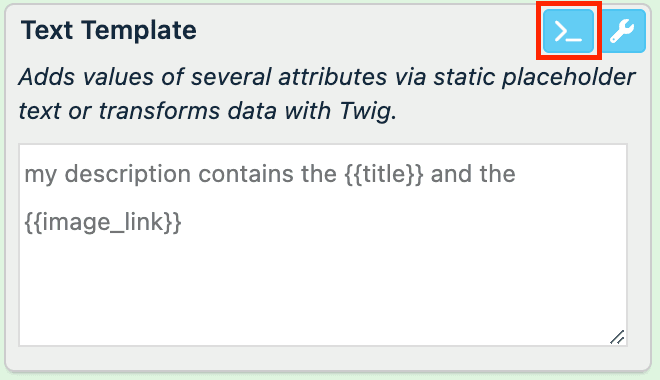
Select the >_ icon in a rule box.
Describe the aim and result you want to achieve in the Twig generator window and select Generate.
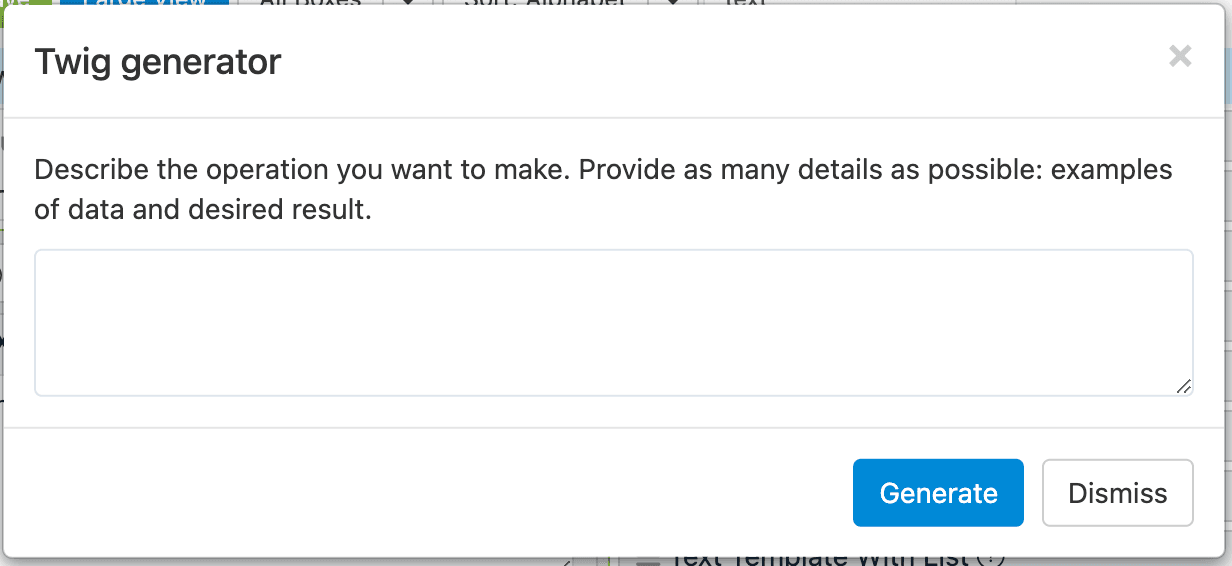
Select Copy below the Answer field.
Paste the copied answer into the Twig field of the rule box.
Tip
To create the most accurate prompts, see our best practices in Create the right prompt for the AI Twig generator.
How is this guide?