

Browse, search, and export products in Content Portal
View, filter, search, browse product details, and download data and digital assets from Content Portal catalogs.
The Products page is where you browse, filter, search, open product details, and download data or assets. Each product has its own details page, with title, description, price, an asset gallery, and specifications. Admins control what you can filter and search depending on the filter categories and search values mapping.
If the catalog is public, anyone with the catalog link, or a shared product view that includes filters and search, can browse these products without logging in. They see the same catalog page. Signed-in users open it as Products.
Filter categories
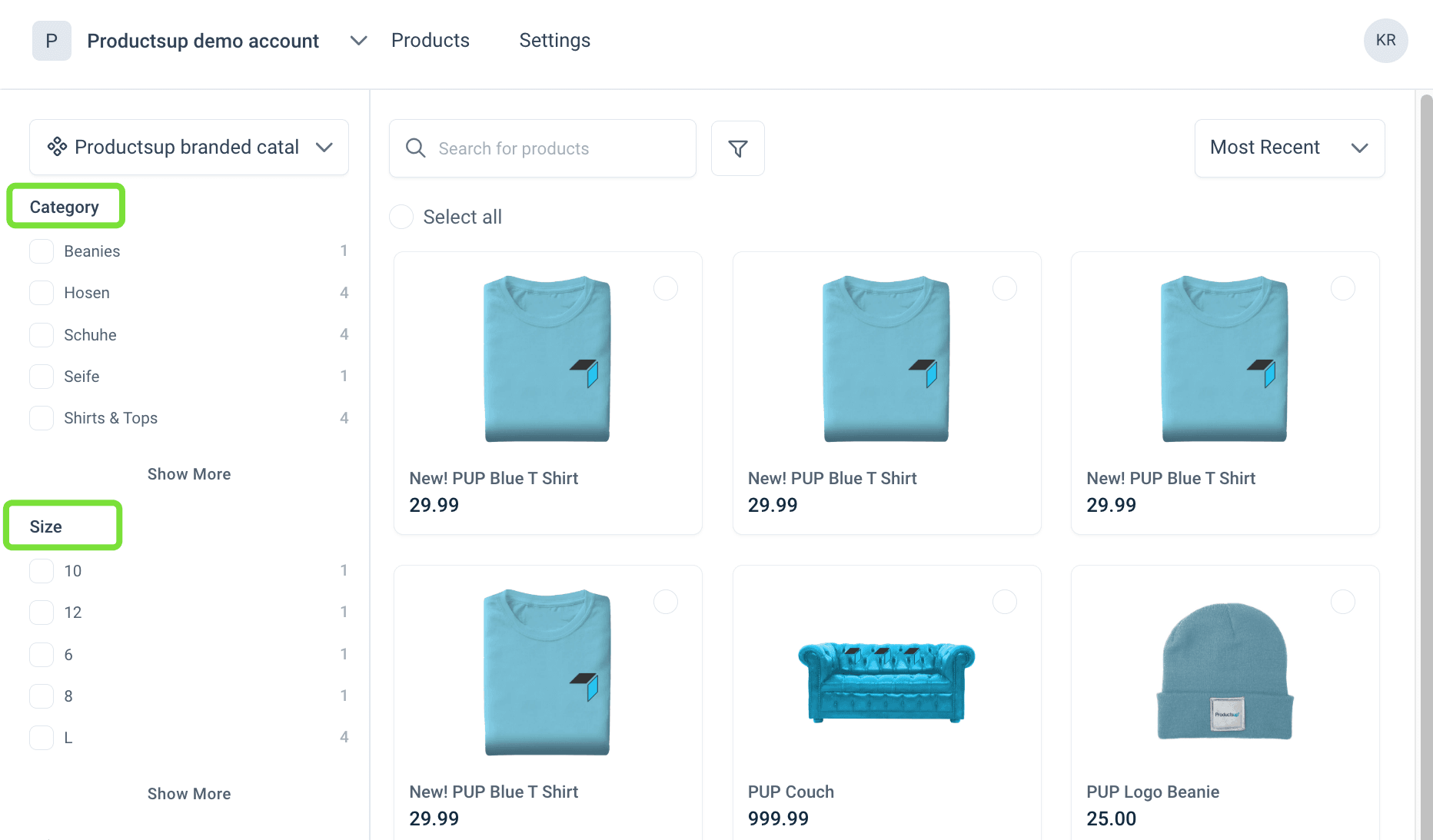
The left sidebar is both navigation and a filter. Select one or more values to narrow the catalog. Select Show More to see every value in a category. Use Collapse/Expand all categories to hide or show the full filter tree. Admins define which attributes appear here. See Map catalog attributes in Content Portal.
Search
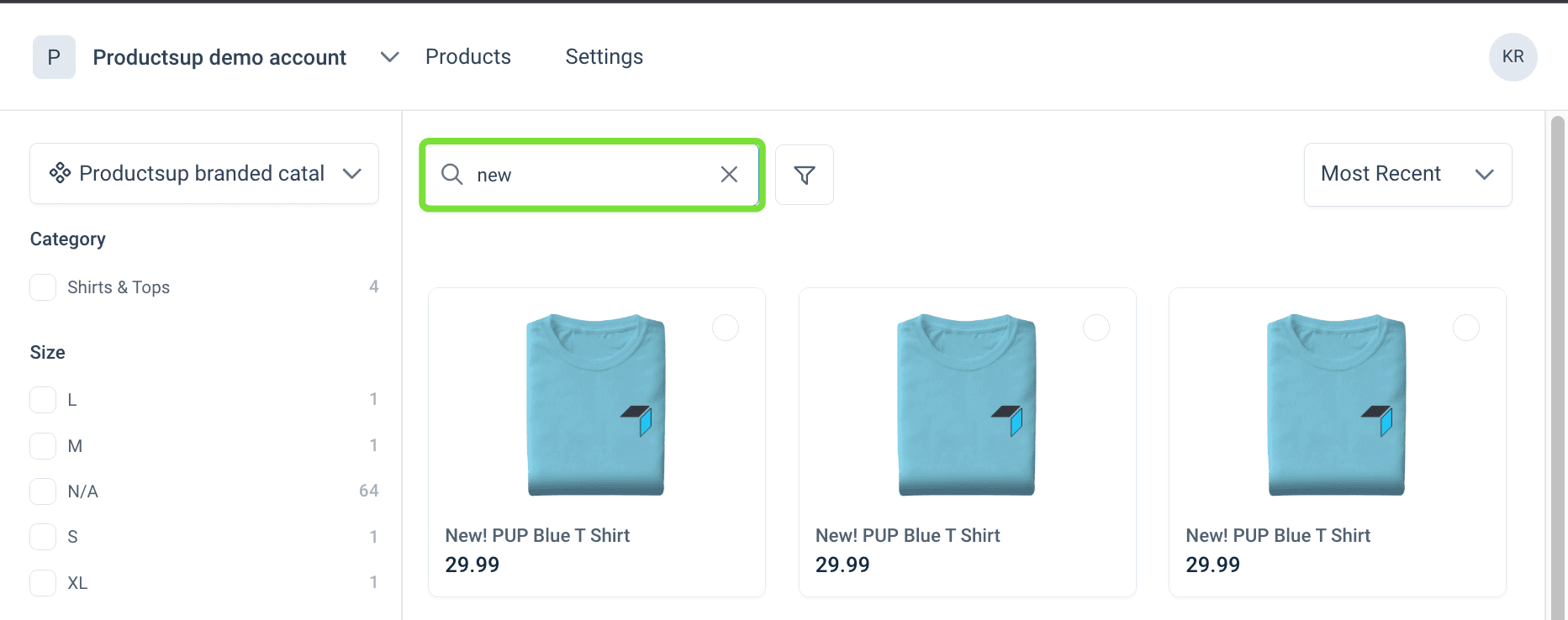
Use the search bar at the top of the catalog to find products by a word or a product ID. The search bar looks across the whole catalog, but only within the attributes Admins mapped in catalog Settings under Search Values. See Add search values.
Tip
To search several product IDs in one query, or to add Includes and Excludes conditions, use Advanced search.
Advanced search
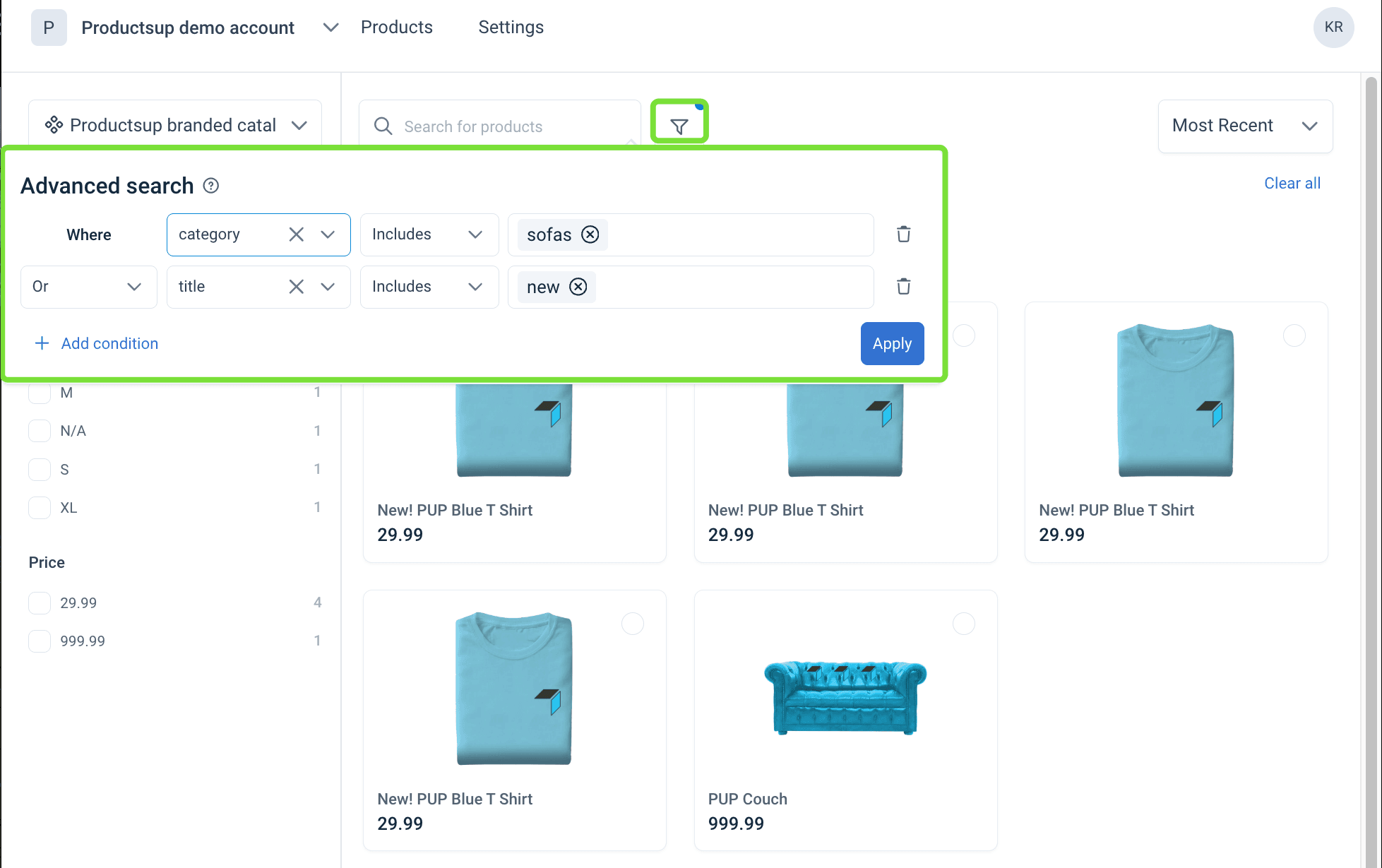
Use Advanced search when the search bar or the sidebar filters are not enough, or when you need to match several values in one query. For each row, you can:
- Choose any attribute mapped in Search Values. See Add search values.
- Apply Includes, Excludes, or Equals All.
- Combine rows with AND or OR.
For example, you can narrow the search to products where Category includes Sofas OR Title includes New.
Search comma-separated values
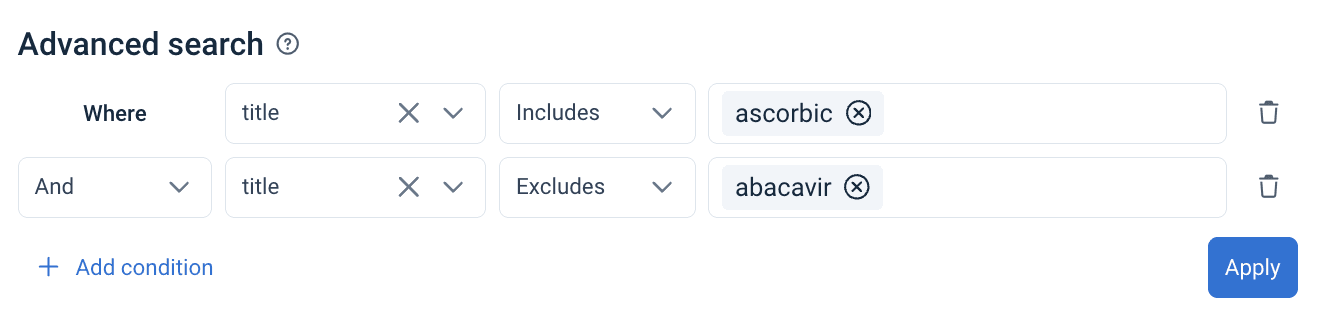
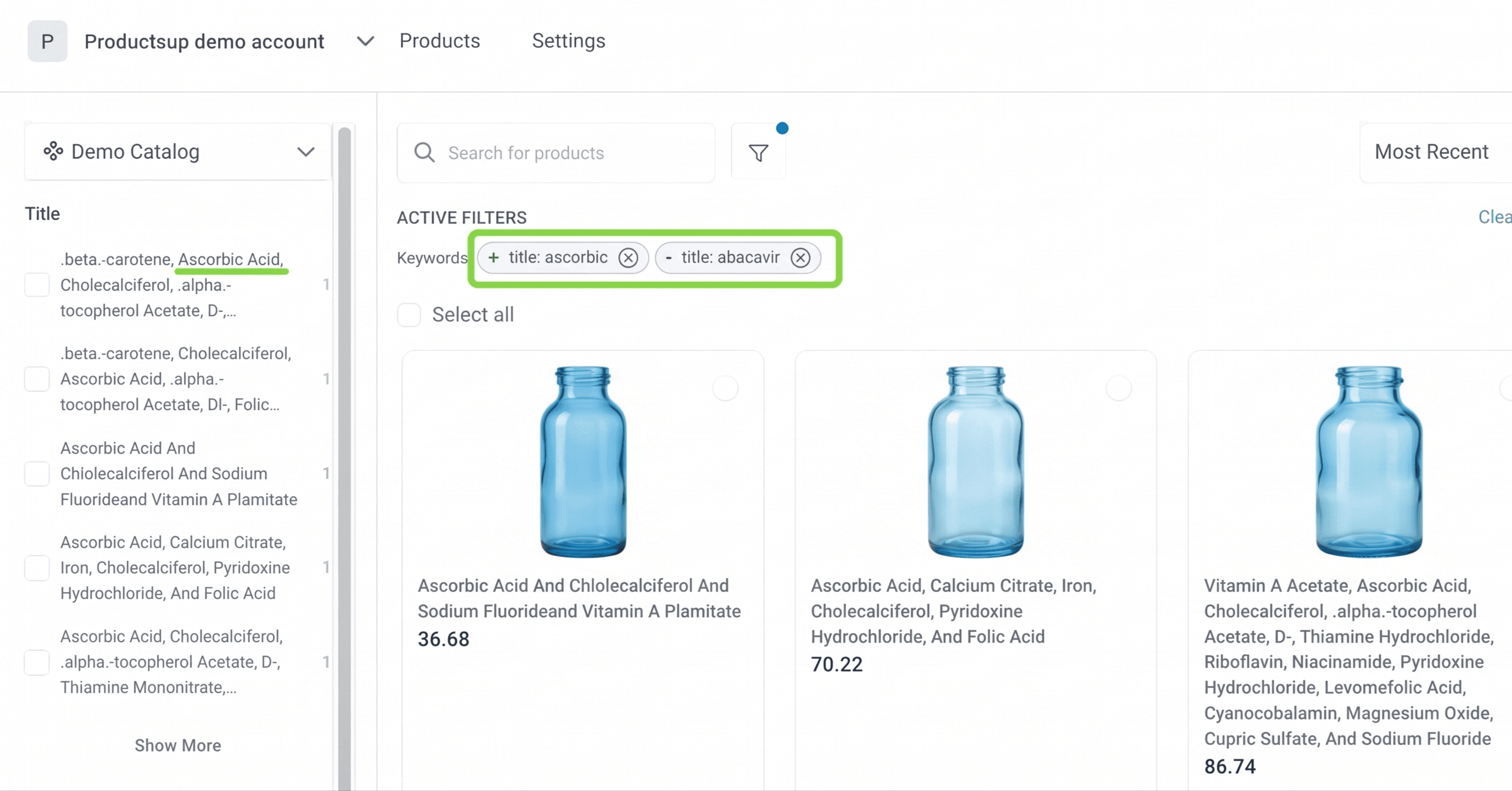
Some attributes store many values in one cell, separated by commas. Ingredients is a common case. Advanced search treats each part of that list as its own value, so you can include some parts and exclude others.
Tip
For example, you can find products where Ingredients Includes Ascorbic and Excludes Abacavir, even if the Ingredients value looks something like:
Ingredients: Aqua, Glycerin, Ascorbic Acid, Tocopherol, Ferulic Acid, Hyaluronic Acid, Sodium Citrate, Citric Acid, Phenoxyethanol, Ethylhexylglycerin.
Combine filters and share URL
You can use Filter categories, the Search bar, and Advanced search together on the same catalog. The filters you apply stay visible on the page. The catalog URL stores the filter and search parameters.
Tip
Copy the URL from the browser address bar to share the same product view with colleagues or external stakeholders.

Sort products
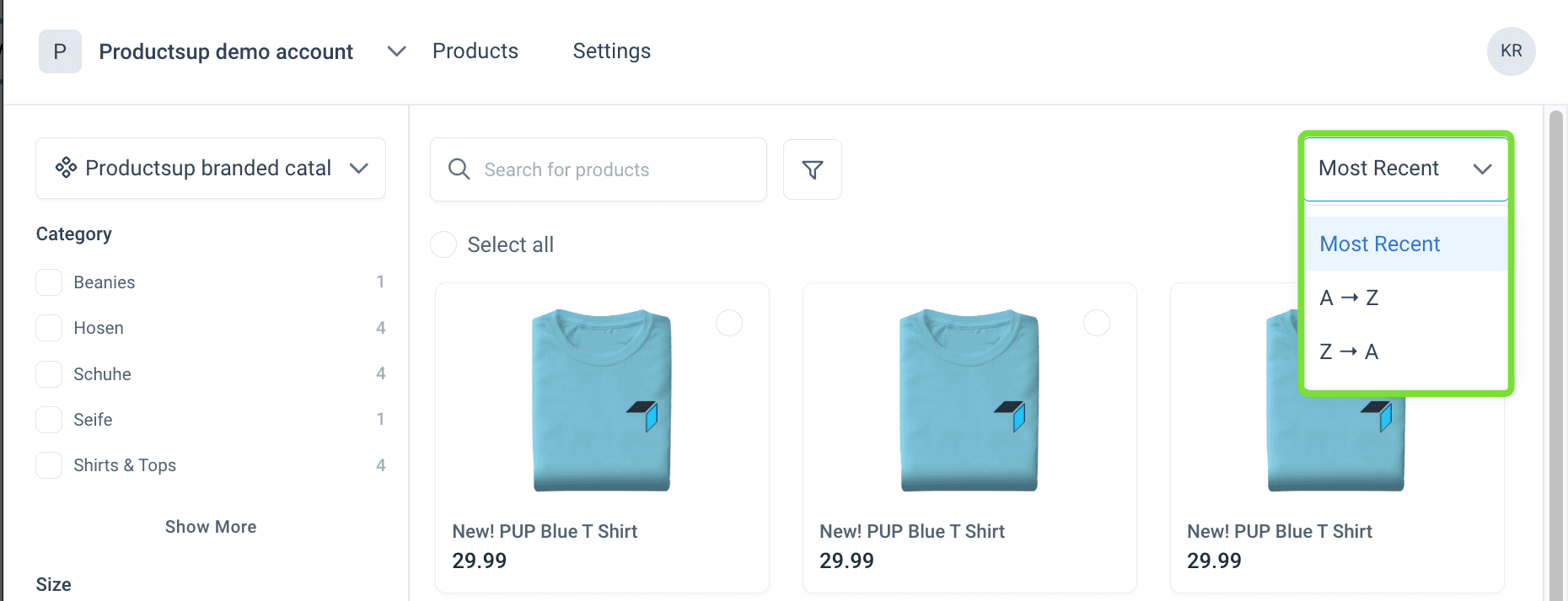
Use the sort dropdown on the Products page to change the order of the catalog. Sorting applies to the products you currently see, including after you filter or search.
Choose one of the following:
- Most Recent — newest products first
- A–Z — alphabetical order by product name
- Z–A — reverse alphabetical order by product name
Select products
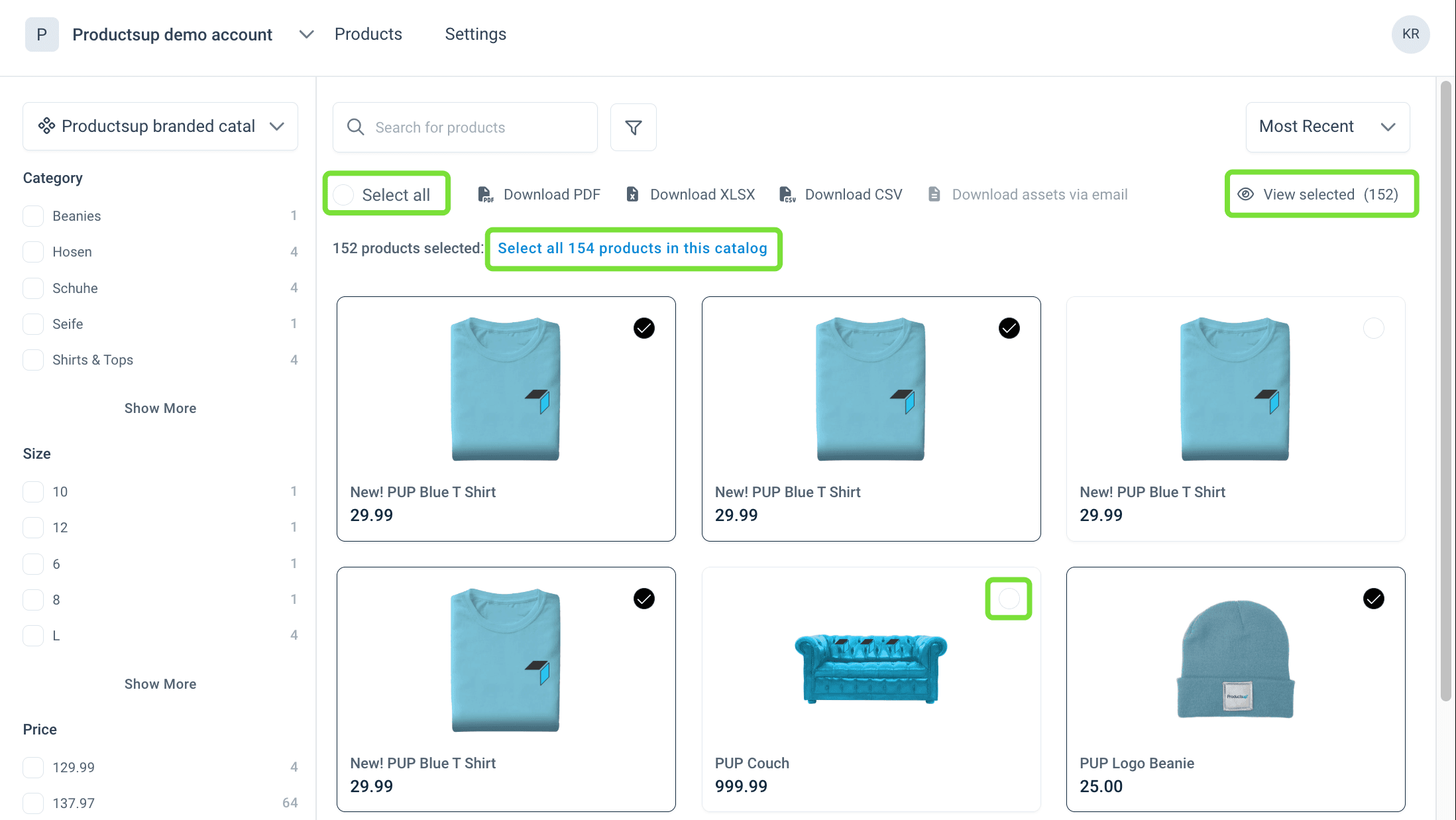
Select individual products, or select all products on the current page.
Select View selected to hide products that are not in the selection.
To download a large catalog except a few products, select Select all, then clear the products you want to leave out. This works even when the catalog contains thousands of products. Content Portal remembers which products you kept and which you cleared, and uses that selection for the download.
Download products and assets
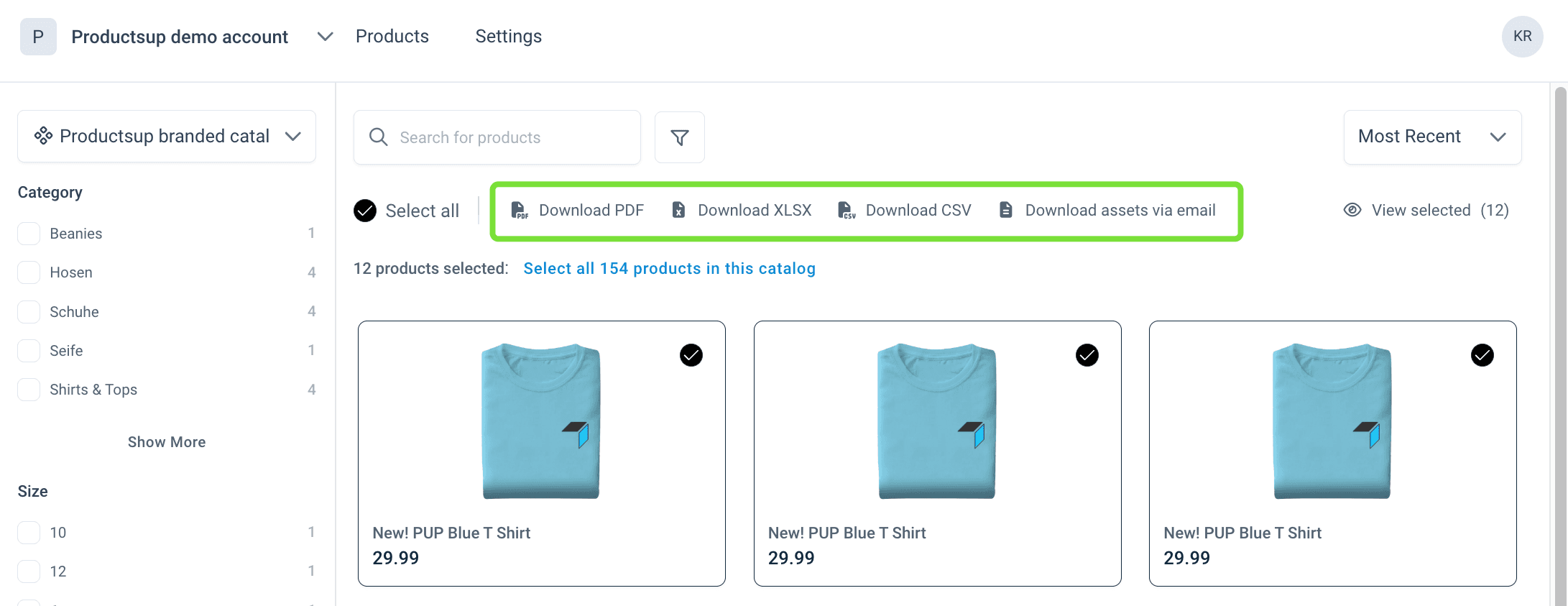
Select the products you need, then choose a download option:
- Download PDF — a fact-sheet style file generated in the browser.
- Download CSV — a comma-separated file generated in the browser.
- Download XLSX — a spreadsheet. If the Admin configured an Excel template on the destination, you receive that custom layout and only mapped attributes as content. See Create a custom template for XLSX downloads in Content Portal for more information. If no custom template is configured, Content Portal uses a standard XLSX file, and the export includes all attributes and values. Large exports arrive by email.
- Download assets via email — a ZIP archive of images and other mapped assets, sent by email with a direct download link.
Product details page
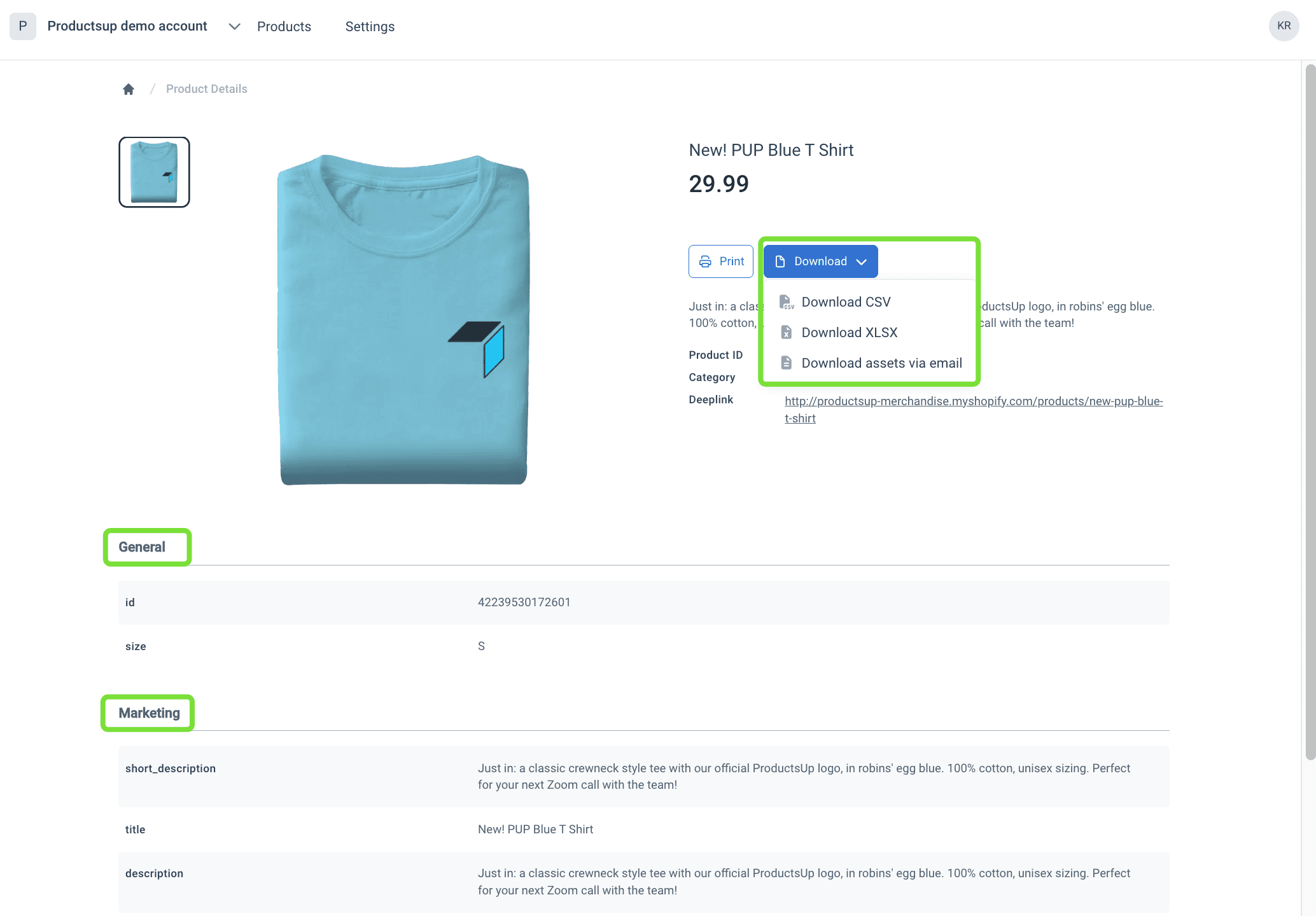
Select the product card to open the product details page. The page shows:
- Title, description, and price next to the main image.
- A main image from the primary asset attribute.
- An asset gallery for mapped images and PDF documents.
- Product specifications. If the Admin configured attribute groups, those groups appear. Attributes that are not in a group appear under Other attributes.
On the product details page, you can:
- Select Print to preview and save a PDF version of the page.
- Select Download and expand the menu. The default format is CSV. You can also select Download XLSX or Download assets via email. The same options are available on the Products catalog page.
How is this guide?