

Custom template for Download XLSX export in Content Portal
Connect a custom Excel template file in the Content Portal Catalog destination settings. Users receive it as a standard Download XLSX export in Content Portal, with the formatting and content you chose.
Content Portal can deliver XLSX downloads with custom formatting. Admins can set this up on the Content Portal Catalog destination in the platform. See Import catalog data from the platform into Content Portal. If you leave the template settings empty, Content Portal produces a regular XLSX file with standard formatting and every attribute included.
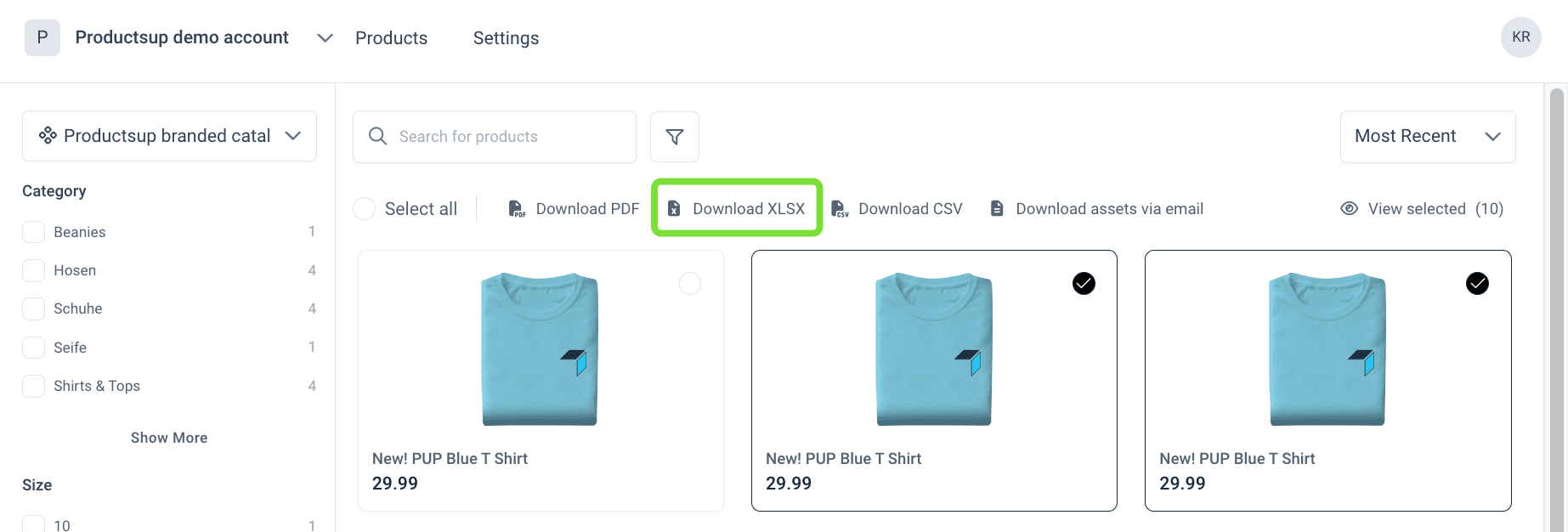
Users select Download XLSX on the Products page or the product details page. See Browse, search, and export products in Content Portal.
Large template exports may take longer to generate and arrive as an email with a download link.
Create a file
Save the template as an .xlsx file. The sheet names you enter in Data sheets or Product Sheets must match the Excel file exactly, and those sheets must already exist.
Tip
Download a sample file, then edit it or use it to see how placeholders work:
- ⬇️ Horizontal layout — attributes in one row, with space for your organization name and logo. In Data sheets, the sheet name is Products.
- ⬇️ Vertical layout — attributes in one column. In Product Sheets, enter the sheet name Product.
Placeholders
You choose which attributes appear in the custom XLSX files. Add placeholders in the file so Content Portal can fill cells from the catalog. Wrap each attribute name in single quotes.
| Placeholder | What it does |
|---|---|
PRODUCTSUP_VALUE('attribute_name') | Inserts the attribute as text |
PRODUCTSUP_NUMBER('attribute_name') | Inserts the value as a number in Excel |
PRODUCTSUP_IMAGE('attribute_name', 200x200) | Embeds the image. The size argument is optional |
Caution
The platform ignores invalid placeholders. If a sheet has no valid placeholders, the XLSX export fails.
Valid: PRODUCTSUP_VALUE('price').
Invalid: PRODUCTSUP_VALUE(price) or PRODUCTSUP_VALUE("price").
If a placeholder names an attribute that is not in the catalog, the cell stays empty. Missing values in the product feed do not cause the download to fail.
Caution
Put every PRODUCTSUP_VALUE, PRODUCTSUP_NUMBER, and PRODUCTSUP_IMAGE placeholder on the same row (or the same column if you fill the sheet vertically). Do not put a placeholder in the header row and another in a data row. If placeholders sit on more than one row, the export fails with: Found PRODUCTSUP Placeholder in multiple rows of the data sheet.
Destination settings
Store the file on an HTTP, HTTPS, or FTP server so the platform can access it in the Content Portal Catalog or Blank export destination settings:
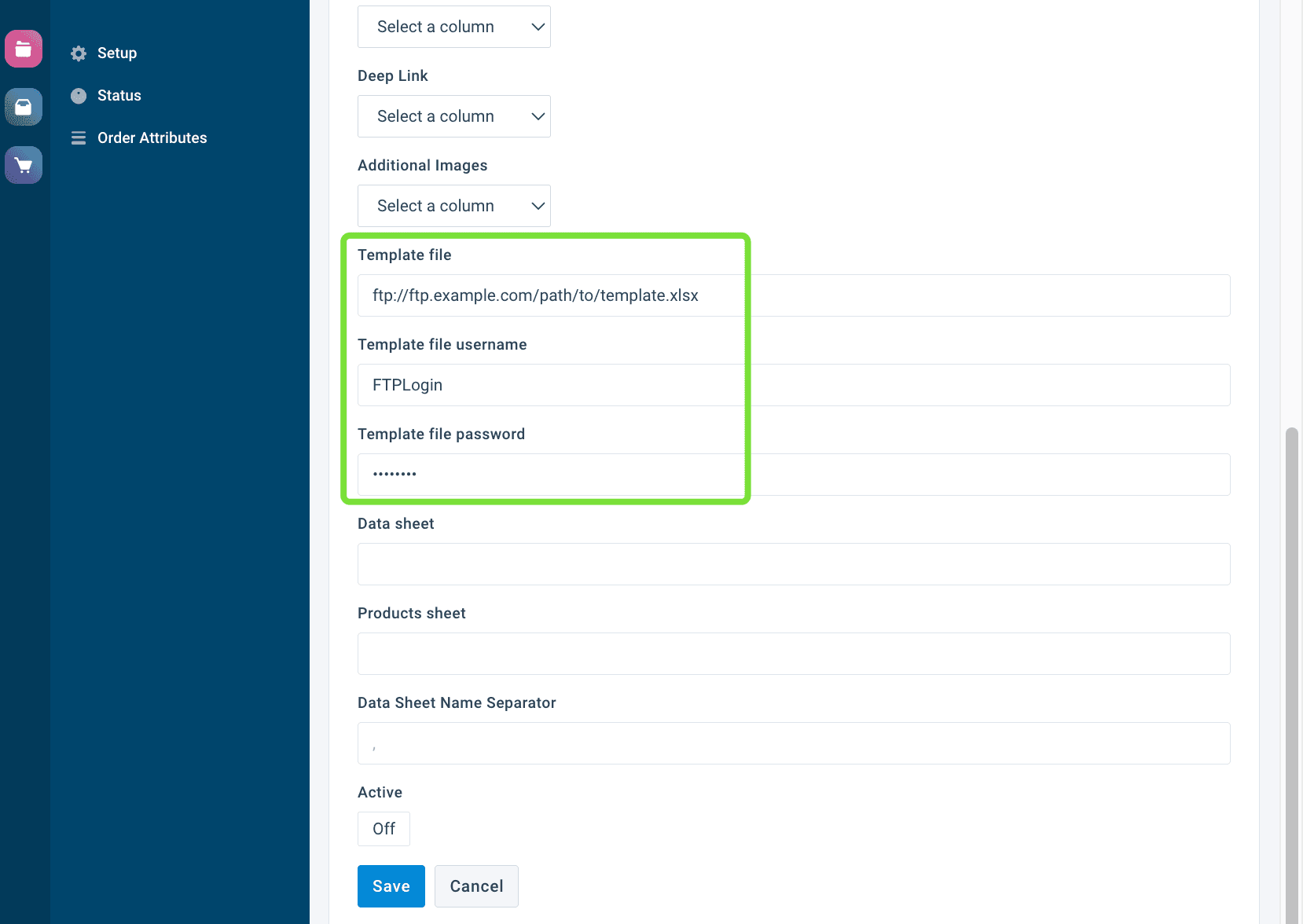
In Template file, enter the access URL. For example, ftp://ftp.example.com/path/to/template.xlsx.
Enter Template file username and Template file password.
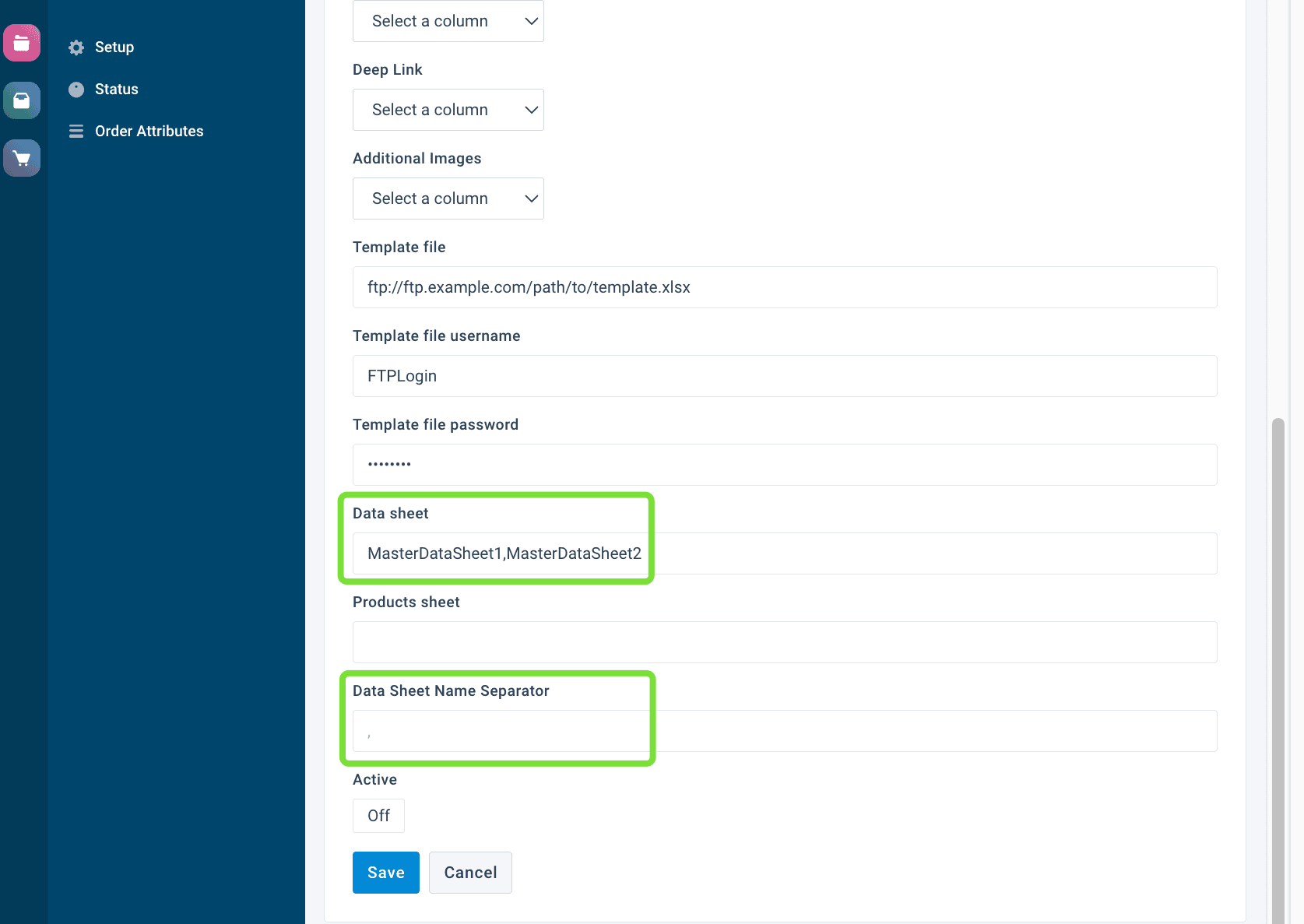
Choose how products fill the Excel file. Use either Data sheets or Product Sheets. You cannot use both.
- Data sheets — all products go into one or more sheets. Type each sheet name exactly as it appears in the Excel file. If the file has more than one data sheet, list the names separated by a comma, for example
Products,Prices. Enter that same comma in Data Sheet Name Separator. - Product Sheets — each product gets its own sheet. Type the name of the sheet in the file that contains the product data.
Toggle Active to On.
Select Save.
Confirm the attribute mapping created in Dataflow. See Attribute mapping in Dataflow.
Run the Export.
Tip
After you save, select Download XLSX on the Products page and confirm the file matches your template layout.
Troubleshoot Download XLSX exports
| What you see | What to check |
|---|---|
| Products appear, but XLSX never arrives | The seven mandatory attributes are lowercase in Dataflow and in the destination dropdowns. See Import catalog data from the platform into Content Portal. |
| Custom XLSX fails or never arrives | The template address is reachable, sheet names match the file, placeholders use single quotes, and all placeholders sit on one row. |
Error Found PRODUCTSUP Placeholder in multiple rows of the data sheet | Remove placeholders from extra rows. Keep placeholders on one data row (or one column). |
| Template file cannot be fetched from FTP | Confirm the username and password have no missing characters, extra symbols, or spaces. |
How is this guide?