

Map catalog attributes in Content Portal
Map filter categories, search values, assets, and attribute groups so catalogs display correctly in Content Portal.
In Content Portal catalog settings, mapping options define what certain attributes in your feed control on the catalog page and the product details page. Without this mapping, search, sidebar filters, and media often look incomplete even when the export succeeded.
How mapping appears to users
Each mapping type drives a different part of the catalog.
| You map in catalog settings | Users see in the catalog |
|---|---|
| Filter categories | Category filters in the sidebar 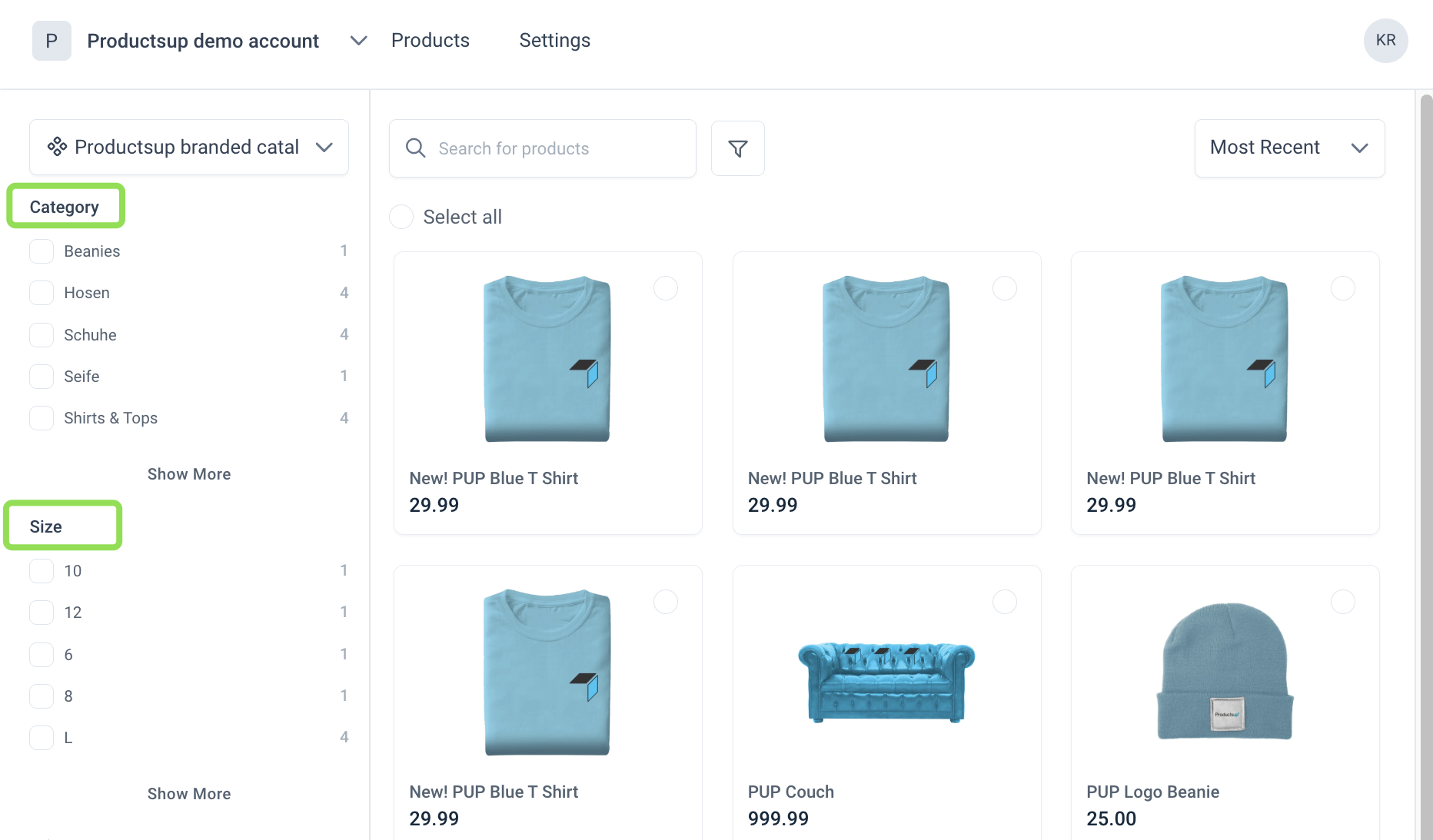 |
| Search values | Catalog search and Advanced search 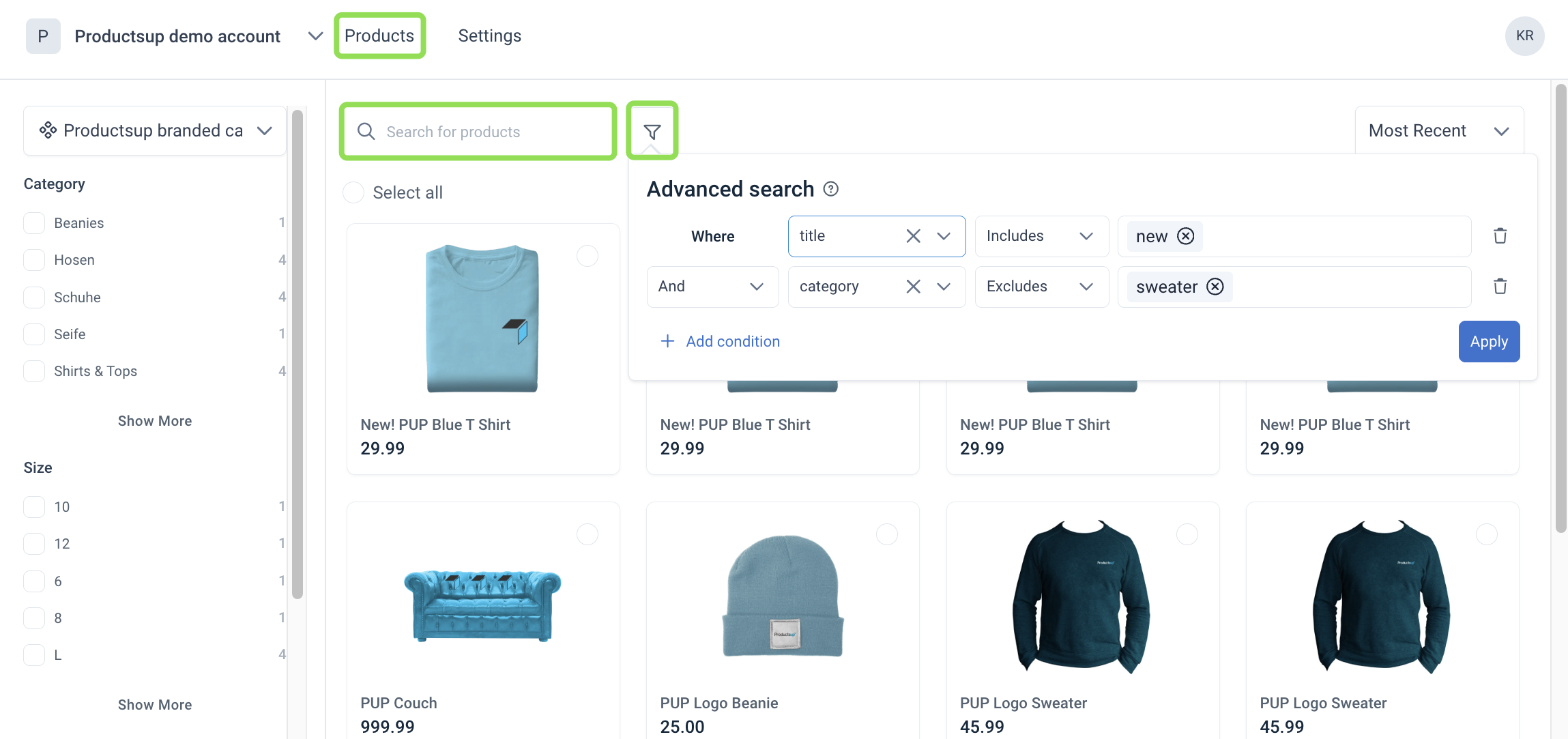 |
| Assets | Thumbnails, the product gallery, and asset downloads 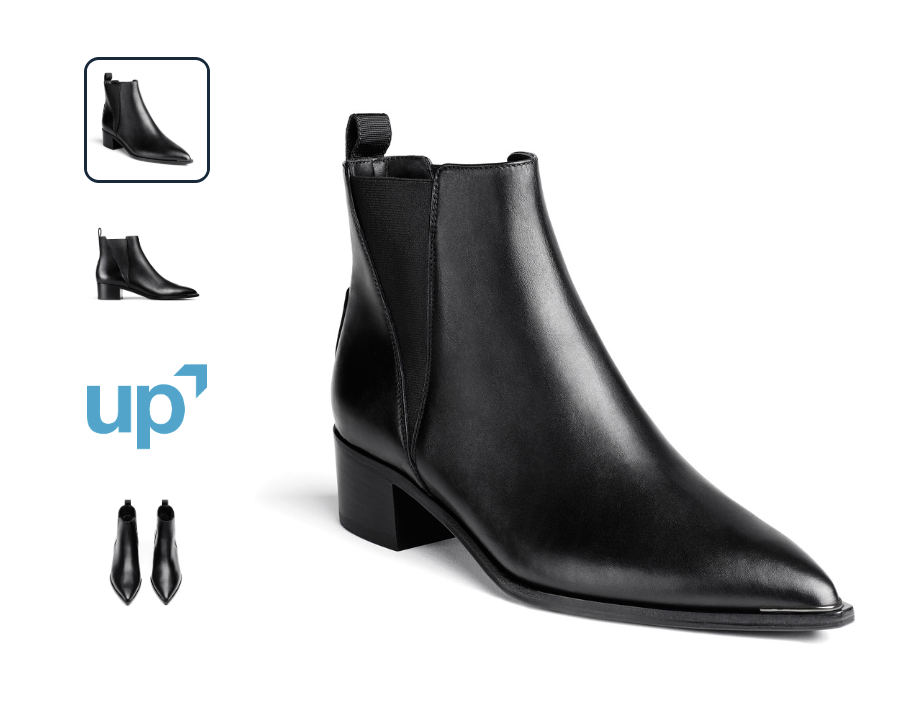 |
| Attribute groups | Grouped fields on the product details page 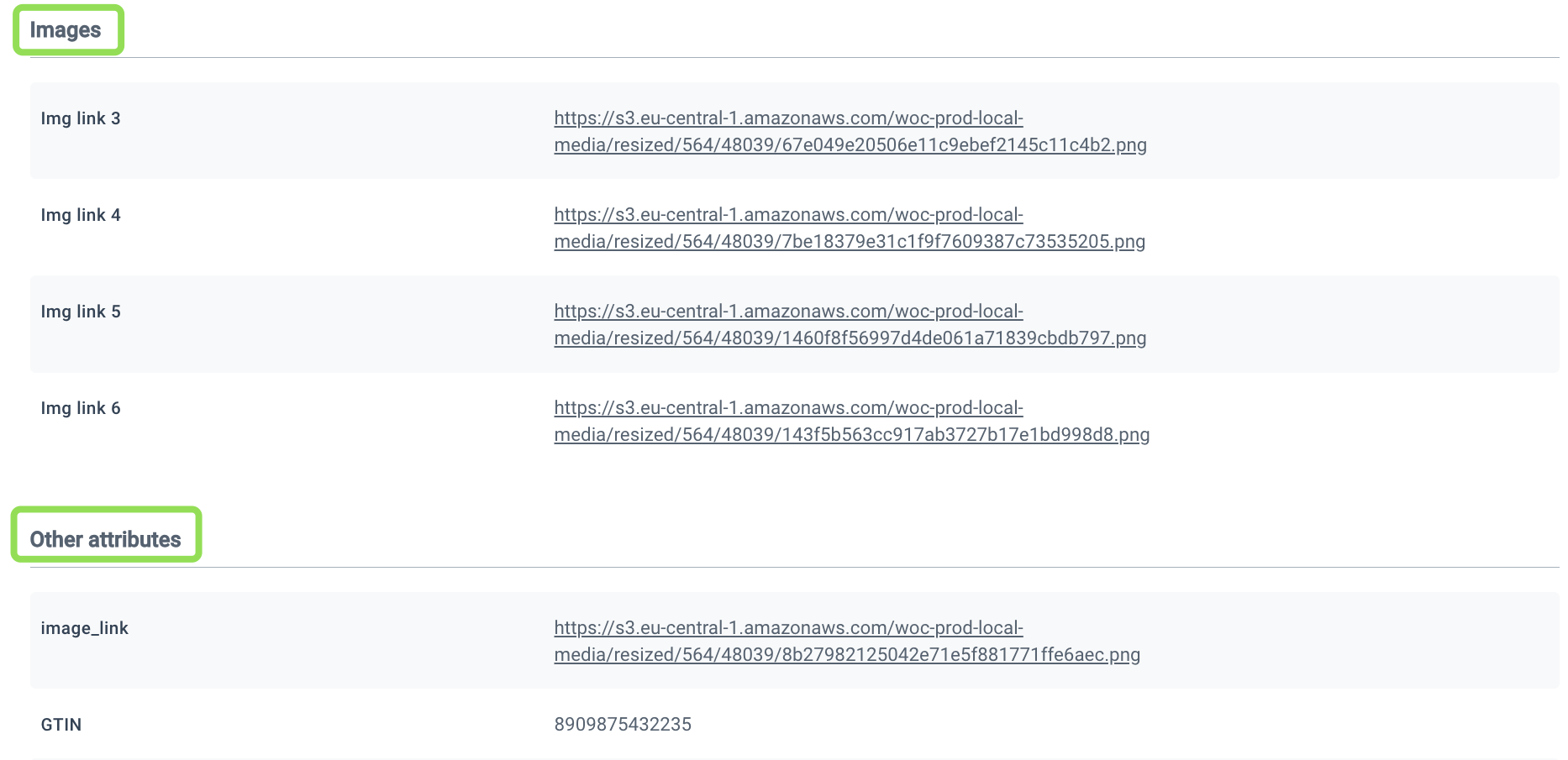 |
Access attribute mapping
Admins configure attribute mapping in catalog Settings. These settings become available after you import the catalog at least once. See Import catalog data from the platform into Content Portal for more information.
Go to Settings.
Select Catalogs.
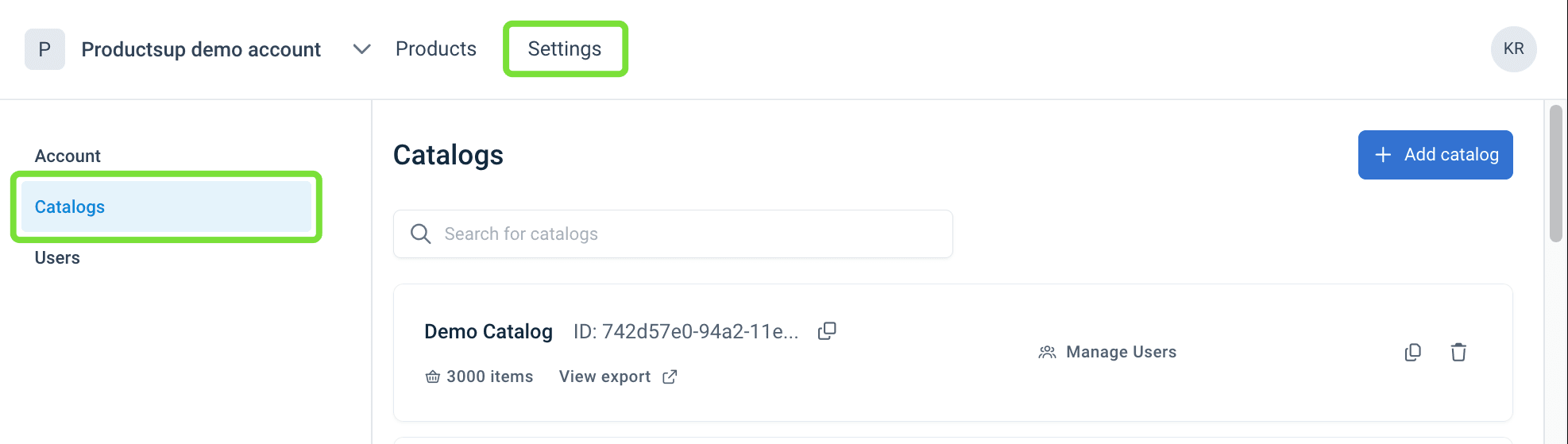
Select the catalog card.
Use the four attribute mapping options on the left.
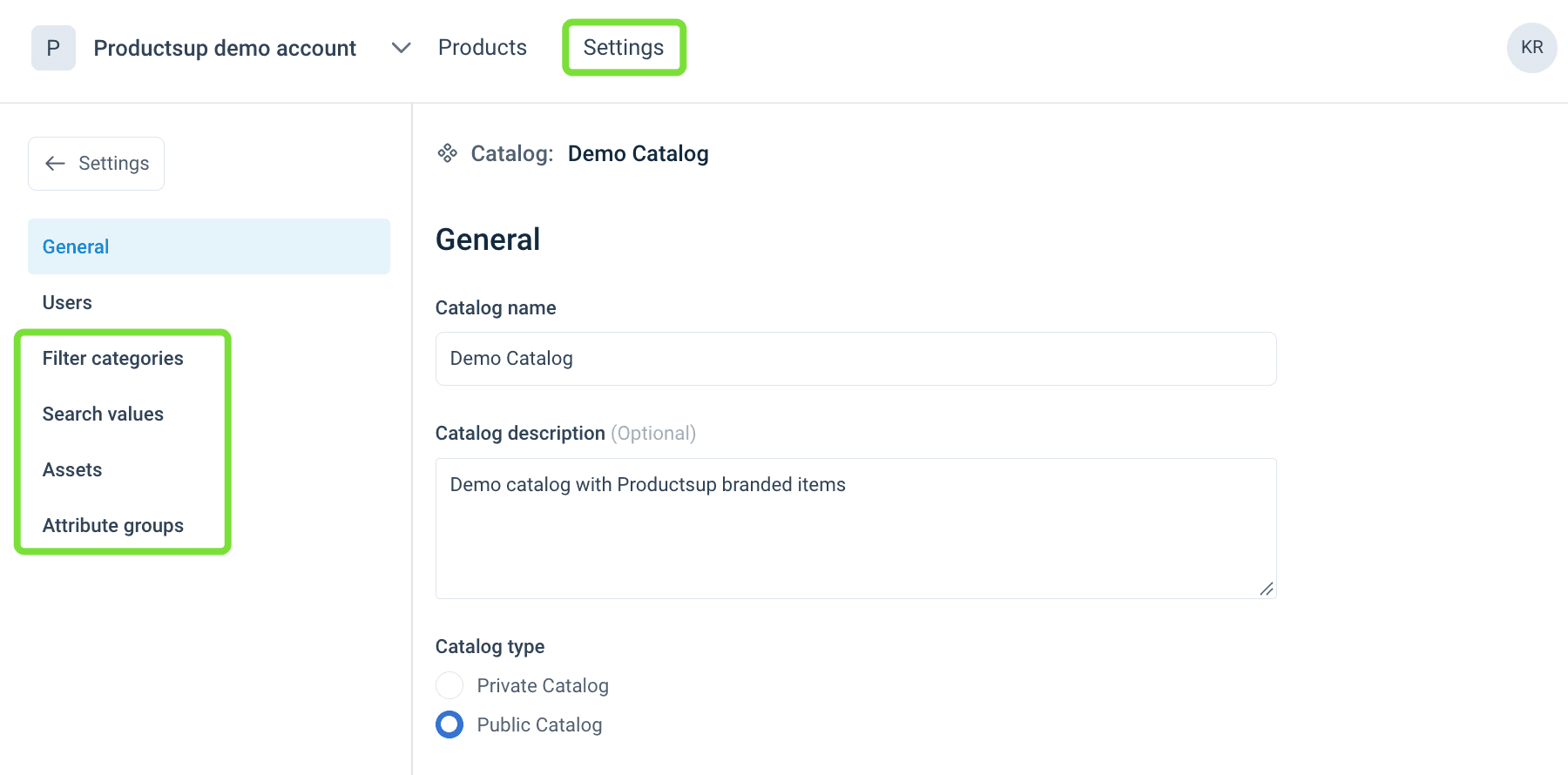
The following procedures start after you open the catalog.
Add filter categories
Filter categories become the hierarchical filters in the catalog sidebar. Users select one or more values to narrow the product list.
Select Filter categories. The mapping starts empty. After you save, the selected attributes appear here.
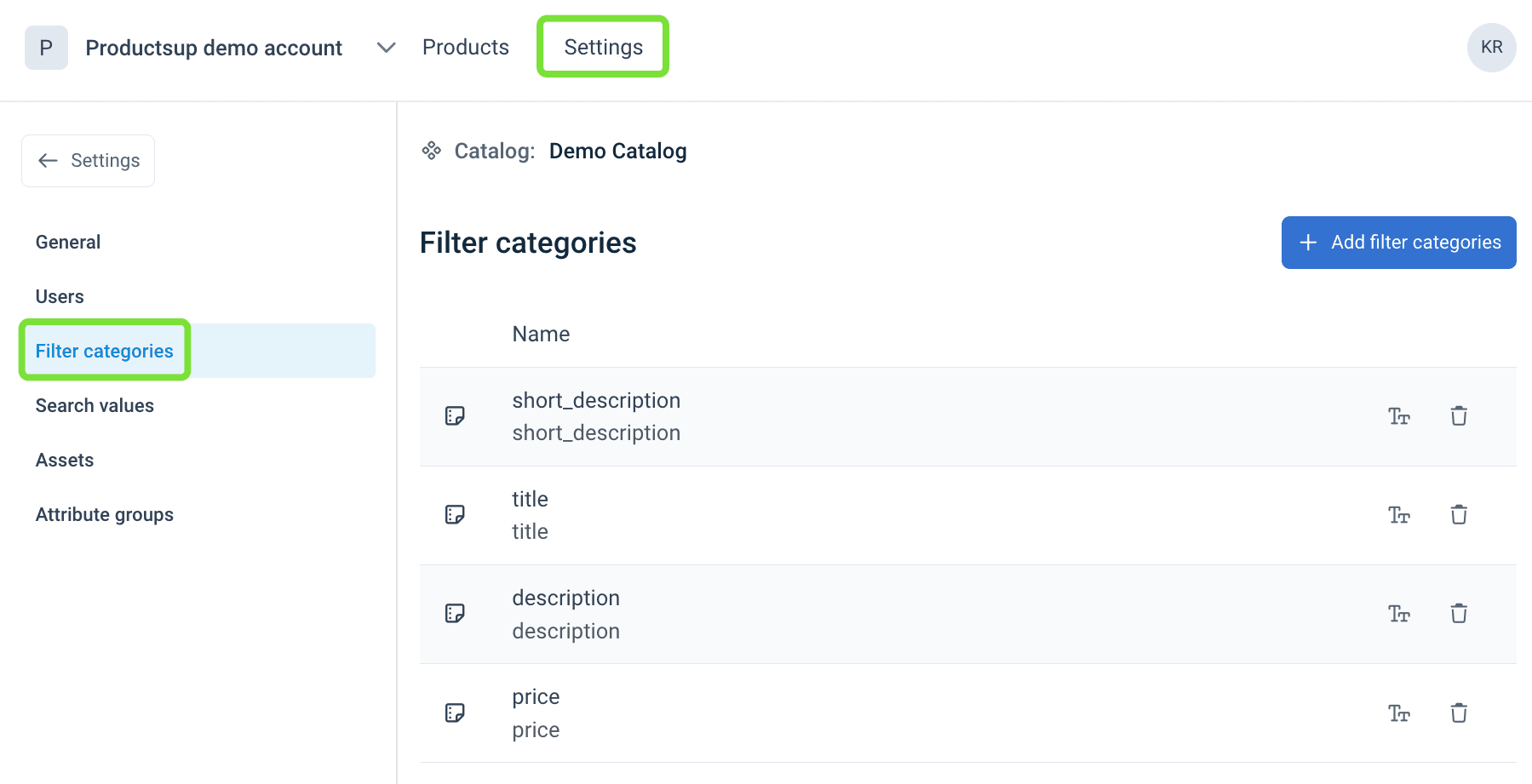
Select Add filter categories.
In Available attributes, select the arrows next to the attributes that should appear as filters.
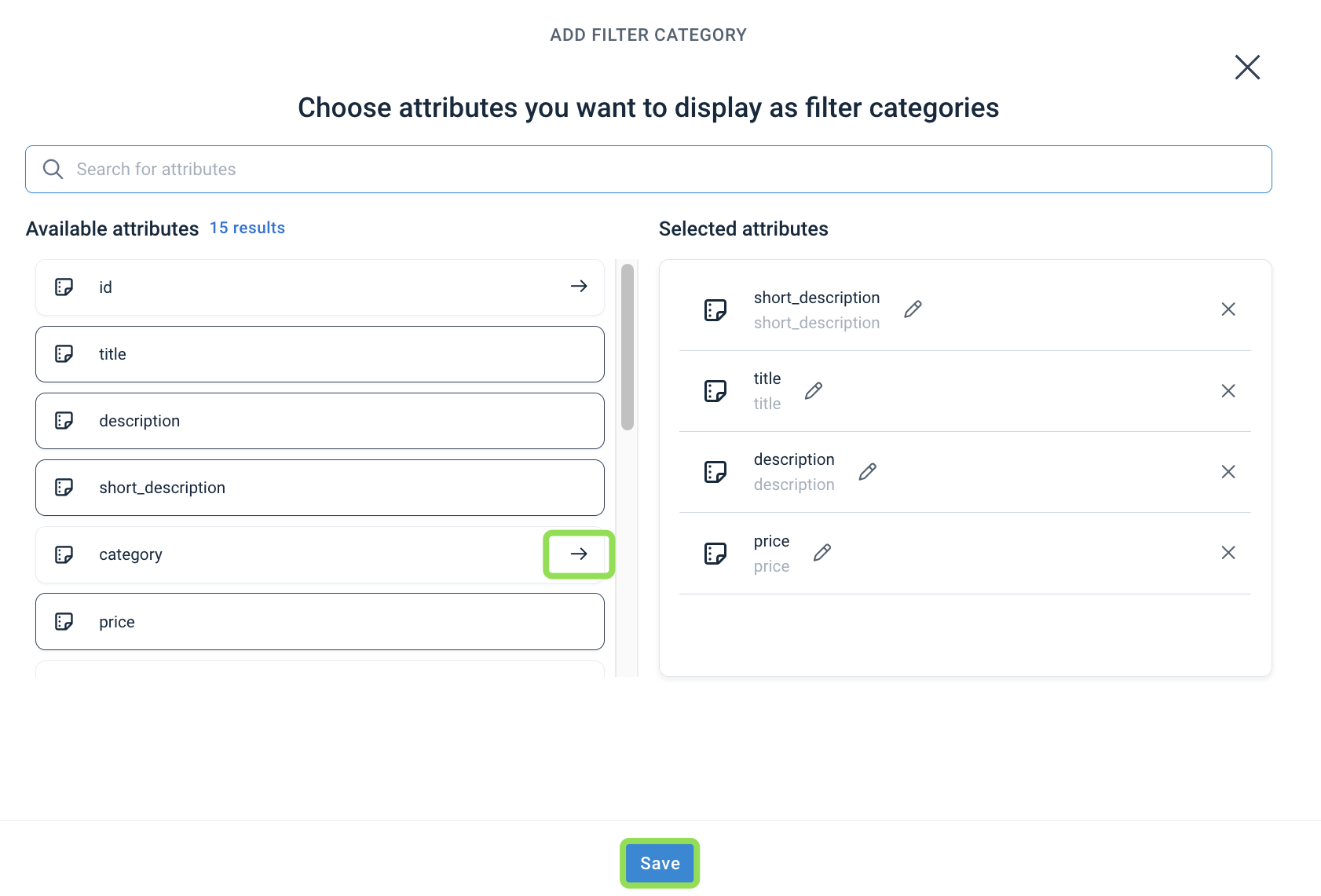
Select Save.
Tip
Drag the Selected attributes up and down. The order in this dialog is the order users see on the catalog page.
Add search values
Search values are the attributes users can query in the search bar and in Advanced search. Typical examples are product ID, brand, title, and ingredients.
Select Search Values.
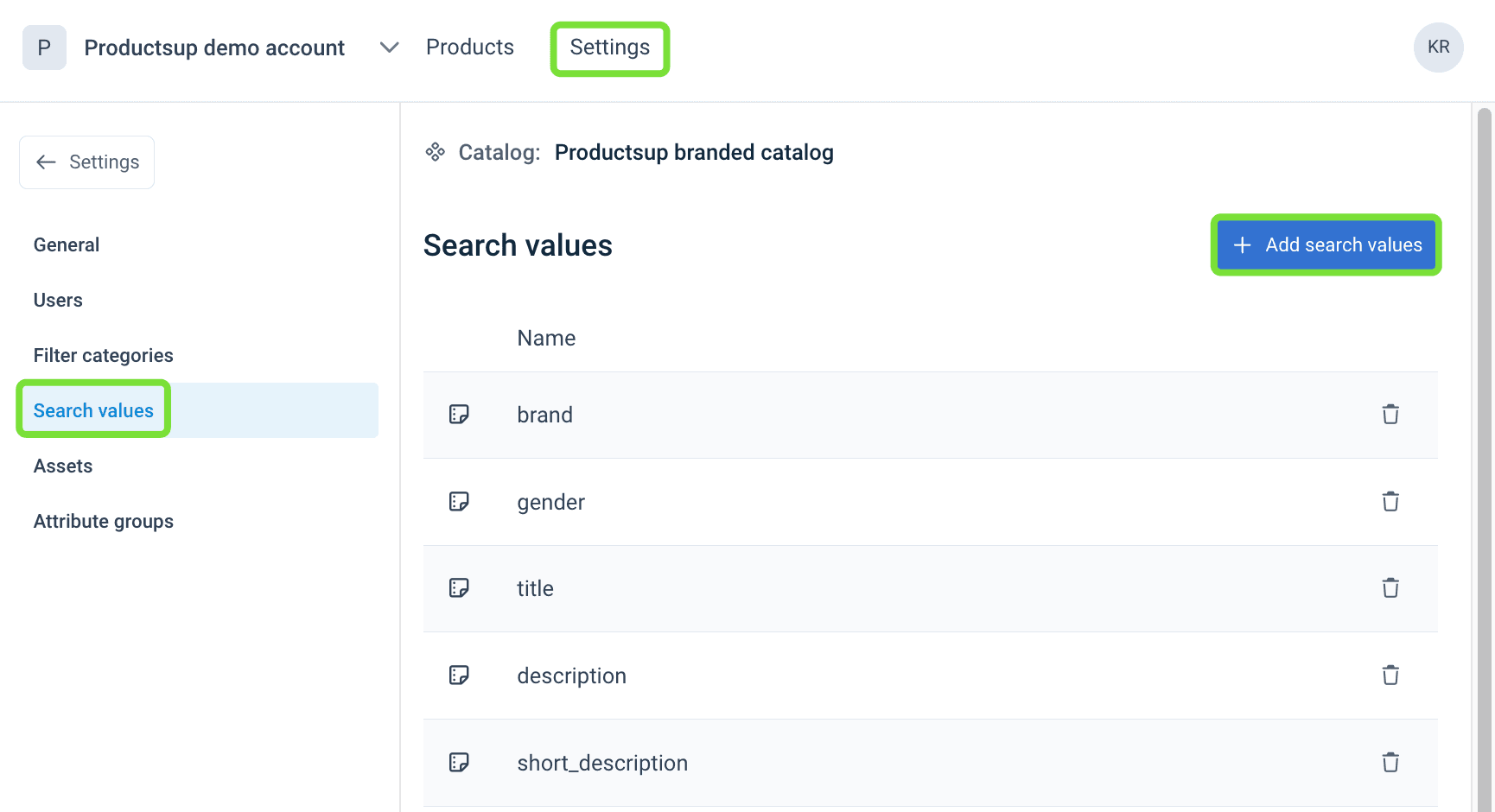
Select Add search values.
Move attributes from left to right by selecting the arrows.
Select Save.
Tip
After you save, users can:
- Search across all mapped search values from the search bar, including several product IDs in one query.
- Build Advanced search conditions on those same attributes, using include, exclude, and equals logic.
See Browse, search, and export products in Content Portal for more information.
Add assets
Map attributes that contain URLs to images or PDF documents as assets. Content Portal then renders thumbnails and the gallery on the product details page.
Select Assets.
Select Add assets.
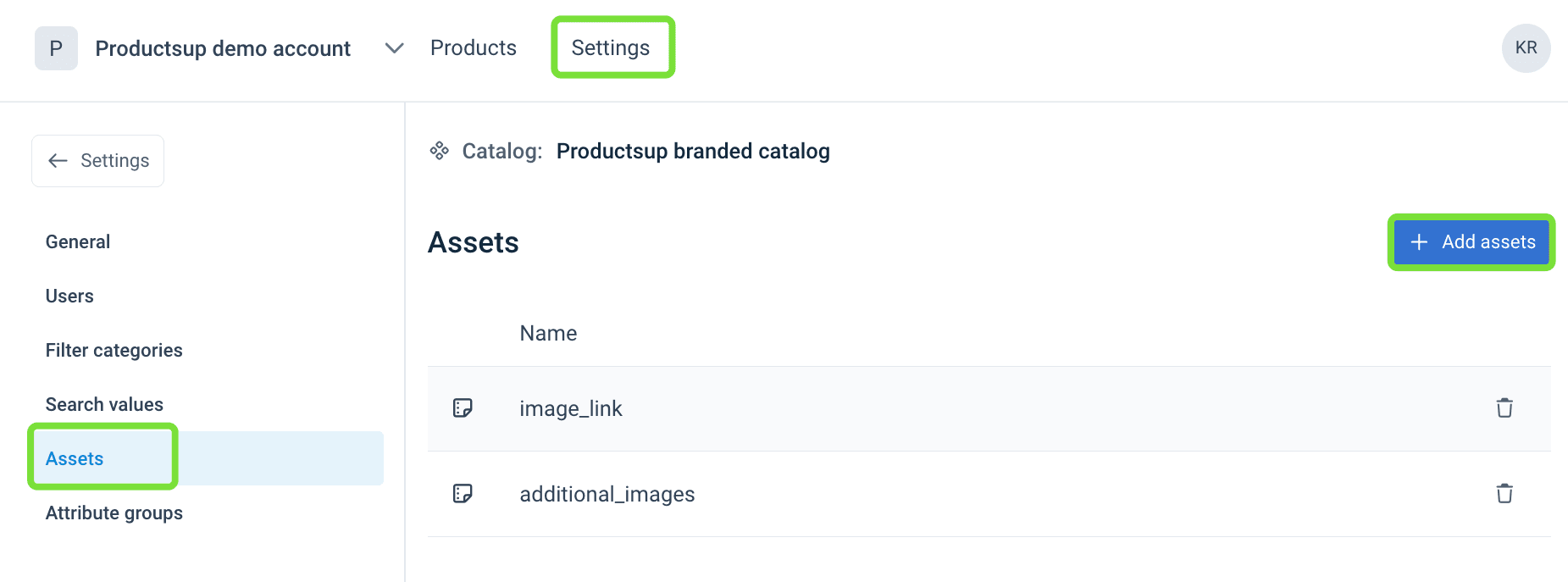
Move attribute names from left to right by selecting the arrows.
Select Save.
Thumbnails appear only when an asset URL is present, so empty fields can leave blank tiles in the gallery.
Caution
The file URL must include an extension such as .pdf or .jpg. URLs without an extension are not supported.
Supported asset MIME types:
image/jpegimage/jpgimage/pngimage/gifimage/tiffapplication/pdf
Add attribute groups
Attribute groups organize product specifications on the product details page. For example Marketing, Dimensions, or Technical specs. Groups have an order, and that order is the layout users see under the product image.
Attributes that you do not place in a group appear in Other attributes under the groups.
Select Attribute groups.
Select Add attribute groups.
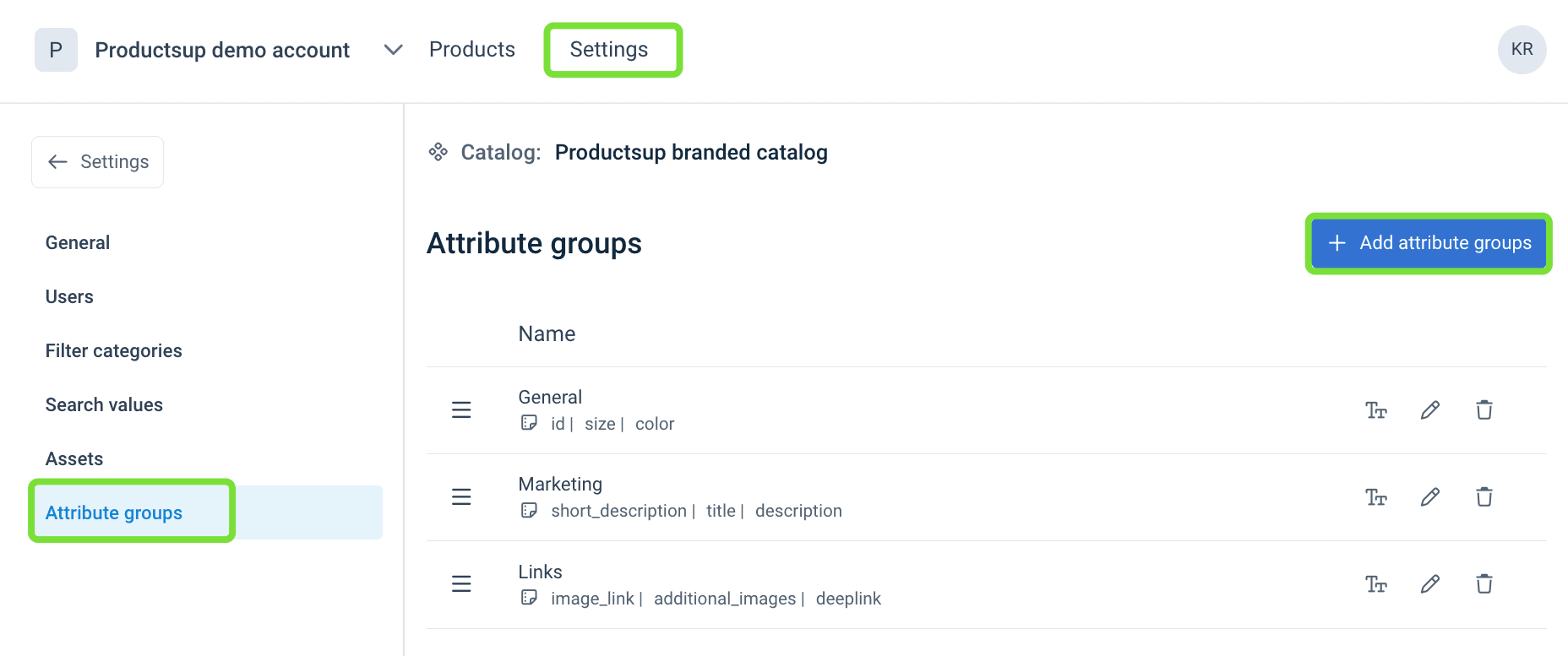
Enter the new group name and move attributes from left to right by selecting the arrows.
Select Save.
Tip
Drag the Attribute groups up and down. The order in this dialog is the order users see on the product details page.
See Browse, search, and export products in Content Portal for how the product details page presents these groups.
How is this guide?