

First steps with Content Portal
Accounts, catalogs, and roles in Content Portal, then log in, Settings and Products, and account setup.
Content Portal is organized around accounts and catalogs. This page explains those objects, how to log in, where Settings and Products sit, and how Admins set up the account.
Accounts and catalogs
An account is your workspace in Content Portal. Each customer typically has at least one account. Admins configure branding, supported languages, footer links, and user access at this level.
A catalog is a subset of product data inside an account. One account usually contains many catalogs, for example a seasonal collection, a market, or a product line. Each catalog receives data from a Productsup site. See Import catalog data from the platform into Content Portal.
Content Portal offers two types of catalogs:
- Private catalog — only invited users can access and browse this catalog.
- Public catalog — anyone with the catalog link can open it without logging in. Anonymous users can also browse and download product data and digital assets.
| Level | What it contains | Who configures it |
|---|---|---|
| Account | Branding, default language, footer links, users | Admins |
| Catalog | Product data, public or private access, attribute mapping | Admins |
| Products page | Search, filters, product details, downloads | Admins and Users |
Roles
Content Portal uses two customer roles: Admins and Users. Admins can do everything Users can do, plus account and catalog administration.
| Role | Access |
|---|---|
| Admin | Manage account settings, create and edit catalogs, invite and manage users, and browse or export products |
| User | Browse assigned catalogs, use search and filters, open product details, and download data or assets |
To invite users, assign roles, and grant catalog access, see Invite and manage users in Content Portal.
Log in to Content Portal
You can open Content Portal in either of these ways:
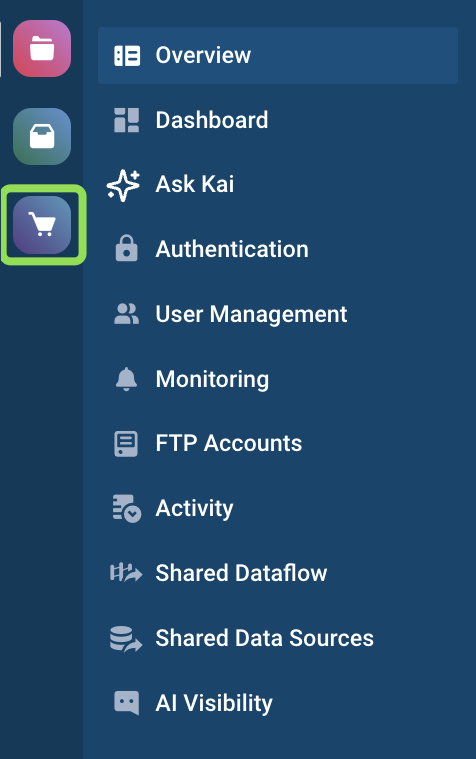
- In the Productsup platform, open the panel on the left and select the Content Portal icon.
- Invited users receive an email with an access link. After they accept the invitation, they see the catalogs they have access to. See Invite and manage users in Content Portal.
Products and Settings
After you log in, Products is the catalog you have open: search, filters, details, and downloads. Settings is where Admins manage the account and catalogs.
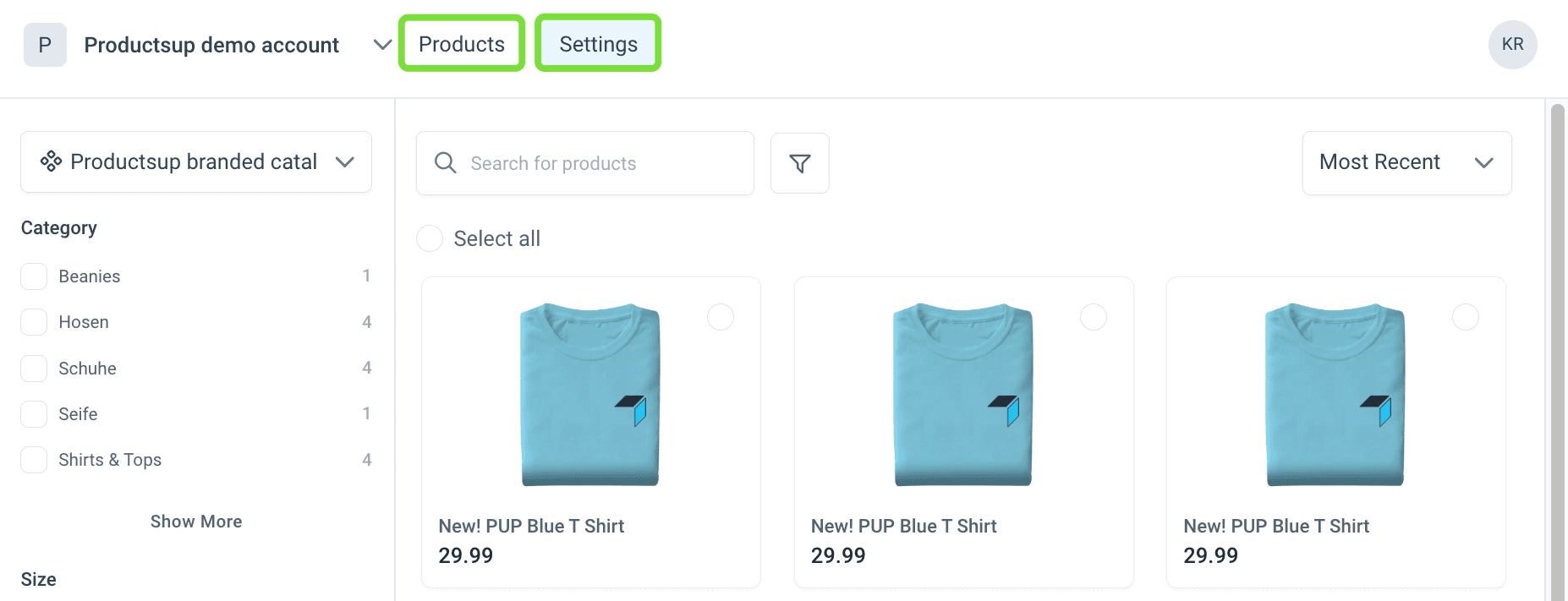
Products and Settings appear only for signed-in users who have access to them. Anyone who opens a public catalog without logging in does not see these items.
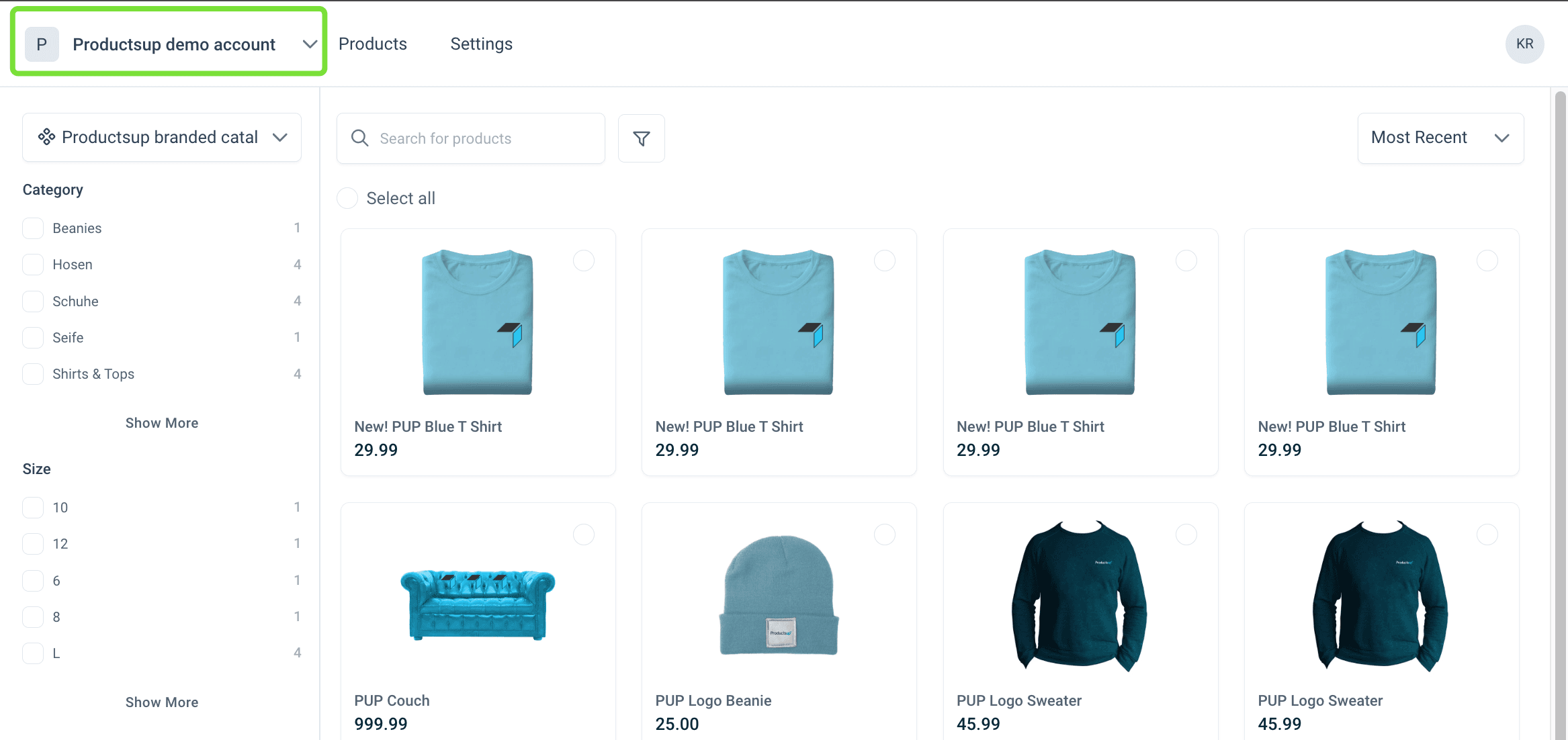
Switch between accounts.
If you have access to more than one account, use the account dropdown in the top-left corner to search for and switch between accounts.
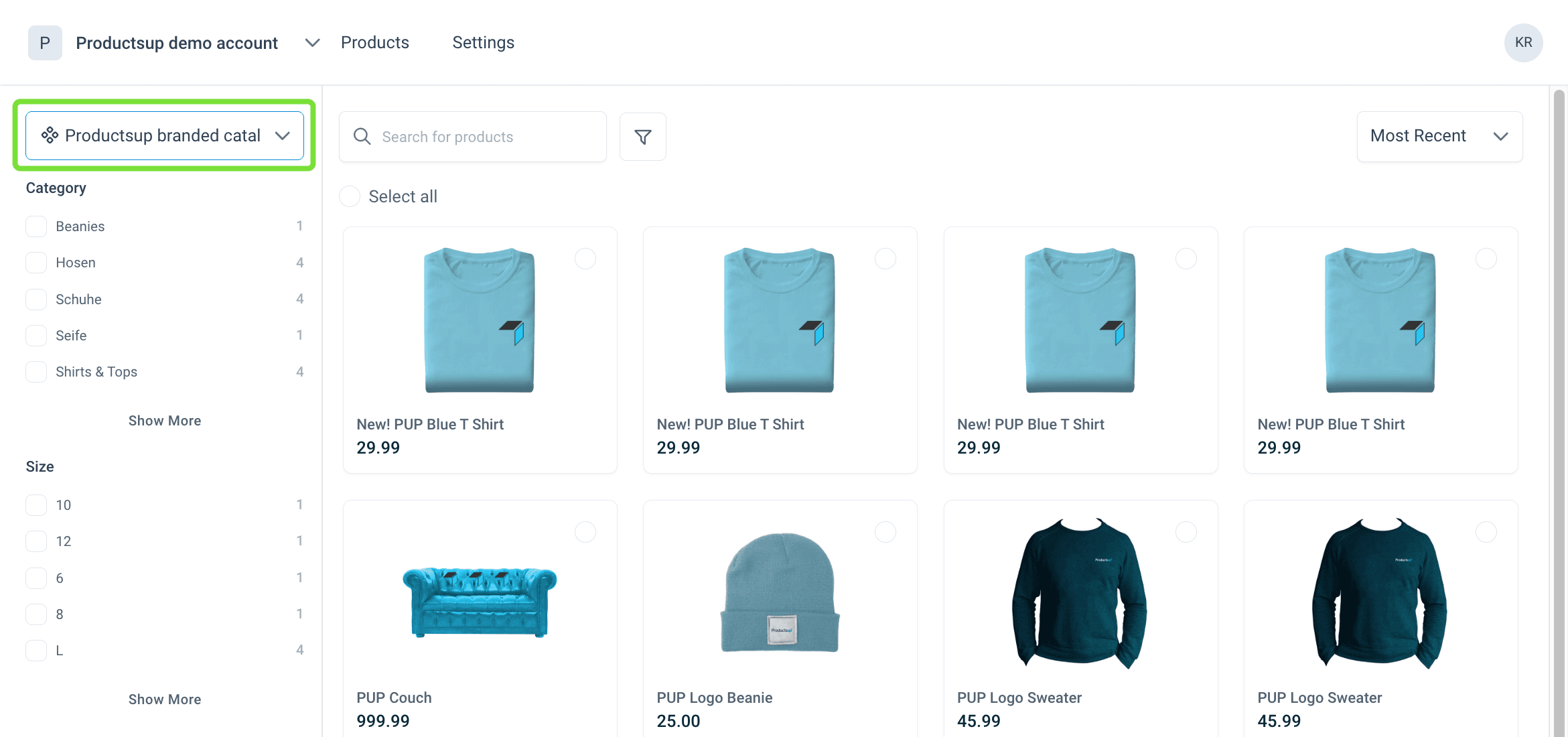
Switch between catalogs.
After you log in, the Products page opens for the first catalog in the catalog dropdown. Search for a catalog name or scroll the list to switch catalogs.
Set up your account
Admins configure what Users see in the Content Portal header and footer, and the default language.
Select Settings.
Account, Catalogs, and Users appear on the left. The Account tab holds the information users see when they open Content Portal.
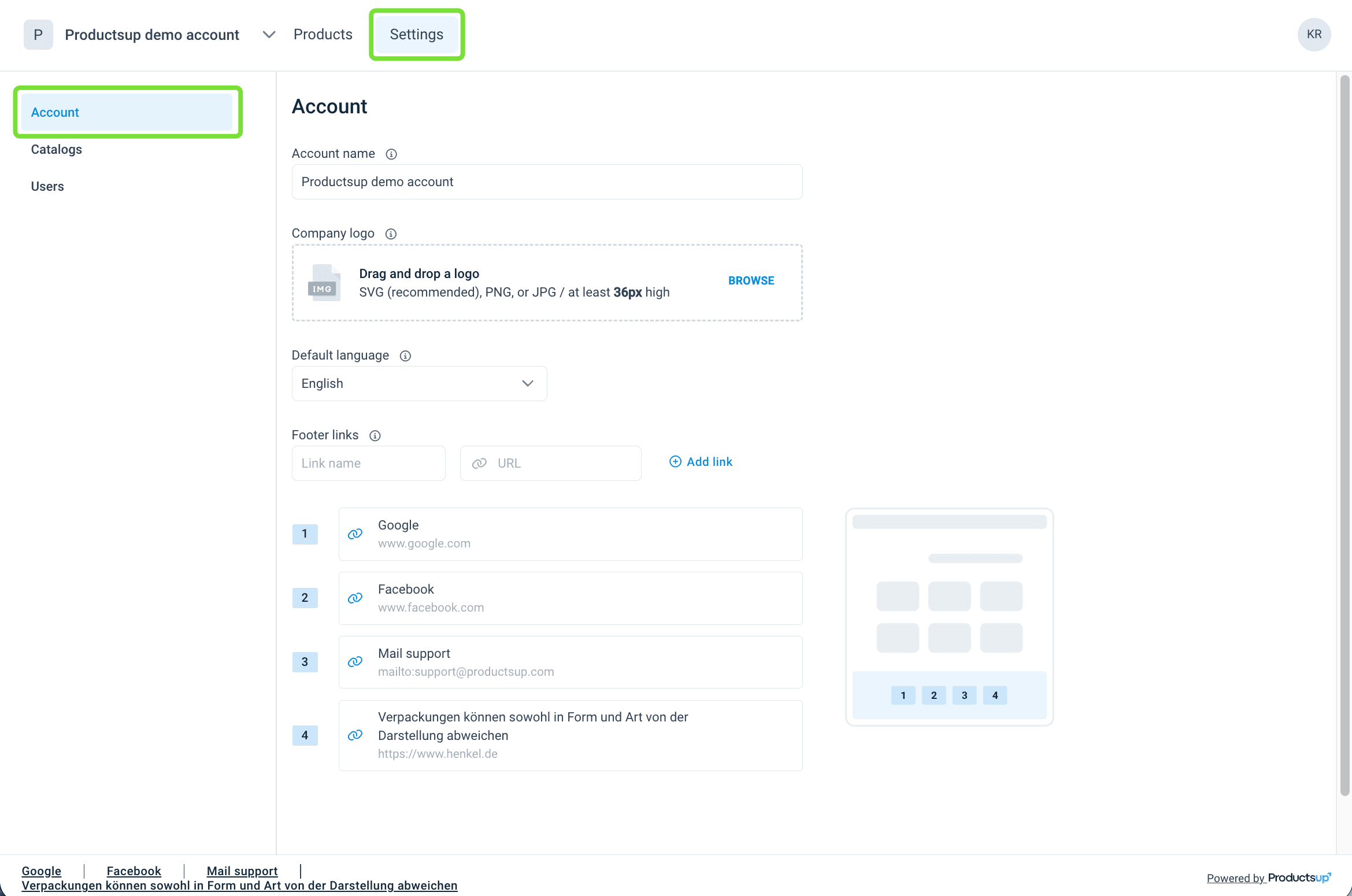
In Account name, enter the name of the account. The account name appears in the Content Portal URL.
In Company logo, upload the logo that appears in the Content Portal header.
Tip
The Company logo also appears in the email notifications your invited users receive.
In Default language, choose English (the default), French, German, Italian, Portuguese, or Spanish. New users start in this language.
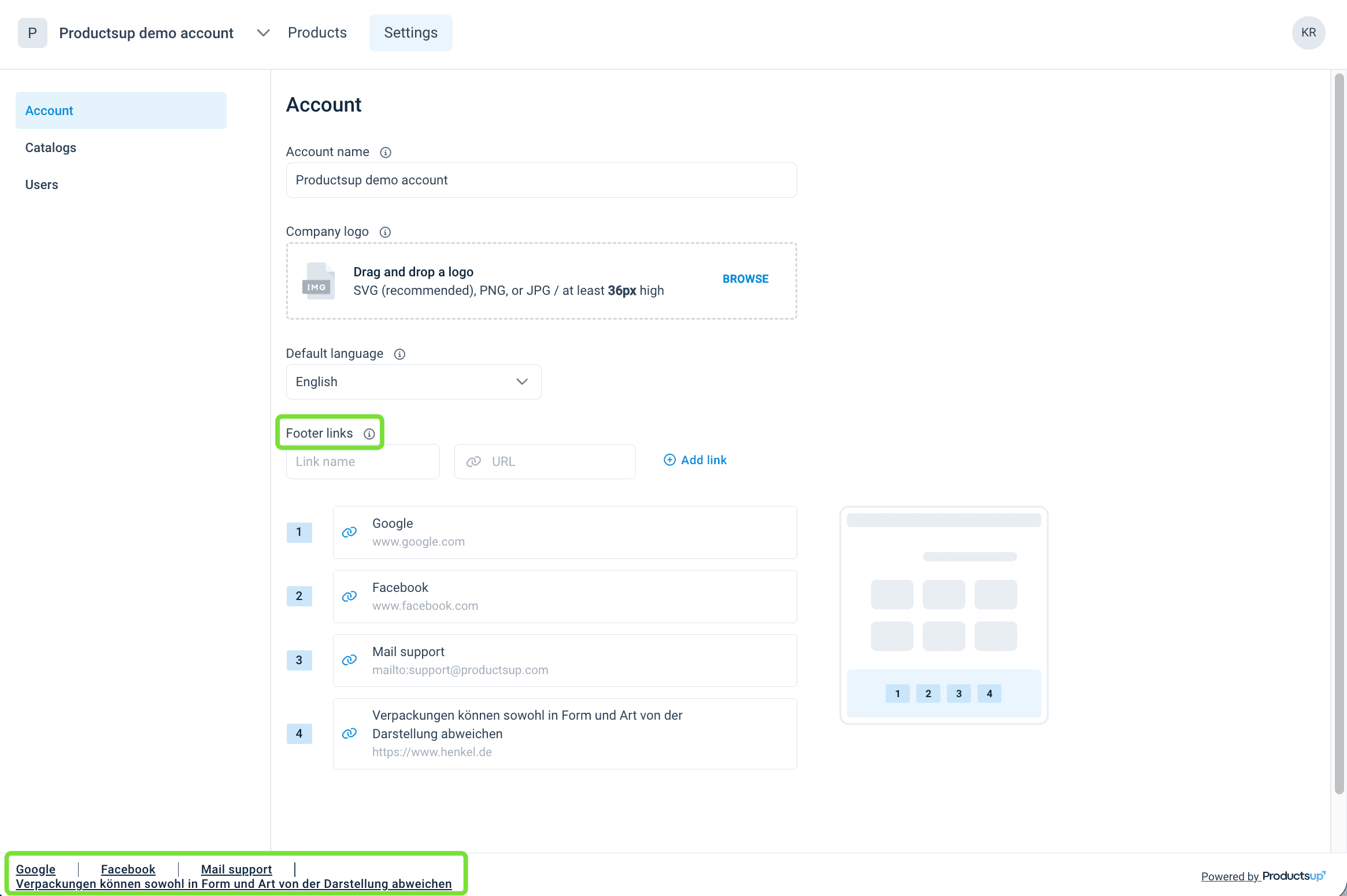
In Footer links, add URLs such as social profiles or contact pages. These links appear at the bottom of Content Portal.
See Add and manage a catalog in Content Portal to create a catalog. See Invite and manage users in Content Portal to invite users to the account.
How is this guide?