

Export your data to an FTP, SFTP, or FTPS server
Learn how to configure the SFTP/FTP/FTPS Server destination in Productsup
Most exports in Productsup can send data to FTP, SFTP, and FTPS servers, via the flexible SFTP/FTP/FTPS Server destination:
- FTP (File Transfer Protocol) is a standard communication protocol for transferring and exchanging files between a server and a client. FTP often uses plain-text authentication via standard login data, such as username and password. If configured so, FTP can enable users to connect to servers anonymously.
- SFTP (SSH File Transfer Protocol) is a data transfer protocol for exchanging data between a server and a client that uses a secure channel, such as SSH, and is accessible to authenticated users only.
- FTPS (File Transfer Protocol Secure or File Transfer Protocol SSL) is an extension of the standard FTP that supports Transport Layer Security (TLS). When using FTPS, a client and a server establish a traditional FTP connection and then use port 21 to establish an additional SSL connection before authenticating users or transferring data.
- FTPS Implicit is an older method of securing FTP connections that uses port 990 to establish an SSL connection between a server and a client before authenticating users or transferring data.
Reference channel or third-party service documentation to determine the correct server type.
If you need additional support evaluating the correct server type and configuration of the destination, contact support@productsup.com.
The SFTP/FTP/FTPS Server destination doesn't support the inclusion of basic auth within FTP, SFTP, or FTPS URLs.
For example ftp://[user[:password]@]host[:port]/[url-path].
Instead, each destination contains individual fields for the URL Host, Directory, Username, and Password.
Prerequisites
Obtain the login credentials for the target server before you begin:
- If the target export channel requires uploads to a specific server, get the host and user credentials specific to that server.
- If the export channel permits the use of third-party FTP servers, you can use an FTP server provided and hosted by Productsup.
Go to FTP Accounts from your organization's main menu to create an FTP server and set up its credentials. See Create an FTP server hosted by Productsup for more details.
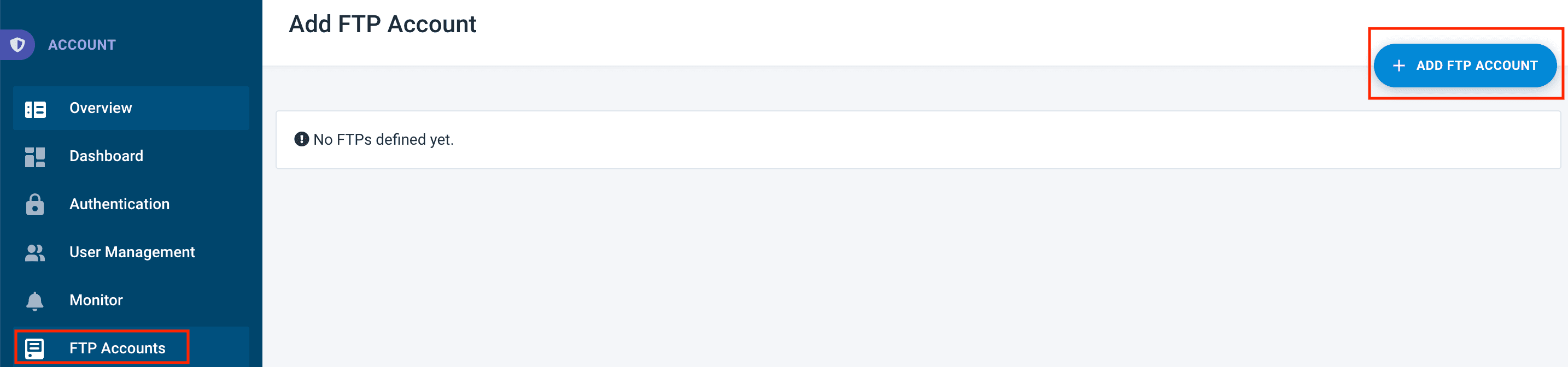
The FTP Accounts feature is available to admin users only. You may need to contact your organization's admin to create a new FTP server or get the credentials of an existing one.
Set up the SFTP/FTP/FTPS Server destination
Go to Exports from your site's main menu and select an export from the list to open the export setup page. If your site doesn't have the needed export yet, select ADD EXPORT to find and add an export.
On the export setup page, select Add Destination, choose SFTP/FTP/FTPS Server from the drop-down list, give it a name, and then select Save.
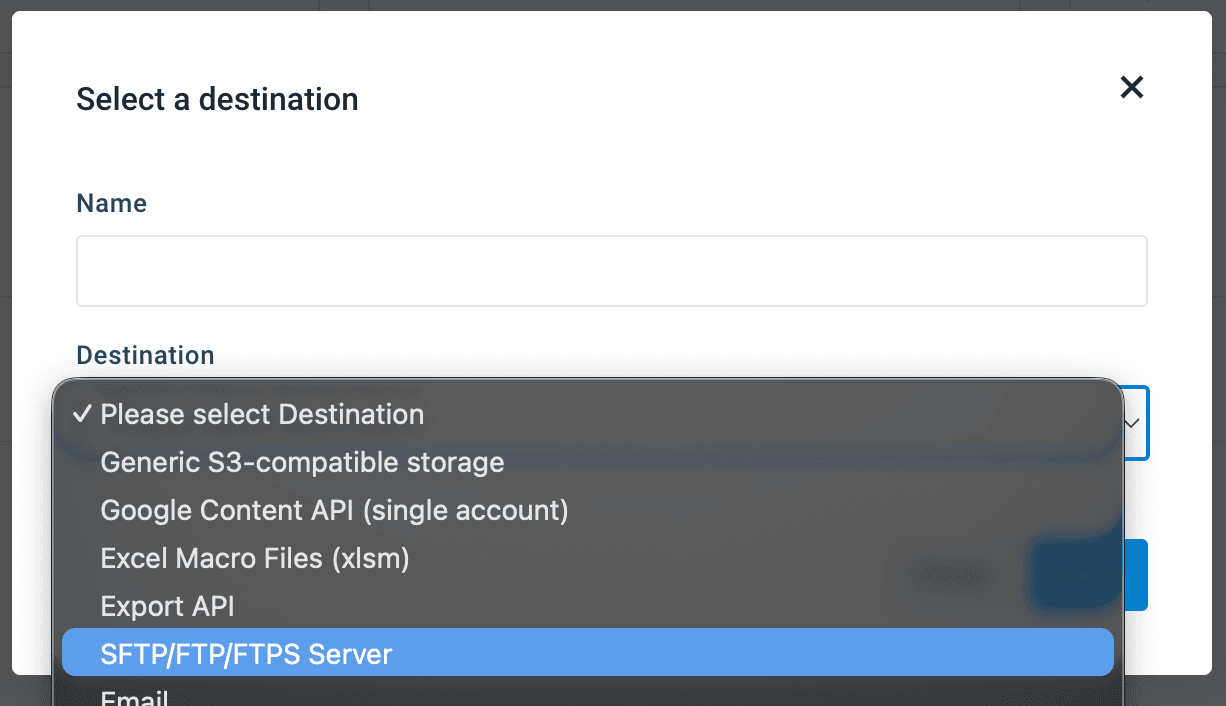
On the destination setup page, select the needed server protocol in Protocol. The available options are:
- FTP
- FTPS
- SFTP
- FTPS Implicit
Provide your server host in Host. Leave out prefixes, such as ftp://, sftp://, or ftps://.
In Port, enter the number of the port that the platform should use to establish a connection with your server. If you leave this blank, the platform uses the default port of the chosen protocol. For example, port 22 for SFTP connections and port 21 for FTP connections.
Enter your server credentials in Username and Password. Or provide your base64-encoded private SSH key in SSH Key must be (PEM format, RSA, ECDSA, or Ed25519, blank passphrase) instead of the password.
If you want to send your data to a specific folder on your server, provide the path to the desired folder in Directory. By default, the platform sends your data to the root folder.
Toggle the Passive Mode button to choose the desired type of server connection. If you turn this option On, the platform uses the passive mode for data transfer letting the client connect to the server, which is more suitable for scenarios featuring a firewall. If you leave this option Off, the platform uses the active mode letting the server connect to the client.
Define the platform's behavior in case of server failure or inactivity:
- In Timeout, enter the number of seconds the platform should wait before considering a request failed due to server inactivity. By default, the platform waits for
300seconds. - In Max Retries on Failure, enter the number of new attempts the platform should automatically make in case of request failure. By default, the platform retries sending data
3times.
If you want the platform to add an empty .fin file to your server every time it successfully finishes uploading data to the server, toggle Enable fin file to On and provide the desired name and extension for this file in Fin File Name and Fin File Extension. If you don't want the platform to create such a file on your server, leave Enable fin file off. If you provide a desired name and extension for the .fin file, the full name of the file uses the pattern {provided-name}.{provided-extension}. When a new data upload starts, the platform automatically deletes the old .fin file.
The default input in Fin File Name is {{ file_name }}. The default input in Fin File Extension is fin. This makes the default full name of the file {export-file-name-without-extension}.fin. You can find your export file name at the bottom of the export setup page. If you enter {{ base_file_name }} in Fin File Name and keep fin as the extension, the full name of the file is {export-file-name-with-extension}.fin.
Toggle Enable ssh dss/rsa host key algorithms to On if your SFTP server uses the deprecated SSH-RSA or SSH-DSS host key algorithms. Use this option only if the Productsup support team suggests it.
Toggle Enable ssh rsa pubkey algorithm to On if you want to use more modern signature algorithms for public key authentication. This option defines the accepted algorithms for your public key to prove its identity to the server and replaces older, less secure options like SSH-RSA (RSA with SHA-1) with more modern algorithms, such as ssh-ed25519 and rsa-sha2-256 or rsa-sha2-512.
Toggle Enable ssh diffie-hellman-group14-sha1 key exchange algorithm to On if your SFTP server uses diffie-hellman-group14-sha1, an outdated key exchange method used for establishing a secure connection. Use this option only if the Productsup support team suggests it.
In SSH cipher, enter the encryption algorithm used for data transfer. Use this field only if your server requires you to explicitly specify the cipher algorithm.
In Override remote file name, provide the desired name for your export file if you want this destination to produce an export file with a name that differs from the one specified on the export setup page.
Toggle Active to On to activate the destination.
Select Save.
When your data is ready for export, select Run in the top-right corner of your page to let the platform import, process, and send your data to the destinations of all active exports in your site. To run only the export where you added your destination:
Select Import to let the site import and process your data.
Go to Exports, select the needed export, and choose Export this export.

How is this guide?