

Set up user profile time zone
Set up a user profile's time zone in the Productsup platform.
Your import and export times use the time zone that you set in your user profile.
Any time zone you set only affects your Productsup profile. This means you can select one time zone and see all site run times in this time zone, whilst your colleague with another time zone will see different run times for the same site.
A new user sees the default European time zone set for Berlin (GMT+1).
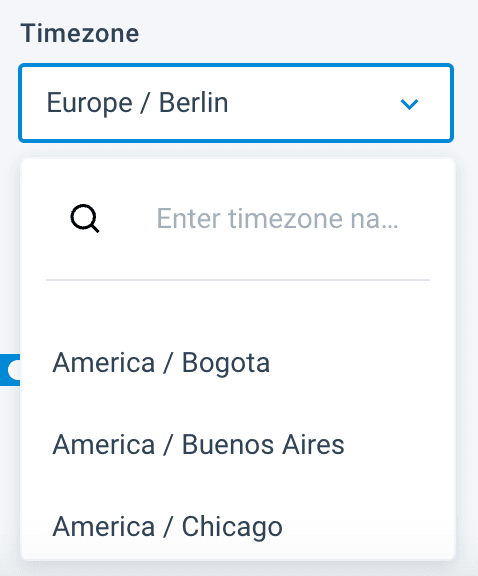
Change the time zone for your user profile
To choose a time zone for your user profile, select the profile icon in the top-right corner of the page from the organization, project, or site level:
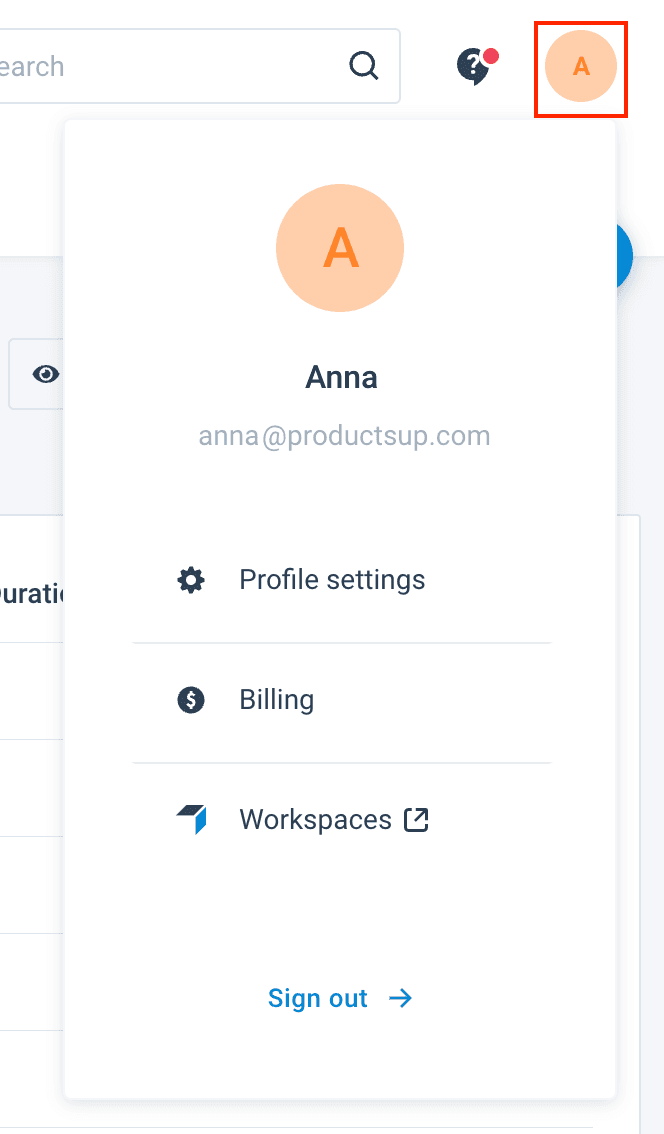
You can only see the Workspaces link leading to the Retail platform if you have a Retail platform account.
Billing is only available to admin users. See Usage Data Dashboard and overage calculations.
Alternatively, go directly to user profile settings.
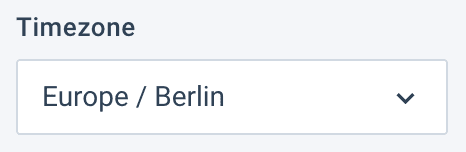
In your profile settings, you can use the Timezone drop-down menu to choose the needed time zone.
Schedule a site for a specific time zone
The default time zone for Scheduling is the time zone you have set in your user profile.
But you can also select a different time zone in Scheduling.
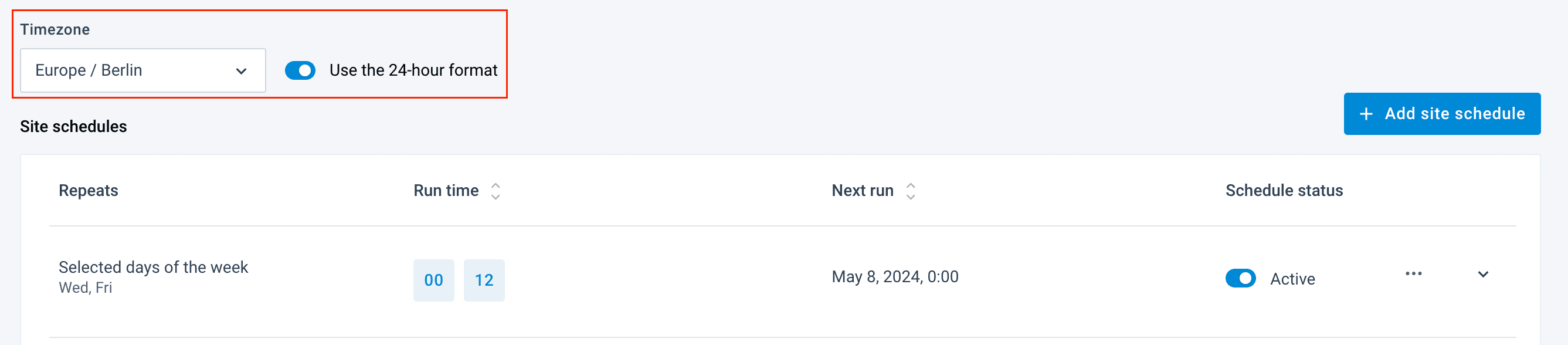
See Set up scheduling and triggering processes in Scheduling for more details about scheduling.
Reporting is always in UTC
If you compare the reporting data with another tracking system, such as Amazon or Google Analytics, you need to use UTC. Otherwise, you are not comparing the same time ranges.
The time zone for Reporting is always UTC. You can't change this.
See [component:17350].
How is this guide?