

Two-factor authentication (2FA) feature
Activate the two-factor (2FA) feature in Productsup.
Two-factor authentication (2FA) requires you to prove your identity using a device you own besides your standard login credentials. An authenticator sends a code to an app on your mobile phone to confirm your identity.
You can use a third-party authenticator app, such as Google Authenticator, which you can install to your phone in App Store and Play Market.
There are two ways to activate 2FA:
- You can activate 2FA for your user in user profile settings. See Set up user profile for step-by-step instructions.
- You can activate 2FA for all users within your Productsup organization if you are an admin of that organization. See Activate 2FA for all users within the organization for step-by-step instructions.
Caution
If you change your mobile device, you can turn two-factor authentication off to disconnect the old device and save the settings. Then, reactivate 2FA and connect the new device. See Set up user profile for step-by-step instructions.
If you don't have access to your 2FA device anymore, contact support@productsup.com.
Activate 2FA for all users within the organization
Select the cogwheel icon
 at the bottom of your organization's main menu.
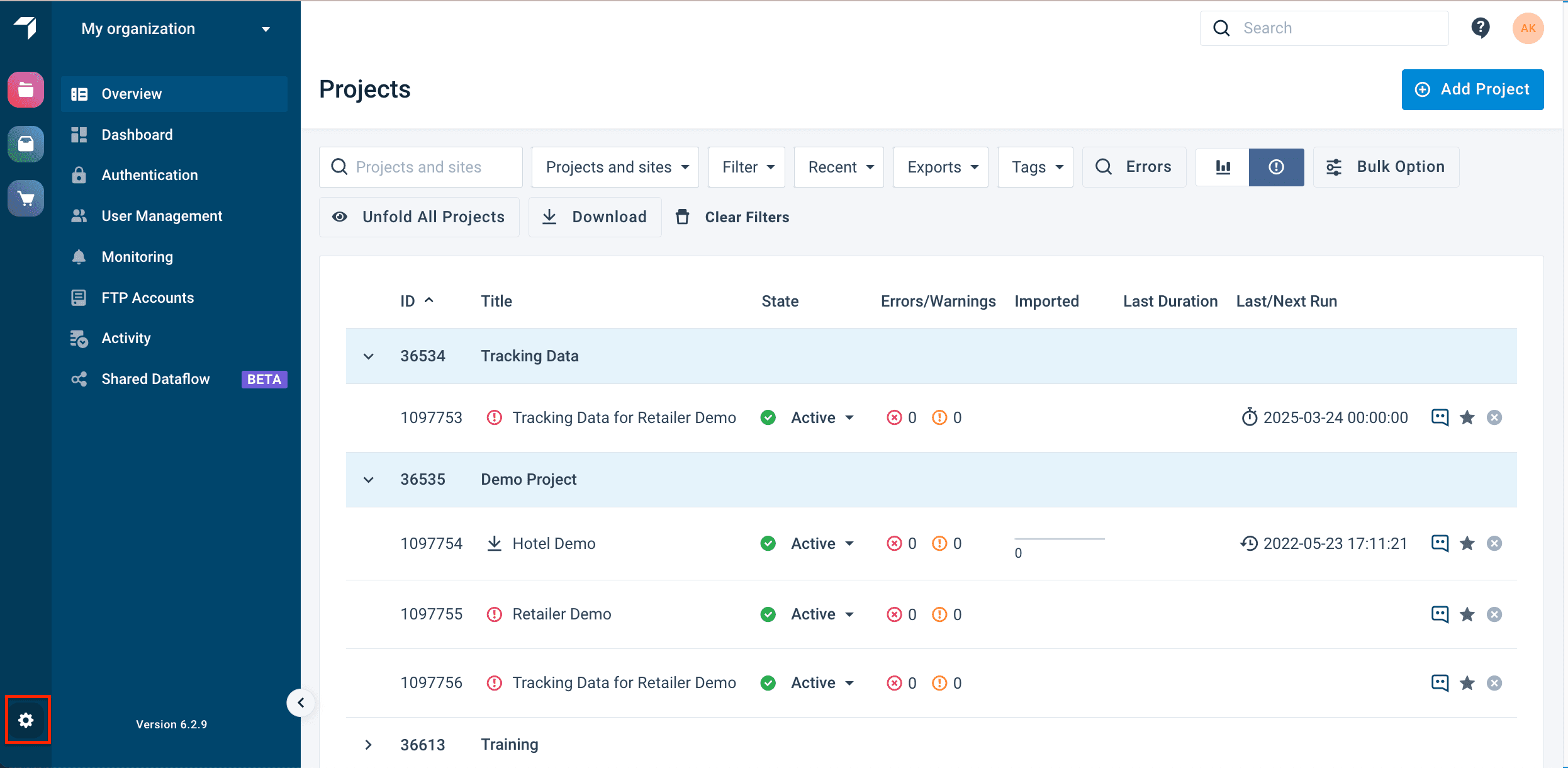 The Organization settings page opens in a new tab.
Toggle Force two-factor authentication for the entire organization to activate the feature.
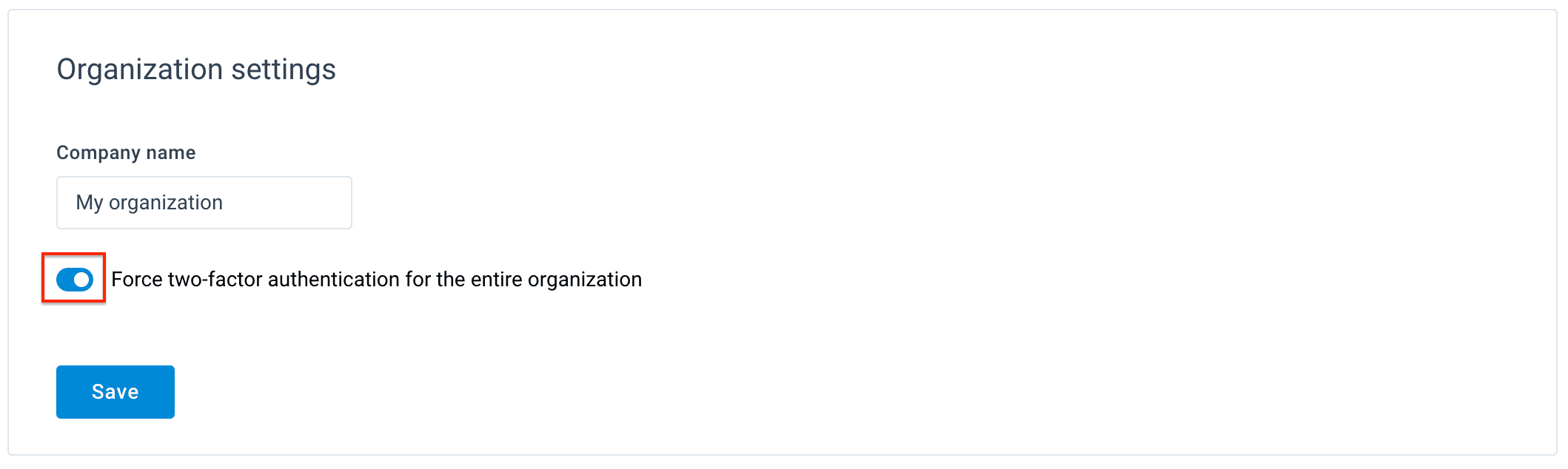
Select Save.
If you activate 2FA for all users, ensure every user in your organization recognizes this change. 2FA forces all users to authenticate during their next login, so they won't be able to access your Productsup organization without first setting up 2FA.
How is this guide?