

Generate or transform values with the data service Custom Prompt With Dynamic Values
Use the Custom Prompt With Dynamic Values data service to generate product titles, descriptions, product types, SEO keywords, and translations with AI — or transform existing values — by sending custom prompts from Productsup to OpenAI, Microsoft Copilot, Claude, or Google Gemini.
Introduction
The Custom Prompt With Dynamic Values data service lets you use AI to generate new product content or transform existing values, then imports the result back into your feed. You write a prompt describing what you want, reference any attribute on your site inside it, and the platform sends the request to your chosen AI provider (OpenAI, Microsoft Copilot / Azure OpenAI, Claude, or Google Gemini).
Common jobs you can hand to this service include:
- Generating a product title from attributes such as brand, product type, gender, and material.
- Generating a product description that is keyword-rich and channel-compliant.
- Generating a product type or Google product category for classification.
- Generating SEO keywords or product highlights based on a product's attributes.
- Translating product content into one or more languages, with control over tone and terminology.
- Transforming existing values, such as converting units, reformatting text, or normalizing capitalization.
Once the AI provider completes the task, it returns the result to your Productsup site, where the platform creates a new attribute — by default ___service_ai_custom_prompt — containing the generated values.
The data service is available for the import and intermediate stages.
This data service uses the capabilities of OpenAI by connecting to their public API, which is why you must read and accept OpenAI's Terms of Service before adding this data service to your site. You can do so during the setup.
The data service is also compatible with Microsoft Copilot (Azure OpenAI).
Productsup caches the AI-generated values for each product and doesn't send the request to OpenAI API with each run unless you decide to clear the cache and generate new values for all products again. Caching the data improves the platform's performance and guarantees the values don't change with every consecutive run saving you money for the OpenAI services.
The cache is tied to the exact model, context, and prompt and the values of the attributes you reference in them. Changing any of them, even by a single character, invalidates the cache, so the next run re-sends every product to the AI tool and incurs new OpenAI costs. Change these only when you intend to regenerate all values.
While Productsup offers integration with OpenAI for generating or transforming your values at no cost, the actual process is handled by OpenAI, which may involve fees for their services. Before using our AI-based data services, ensure you are familiar with OpenAI's pricing that we use in our data services. See Pricing for more information.
Prerequisites
To use the Custom Prompt With Dynamic Values data service, you need:
- An OpenAI account and an API key. See Account setup and Where do I find my OpenAI API Key?.
- A unique item identifier. See Set a unique item identifier for more information.
- If you use Microsoft Copilot (Azure OpenAI), be ready to provide your Azure resource, deployment, and API version.
Add the data service Custom Prompt With Dynamic Values
Go to Data Services from your site's main menu, and select Add data service.
Search for Custom Prompt With Dynamic Values, select Add, and give it a desired name.
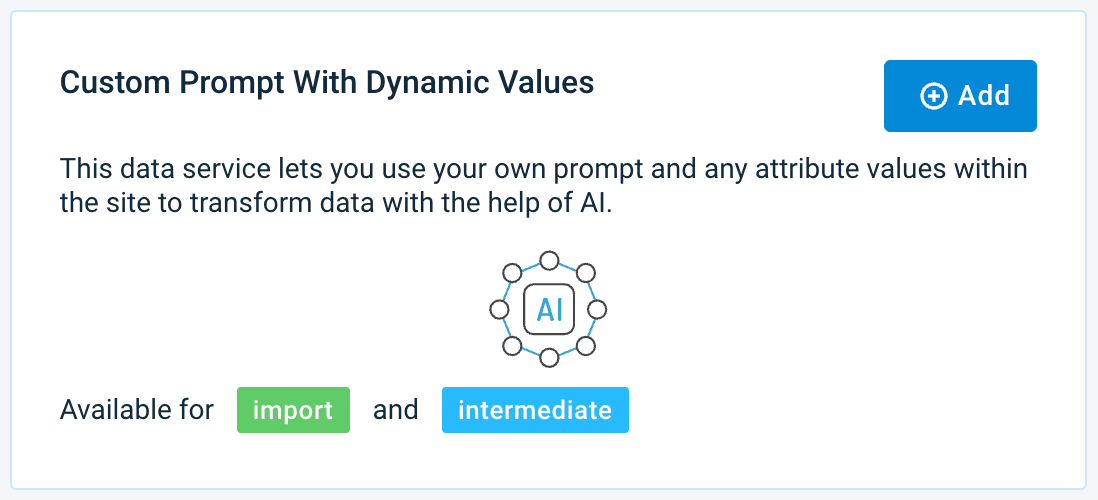
In Column prefix, you can provide a desired name for the attribute the platform creates to import your new values. By default, ___service_ai_custom_prompt is the attribute name.
In Service Data Level, choose the stage where you have the attribute you want to use in your AI prompt.
Check the Open AI terms checkbox to confirm that you have read and accept OpenAI's Terms of Service. You can't add the data service without selecting this checkbox.
Select Add.
Only if you use Microsoft Copilot (Azure OpenAI):
In Base URL, enter the base URL of your Azure OpenAI API in the format https://{resource}.openai.azure.com/openai/deployments/{deployment}, substituting {resource} and {deployment} with your parameters.
In API version, enter your Azure OpenAI API version. The platform will append /chat/completions?api-version={version} automatically.
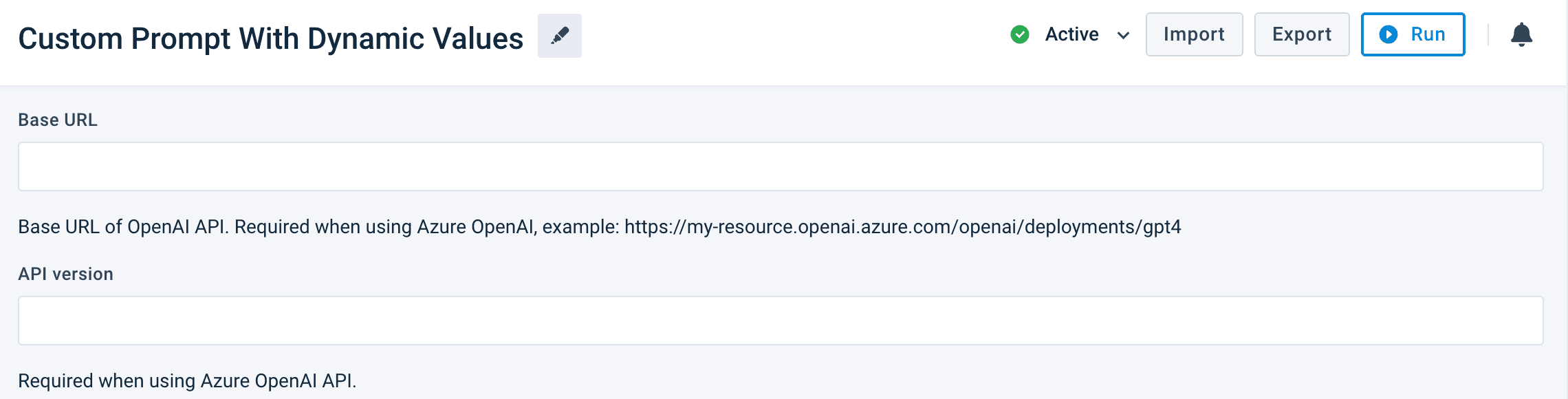
This step is only for the customers who use Microsoft Copilot (Azure OpenAI). Skip this step if you use another AI provider.
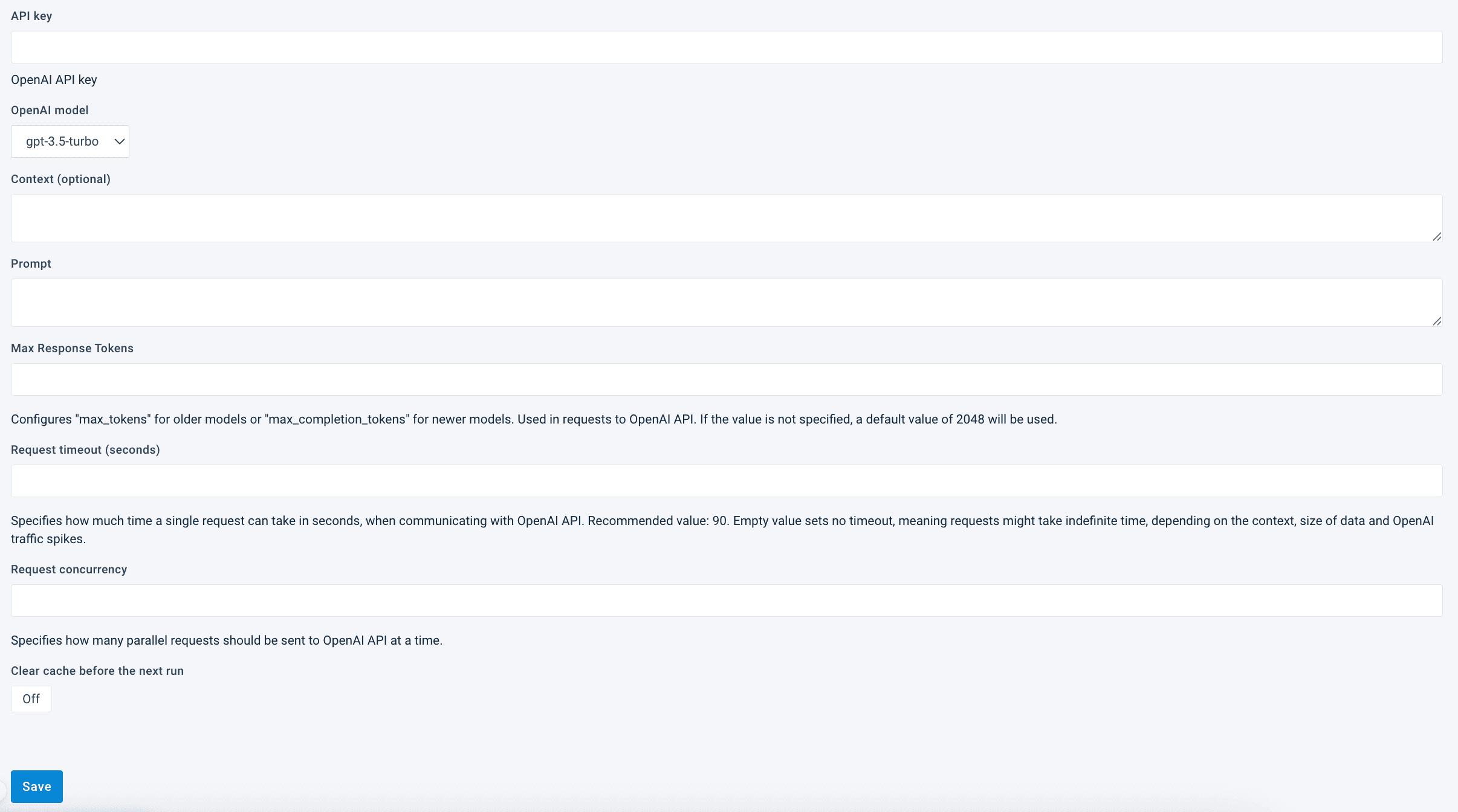
Add your authentication data for the OpenAI API in API key.
In OpenAI model, choose the AI model for your specific use case, whether you need faster responses, more advanced reasoning, or compliance with internal AI usage guidelines.
In Context (optional), you can provide additional information to guide the AI tool in working with your prompt. For example, you can give examples of the expected output, describe the tone of the text you want to generate, or explain what the AI tool should and shouldn't do with your data.
In Prompt, enter your AI prompt. It should describe how you want AI to generate or transform your values.You can add the values of an attribute to the prompt. Enter @ and select the needed attribute from the list, or enter @ and start typing the name of the needed attribute to filter the list and select the needed attribute.
If you chose Import in see the relevant section, the list you see after entering @ displays the attributes of your import stage. If you chose Intermediate in that field, the list contains your intermediate-stage attributes.
In Max Response Tokens, set the maximum number of tokens in the AI’s response. It configures max tokens for older models or max completion tokens for newer models. If you leave the field empty, the platform uses a default value of 2048.
In Request timeout (seconds), define the waiting time for a response before the data service stops the attempts. Recommended time is 90 seconds. An empty value sets no timeout. This means that requests might take an indefinite time depending on the context, size of data, and OpenAI traffic spikes.
In Request concurrency, specify the number of parallel requests to OpenAI. This feature speeds up processing for large datasets. Maximum concurrency depends on your Open AI subscription terms.
If you want the platform to clear the cache for all products, turn on Clear cache before the next run. After the next run, it returns to the Off state, and you need to activate it again whenever you want to clear the cache and generate new texts.
If you want to stop requests to OpenAI API when a plan / billing issue occurs, turn on Stop requests when a plan issue is detected. When enabled, it will stop all requests to OpenAI and use cached data where available if a plan issue is detected, not allowing the data service to fail. This could be due to invalid API key, deactivated account, billing hard limit reached, insufficient quota or expired API key.
Select Save.
For the platform to process a new data service, select Run in the top-right corner of your site's view.
If you can't see your new values in Data View, ensure the platform hasn't hidden it:
Go to Data View from your site's main menu and choose the relevant stage or export in the dropdown on your left.
Select the menu icon on the right and then select the eye icon.
Find the attribute ___service_ai_custom_prompt_ in the list and select the eye icon next to it.
Close the pop-up.
The naming of the attribute created by the Custom Prompt With Dynamic Values data service depends on the input you provided in see the relevant section. The names of the attributes the data service generates always start with three underscores (___), which means the platform doesn't send such attributes to your export channels.
Best practices
Test on a small sample first. Run the service on a handful of products and review the output in Data View before processing your full catalog. Large catalogs take longer and consume more provider tokens, so validate your prompt and output format before scaling up.
Generate at parent level and inherit to variants. If your feed has variants (size, color) that share a parent product, run the service only for parent products and propagate the result to variants by matching on Item Group ID. This reduces token cost and keeps every variant of the same product consistent, instead of generating a slightly different value per variant.
For values that must stay identical across variants, generate a base and append the rest. For example, to build a title that ends in size and color, generate the base title (Brand — Product — Gender — Material) once at parent level, then append the size and color attributes with Append rule boxes. This guarantees consistency across variants and avoids re-running AI per variant.
Reference attribute values, not attribute names. Whenever the platform sends your prompt to the AI provider, it replaces each @attribute placeholder with that row's actual value, not the attribute's name. This can create confusing conditions: a prompt like If @dimming = "Yes", do X becomes If Yes = "Yes", do X for any row where dimming equals Yes, since the AI provider never sees the attribute name to know what "Yes" refers to. Phrase conditions so they still make sense after the substitution, or describe the context in plain language rather than comparing a value to itself.
Edit the data service Custom Prompt With Dynamic Values
Go to Data Services from your site's main menu.
Change the settings of the needed data service:
- To deactivate a data service, choose the pause icon next to the desired data service.
- Select the cogwheel icon (⚙) next to the desired data service to edit other settings and select Save.
Delete the data service Custom Prompt With Dynamic Values
Go to Data Services from your site's main menu.
Tip
To stop a data service from affecting your feed without deleting the data service itself, you can choose the pause icon next to the desired data service.
Select the cogwheel icon
 next to the desired data service.
In the Danger Area panel, select Remove this service.
Select Yes.
Common use cases and example prompts
The prompts below are starting points. Adjust the attributes and guidelines to match your feed and target channel. Enter them in the Prompt field when you add the data service.
Generate a product title
Produce a consistent, SEO-friendly title from your product attributes.
You are an expert in eCommerce SEO and product title optimization.
Using the product data provided, generate a concise, SEO-friendly title
under 150 characters in this order: Brand — Product — Gender — Material.

Guidelines:
- Start with the brand if available.
- Derive the product name naturally from the attributes.
- Use dash separators and Title Case.
- Include pack, volume, or size only if explicitly available.
- Avoid promotional adjectives.
- Return only the final title, with no quotes or explanation.

Product data:
Brand: @brand
Product type: @product_type
Gender: @gender
Material: @materialExample output: Acme — Running Shoes — Men — Mesh
Generate a product description
Produce a short, keyword-rich description suitable for shopping channels.
You are an expert in eCommerce SEO and product description optimization.
Using the product data provided, write a clear, keyword-rich description
of no more than five sentences.

Guidelines:
- Use a natural, informative tone.
- Begin with the brand and product type.
- Highlight key features, materials, and use cases.
- Avoid promotional or exaggerated language.
- Exclude pricing, shipping, and return details.
- Return only the description text.

Product data:
Brand: @brand
Product type: @product_type
Material: @material
Existing description: @description
Generate a product type or Google product category
Classify a product into a standardized category hierarchy.
You are an expert in product taxonomy and classification.
Using the product data provided, generate a single standardized product type.

Guidelines:
- Use a hierarchy 3–5 levels deep, separated by " > ".
- Avoid brand names, colors, and sizes.
- Choose the most specific applicable category.
- Use Title Case.
- Return only the product type.

Product data:
Product title: @title
Existing description: @descriptionExample output: Women > Clothing > Jeans > Mom Jeans
Generate SEO keywords
Produce a set of search keywords from a product's attributes.
You are an eCommerce SEO specialist.
Using the product data provided, generate 5–8 relevant search keywords
for this product.

Guidelines:
- Base keywords on the product's type, use cases, and key attributes.
- Order from most to least relevant.
- Separate keywords with commas.
- Return only the keyword list.

Product data:
Product title: @title
Product type: @product_type
Translate product content
Because you can give the model context — tone, target audience, and product-specific terminology — this service can produce translations that read more naturally and stay more on-brand than generic machine translation. It's a strong option when translation quality matters or when you want to enforce a glossary or house style.
You are a professional eCommerce translator.
Translate the product text below into French.

Guidelines:
- Preserve meaning, tone, and product-specific terminology.
- Keep units and formatting unchanged.
- Do not add or omit information.
- Return only the translated text.

Text to translate:
@product_descriptionTranslate into several languages in one request
If you need the same text in multiple languages, you can save processing time and tokens by asking for all of them in a single request, separated by a delimiter you choose. You then split the combined result into one attribute per language and map each to the correct localized field.
You are a professional eCommerce translator.
Translate the product text below into French, German, and Spanish.

Guidelines:
- Preserve meaning, tone, and product-specific terminology in each language.
- Return the three translations on a single line in this exact order:
  French|||German|||Spanish
- Separate them with ||| (three pipe characters) and nothing else.
- Do not add language names, labels, or explanations.

Text to translate:
@product_descriptionThe service returns one attribute containing all three translations joined by |||. To split them, add the Explode Columns data service, choose that attribute, and split it on |||. This creates a separate column per language, which you can then map to the localized attribute for each market.
Choose a delimiter that won't appear in your content (for example ||| or another uncommon token) so the split stays clean.
Transform existing values
The service isn't limited to generating new content — it can also reshape values you already have. Describe the transformation in your prompt and reference the attribute to transform. For example, convert dimensions from one unit to another, reformat a date, or standardize capitalization across a text attribute.
FAQ
How do I generate new product titles or descriptions with AI? Add the Custom Prompt With Dynamic Values data service, then enter a prompt describing the title or description you want and reference your attributes, such as brand, product type, gender, or material, inside it. See the example prompts above.
Can I generate a Google product category or product type? Yes. Use a prompt that asks for a standardized category hierarchy and reference your title and description attributes. See the product type example above.
Which attributes can I use in my prompt?
Any attribute in the stage you selected in Service Data Level. Type @ in the Prompt field and pick from the list, or type @ followed by the attribute name to filter.
Will my generated values change on every run? No. Results are cached per product, so identical inputs return the same output run over run. Values regenerate only when you clear the cache or change the model, context, prompt, or a referenced attribute.
How do I keep titles consistent across product variants? Generate the value at parent level and inherit it to variants by matching on Item Group ID. See Best practices above.
Can I translate my product content with this service? Yes. Giving the model context — tone, audience, and terminology — often produces more natural, on-brand translations than generic machine translation. To translate into several languages efficiently, ask for all of them in one prompt separated by a delimiter, then split the result into one column per language with the Explode Columns data service. See Translate product content above.
See also
- Generate and transform content with AI data services — overview of every AI-powered data service and when to use each.
- Use Claude with the data service Custom Prompt With Dynamic Values — use Anthropic's Claude models with this data service through their OpenAI-compatible endpoint.
- Use Google Gemini with the data service Custom Prompt With Dynamic Values — use Google's Gemini models with this data service through their OpenAI-compatible endpoint.
- Shorten, lengthen, or create text from attributes with AI data services — reshape text you already have, rather than generating new content.
How is this guide?