

Remove image background with the Image Background Removal (Leonardo.Ai) service
Remove the background from your product images with Leonardo.Ai and store the transparent images in your Amazon S3 bucket.
The Image Background Removal (Leonardo.Ai) service removes the background from your product images so your products stand out. The platform sends each image URL to Leonardo.Ai, stores the result as a PNG image with a transparent background in your Amazon S3 bucket, and adds the link to the new image to your feed.
How the service processes your images
During every site run, the service reads the image URL in the column you choose and does the following for each product:
- Leonardo.Ai downloads the image from the URL and removes the background.
- The platform uploads the PNG image with a transparent background to your Amazon S3 bucket.
- The platform adds the URL and the file name of the new image to two new columns.
Leonardo.Ai does not keep a copy of your images or the results in your Leonardo.Ai account.
The platform remembers which images it has already processed for 30 days. If the image URL and your S3 bucket stay the same, the platform reuses the stored image in the next runs, so Leonardo.Ai does not charge you for that image again. When several products share the same image URL, the platform processes the image once.
What you need before you add the service
- A Leonardo.Ai account with enough API credit. Leonardo.Ai charges your account for each processed image, about USD 0.10 per image. See Plan with the Leonardo.Ai pricing calculator for the current price.
- A Leonardo.Ai API key. You can create one in your Leonardo.Ai account under API Access.
- An Amazon S3 bucket and an access key that can upload files to that bucket.
- A unique item identifier set up in your site.
The platform stores the new images in your S3 bucket. Make sure the bucket allows public access to the images if your export channels need to download them.
Add the Image Background Removal (Leonardo.Ai) service
To add the Image Background Removal (Leonardo.Ai) service:
Go to Data Services from your site's main menu and select ADD SERVICE.
Search for Image Background Removal (Leonardo.Ai) and select Add.
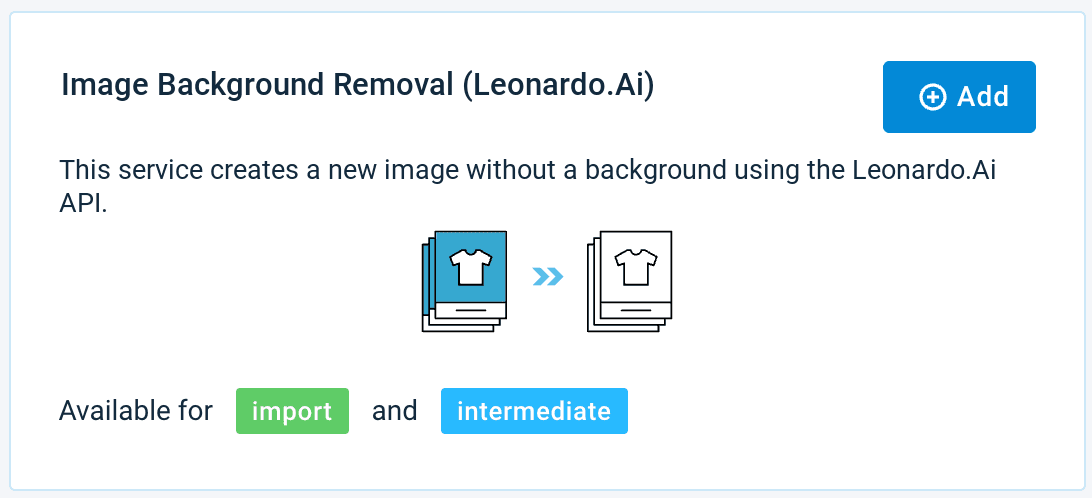
(Optional) Enter a custom name for the service in Name. This name replaces the default name of the service on the Data Services overview page.
(Optional) Enter a custom column prefix in Column prefix. The platform adds this prefix to the two columns the service creates. The default prefix is ___service_background_remover.
Choose the attribute level that contains your image URLs in Service Data Level: Import or Intermediate.
Select Add.
Enter your Leonardo.Ai API key in Leonardo.Ai API Key.
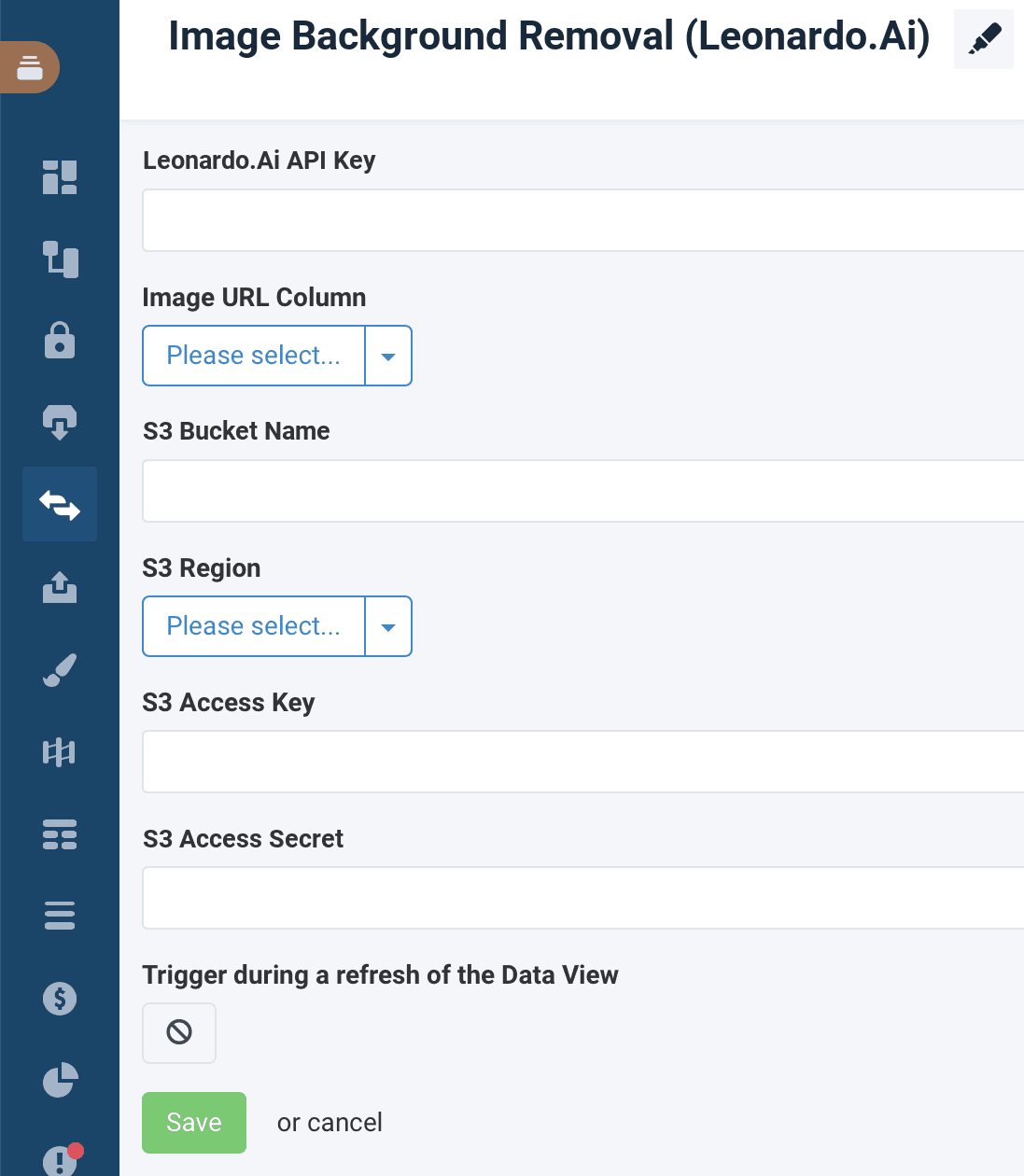
Choose the column that contains the image URL from the Image URL Column drop-down menu.
Enter the name of your bucket in S3 Bucket Name.
Enter only the bucket name, without the s3:// prefix.
Select the region of your bucket in S3 Region.
Enter your Amazon S3 credentials in S3 Access Key and S3 Access Secret.
(Optional) To run the service when you refresh Data View, select Off under Trigger during a refresh of the Data View. The button changes to On.
Select Save.
Columns the service adds to your feed
The service adds two columns. With the default column prefix, the columns are:
| Column | Content |
|---|---|
___service_background_remover_image_url | URL of the image with a transparent background in your S3 bucket |
___service_background_remover_image_name | File name of the image in your S3 bucket |
If you entered a custom column prefix when you added the service, the columns start with your prefix instead.
If the platform cannot process the image of a product, both columns stay empty for that product.
See the cost of a run
At the end of every run, the service writes a summary to the site's process log. The summary shows how many products got a new image, how many came from the stored images, how many failed, and what the run cost in your Leonardo.Ai account. For example:
Products: 16 with a new image, 2 from cache, 2 failed, 0 without image URL. Leonardo.Ai cost: USD 1.57.
Errors and how to solve them
| Message in the process log | What happens | What to do |
|---|---|---|
| The Leonardo.Ai API key was rejected | The service stops before it processes any image | Check the API key in the service settings |
| Images could not be uploaded to the S3 bucket | The service stops after the first image | Check the bucket name, region, and access key in the service settings, and that the access key can upload files to the bucket |
| Your Leonardo.Ai account has no API credit left | The platform keeps the images it already processed and skips the remaining images. The products of the skipped images have empty image columns | Top up your Leonardo.Ai API credit and run your site again. The platform processes only the skipped images |
| Image "…" could not be processed | The platform skips this image and processes the other images. The product has empty image columns | Check that the image URL opens the image directly. The platform tries the image again in the next run |
Edit an existing Image Background Removal (Leonardo.Ai) service
To edit the settings of your service:
Go to Data Services from your site's main menu and select the Settings cogwheel icon of your service.
Make your changes and select Save.
If you change the S3 bucket, the platform processes all images again in the next run, and Leonardo.Ai charges you for each image.
Delete an existing Image Background Removal (Leonardo.Ai) service
To delete your service:
Go to Data Services from your site's main menu and select the Settings cogwheel icon of your service.
Scroll to the bottom of the Settings page and select Remove this service.
How is this guide?