

Individual config
Define form fields that end-users fill in when using your connector.
Individual configuration defines the form fields that end-users see when they add your connector to a site. Each field becomes an environment variable or CLI flag at runtime — this is how end-users customize connector behavior without touching code.
For example, if your connector imports products from an API, you might define fields for the API key, base URL, and batch size.
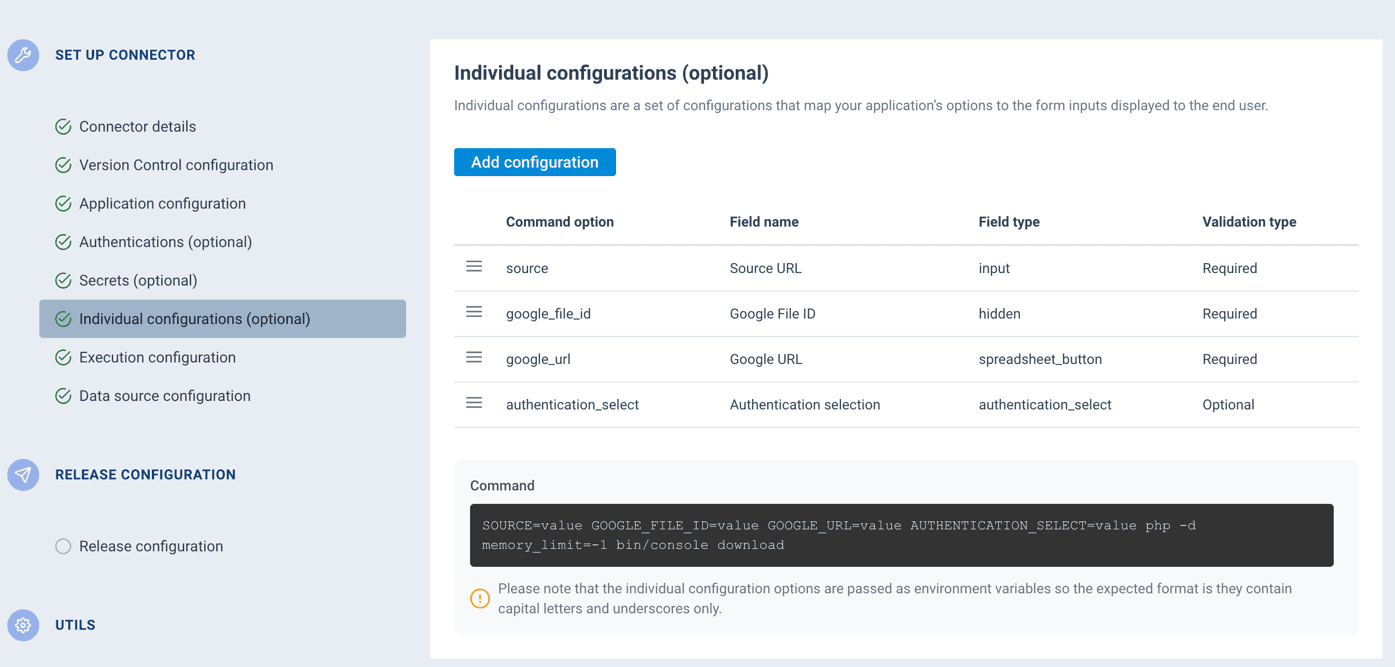
The fields you define here are displayed to end-users as a form on the ProductsUp platform once the connector is synced.
Field properties
Each field has the following properties:
| Property | Required | Description |
|---|---|---|
| Command option | Yes | The key used to pass the value to your connector at runtime. Must start with a letter and can contain letters, numbers, dashes, and underscores. |
| Field type | Yes | The type of form control shown to end-users. See field types below. |
| Field name | Yes | The label displayed to end-users. |
| Required | No | Whether the field must be filled in. Defaults to false. |
| Placeholder | No | Hint text shown inside the input when empty. |
| Description | No | Help text displayed below the field. |
| Default value | No | A pre-filled value. For checkboxes, must be 0 or 1. For selects, must match one of the defined options. |
| Field config | Select types only | A JSON object defining the available options. Required for select and select_multiple types. |
| Order | No | The position of the field in the form. Fields are displayed in ascending order. |
Field types
Common types (all connector types)
| Type | Description |
|---|---|
input | Single-line text input. Use for short values like API keys, URLs, account IDs. |
textarea | Multi-line text input. Use for longer content like templates or JSON payloads. |
password | Masked text input. Use for sensitive values. |
checkbox | A boolean toggle. Default value must be 0 (unchecked) or 1 (checked). |
select | Dropdown with predefined options. Requires field config with a JSON object of key-label pairs. |
select_multiple | Multi-select dropdown. Same config format as select. |
hidden | A hidden field not visible to end-users. Use for internal defaults. |
Type-specific fields
Some field types are only available for specific connector types:
| Type | Available for | Description |
|---|---|---|
date | Data source, Data service | A date picker. |
integer | Data service | Numeric input (integers only). |
number | Data service | Numeric input (decimals allowed). |
export_headers | Export, Export delta | Export header selection. |
feed_headers | Export, Export delta | Feed header selection. |
stage_columns_dropdown | Data service | Column selection dropdown. |
stage_columns_dropdown_multiple | Data service | Multi-select column selection. |
Select field config
For select and select_multiple fields, the field config property must contain a JSON object mapping option keys to display labels:
{
  "us": "United States",
  "de": "Germany",
  "uk": "United Kingdom"
}The keys are the values passed to your connector at runtime. The labels are what end-users see in the dropdown. If you set a default value, it must match one of the keys.
How values reach your connector
The command option property determines how the value is passed to your connector, based on the execution mode:
Environment variable mode (recommended)
The command option is converted to an uppercase environment variable. Dashes are replaced with underscores.
| Command option | Environment variable |
|---|---|
api_key | API_KEY |
base-url | BASE_URL |
batchSize | BATCHSIZE |
Command options mode
The command option is used as a CLI flag prefixed with --.
| Command option | CLI flag |
|---|---|
api_key | --api_key='value' |
base-url | --base-url='value' |
If you're using environment variable mode, avoid dashes in command options — use underscores instead. Dashes are converted to underscores in env var names, which can be confusing.
Accessing values in your code
Here's a complete example: define two fields in the Dev Portal (api_key and batch_size), then access them in a Symfony service.
In the Dev Portal, create two individual config fields:
| Command option | Field name | Field type | Required |
|---|---|---|---|
api_key | API Key | input | Yes |
batch_size | Batch Size | input | No |
In config/services.yaml, bind the environment variables to service parameters:
services:
    _defaults:
        autowire: true
        autoconfigure: true
        bind:
            $apiKey: '%env(API_KEY)%'
$batchSize: '%env(int:BATCH_SIZE)%'In your service, receive them as typed constructor parameters:
readonly class ImportService
{
    public function __construct(
        private ContainerApiInterface $containerApi,
        private string $apiKey,
        private int $batchSize,
    ) {}

    public function run(): void
    {
        $client = new \GuzzleHttp\Client();
        $response = $client->get('https://api.example.com/products', [
            'headers' => ['Authorization' => 'Bearer ' . $this->apiKey],
            'query' => ['limit' => $this->batchSize],
        ]);

        // Process response...
    }
}Symfony's %env()% syntax supports type casting: int:, bool:, json:, and plain strings. This keeps your configuration strongly typed and your dependencies explicit.
Ordering
Fields are displayed to end-users in the order you define. You can reorder fields by changing their order value in the Dev Portal. When you insert a field at a specific position, surrounding fields are automatically reordered.
How is this guide?