

VCS config
Connect your connector to a Git repository so the Dev Portal can pull your code and build it.
The Version Control configuration step connects your connector to a Git repository. The Dev Portal pulls your code from this repository when you trigger a build.
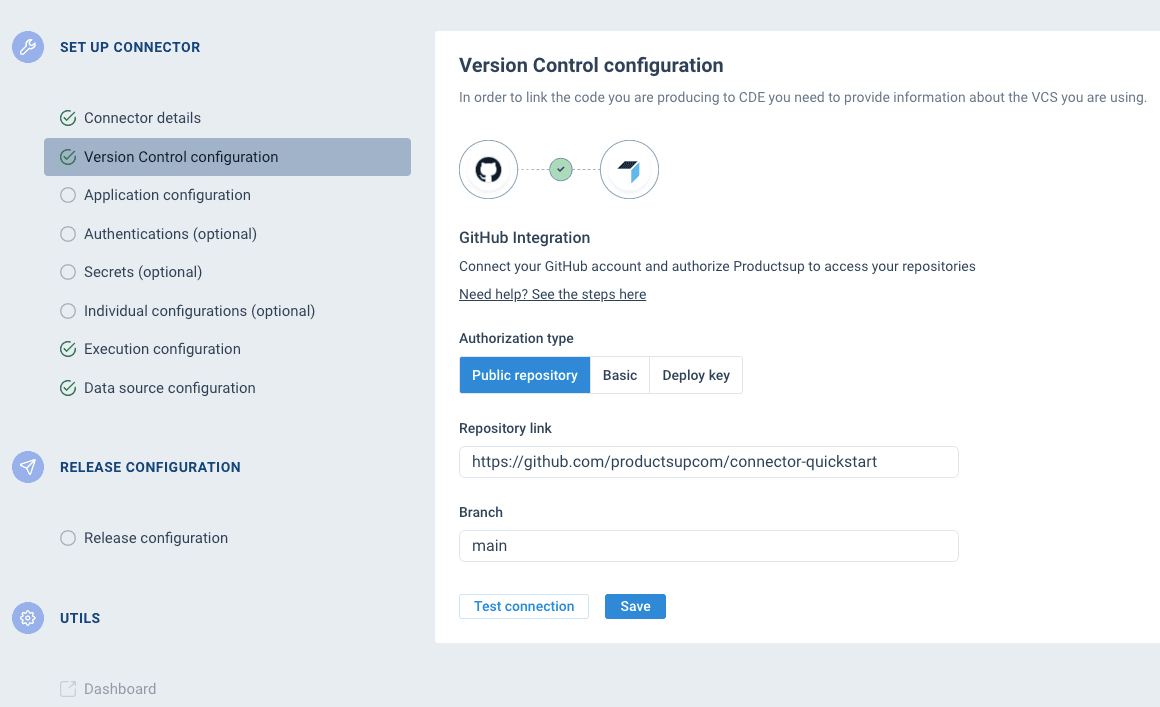
Fields
| Field | Required | Description |
|---|---|---|
| Authorization type | Yes | How the Dev Portal authenticates with your repository. See authorization types below. |
| Repository link | Yes | The URL to your Git repository. Format depends on the authorization type — HTTPS for public and basic auth, SSH for deploy keys. |
| Branch | No | The branch to pull code from. Defaults to main if not set. |
| Username | Basic auth only | Your Git username or email. Required when using basic auth. |
| Token | Basic auth only | A personal access token — on GitHub, a fine-grained token. Required when using basic auth. Stored securely in Vault — never returned in API responses. |
Authorization types
Public repository
No credentials needed. Use this for public repositories that don't require authentication.
- Repository link format: HTTPS — e.g.
https://github.com/productsupcom/connector-quickstart
Basic auth
Authenticate with a username and personal access token. This is the quickest way to connect a private repository.
- Repository link format: HTTPS — e.g.
https://github.com/your-org/your-connector - Username: Your Git provider username or email
- Token: A personal access token with read access to the repository
Create a GitHub token
On GitHub, use a fine-grained personal access token. It can be limited to the connector repository and to read-only access, which is all the Dev Portal needs.
- Go to your GitHub profile → Settings → Developer settings → Personal access tokens → Fine-grained tokens, or open github.com/settings/personal-access-tokens directly.
- Click Generate new token.
- Enter a token name and set an expiration date.
- Under Resource owner, select the account or organization that owns the connector repository.
- Under Repository access, select Only select repositories and choose the connector repository.
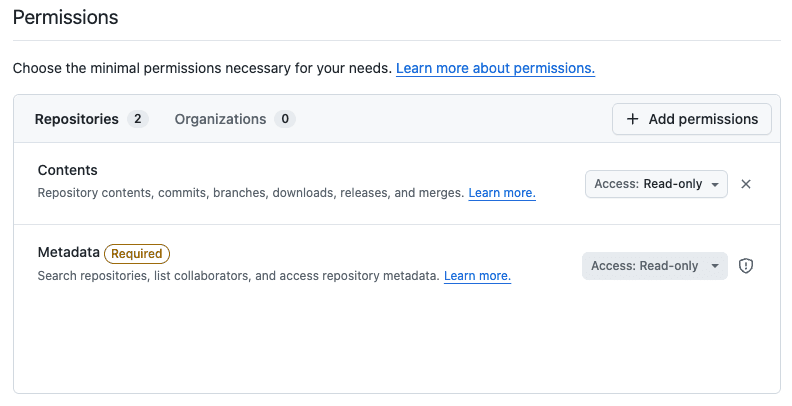
- Under Permissions, click Add permissions, select Contents, and set Access to Read-only. GitHub adds Metadata with read-only access automatically.
- Click Generate token and copy it. GitHub shows the token only once.
- In the Dev Portal, paste the token into Token and enter your GitHub username in Username.
If the resource owner is an organization, an organization owner may have to approve the token before it can access the repository. When the token expires, the build can't pull code — generate a new token and update it in the VCS config.
The token is stored securely and never shown in the UI after saving. If you need to update it, provide a new token — you can't retrieve the old one.
Deploy key
Authenticate with an SSH key pair. The Dev Portal generates the key pair automatically — you add the public key to your repository as a deploy key.
- Repository link format: SSH — e.g.
git@github.com:your-org/your-connector.git
When you select deploy key and save:
- The Dev Portal generates an SSH key pair
- The public key is displayed in the UI — copy it
- Add it as a deploy key in your Git provider (GitHub → Settings → Deploy keys, GitLab → Settings → Repository → Deploy keys, etc.)
- Grant read-only access — the Dev Portal only needs to pull code
Deploy keys are recommended for production connectors. They're scoped to a single repository and don't expire with a personal account, unlike personal access tokens.
Test connection
After saving your VCS config, click Test connection to verify the Dev Portal can reach your repository and find the configured branch. This checks:
- The repository URL is reachable
- The credentials are valid (for basic auth and deploy key)
- The configured branch exists
If the test fails, check that:
- The repository URL is correct and uses the right format (HTTPS vs SSH)
- For basic auth: the username and token are valid and have read access
- For deploy keys: the public key has been added to the repository
- The branch name matches an existing branch in the repository
URL format reference
| Authorization type | URL format | Example |
|---|---|---|
| Public | HTTPS | https://github.com/productsupcom/connector-quickstart |
| Basic | HTTPS | https://github.com/your-org/your-connector |
| Deploy key | SSH | git@github.com:your-org/your-connector.git |
How is this guide?