

Import data from Facebook Ad Insights
Learn how to import data from Facebook Ad Insights into the Productsup platform.
Introduction
Facebook Audience Insights gives you aggregated information about three (3) groups of people who are:
- People connected to your Page
- People in your Custom Audience
- People on Facebook
With this information, you can create content that resonates and increase your current audience.
To import products from your Facebook Audience Insights to Productsup, you need to add and set up the data source Facebook Ad Insights in Data Sources.
Prerequisites
To use Facebook Ad Insights as a data source in Productsup, you need:
- Your Facebook account.
Add the data source Facebook Ad Insights
Go to Data Sources from your site's main menu and select ADD DATA SOURCE.
Search for Facebook Ad Insights, select Add, give the data source a name as desired, and then select Continue.
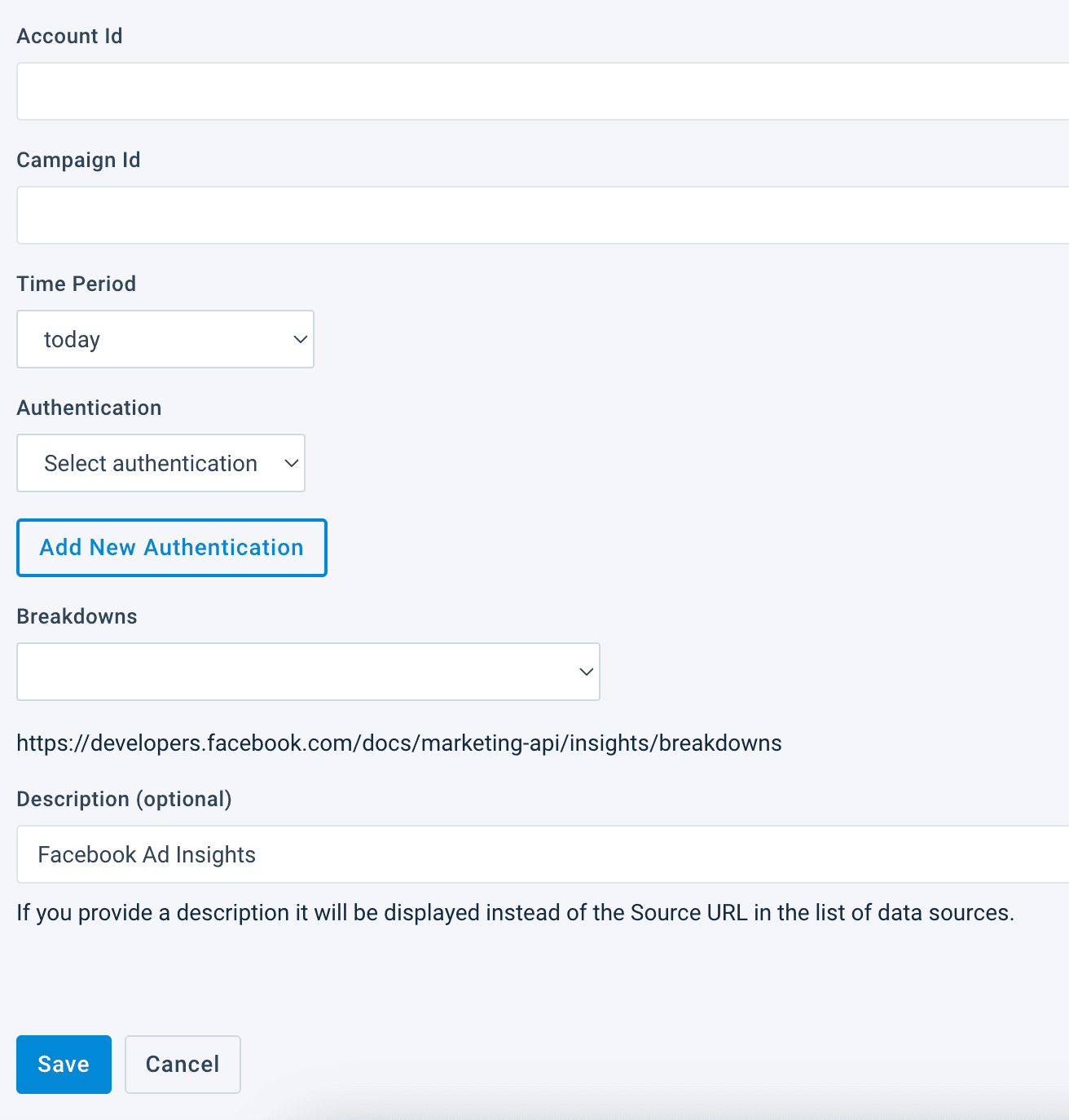
In Account Id, enter the account ID of your Facebook Audience Insights.
In Campaing Id, enter the campaign ID if you only want to import insights for a specific campaign.
In Time Period, select the period for which you want to import the data.
In Authentication, select the Add New Authentication button. In Add new authentication pop-up window, select Facebook in Type and enter the name for your authentication as desired. Select Next.
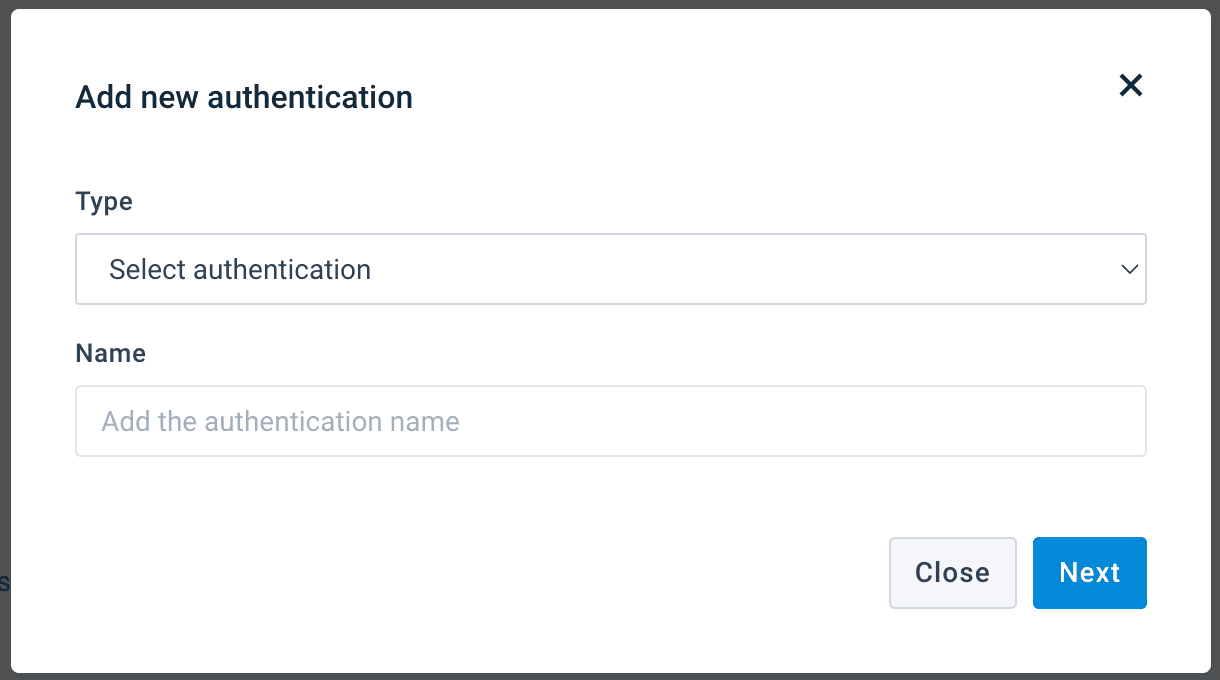
The Facebook login page opens. Enter your Facebook credentials.
In Breakdowns, select a necessary breakdown. See Insights API Breakdowns for more information.
In Description (optional), add a description for your data source. It substitutes the data source name on the Overview Data Sources page.
Select Save.
If your site already has a main data source, and the platform uses it to import your product catalog, you can make Facebook Ad Insights an additional data source.
Tip
See Enhance your products with additional data sources for more information.
- Go to Data Sources and select the cogwheel (⚙) icon next to Facebook Ad Insights data source you've just set up.
- In the Content Mode panel, select Additional Data Source.
- Define how the platform should import data from Google Analytics by choosing the desired option in Additional Data Source Types.
- Choose the column that uniquely identifies products in this data source in ID Column In This Feed.
- Choose the column that uniquely identifies products in your main data source in ID Column From Your Main Feed.
To import data from Facebook Audience Insights, select Import in the top-right corner of your site's view.
How is this guide?