

Dataflow / Box Performance in Pulse Score
Learn how Pulse Score checks which rule boxes take the largest share of processing time.
Coming soon
Pulse Score is currently available only to customers in the closed beta. It becomes available to all customers with its general release. If you encounter any issues while using it, contact support@productsup.com.
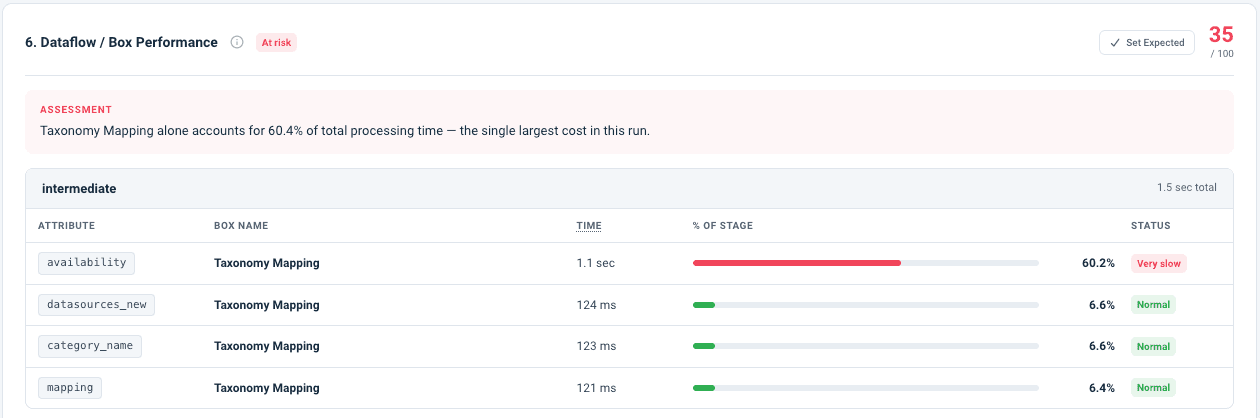
The Dataflow / Box Performance dimension of Pulse Score shows which rule boxes in your Dataflow take the largest share of processing time, measured on a sample of up to 1,000 items per stage. Slow rule boxes make every run longer. This dimension counts for 13% of the overall Pulse Score. See Check your site's health with Pulse Score for how the overall score is calculated.
Rule boxes that the Dataflow / Box Performance dimension checks
The report shows one table per stage of your Dataflow, such as the intermediate stage or an export. Each table lists the rule boxes in that stage, slowest first, with these columns:
| Column | What it shows |
|---|---|
| Attribute | The attribute the rule box is applied to |
| Box name | The name of the rule box |
| Time | How long the rule box took to process the sampled items of the stage, up to 1,000 items. See How the platform measures rule box time. |
| % of stage | The rule box's share of the time that all rule boxes in the stage took for the same sampled items |
| Status | The rating of the rule box: Normal, Slow, Very slow, or Not measured |
The header of each table shows the time that all rule boxes in the stage took together for the sampled items.
How the platform measures rule box time
Measuring every rule box for every item would add a lot of time to the run itself, especially for sites with many items. Instead, the platform measures a sample: in each stage, it times every rule box on up to 1,000 items and then stops measuring for the rest of the run.
The time in the report is therefore the time a rule box needed for those sampled items, not the time it took for all items in the run. For example, a Time of 2.4 seconds in a stage with 50,000 items means that the rule box took 2.4 seconds for 1,000 items of that stage. Across all 50,000 items, it takes longer.
Because every rule box in a stage is timed on the same items, the times are comparable with each other. The % of stage column uses this: it compares each rule box with the other rule boxes of the same stage, not with how long the whole stage or run took. To see how long each phase of the run took, see Stage Timing Breakdown in Pulse Score.
The platform measures rule box time only during full site runs, and only if rule box timing is turned on for the site. The report shows the measurement of the latest completed full site run.
Why rule box times can differ from the full run
The Time and % of stage values in the report can differ from how long a rule box takes for all items of the run. The report does not estimate the time for all items from the sample, because a rule box does not always process every item at the same speed. How long a rule box takes for an item can depend on the item's values. For example, a rule box that looks up each item's value in a list of 15,000 entries finds the match quickly when the value is near the top of the list, and more slowly when it is near the end. If the sampled items match entries near the top and later items match entries near the end, the rule box takes longer for the rest of the run than the sample suggests. In cases like this, the Time and % of stage values can differ from the rule box's real share of the stage. Use them to decide which rule boxes to check first, rather than as exact measurements.
How the Dataflow / Box Performance score is calculated
The platform rates each rule box by its share of the time that all sampled rule boxes took in the run, across all stages:
| Share of the time of all sampled rule boxes | Rating |
|---|---|
| 25% or more | Very slow |
| 10% to less than 25% | Slow |
| Less than 10% | Normal |
The rating does not use the % of stage column. In a run with several stages, a rule box can take a large share of a short stage and still be rated Normal, because its share of all rule box time is small. The Assessment text states this share for the slowest rule box.
A rule box that took less than 100 milliseconds for the sampled items and less than 5% of its stage is not rated and shows Not measured.
The dimension score depends on the slowest rule box:
| Slowest rule box | Score | Status |
|---|---|---|
| At least one rule box is Very slow | 35 | At risk |
| At least one rule box is Slow | 65 | Watch |
| The report lists rule boxes, but none is Slow or Very slow | 90 | Healthy |
| The report lists no rule boxes | 100 | Healthy |
If no rule box timing is available for the latest completed run, the dimension scores 100 with the status Healthy.
What to do when Dataflow / Box Performance needs attention
Open the rule box that the report flags in Dataflow and check whether its settings can be simplified, for example a large list typed into the rule box instead of a list in Lists. The Activity Log dimension shows whether someone changed a flagged rule box recently.
How is this guide?