

Item Volume Trend in Pulse Score
Learn how Pulse Score checks whether the number of items your site imports or exports dropped.
Coming soon
Pulse Score is currently available only to customers in the closed beta. It becomes available to all customers with its general release. If you encounter any issues while using it, contact support@productsup.com.
The Item Volume Trend dimension of Pulse Score checks whether the number of items your site imported or exported in the latest run dropped or rose unusually compared with what is usual for your site. A sudden drop in items often means a problem with a data source or an export, for example a feed that arrived incomplete. A sudden rise can mean duplicated items, for example from a data source that was imported twice. This dimension counts for 13% of the overall Pulse Score. See Check your site's health with Pulse Score for how the overall score is calculated.
Item counts that the Item Volume Trend dimension checks
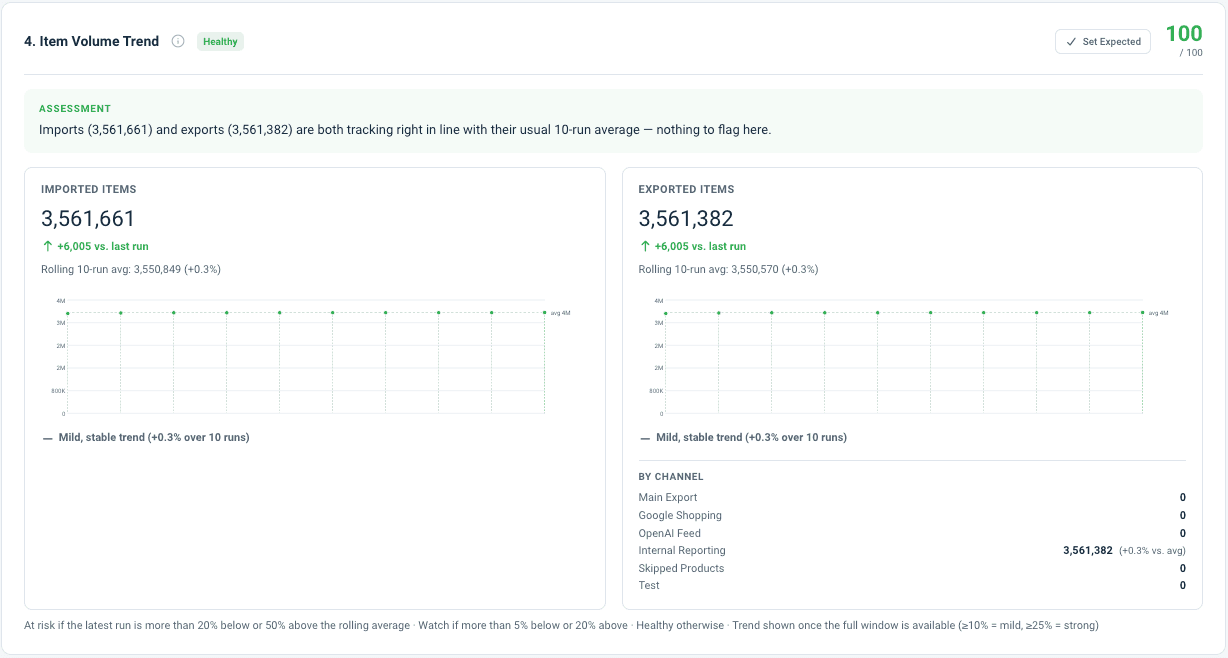
The platform compares the number of imported items and the number of exported items in the latest run with their average over the last 10 runs, including the latest run. The number of exported items is the total across all your exports. The report also shows the exported items per export, but only the total affects the score.
How the Item Volume Trend score is calculated
For imports and for exports, the platform calculates how far the latest run is from the 10-run average, as a percentage, in either direction. A rise has wider limits than a drop, so normal catalog growth does not lower the score, while a sudden jump does. The platform uses the worse result of imports and exports:
| Change of imports or exports compared with the 10-run average | Score | Status |
|---|---|---|
| A drop of more than 20%, or a rise of more than 50% | 35 | At risk |
| A drop of more than 5% and up to 20%, or a rise of more than 20% and up to 50% | 65 | Watch |
| Neither, and both sides within 1% of their average | 100 | Healthy |
| Neither, and both sides within 3% of their average | 95 | Healthy |
| Neither, and at least one side more than 3% from its average | 88 | Healthy |
For example, a run that imports 30% more items than the 10-run average has the status Watch. A run that imports 15% more items is Healthy.
Once the site has 10 runs of history, the assessment also describes the trend. The platform compares the average of the 5 most recent runs with the average of the 5 oldest runs. A difference below 10% is not mentioned, a difference of 10% or more is a mild trend, and a difference of 25% or more is a strong trend. The trend does not affect the score.
If the site has no import or export history yet, the dimension scores 50 with the status Watch.
What to do when Item Volume Trend needs attention
Check whether the change is expected, for example after you removed products from a data source or added a new data source. If it is not expected, check the import history in Data Sources and the export history in Exports for the run in which the number changed. A sudden rise can mean that a data source was imported twice. To be notified of drops as they happen, set up the Number of imported items decreased monitor. See Set up Monitor for your feeds.
How is this guide?