

Add Ceneo export
Add the Ceneo export in Productsup to the Ceneo marketplace.
Ceneo.pl is Poland's most popular comparison site, founded in 2005. Ceneo allows customers compare product offers from more than 18,000 Polish online stores.
Productsup created the integration that lets you export your data feed in XML format to Ceneo.
Set up Ceneo export
Go to Exports from your site's main menu, and select Add export.
Search for Ceneo, hover over it, and select Add.

On the Exports page, select the name of the added export to set it up.
Select Add Destination.
Select the needed destination option from the Destination dropdown, and select Save. See Find the most suitable export destination to choose a destination.
Select Save.
Go to Dataflow from the site's main menu and choose the added export from the dropdown in the toolbar.
Map the attributes from import to export. See Use Dataflow to map your attributes from import to export for more information.
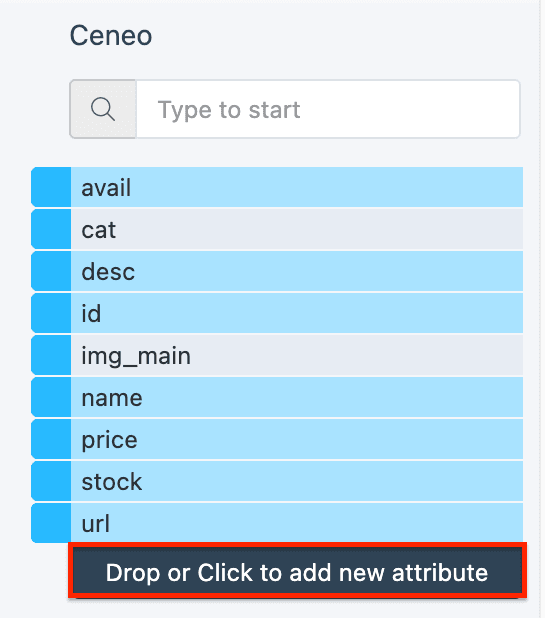
For additional images, you must add and map the img_i attribute in the export stage by selecting Drop or Click to add new attribute. These attributes may have multiple values separated by a comma (,).
If your data is ready, select Run or Export in the upper right corner of the page. If you don't want to run the entire site, including all active exports set up in it, you can go to Exports, select the added Ceneo export, and then choose Export this export.
How is this guide?