

Add CrossEngage (JSON) export
Add the CrossEngage (JSON) export to send product data to CrossEngage directly from the Productsup platform.
Introduction
The CrossEngage (JSON) export lets you send product data to your CrossEngage instance directly from the platform. Using the Crossengage (JSON) export, you must access a plug-in in the platform to convert your data as a JSON file.
Add and set up export
To add and set up the Crossengage (JSON) export in Productsup:
Go to Exports from your site’s main menu.
Select ADD EXPORT and search for Crossengage (JSON). Select Add and confirm adding it again as an export.
Now, select Add Destination and choose your desired destination from the drop-down list. (Optional) In Name, you can customize the destination name. Select Save.
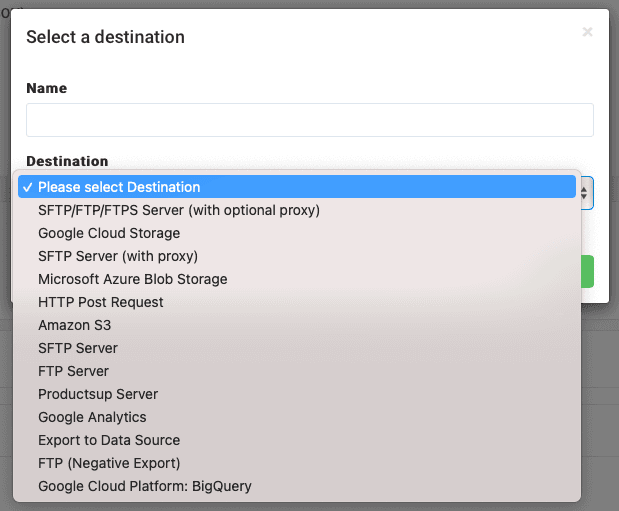
Enter the credentials or settings for your destination, as necessary.
Before converting your feed file to JSON, rename it to xxx.json. For example, myexamplecrossengfile.json.
Go to the Settings tab in the Crossengage (JSON) export channel and confirm that ,COMMA appears in CSV Separator.
To confirm that the export plug-in functions correctly, switch the CSV Enclosure button to On.
In Export-Plugin, enter the following path for the plug-in: \Export\JsonCrossengage.
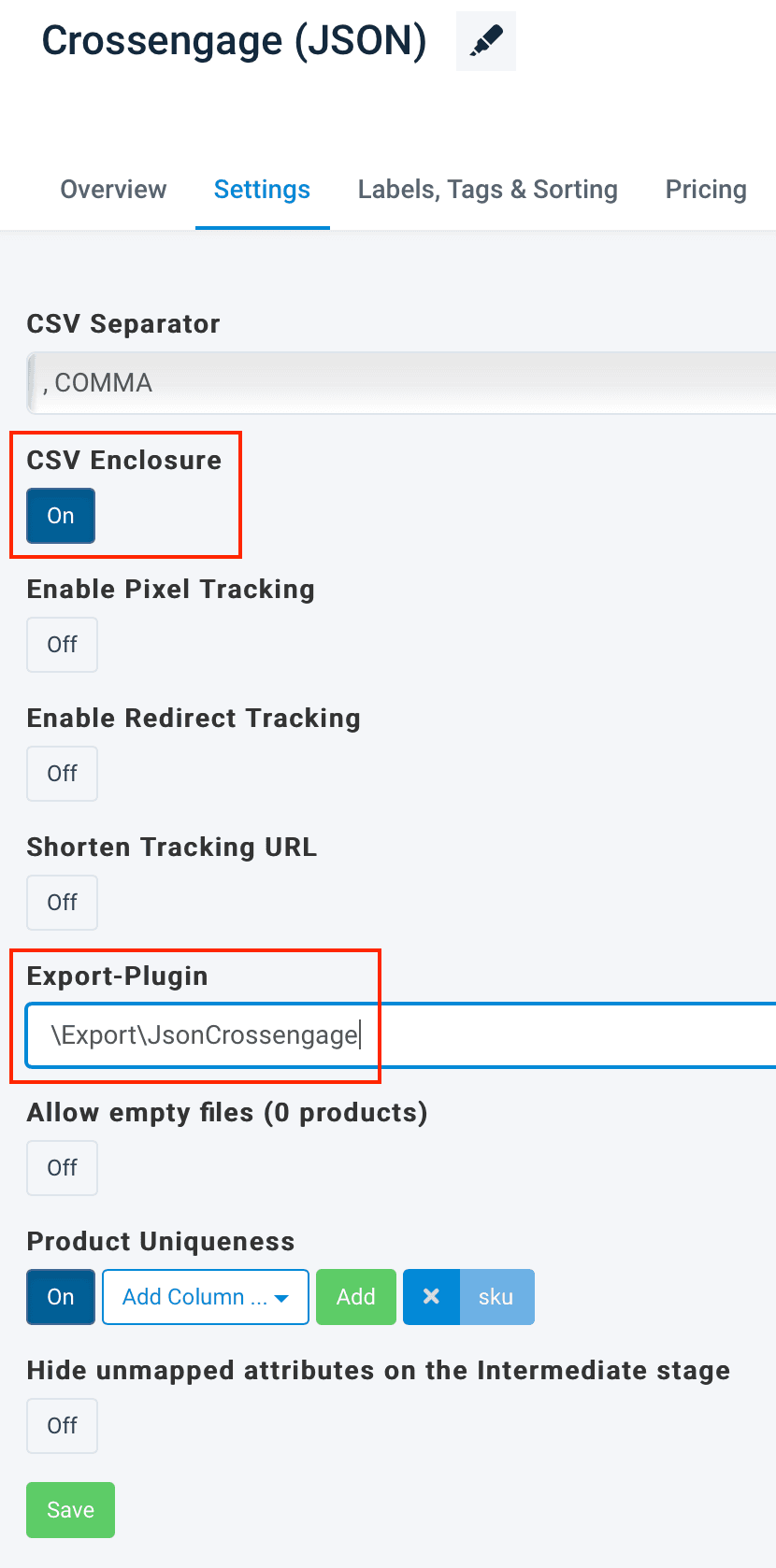
Select Save.
How is this guide?