

Add Google Responsive Search Ads export
Add the Google Responsive Search Ads export, which replaced the Google Ads API export in Productsup to send your product ads.
Introduction
This document explains the necessary steps for exporting your product ads using the Google Responsive Search Ads export. And how to use your exports during campaign creation in Google Ads.
The Google Responsive Search Ads export replaced the Google Ads API export. Productsup sunset the Google Ads (API) in anticipation of Google discontinuing support for expanded text ads on 30 June 2022.
You can create Google Ads campaigns, even if you don't list your products in Google Merchant Center, such as real estate listings.
To export ads to the Google Ads API, follow these required steps:
Add Google Ads authentication.
Set up the Google Responsive Search Ads export.
Set up the Google Responsive Search Ads destination.
Add your Google Ads authentication
To add and set up Google Ads authentication:
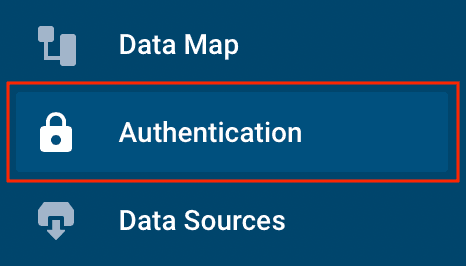
Go to Authentication from the site's main menu. Then select ADD AUTHENTICATION.
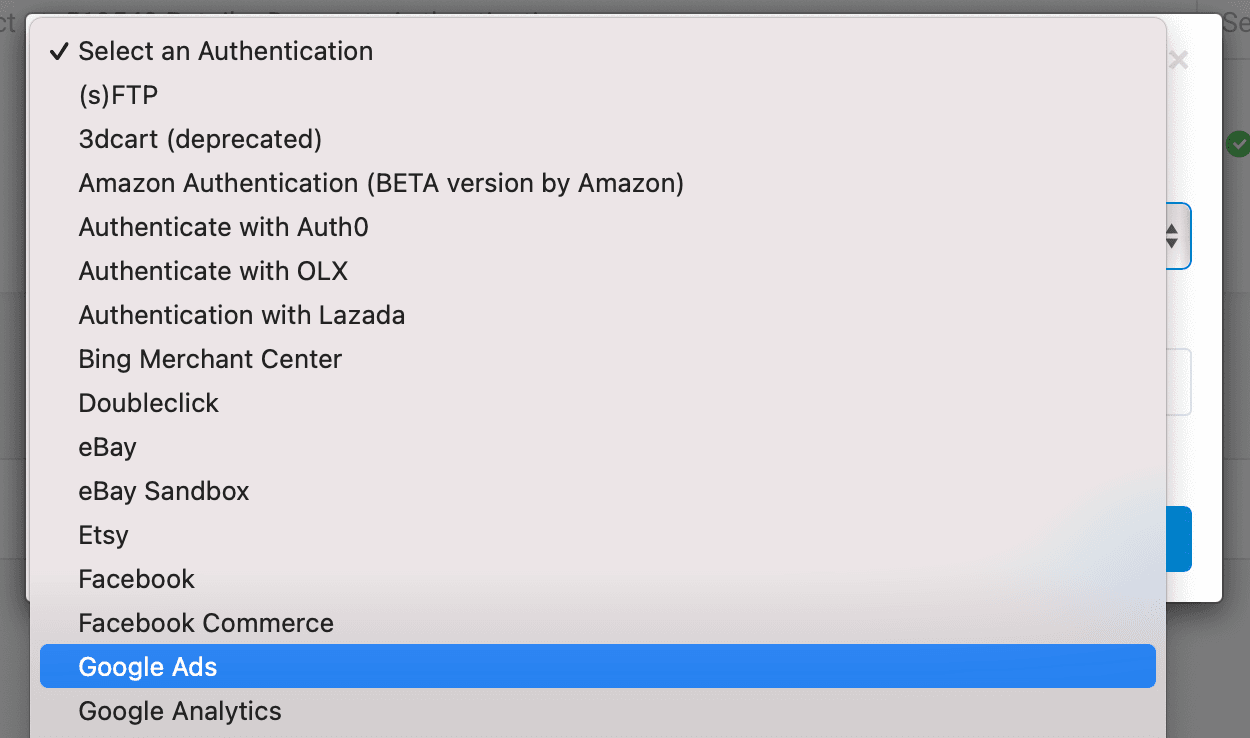
Next, select Google Ads from the drop-down menu and enter a custom name as desired in Name. Then select Next.
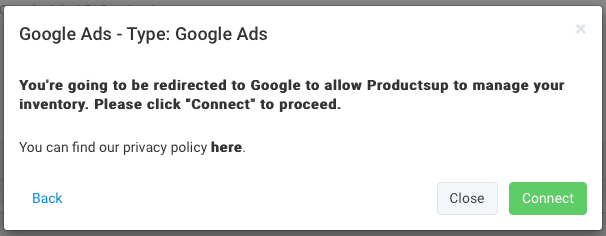
After selecting Connect, you can now proceed to Google to authenticate and authorize your Google and Productsup connection.
Set up the Google Responsive Search Ads export
Go to Exports and select ADD EXPORT. Next, choose the Google Responsive Search Ads export and select Add. Confirm the export again by selecting Add.
To set up the export destination, select Add Destination, and choose Google Responsive Search Ads from the drop-down menu. Now enter a custom name if you desire in Name.
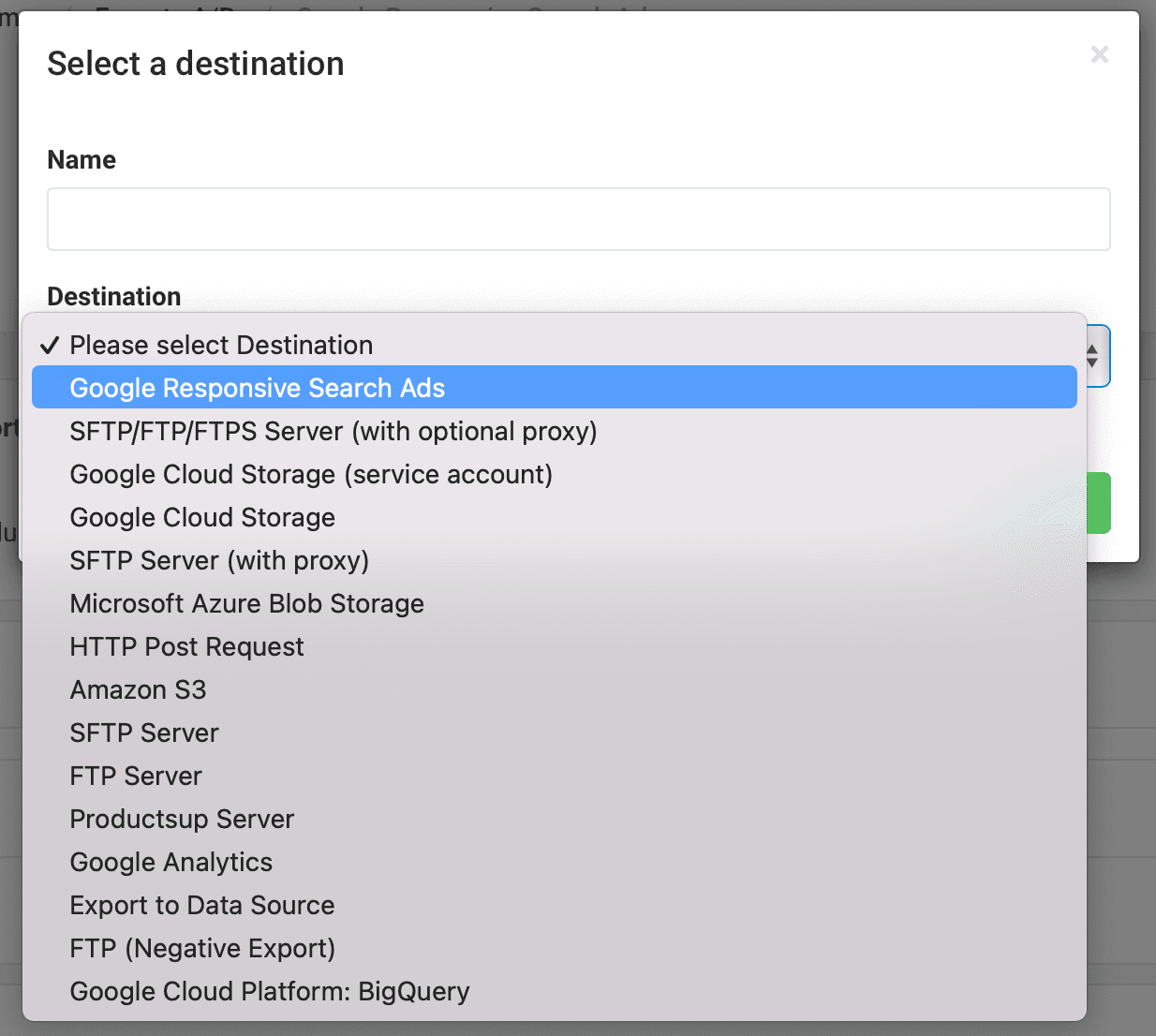
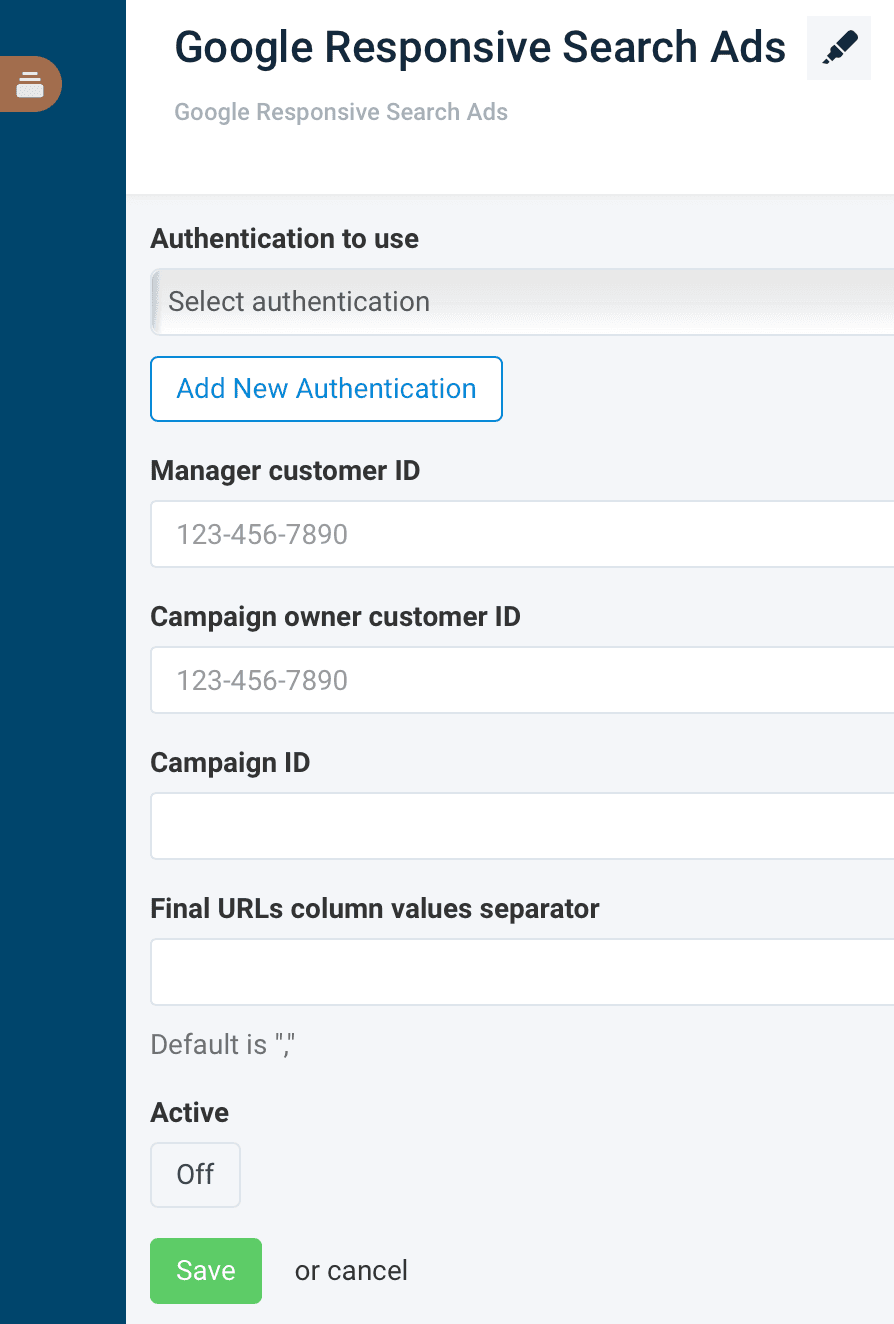
In Authentication to use, select Add New Authentication or choose Select authentication. Choose the authentication you previously set up in step 1. You can also use pre-existing export tags from another platform in Authentication. See Add OAuth authentication to external systems to set up authentication with another platform.
Now, enter the Manager customer ID and Campaign owner customer ID, and Campaign ID found in your Google Ads account.
Enter a value in Final URLs column values separator to separate URLs. The default separator is a comma (,).
Turn on the destination by switching Active to On, then select Save.
Create your campaign ads in Productsup and then perform an export to send them to Google Ads.
Creating Adgroups
You can find the different Adgroups that structure your text ads within your Google Ads account. Aside from assigning existing Adgroups to your text ads, you can dynamically create them. By populating the group_name column, the export to API creates the Adgroups if they are not yet present in Google Ads.
Populate export columns in Dataflow
Add export column fields to populate ad content, as seen in the following expanded text ad examples:
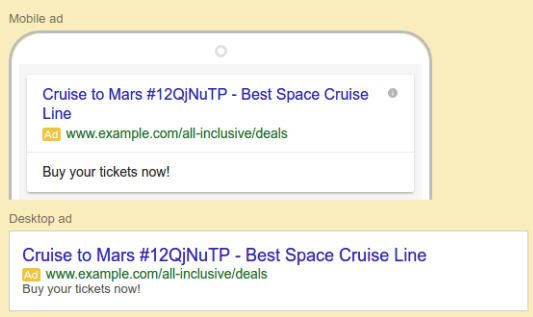
The following content was necessary to create the expanded text ad, as previously shown:
| Export Column | Content |
|---|---|
headlinePart1 | Cruise to Mars #12QjNuTP |
headlinePart2 | Best Space Cruise Line |
description | Buy your tickets now! |
finalUrls | http://www.example.com/0 |
path1 | all-inclusive |
path2 | deals |
Run log and warnings
You can open the Run log while the site is processing to get live responses from the Google Responsive Search Ads export. Select the Run log icon in the top-right corner.

The Run log can warn you about trademark violations, unapproved word usage, and syntax errors.
How is this guide?