

Add Idealo Partner API v2.0 export
Add an Idealo Partner API v2.0 export from the Productsup platform.
Introduction
This section describes how you can modify and upload your feed to the Idealo Partner API v2.0 in the Productsup platform.
See Idealo's Partner Web Service (PWS 2.0) API documentation.
In the platform, choose from three (3) Idealo Partner API v2.0 export templates to upload your feed:
- Idealo Partner API v2.0 - Price Comparison Offers export template for products available for price comparison.
- Idealo Partner API v2.0 - Offers Export template for products available for direct checkout and price comparisons on Idealo.
- Idealo Partner API v2.0 - Partial Offer Updates for updates to existing products only.
Requirements
You need to map two attribute groups in Dataflow to set up an Idealo Partner API v2.0 successfully:
paymentCosts attributes - You must provide a value for at least one (1) payment cost field and for any payment method you accept.
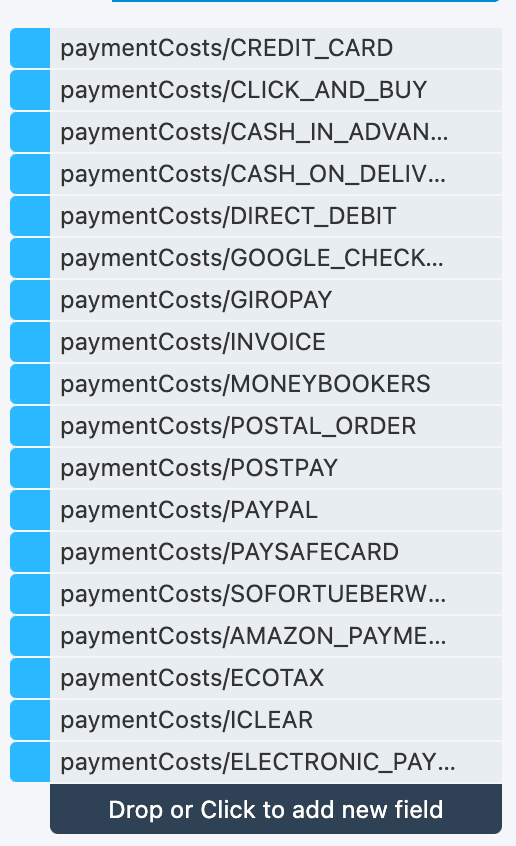
- If you do not want to associate a cost, enter
0.00.
energyLabels, referred to as EEK (Energy Efficient Class) attributes - You must have values for applicable products, for example, electronics, lighting, and tires, for these fields, as required under EU law:
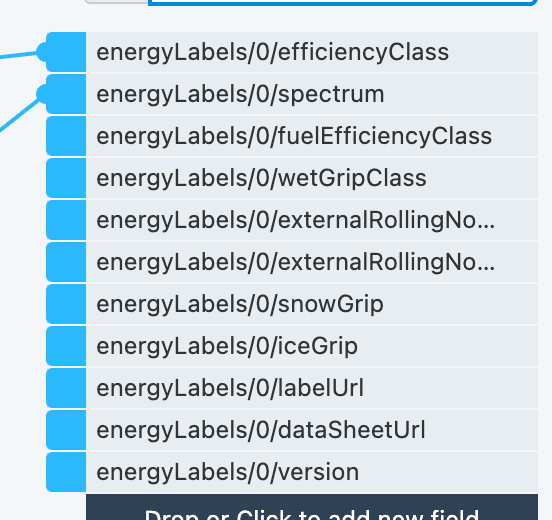 See:
See:
You can also learn more in Idealo's API documentation regarding labels. See Partner Web Service (PWS 2.0) API Documentation.
Delete products from Idealo Partner API v2.0
Productsup applies delta logic to capture products removed from import data and automatically delete them from Idealo.
Delta logic means that when you remove offers from the import data, the platform compares products to the previous run and identifies changed and deleted products. The platform changes or deletes those products from the export during the next run. Unchanged products stay without changes.
Idealo Partner API v2.0 - Price Comparison Offers
Use the Idealo Partner API v2.0 - Price Comparison Offers export template for products available for price comparison.
Go to Exports from your site’s main menu.
Select ADD EXPORT and search for Idealo Partner API v2.0 - Price Comparison Offers.
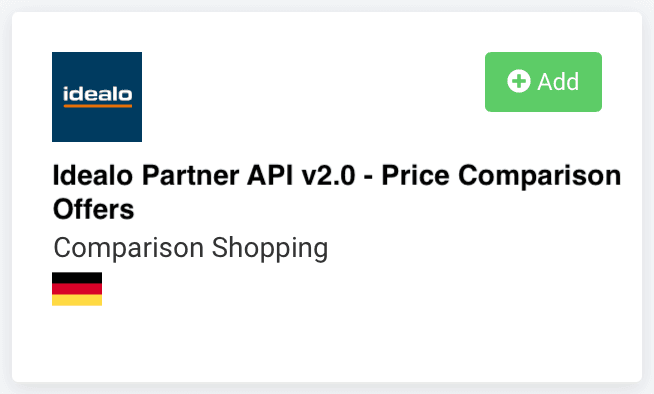
Select Add, give it a custom name if you desire, and select Add again.
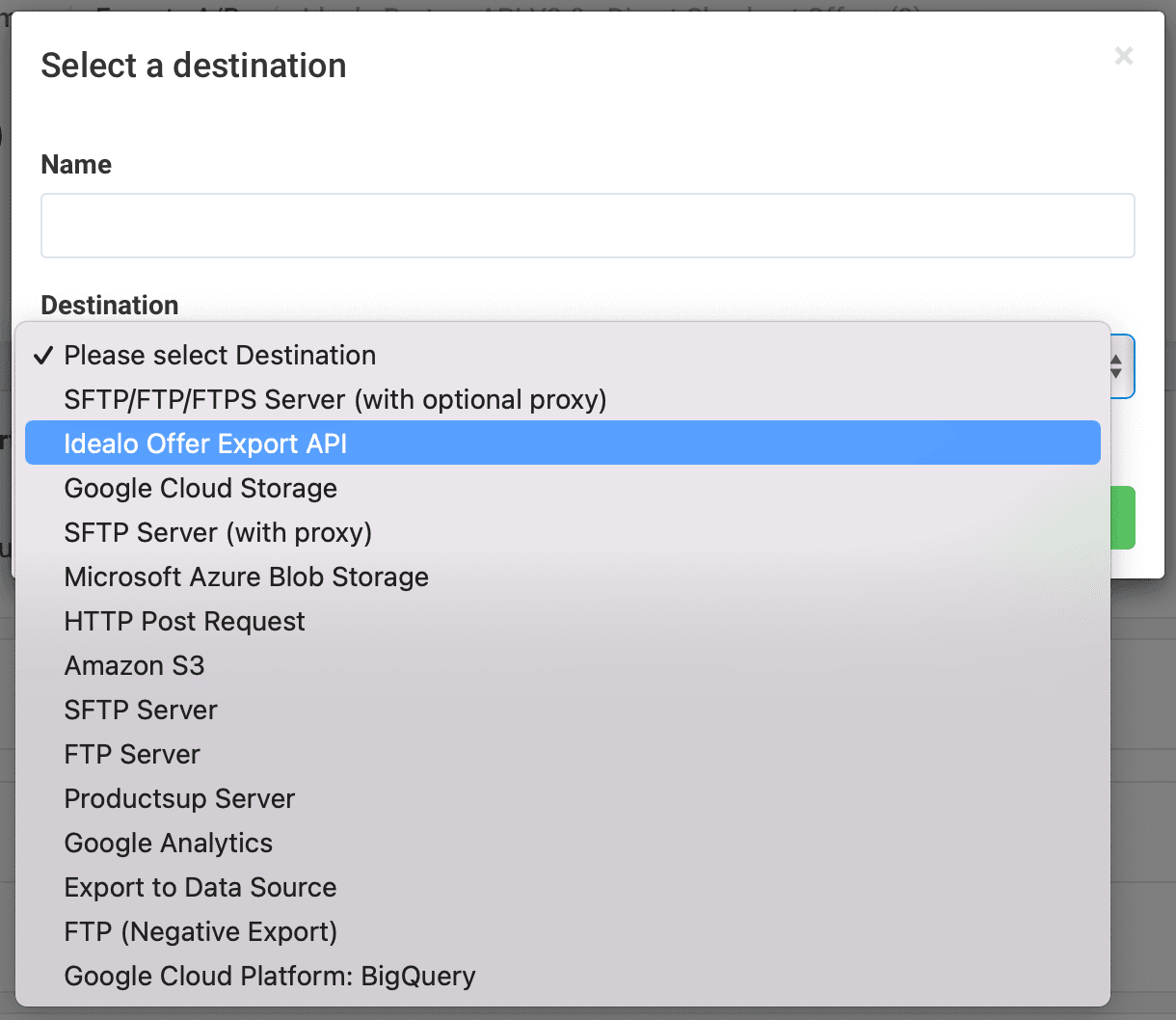
Under Destinations, select Add Destination and choose Idealo Offer Export API from the drop-down list. Optionally, you can customize the destination's description in Name.
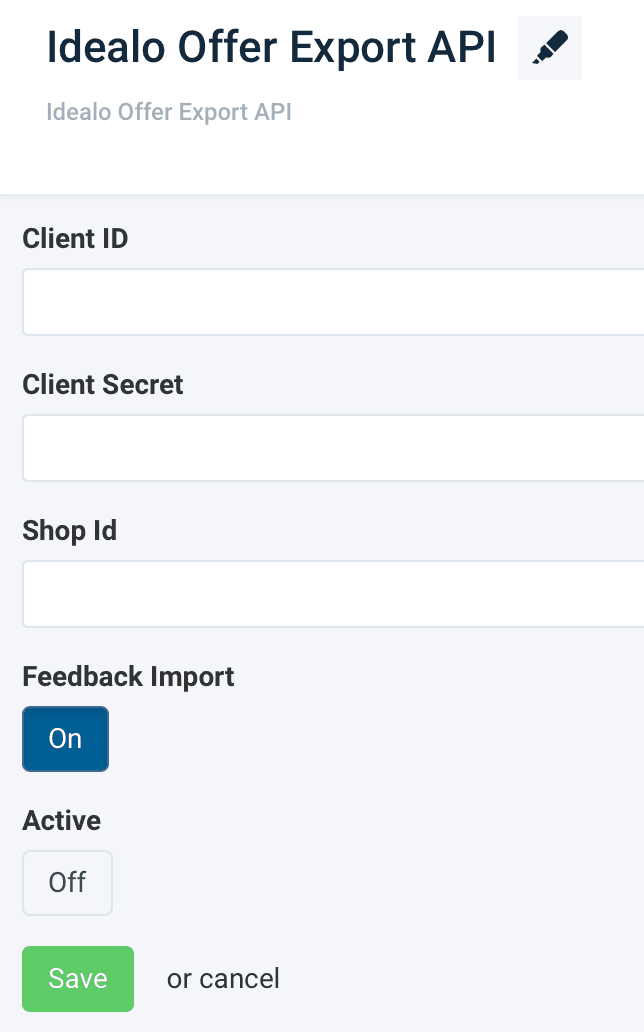
In Client ID and Client Secret, enter your Idealo client credentials.
Enter the Idealo Shop ID for shop orders.
(Optional) To continue with the feedback import option, switch Feedback import to On. Use this option if you want an error file returned to the platform once your data export finishes. The platform returns the feedback error file to your site as an additional data source with the following:
SKU: Your product ID. This field contains the default name or the name you defined during setup in step 3.**___idealo_id**: The Idealo product ID.**___idealo_status**: Product upload status. For example,OK,failed, andignored.**___idealo_status_message**: The reason why the upload failed for this product. For example,Mandatory field 'title' is missing or empty!
Turn on the destination by switching Active to On.
Select Save.
Idealo Partner API v2.0 - Offers Export
Use the Idealo Partner API v2.0 - Offers Export template for products available for direct checkout and price comparisons on Idealo.
Go to Exports from your site’s main menu.
Select ADD EXPORT and search for Idealo Partner API v2.0 - Offers Export.
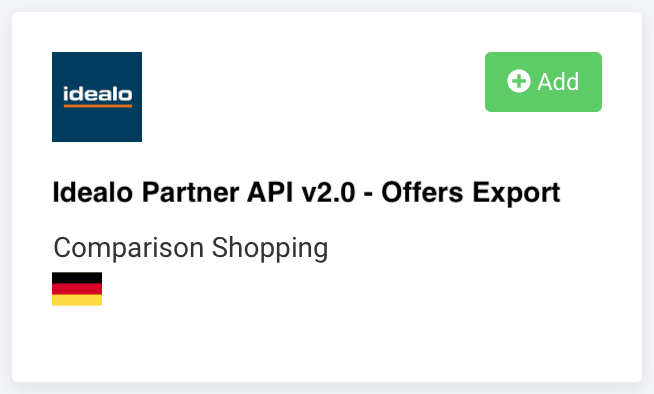
Select Add, give it a custom name if you desire, and select Add again.
Under Destinations, select Add Destination and choose Idealo Offer Export API from the drop-down list. Optionally, you can customize the destination's description in Name.
In Client ID and Client Secret, enter your Idealo client credentials.
Enter the Idealo Shop ID for shop orders.
(Optional) To continue with the feedback import option, switch Feedback import to On. Use this option if you want an error file returned to the platform once your data export finishes. The platform returns the feedback error file to your site as an additional data source with the following:
SKU: Your product ID. This field contains the default name or the name you defined during setup in step 3.**___idealo_id**: The Idealo product ID.**___idealo_status**: Product upload status. For example,OK,failed, andignored.**___idealo_status_message**: The reason why the upload failed for this product. For example,Mandatory field 'title' is missing or empty!
Turn on the destination by switching Active to On.
Select Save.
Idealo Partner API v2.0 - Partial Offer Updates
Use the Idealo Partner API v2.0 - Partial Offer Updates for updates to existing products only. This method is efficient since there are fewer attributes required to send.
Go to Exports from your site’s main menu.
Select ADD EXPORT and search for Idealo Partner API v2.0 - Partial Offer Updates.
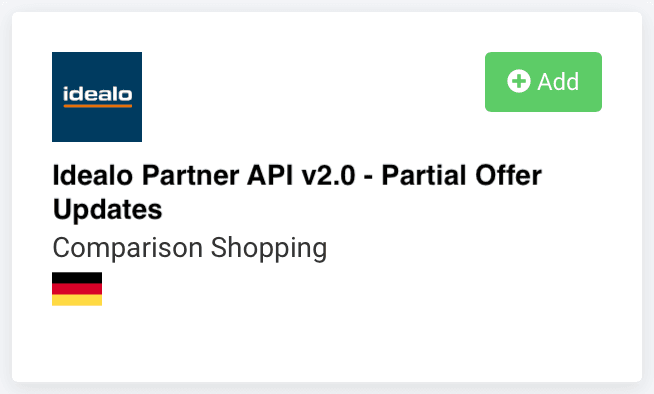
Select Add, give it a custom name if you desire, and select Add again.
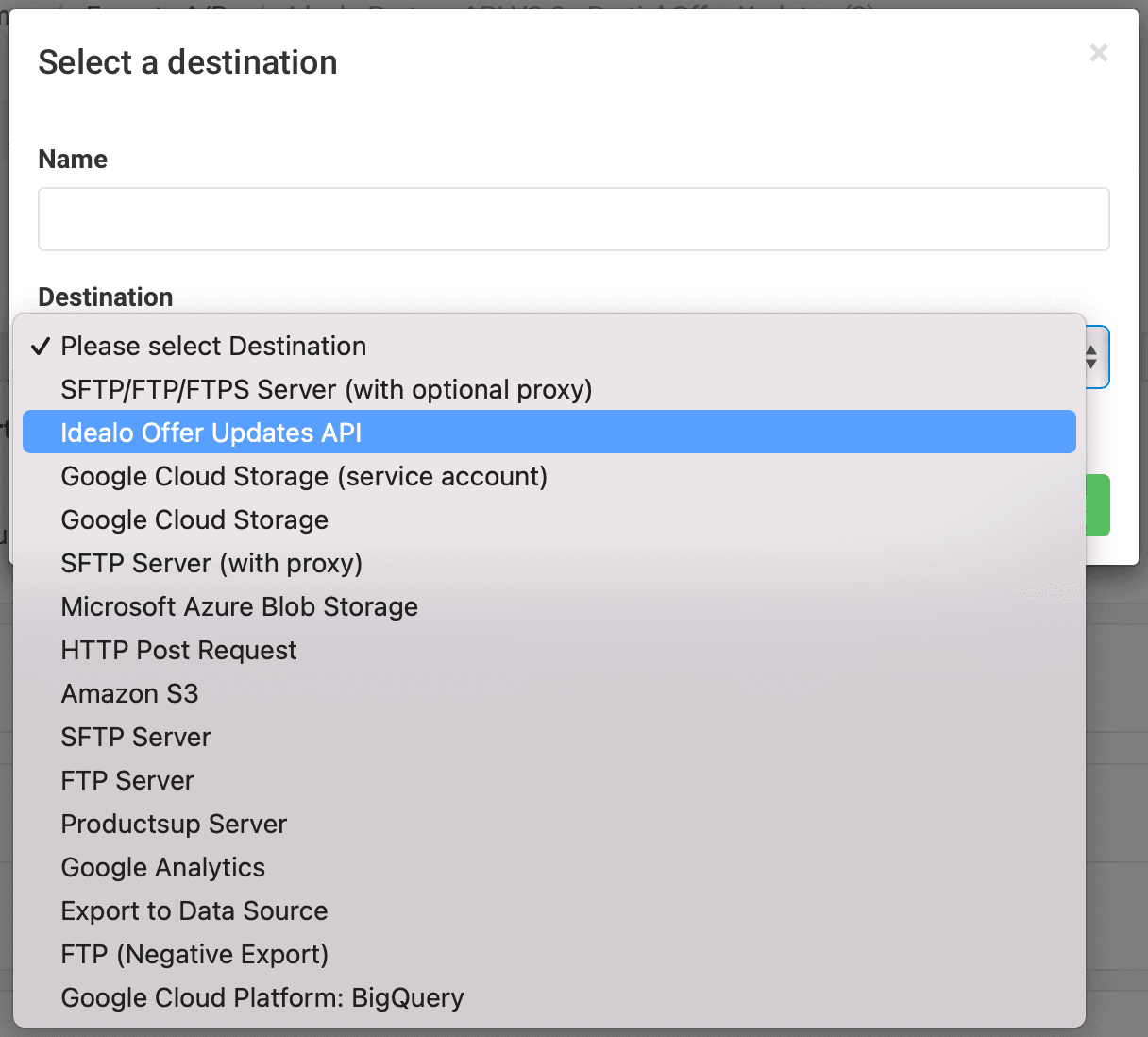
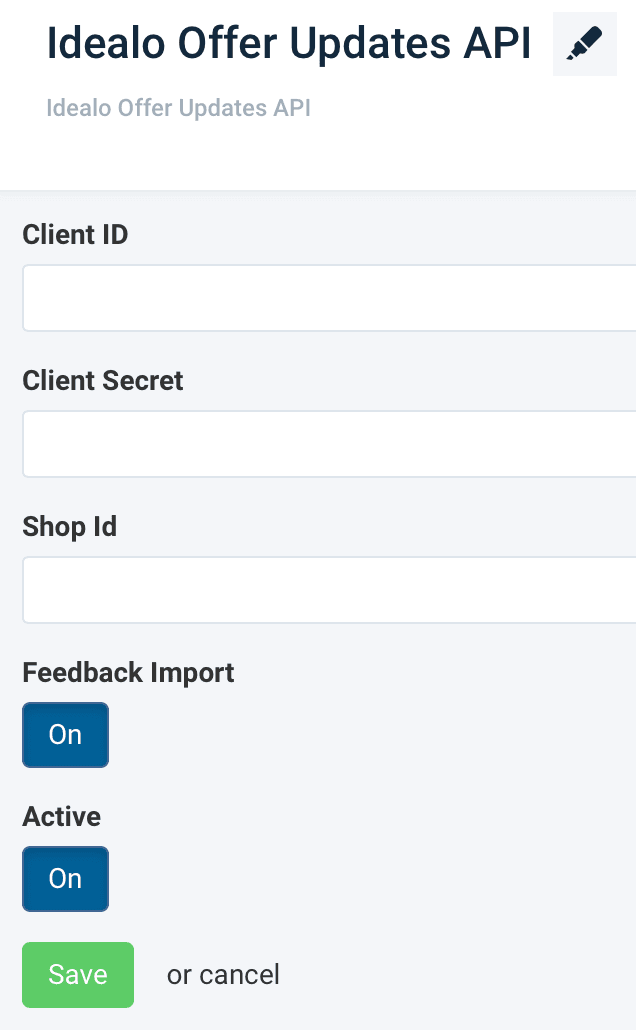
Under Destinations, select Add Destination and choose Idealo Offer Updates API from the drop-down list. Optionally, you can customize the destination's description in Name.
In Client ID and Client Secret, enter your Idealo client credentials.
Enter the Idealo Shop ID for shop orders.
(Optional) To continue with the feedback import option, switch Feedback import to On. Use this option if you want an error file returned to the platform once your data export finishes. The platform returns the feedback error file to your site as an additional data source with the following:
SKU: Your product ID. This field contains the default name or the name you defined during setup in step 3.**___idealo_id**: The Idealo product ID.**___idealo_status**: Product upload status. For example,OK,failed, andignored.**___idealo_status_message**: The reason why the upload failed for this product. For example,Mandatory field 'title' is missing or empty!
Turn on the destination by switching Active to On.
Select Save.
How is this guide?