

Add OpenAI API - Product Feed export
Add the OpenAI API - Product Feed export in Productsup to format your product data according to OpenAI's specifications and seamlessly transmit it via API.
ChatGPT serves millions of users who actively seek product recommendations and shopping guidance. By integrating your product feed with OpenAI, you position your catalog to reach high-intent shoppers as they research purchase decisions.
The OpenAI API - Product Feed export lets you format your data according to OpenAI's specifications and seamlessly transmit it via the API connection. This ensures product data is structured correctly for optimal indexing and discoverability within ChatGPT's shopping experiences.
Don't mix the OpenAI API - Product Feed export with the OpenAI export. These are two different exports.
Prerequisites
To export your data with the OpenAI API - Product Feed export, you need:
- Have an account in OpenAI.
- Get the OpenAI API Key and Feed ID from OpenAI. OpenAI assigns a Feed ID when you send a sample feed to OpenAI.
During initial onboarding, OpenAI may ask ContainerID for the feed submitted via Productsup. Contact support@productsup.com to request this ID.
Set up OpenAI API - Product Feed export
Go to Exports from your site's main menu, and select Add export.
Search for OpenAI API - Product Feed, hover over it, and select Add.

On the Exports page, select the name of the added export to set it up.
Select Add Destination.
Select OpenAI API - Product Feed from the Destination dropdown, and choose Save.
Enter your OpenAI key and feed ID in OpenAI API Key and Feed Id.
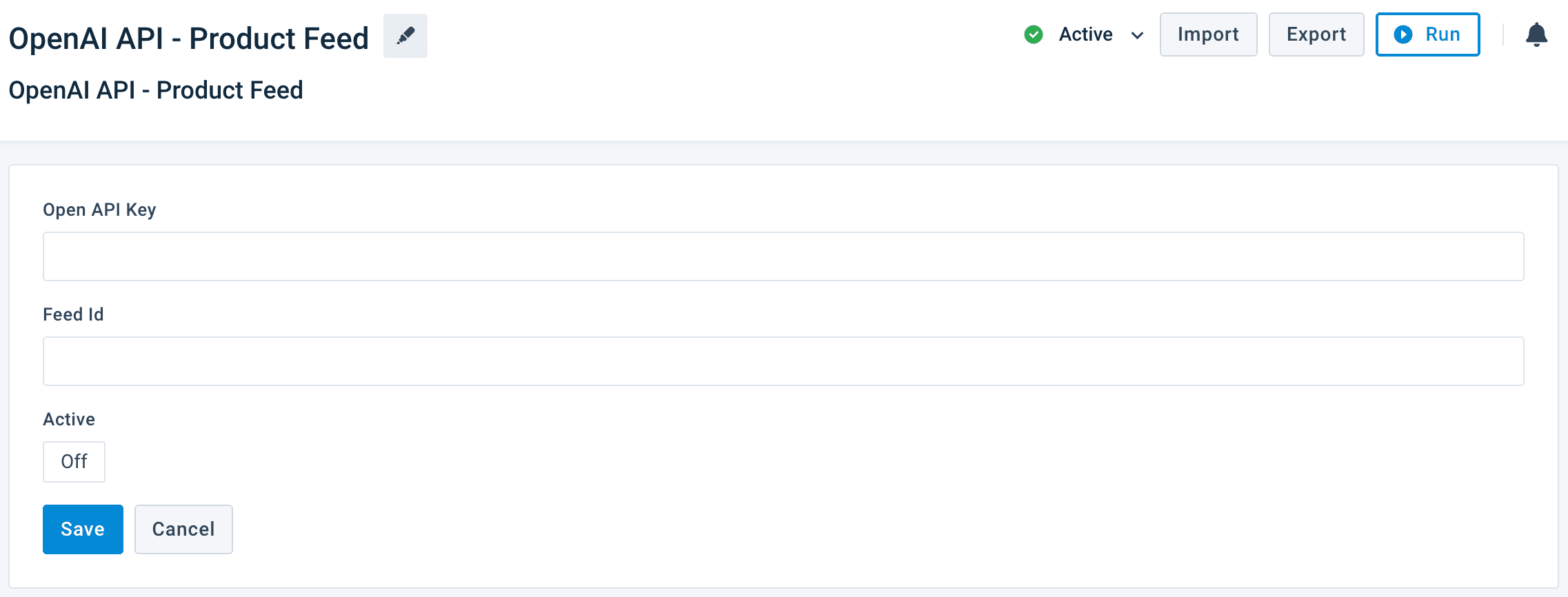
Toggle Active to On to activate the destination.
Select Save.
Go to Dataflow from the site's main menu and choose the added export from the dropdown in the toolbar.
Map the attributes from import to export. See Use Dataflow to map your attributes from import to export for more information.
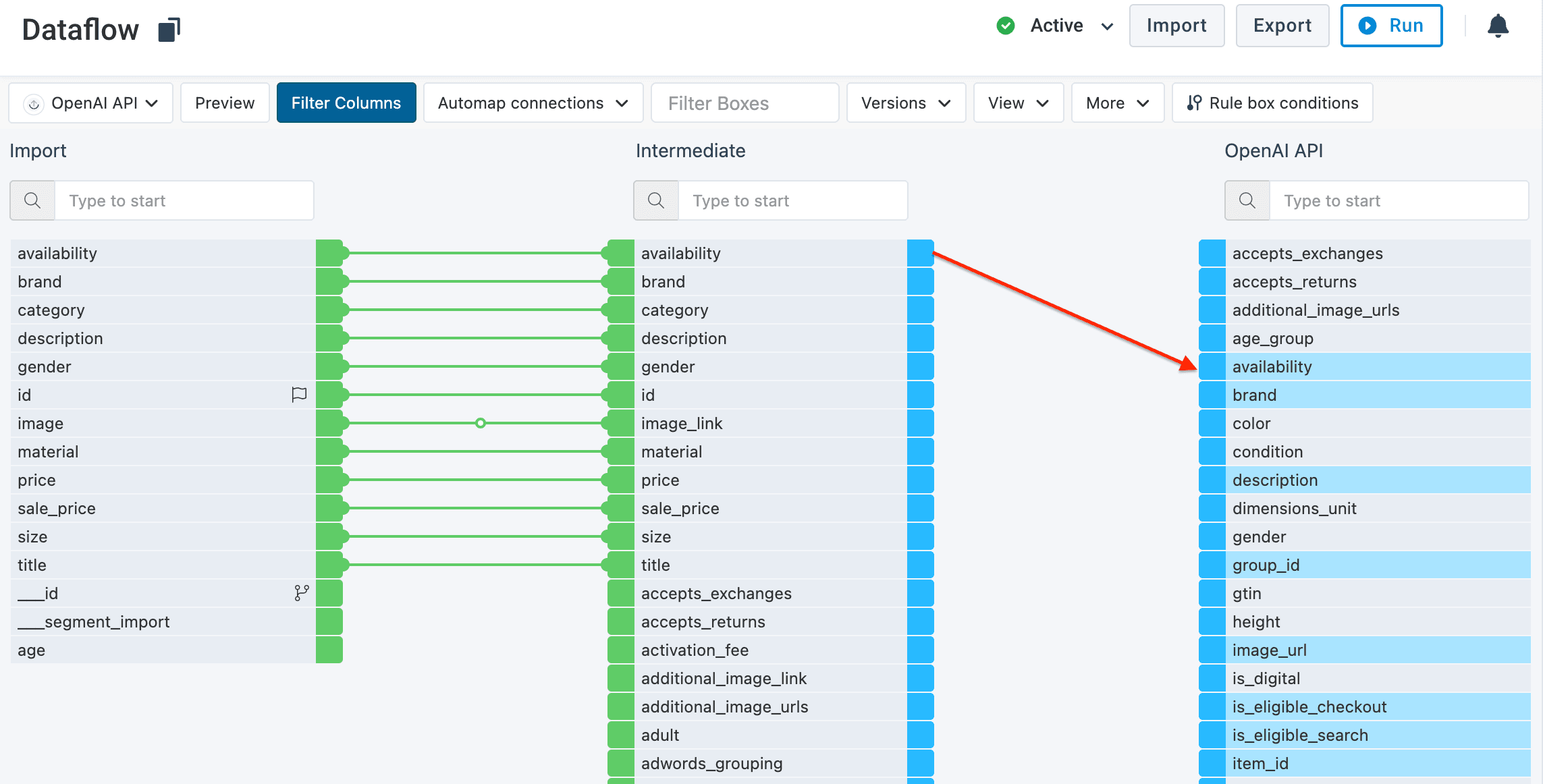 For certain attributes, the naming doesn't match in the export stage:
- Map group_id to the same attribute as item_id.
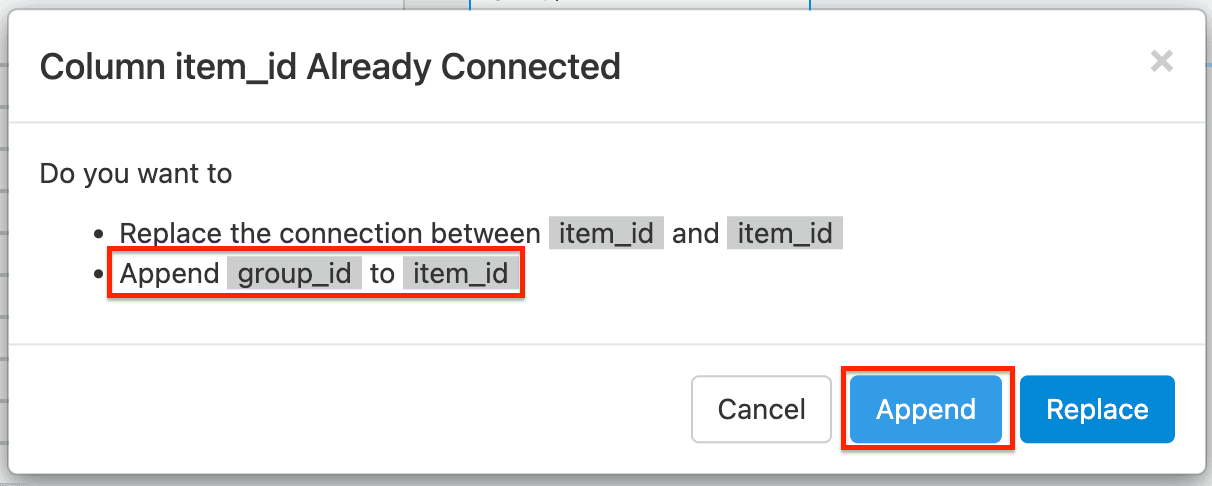
- Leave the following attributes empty if the products don't have variants:
- variant_dict.color
- variant_dict.custom_variant1_category
- variant_dict.custom_variant1_option
- variant_dict.custom_variant2_category
- variant_dict.custom_variant2_option
- variant_dict.custom_variant3_category
- variant_dict.custom_variant3_option
- variant_dict.gender
- variant_dict.size
- variant_dict.size_system
If your data is ready, select Run or Export in the upper right corner of the page. If you don't want to run the entire site, including all active exports set up in it, you can go to Exports, select the added OpenAI API export, and then choose Export this export.
How is this guide?
Add Meta Shops Ads exports to sell your products on Meta
Send your product and order data to Meta Shops Ads and import order data from Meta into Productsup.
Add TikTok Product Catalog export
Add the TikTok Product Catalog to push your product catalog for use with Dynamic Product Ads data in your TikTok marketing channels in Productsup.