

Set up the Amazon Product Export
Create and update product listings on Amazon for Seller Central and Vendor Central accounts via the Selling Partner API.
The Amazon Product Export lets you create new product listings on Amazon and update existing ones directly from Productsup. It works for both Seller Central (third-party sellers) and Vendor Central (first-party vendors) accounts, and connects via Amazon's Selling Partner API (SP-API).
Prerequisites
Before setting up the Amazon Product Export, confirm the following:
- You have an active Amazon Seller Central or Vendor Central account.
- You have your Seller ID (Seller Central) or Vendor Code (Vendor Central). You can find these in the left-hand navigation or the product listing view in your Amazon account.
- The marketplace you want to export to is available in the export list. See Add the export.
- Your Amazon account is in good health: valid payment method, correct VAT or tax details, and no outstanding compliance issues.
Caution
If authentication fails during setup, the most common cause is an issue with your Amazon account — for example, an expired payment method or missing VAT details — and not a Productsup error. Check your Amazon account health before raising a support request.
Add the export
Go to Exports from your site's main menu and select ADD EXPORT.
Search for the marketplace you want to export to. Exports follow the naming format:
- Amazon Seller Central – Product Creation (XX) for Seller Central accounts
- Amazon Vendor Central – Product Creation (XX) for Vendor Central accounts
Replace XX with the country code of your target marketplace, for example US, DE, or AU.
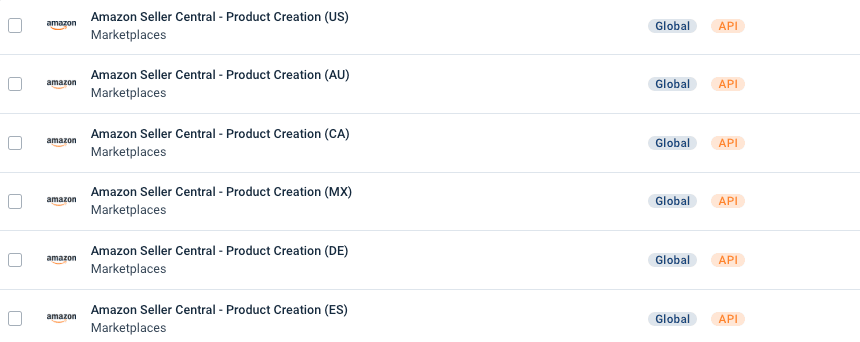
If the marketplace you need is not in the list, that region is not yet supported. Contact your Customer Success Manager or support@productsup.com to request it.
Hover over the export and select Add.
Configure the destination
On the Exports page, select the name of the export you added.
Select Add Destination. From the dropdown, choose the destination that matches your account type:
- Amazon Seller Central Products for Seller Central accounts
- Amazon Vendor Central Products for Vendor Central accounts
Give the destination a name and select Save.
In Authentication, select an existing authentication or select Add New Authentication to connect your Amazon account via OAuth.
Selecting Add New Authentication redirects you to Amazon to complete the authorisation. Once authorised, Amazon redirects you back to Productsup automatically.
In Marketplace ID, select the country or region you are exporting to. This must match the export you selected in Add the export.
If you are using a Seller Central account, enter your Amazon Seller ID in Seller ID.
If you are using a Vendor Central account, enter your Amazon Vendor Code in Vendor Code.
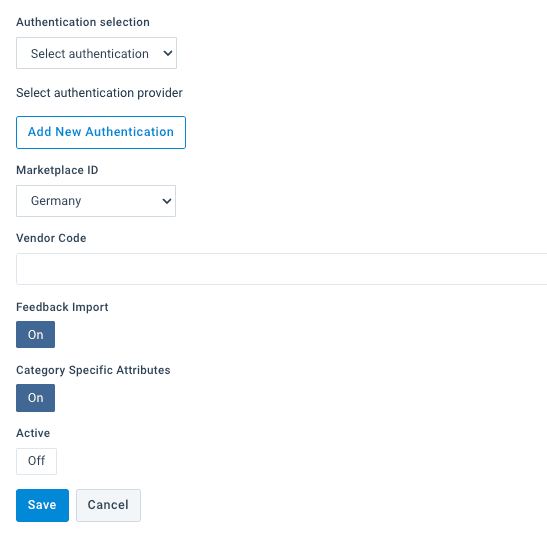
Switch Feedback Import to On. This is required to receive error feedback from Amazon after each export run.
Keep Category Specific Attributes set to On.
Switch Active to On and select Save.
Set up category mapping
You must map your attributes to the Amazon categories using a Classification Mapping list to let Productsup know which category-specific attributes should be available to you.
Go to Lists from your site's main menu and select ADD LIST.
Select Classification Mapping and select Next.
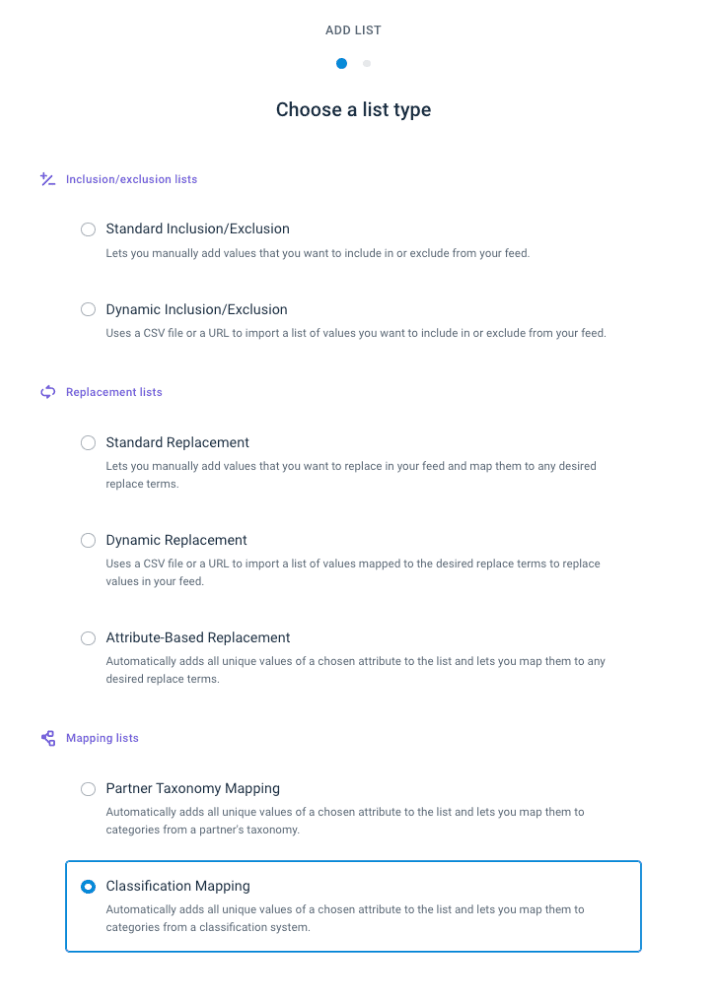
In Name, give the list a descriptive name, for example Amazon classification mapping.
In Classification, select the Amazon export you added in Add the export, for example Amazon Seller Central – Product Creation (DE).
In Stage, select whether your category data comes from the Import or Intermediate stage.
In Attribute, select the attribute in your data that contains your product categories.
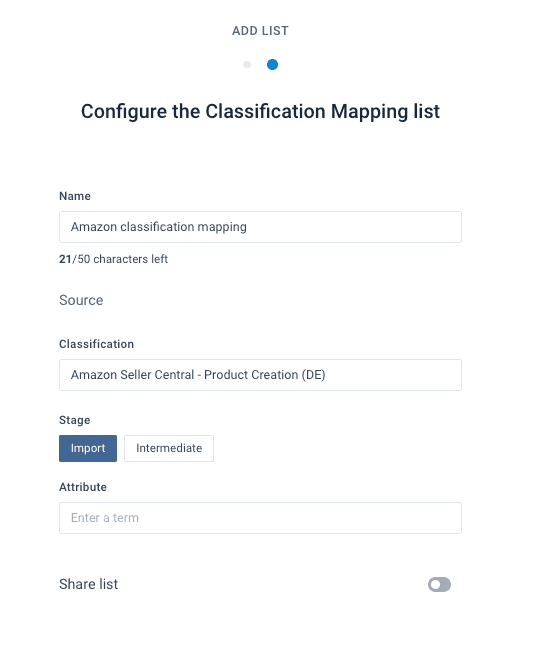
Select Add.
Map the category values pre-populated in the list to the corresponding Amazon categories.
Map attributes in Dataflow
Go to Dataflow from your site's main menu and select your Amazon export in the dropdown on the left.
Map your category attribute to __category_path in the intermediate stage, and apply the Classification Mapping rule box using the list you created in Set up category mapping.
Select Run in the top-right corner of your view.
Caution
This run will fail — this is expected. The platform uses this run to retrieve the category-specific attribute (CSA) templates from Amazon for the product types in your data. After the run completes, the Classifications dropdown appears in the Dataflow toolbar.
Use the Classifications dropdown to switch between CSA sub-channels and map the attributes for each product type. Some attributes only appear for specific sub-channels — these are the category-specific ones.
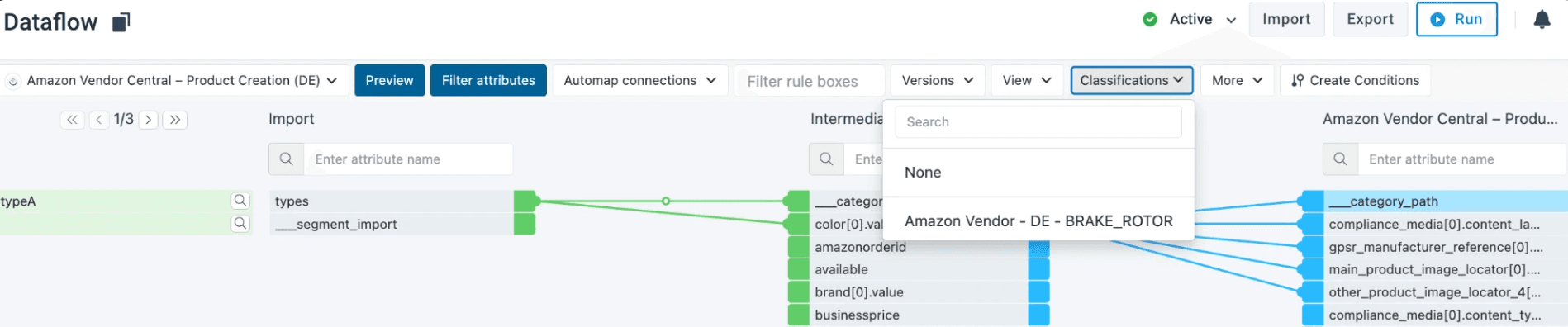
Once all attributes are mapped across all sub-channels, check your export readiness before going live. See Check your export readiness.
Check your export readiness
Use the Readiness analysis tool in Data View to verify your data meets Amazon's requirements before going live.
Go to Data View from your site's main menu and select your Amazon export from the dropdown on the top left.
Select the Overview dropdown and choose Readiness.
Review the readiness score and use rule boxes to correct any flagged issues. Aim for 100% readiness before running a live export.
Monitor results after submission
Amazon validates your products in stages — first when you submit them, then through asynchronous compliance checks — before they ever reach a buyer. Productsup does not just send your product data to Amazon; it also brings back the issues Amazon raises during and after submission. That means you can spot errors early, act on them in time, and keep your products live.
Channel Feedback for Amazon
Channel Feedback is your one-stop dashboard for monitoring product feed issues on Amazon. Instead of hunting through raw error logs, you get a structured, prioritised view of everything Amazon has accepted, rejected, or flagged — all in one place.
Channel Feedback for the Amazon export requires activation per site. Contact your Customer Success Manager or support@productsup.com with your site ID to request it.
See everything at a glance
The Channel Feedback History page records every feed submission from the past 30 days. Open any export to see what happened, compare results over time, and track your progress as you resolve issues. Feedback from both product submission and compliance checks appears here.
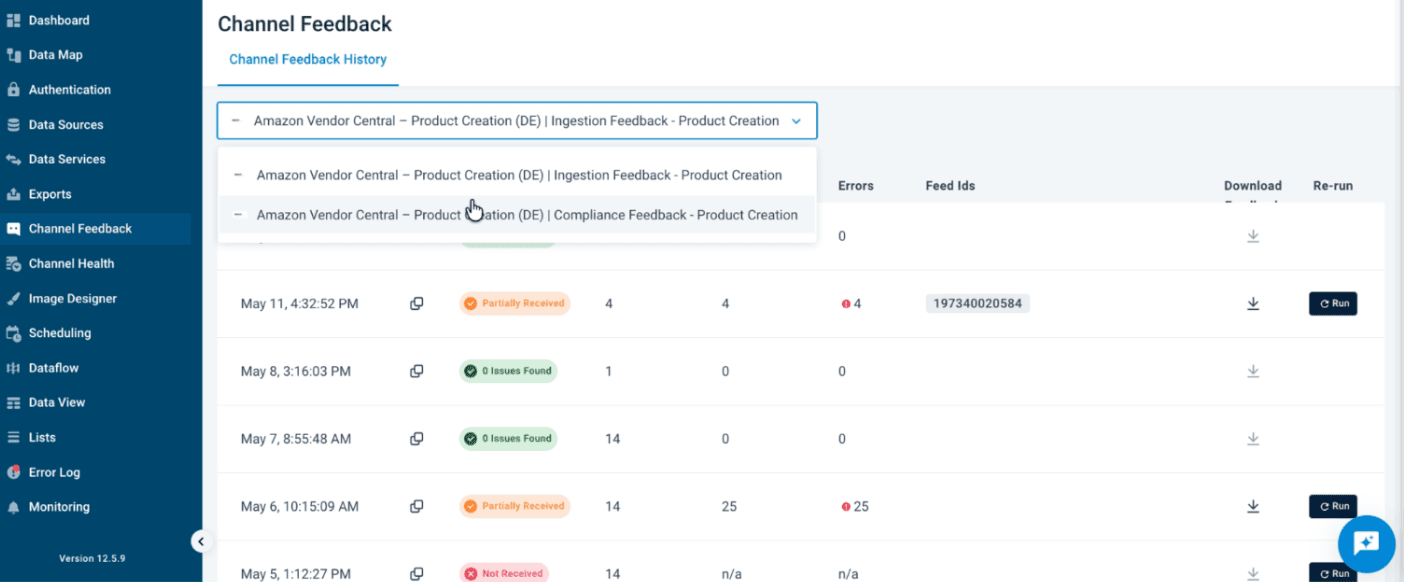
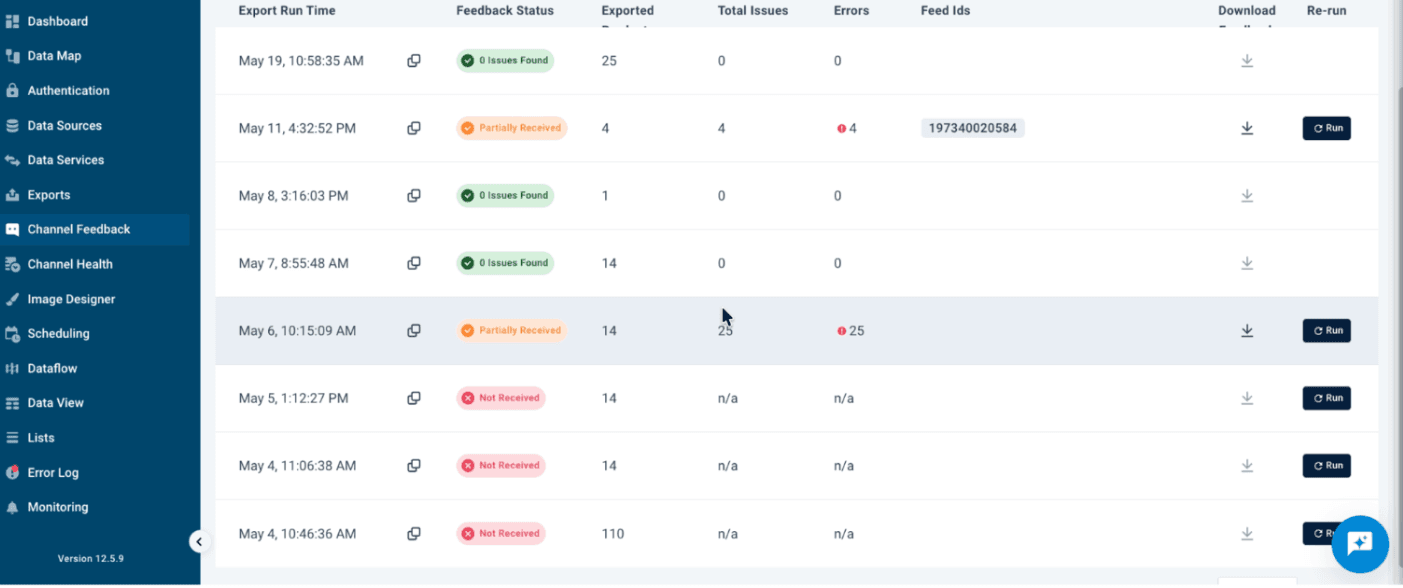
The following statuses may appear in the history list:
| Status | What it means |
|---|---|
| Received | Feedback successfully synced — ready to review |
| Partially Received | Some feedback synced, but the report may be incomplete |
| Not Received | Sync failed — raise a support ticket for investigation |
| Awaiting | Sync in progress — check back in a few minutes |
| 0 issues found | No errors or warnings reported for this run |
You can download the raw feedback as a CSV file from the history list.
Get to the bottom of every issue
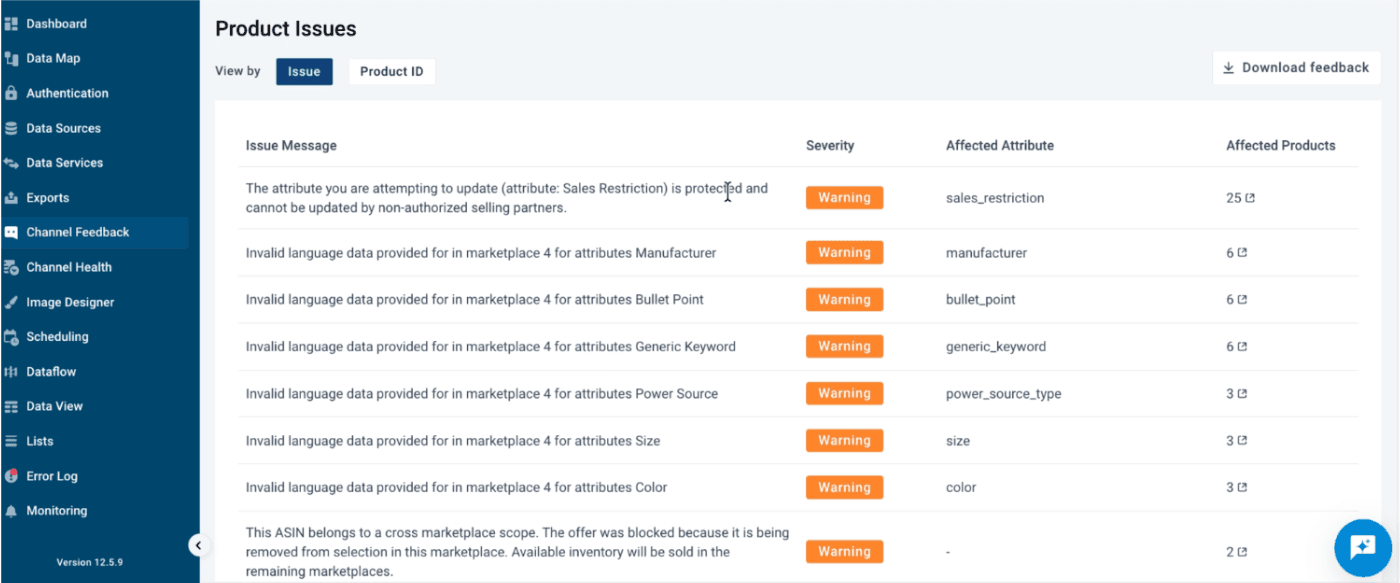
Select any export in the history list to open the Channel Feedback Detail page, which shows exactly what Amazon reported back. For each issue, you can see:
- How serious it is — whether it is a critical error blocking your products or a suggestion for improvement.
- Which field has the problem — price, description, image, and so on, identified immediately.
- How many products are affected — so you can gauge the impact at a glance.
- What to do about it — clear error messages that make sense.
You can switch between two views to investigate issues the way that suits you:
- View by issue — feedback grouped by error message, with the affected attribute, severity, and the number of products affected by each issue.
- View by product — feedback grouped by product ID, so you can see every issue tied to a single item.
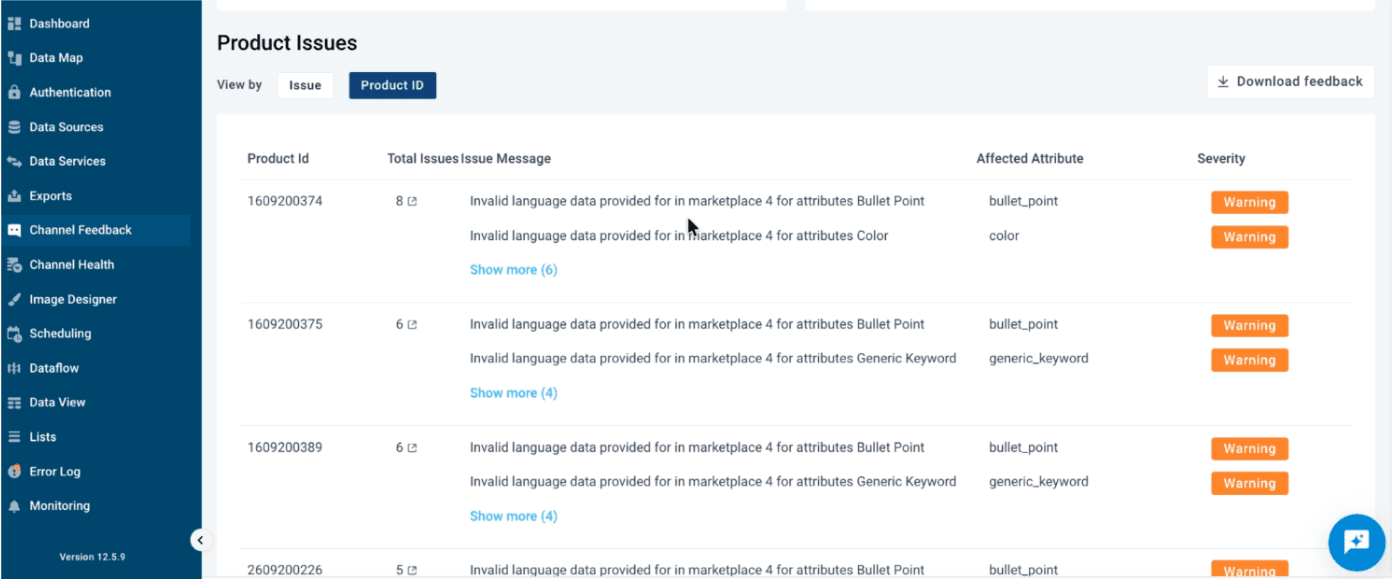
Jump straight to the problem products
When you spot an issue, select Affected Products to open a filtered Data View showing only the products with that specific problem — with the affected field already highlighted. You can see exactly which products need attention and act on them immediately, without searching through your entire catalog manually.
Caution
Channel Feedback reflects Amazon's synchronous validation only. A product accepted at this stage is not guaranteed to be live on Amazon. See Check for downstream issues to catch issues that arise after acceptance.
Check for downstream issues
Amazon runs a second round of validation hours after the initial acceptance. Issues at this stage do not appear in Channel Feedback.
To check for downstream issues, set up an Amazon Product Import datasource using the Listings API source. The platform pulls your products back from Amazon with any errors or warnings flagged after acceptance — equivalent to the product issues view in Seller Central or Vendor Central.
The Listings API supports up to 1,000 products per call. Use SKU or severity filters to narrow results when working with large catalogs.
If the Listings API and the Amazon UI show conflicting results, treat the Amazon UI as the source of truth. Discrepancies between the two are an Amazon-side issue.
As an alternative, log in to your Seller Central or Vendor Central account directly and review product issues there.
Common issues
| Issue | Likely cause | What to do |
|---|---|---|
| Authentication fails | Amazon account health issue | Check your Amazon account for expired payment details, missing VAT, or compliance flags |
| Products rejected in Channel Feedback | Incorrect or missing attribute values | Review the error messages, correct the data, and run the export again |
| Product accepted but not visible on Amazon | Amazon downstream async validation failed | Check via the Product Import (Listings API) datasource or Seller/Vendor Central |
| Product not in Channel Feedback and not on Amazon | Submission may have failed silently | Contact support@productsup.com with the affected SKU(s) |
| Marketplace or product type missing from the export list | Not yet supported | Contact your Customer Success Manager or support@productsup.com to request it |
How is this guide?