

Brands
An overview of the Brands
Introduction
Brands is the functionality that gives an overview of all brands added to the platform for your organization. To find a brand, type in the name of the brand in the Search field at the top of the page.
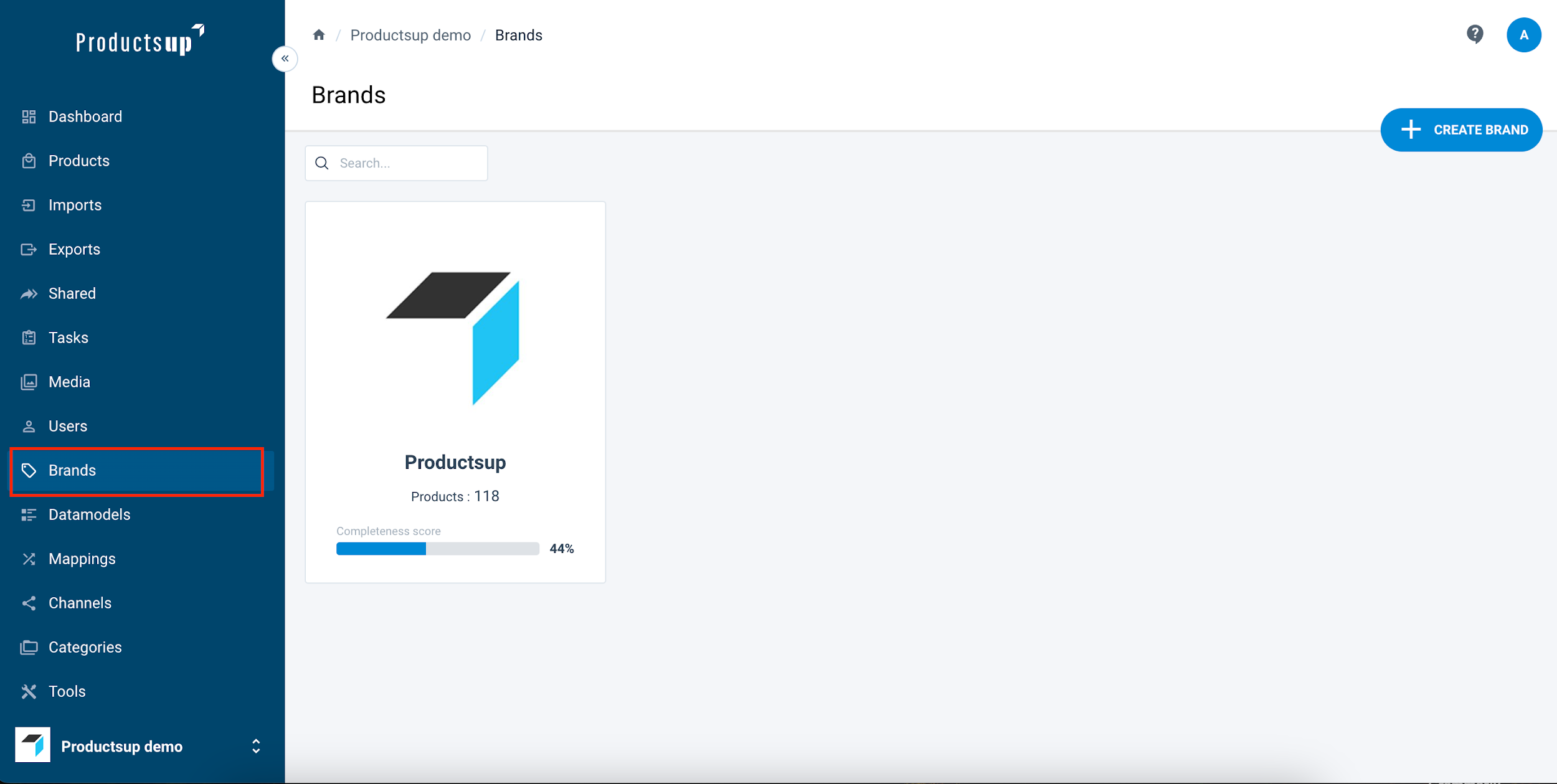
In the Brands page, you can see all the registered brands available to your organization. Every brand is represented by a tile. Use the page selection field at the bottom of the page to scroll through different pages of registered brands.
Every brand tile shows:
- Brand image thumbnail. If an image is not selected as a thumbnail, you can see an image placeholder.
- Brand name
- Number of products registered under this brand
- Progress bar showing the completion percentage of all the products registered under the brand.
Create or edit a brand
To create a new brand, select Create brand in the top right corner of the page.
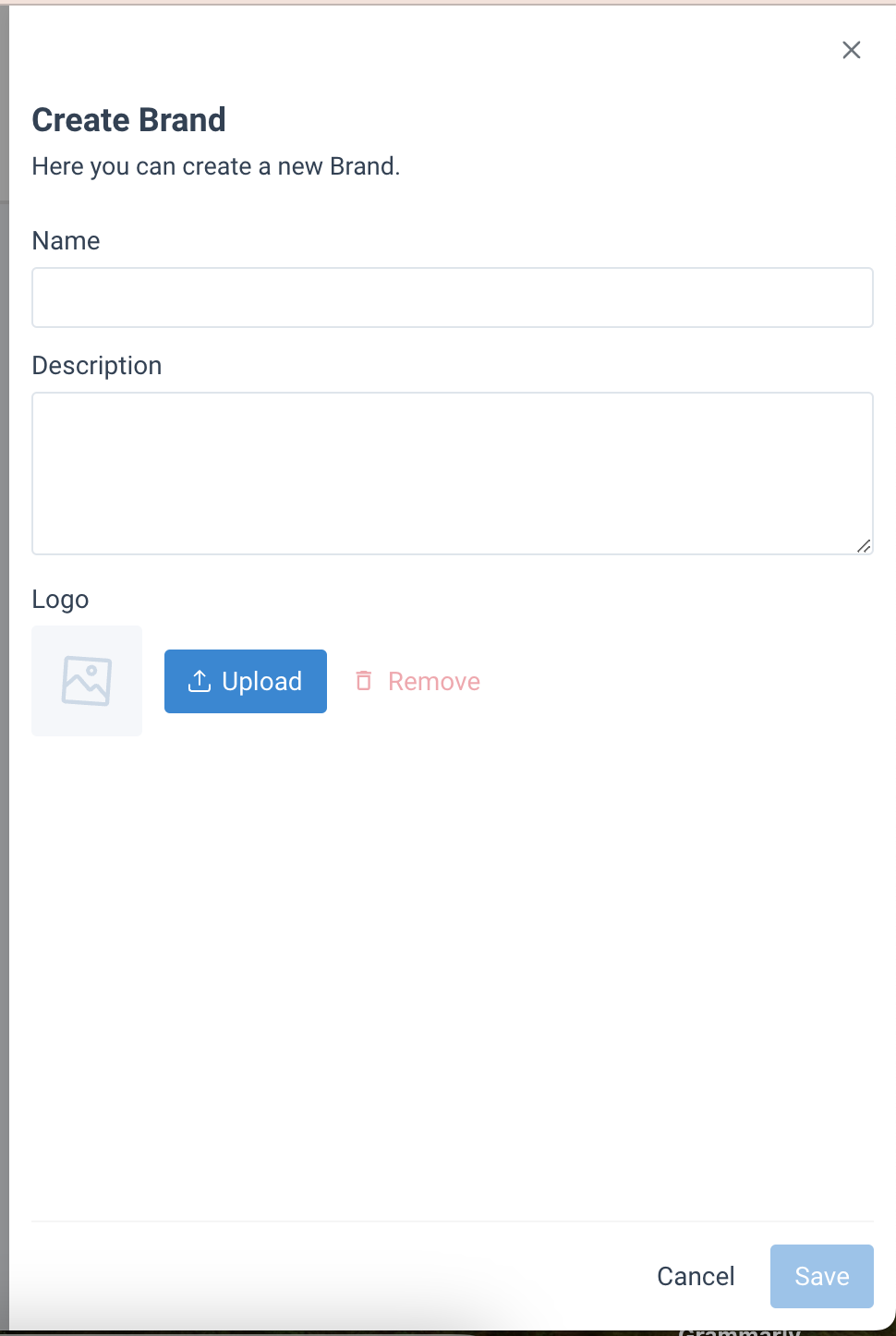
Enter the following fields of these pages are as follows:
- In Name, enter the name of the brand.
- In Description, enter the information about the brand and its products.
- Select Upload to upload a logo from your computer. The Remove icon lets you delete the uploaded image.
- Select Save to save your edited or newly created brand, and you will then find it on the Brands page.
To edit the information of a brand, select the brand tile, edit the information, and save it. To delete an existing brand, select Delete at the bottom of the sidebar.
How is this guide?